
1. Introduction
This manual provides essential instructions for setting up, operating, and maintaining your ZIOVO Z118 Android 13 Tablet. Please read this manual thoroughly before using your device to ensure proper function and longevity.

Image 1.1: ZIOVO Z118 Tablet and included accessories. This image displays the tablet, a protective case, a charger, and a USB-C cable.
The ZIOVO Z118 tablet features a 10-inch display, runs on Android 13, and is powered by an octa-core processor. It offers 14GB RAM and 128GB internal storage, expandable up to 1TB with a TF card. Connectivity options include 2.4G and 5G Wi-Fi, and Bluetooth 5.0. The device is equipped with an 8000mAh battery for extended use.
2. Package Contents
Upon opening the package, verify that all items are present and in good condition:
- ZIOVO Z118 Android 13 Tablet
- USB Type-C Charging Cable
- Power Adapter
- Protective Case (may vary by package)
- Screen Protector (pre-applied or included separately)
- User Manual (this document)
3. Device Layout and Components
Familiarize yourself with the physical components and ports of your ZIOVO Z118 tablet.

Image 3.1: Diagram illustrating the ZIOVO Z118 tablet's external features. Labels include Micro SD card slot, Earphone Port, Rear Camera (8MP), Power ON/OFF button, Volume+ button, Volume- button, Reset Hole, Type-C Charging Port, Dual Speakers, and Front Camera (5MP).
- Micro SD Slot: For expanding storage with a TF (Micro SD) card.
- Earphone Port: Standard 3.5mm jack for headphones.
- Rear Camera (8MP): Main camera for photos and videos.
- Power ON/OFF Button: Press and hold to power on/off or restart.
- Volume Buttons (+/-): Adjust the device's audio volume.
- Reset Hole: A small pinhole for force restarting the device if it becomes unresponsive. Use a thin pin to press gently.
- Type-C Charging Port: Connect the USB-C cable and power adapter for charging.
- Dual Speakers: Provide audio output.
- Front Camera (5MP): For video calls and selfies.
4. Setup
4.1 Initial Charging
- Connect the USB Type-C cable to the tablet's charging port.
- Connect the other end of the USB cable to the power adapter.
- Plug the power adapter into a wall outlet.
- Allow the tablet to charge until the battery is full before first use. The battery indicator on the screen will show charging status.

Image 4.1: The tablet connected to a charger, displaying battery charge levels and estimated charging times. The image indicates 2 hours for 50%, 4 hours for 80%, and 7 hours for 100% charge.
4.2 Powering On/Off
- To Power On: Press and hold the Power ON/OFF button until the ZIOVO logo appears on the screen.
- To Power Off: Press and hold the Power ON/OFF button until a menu appears. Select "Power off" and confirm.
- To Restart: Press and hold the Power ON/OFF button until a menu appears. Select "Restart" and confirm.
4.3 Initial Setup Wizard
The first time you power on the tablet, you will be guided through an initial setup process:
- Select your preferred language.
- Connect to a Wi-Fi network (see Section 5.2 for details).
- Accept the terms and conditions.
- Sign in with your Google account or create a new one. This is necessary to download apps from the Google Play Store.
- Set up screen lock (PIN, pattern, or password) for security.
- Review and adjust other settings as prompted.
5. Operating Instructions
5.1 Basic Navigation
- Touch: Tap an icon or option to select it.
- Touch and Hold: Press and hold an item to access additional options or move it.
- Swipe: Drag your finger across the screen to scroll or navigate between screens.
- Pinch: Use two fingers to zoom in or out on images and web pages.
- Home Button: Returns you to the home screen.
- Back Button: Returns to the previous screen.
- Recent Apps Button: Displays recently used applications.
5.2 Wi-Fi Connection
The ZIOVO Z118 supports both 2.4GHz and 5GHz Wi-Fi networks for stable and fast internet access.

Image 5.1: The tablet highlighting its dual-band 2.4GHz and 5GHz Wi-Fi capabilities, along with Bluetooth 5.0.
- Go to Settings > Network & internet > Wi-Fi.
- Toggle Wi-Fi On.
- Select your desired network from the list of available networks.
- Enter the network password if prompted, then tap Connect.
5.3 Bluetooth Connection
Connect your tablet to Bluetooth devices such as headphones, speakers, or keyboards.
- Go to Settings > Connected devices > Bluetooth.
- Toggle Bluetooth On.
- Ensure your Bluetooth device is in pairing mode.
- Select your device from the list of available devices and follow any on-screen prompts to complete pairing.
5.4 Camera Usage
The tablet features a 5MP front camera and an 8MP rear camera.
- Open the Camera application.
- Tap the shutter button to take a photo.
- Tap the video icon to record a video.
- Use the switch camera icon to toggle between the front and rear cameras.
5.5 Storage Management
Your tablet comes with 128GB of internal storage and supports expansion up to 1TB via a Micro SD (TF) card.

Image 5.2: The tablet showcasing its 14GB RAM and 128GB ROM, with an option for 1TB TF card expansion. This illustrates the tablet's ample storage capabilities for various applications and media.
- Inserting a Micro SD Card: Locate the Micro SD slot (refer to Image 3.1). Gently insert the Micro SD card with the gold contacts facing down until it clicks into place.
- Removing a Micro SD Card: First, unmount the SD card from Settings > Storage. Then, gently press the card until it pops out.
- Managing Files: Use the pre-installed "Files" app to browse, move, and delete files on both internal storage and the SD card.
5.6 Google Play Store
Access millions of applications, games, movies, and books through the Google Play Store.
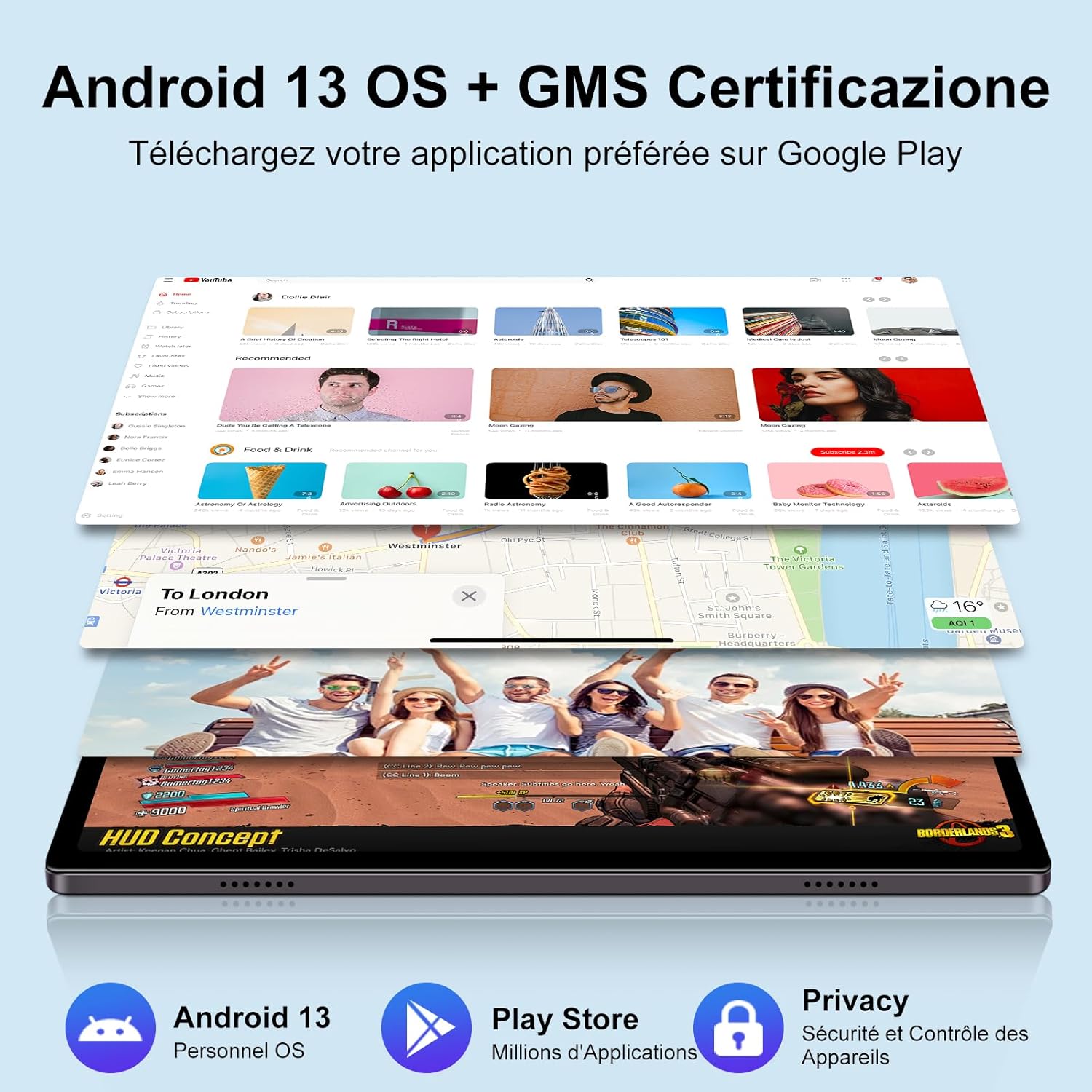
Image 5.3: The tablet displaying the Google Play Store interface, highlighting the Android 13 operating system and GMS certification. This image also shows various apps like YouTube, Google Maps, and games, emphasizing the tablet's versatility.
- Ensure you are connected to Wi-Fi and logged into your Google account.
- Tap the Play Store icon on your home screen or app drawer.
- Browse or search for apps.
- Tap Install to download and install an application.
6. Maintenance
6.1 Cleaning the Tablet
- Use a soft, lint-free cloth to gently wipe the screen and body of the tablet.
- For stubborn smudges, slightly dampen the cloth with water or a screen-cleaning solution. Avoid harsh chemicals.
- Do not spray liquids directly onto the tablet.
6.2 Battery Care
- Avoid fully discharging the battery frequently.
- Do not expose the tablet to extreme temperatures (hot or cold), as this can degrade battery life.
- Use only the provided charger or a certified compatible charger.
6.3 Software Updates
Regularly check for and install software updates to ensure optimal performance, security, and access to new features.
- Go to Settings > System > System update.
- Follow the on-screen instructions to check for and install any available updates.
7. Troubleshooting
| Problem | Possible Solution |
|---|---|
| Tablet does not power on. | Ensure the battery is charged. Connect the charger and wait a few minutes before attempting to power on again. |
| Tablet is unresponsive. | Press and hold the Power ON/OFF button for about 10-15 seconds to force a restart. If this fails, use a thin pin to press the Reset Hole (refer to Image 3.1). |
| Cannot connect to Wi-Fi. | Check if Wi-Fi is enabled in Settings. Ensure the password is correct. Restart your Wi-Fi router. Try connecting to a different network if available. |
| Apps are crashing or running slowly. | Close unnecessary background apps. Clear app cache (Settings > Apps > [App Name] > Storage & cache > Clear cache). Ensure sufficient storage space is available. Restart the tablet. |
| Battery drains quickly. | Reduce screen brightness. Close unused apps. Turn off Wi-Fi/Bluetooth when not in use. Check battery usage in Settings to identify power-hungry apps. |
8. Specifications
Below are the detailed technical specifications for the ZIOVO Z118 Tablet:
| Feature | Detail |
|---|---|
| Brand | ZIOVO |
| Model Number | Z118 |
| Operating System | Android 13 |
| CPU | Octa-Core Processor (T310), 2.0 GHz |
| RAM | 14GB (8GB + 6GB virtual) |
| Internal Storage (ROM) | 128GB |
| Expandable Storage | Up to 1TB via Micro SD (TF) card |
| Screen Size | 10.1 Inches |
| Display Resolution | 1280 x 800 IPS HD |
| Rear Camera | 8MP |
| Front Camera | 5MP |
| Battery Capacity | 8000mAh |
| Wi-Fi Connectivity | 2.4G + 5G (802.11a/b/g/n/ac) |
| Bluetooth | Bluetooth 5.0 |
| Charging Port | USB Type-C |
| Dimensions (L x W x H) | 24.3 x 16 x 1 cm |
| Weight | 470 Grams |
| Special Features | High capacity RAM, expandable storage, desktop widget settings |

Image 8.1: A visual summary of the ZIOVO Z118 tablet's key features, including 10.1-inch display, Android 13, Octa-Core T310 processor, 2.4G+5G WiFi, 14(8+6)GB RAM, 128GB ROM, 1280*800 IPS display, Dual Stereo Speakers, 5MP+8MP Camera, and Google Map support.
9. Warranty and Support
Your ZIOVO Z118 Tablet comes with a 1+1 year warranty. This includes a 2-year return and exchange service for non-human damage factors.
For any questions or issues regarding your tablet, before or after purchase, please do not hesitate to contact ZIOVO customer service through your Amazon order page. Our professional technical team and customer service staff are available to assist you and provide comprehensive support for your tablet.
To activate your product warranty, please contact our staff immediately after receiving your tablet.

Image 9.1: A representation of the ZIOVO customer support team, emphasizing their availability to assist users.


