
Important Information
Upon receiving your ZIOVO Z118 tablet, you may notice a protective film already applied to the screen. This film is intended to prevent damage during transit. If you observe any scratches on the screen, these are likely on this initial protective film. Please peel off this original film and apply the new screen protector included in the box for optimal screen protection.

This image shows the ZIOVO Z118 tablet in a protective case with a detachable keyboard, alongside a wireless mouse, charger, USB cable, and screen protector. The tablet screen highlights its key features: 10.1-inch FHD display, 14GB RAM, 128GB ROM, Android 13 operating system, and 5G WiFi connectivity.
1. Setup Guide
1.1 Unboxing and Package Contents
Carefully unpack your ZIOVO Z118 tablet and verify all included items:
- ZIOVO Z118 Android 13 Tablet
- Detachable Bluetooth Keyboard
- Wireless Mouse
- Protective Foldable Case
- Screen Protector
- USB Type-C Charging Cable
- Power Adapter
- User Manual (this document)
1.2 Initial Charging
Before first use, fully charge the tablet. Connect the USB Type-C cable to the tablet's charging port and the power adapter, then plug it into a wall outlet. The charging indicator will show progress.
1.3 Power On/Off
- To Power On: Press and hold the Power ON/OFF button (located on the side) until the ZIOVO logo appears on the screen.
- To Power Off: Press and hold the Power ON/OFF button, then select 'Power off' from the options that appear on the screen.
- To Restart: Press and hold the Power ON/OFF button, then select 'Restart' from the options.
1.4 Initial Setup
Upon first power-on, the tablet will guide you through the initial setup process:
- Select your preferred language.
- Connect to a Wi-Fi network.
- Sign in with your Google Account or create a new one. This is necessary to access the Google Play Store and other Google services.
- Review and accept the terms and conditions.
- Set up screen lock (PIN, pattern, password).
1.5 Applying the Screen Protector
Carefully clean the tablet screen with a microfiber cloth. Align the new screen protector with the tablet's display, ensuring no dust particles are present. Gently apply the protector, smoothing out any air bubbles from the center outwards.
1.6 Connecting Bluetooth Accessories (Keyboard & Mouse)
To connect the included Bluetooth keyboard and mouse:
- Ensure the keyboard and mouse are powered on and in pairing mode (refer to their individual instructions if needed).
- On your tablet, go to Settings > Connected devices > Bluetooth.
- Turn Bluetooth on.
- The tablet will scan for available devices. Select the keyboard or mouse from the list to pair. Follow any on-screen prompts.

A detailed diagram of the ZIOVO Z118 tablet's physical layout, indicating the locations of the Micro SD card slot, earphone port, rear camera, power ON/OFF button, volume buttons, reset hole, Type-C charging port, dual speakers, and front camera.
2. Operating Instructions
2.1 Android 13 Basics
Your ZIOVO Z118 tablet runs on Android 13, offering an intuitive user experience. Key navigation gestures and features include:
- Home Screen: Swipe left or right to navigate between home screens. Long-press on an empty area to customize widgets, wallpapers, and settings.
- Notifications & Quick Settings: Swipe down from the top of the screen to access notifications and quick settings toggles (Wi-Fi, Bluetooth, brightness, etc.).
- App Drawer: Swipe up from the bottom of the screen to view all installed applications.
- Multitasking: Swipe up from the bottom and hold to see recently opened apps.
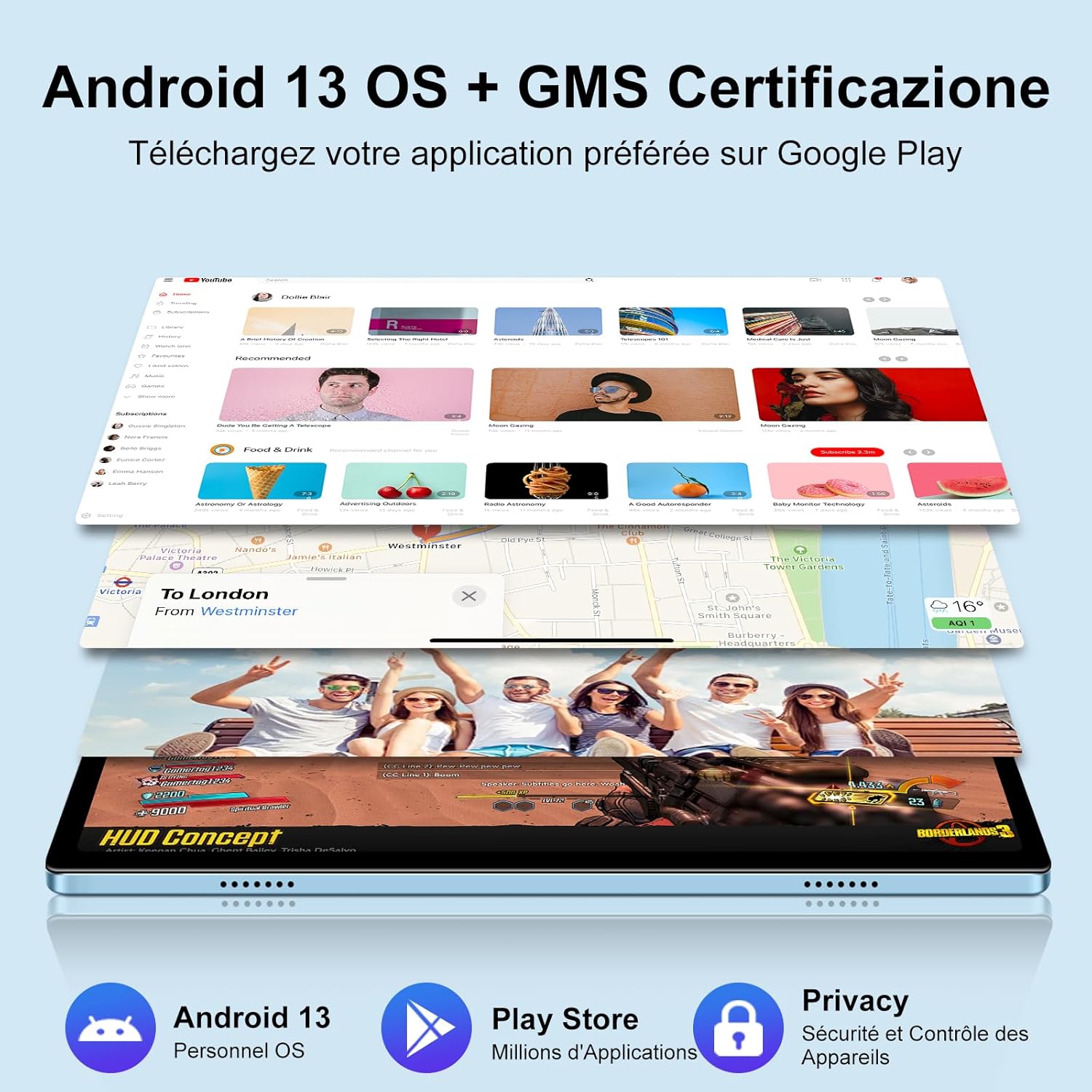
The tablet screen displays the Google Play Store interface, demonstrating access to various applications. Below, a Google Maps view is shown, indicating the tablet's GMS certification and full access to Google services.
2.2 Wi-Fi Connectivity
The tablet supports both 2.4GHz and 5GHz Wi-Fi bands for stable and fast internet access.
- Go to Settings > Network & internet > Internet.
- Ensure Wi-Fi is turned on.
- Select your desired Wi-Fi network from the list.
- Enter the password if prompted and tap Connect.

A visual representation of the tablet's dual-band 2.4GHz and 5GHz WiFi capabilities, along with Bluetooth 5.0, indicating fast and stable wireless connections.
2.3 Bluetooth 5.0
Connect to various Bluetooth devices such as headphones, speakers, or other peripherals.
- Go to Settings > Connected devices > Bluetooth.
- Turn Bluetooth on.
- Ensure your Bluetooth device is in pairing mode.
- Select the device from the 'Available devices' list to pair.
2.4 Google Play Store
The tablet is GMS certified, providing full access to the Google Play Store for downloading apps, games, movies, and books.
- Tap the Play Store icon on your home screen or app drawer.
- Search for desired applications.
- Tap Install to download and install apps.
2.5 Storage Management
The tablet comes with 128GB of internal storage and supports expansion up to 1TB via a MicroSD/TF card.
- Inserting a MicroSD/TF Card: Locate the Micro SD card slot on the side of the tablet. Gently insert the card until it clicks into place.
- Managing Storage: Go to Settings > Storage to view storage usage and manage files.
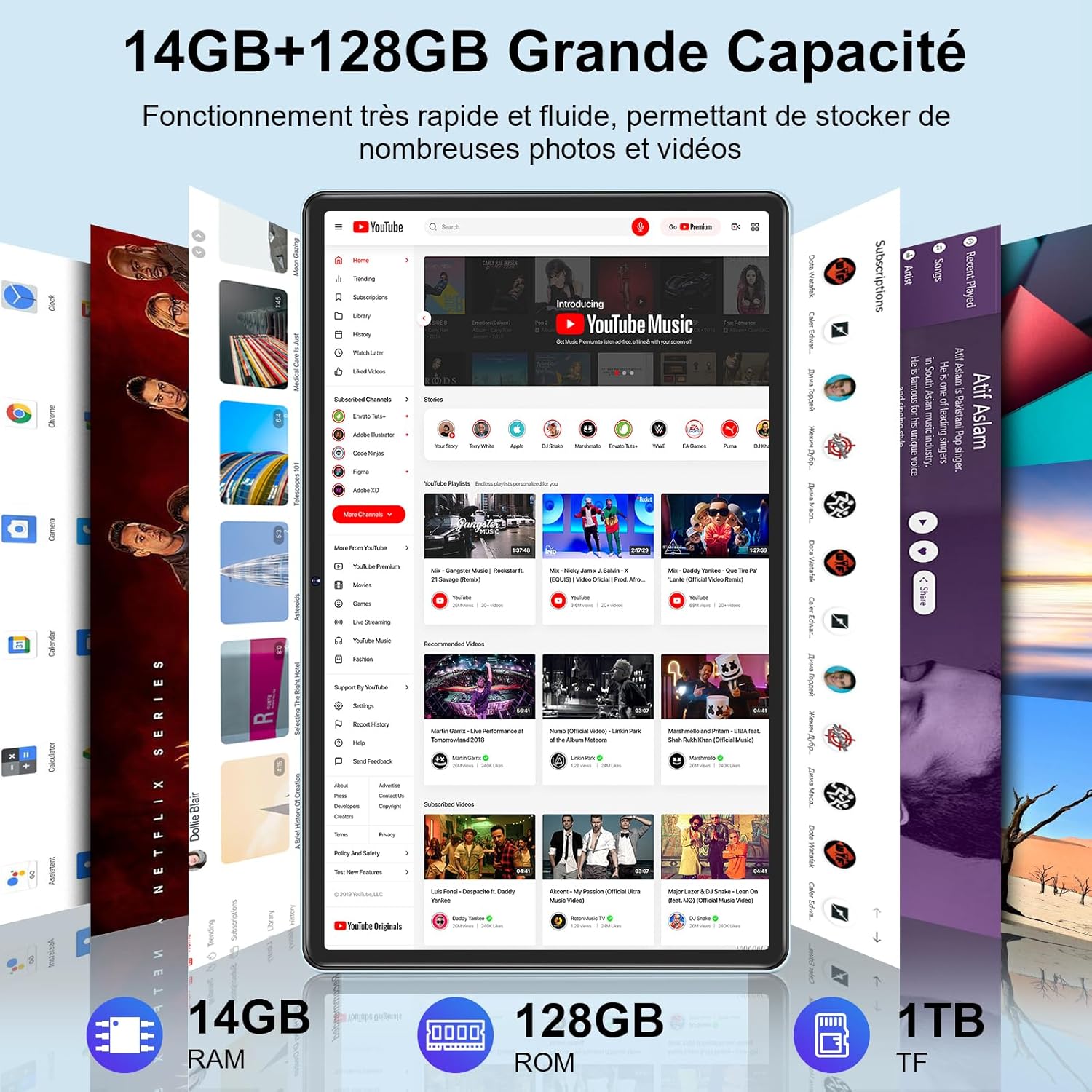
Multiple tablet screens are shown, featuring popular streaming applications like YouTube and Netflix, illustrating the tablet's multimedia capabilities. Icons at the bottom highlight 14GB RAM, 128GB ROM, and 1TB TF card expansion support.
2.6 Camera Usage
The tablet features a 5MP front camera and an 8MP rear camera.
- Open the Camera app.
- Tap the camera icon to switch between front and rear cameras.
- Tap the shutter button to take photos or start/stop video recording.
2.7 Audio and Multimedia
The tablet is equipped with dual stereo speakers and a 3.5mm headphone jack.
- Connect headphones to the 3.5mm earphone port for private listening.
- Adjust volume using the Volume+ and Volume- buttons on the side of the tablet.
2.8 GPS Functionality
With AGPS support, the tablet can utilize GPS and Google Maps for navigation and location services.
- Ensure location services are enabled in Settings > Location.
- Open Google Maps or other navigation apps to use GPS.
2.9 Wireless Screen Casting
Mirror your tablet's screen to a compatible larger display wirelessly.
- Ensure your external display supports screen mirroring or casting.
- Go to Settings > Connected devices > Connection preferences > Cast.
- Select your compatible display from the list to begin casting.

This composite image shows the 8MP rear and 5MP front cameras, the tablet's wireless screen casting capability to a larger display, a user enjoying audio through headphones via the 3.5mm jack, and the tablet positioned in its foldable protective case with a keyboard.
3. Maintenance
3.1 Battery Care
To maximize the lifespan and performance of your 8000mAh battery:
- Avoid extreme temperatures.
- Do not let the battery completely drain frequently.
- Use the original charger and cable provided.
- For long-term storage, charge the tablet to about 50-60% and power it off.

A graphic illustrating the 8000mAh battery's long life, showing charging progress and estimated usage times for music, video, calls, and gaming.
3.2 Cleaning the Device
- Use a soft, lint-free cloth to clean the screen and body.
- For stubborn smudges, slightly dampen the cloth with water or a screen cleaner.
- Avoid using harsh chemicals or abrasive materials.
3.3 Software Updates
Regularly check for and install software updates to ensure optimal performance, security, and access to new features.
- Go to Settings > System > System update.
- Follow the on-screen instructions to download and install any available updates.
3.4 Storage Optimization
To maintain smooth performance, periodically manage your tablet's storage:
- Uninstall unused apps.
- Clear cache data for apps in Settings > Apps > [App Name] > Storage & cache.
- Transfer large files (photos, videos) to a MicroSD card or cloud storage.
4. Troubleshooting
This section addresses common issues you might encounter with your ZIOVO Z118 tablet.
4.1 Device Not Turning On
- Ensure the battery is charged. Connect the charger and wait a few minutes before attempting to power on.
- Press and hold the Power ON/OFF button for at least 10-15 seconds to force a restart.
4.2 Wi-Fi Connectivity Issues
- Toggle Wi-Fi off and on in Quick Settings.
- Restart your Wi-Fi router.
- Forget the network (Settings > Network & internet > Internet > [Network Name] > Forget) and reconnect.
4.3 Apps Crashing or Freezing
- Close the app and reopen it.
- Clear the app's cache (Settings > Apps > [App Name] > Storage & cache > Clear cache).
- Update the app from the Google Play Store.
- If the issue persists, uninstall and reinstall the app.
4.4 Battery Draining Quickly
- Reduce screen brightness.
- Close unused apps running in the background.
- Disable Wi-Fi, Bluetooth, or GPS when not in use.
- Check battery usage in Settings > Battery to identify power-hungry apps.
4.5 Using the Reset Hole
In rare cases of system unresponsiveness, a hard reset may be necessary. Locate the small 'Reset Hole' on the side of the tablet (refer to the diagram in Section 1.6). Use a thin pin or paperclip to gently press the button inside the hole. This will force the tablet to restart without losing data.
5. Specifications
Below are the technical specifications for the ZIOVO Z118 Android 13 Tablet:

An infographic summarizing the ZIOVO Z118 tablet's main features: 10.1-inch screen, Android 13 OS, Octa-Core Unisoc T310 processor, 2.4G+5G WiFi, 14(8+6)GB RAM, 128GB ROM, 1280x800 IPS display, Dual Stereo Speakers, 5MP front camera, 8MP rear camera, and Google Map support.
| Feature | Specification |
|---|---|
| Brand | ZIOVO |
| Model Number | Z118 |
| Operating System | Android 13 |
| Processor | Octa-Core (Unisoc T310), up to 2.0GHz |
| RAM | 14GB (8GB + 6GB virtual) |
| Internal Storage (ROM) | 128GB |
| Expandable Storage | Micro SD/TF card up to 1TB |
| Screen Size | 10.1 Inches |
| Display Resolution | 1280 x 800 pixels (IPS) |
| Rear Camera | 8MP |
| Front Camera | 5MP |
| Battery Capacity | 8000mAh |
| Wi-Fi Connectivity | 2.4G + 5G (802.11ac) |
| Bluetooth | Bluetooth 5.0 |
| GPS | AGPS support |
| Ports | USB Type-C, 3.5mm Audio Jack, Micro SD Slot |
| Audio | Dual Stereo Speakers |
| GMS Certified | Yes |

An image of the Unisoc T310 Octa-Core processor, highlighting its 2.0GHz clock speed, which ensures high performance and smooth operation.
6. Warranty and Support
6.1 Product Warranty
The ZIOVO Z118 tablet is covered by a manufacturer's warranty. Please refer to the warranty card included in your product packaging or contact the seller/manufacturer directly for specific terms, conditions, and duration of the warranty.
6.2 Customer Support
For technical assistance, troubleshooting beyond this manual, or warranty claims, please contact ZIOVO customer support or the retailer from whom you purchased the product. Specific contact details are typically provided on the product packaging or the seller's website.
