
1. Introduction
The FIDECO M.2 NVMe SATA to USB Adapter (Model M118) is a versatile external docking station designed for M.2 NVMe and SATA SSDs. It provides high-speed data transfer capabilities, allowing users to easily access, backup, and transfer data from M.2 solid-state drives via a USB connection. Its robust aluminum alloy construction ensures efficient heat dissipation, contributing to optimal performance and extended SSD lifespan. This manual provides essential information for setting up, operating, and maintaining your FIDECO M.2 SSD adapter.

Figure 1: FIDECO M.2 NVMe SATA to USB Adapter (Model M118) with USB-C to USB-C and USB-C to USB-A cables.
2. Key Features
- Wide SSD Compatibility: Supports M.2 PCIe NVMe SSDs with M Key or B+M Key, and M.2 SATA SSDs with B+M Key. Compatible SSD sizes include 2230, 2242, 2260, 2280, and 22110.
- 10Gbps Super Speed: Features USB 3.2 Gen 2 PCIe NVMe data bridge, offering data transfer speeds up to 10Gbps. Supports UASP for faster read and write speeds compared to conventional USB 3.1.
- Efficient Heat Dissipation: Constructed from aluminum with a unique toaster design, aiding in maintaining a cooler operating environment for optimal performance and extended SSD lifespan. Includes heatsink and thermal pad for enhanced cooling.
- Tool-free Installation: Designed for easy plug-and-unplug of SSDs without requiring tools.
- Broad Operating System Compatibility: Widely compatible with Windows, Mac OS, and Linux. Plug and play functionality, no drivers required.
- Portable Design: Compact and mini design for easy portability.
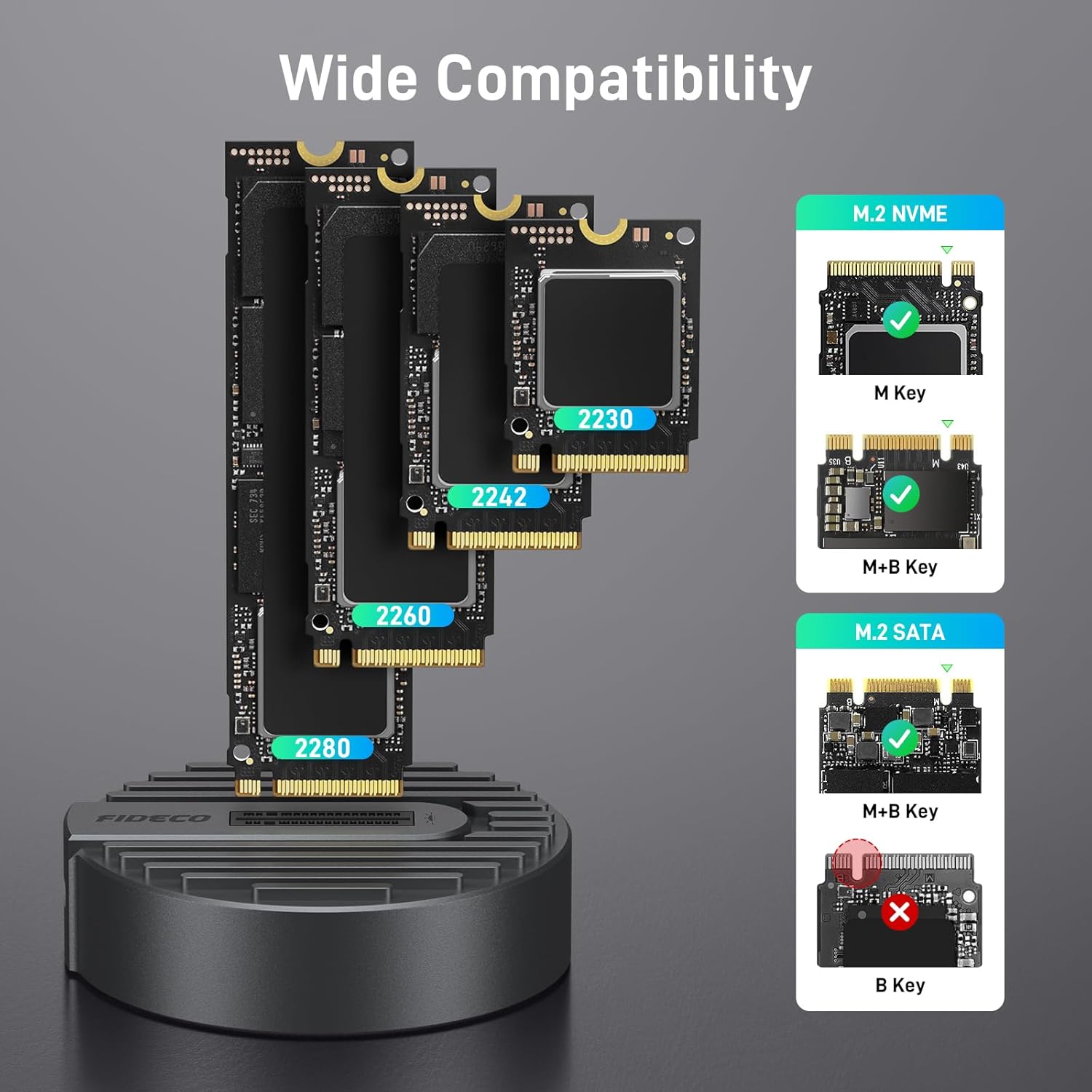
Figure 2: Compatibility overview for M.2 NVMe (M Key, M+B Key) and M.2 SATA (M+B Key) SSDs, excluding B Key SATA SSDs.
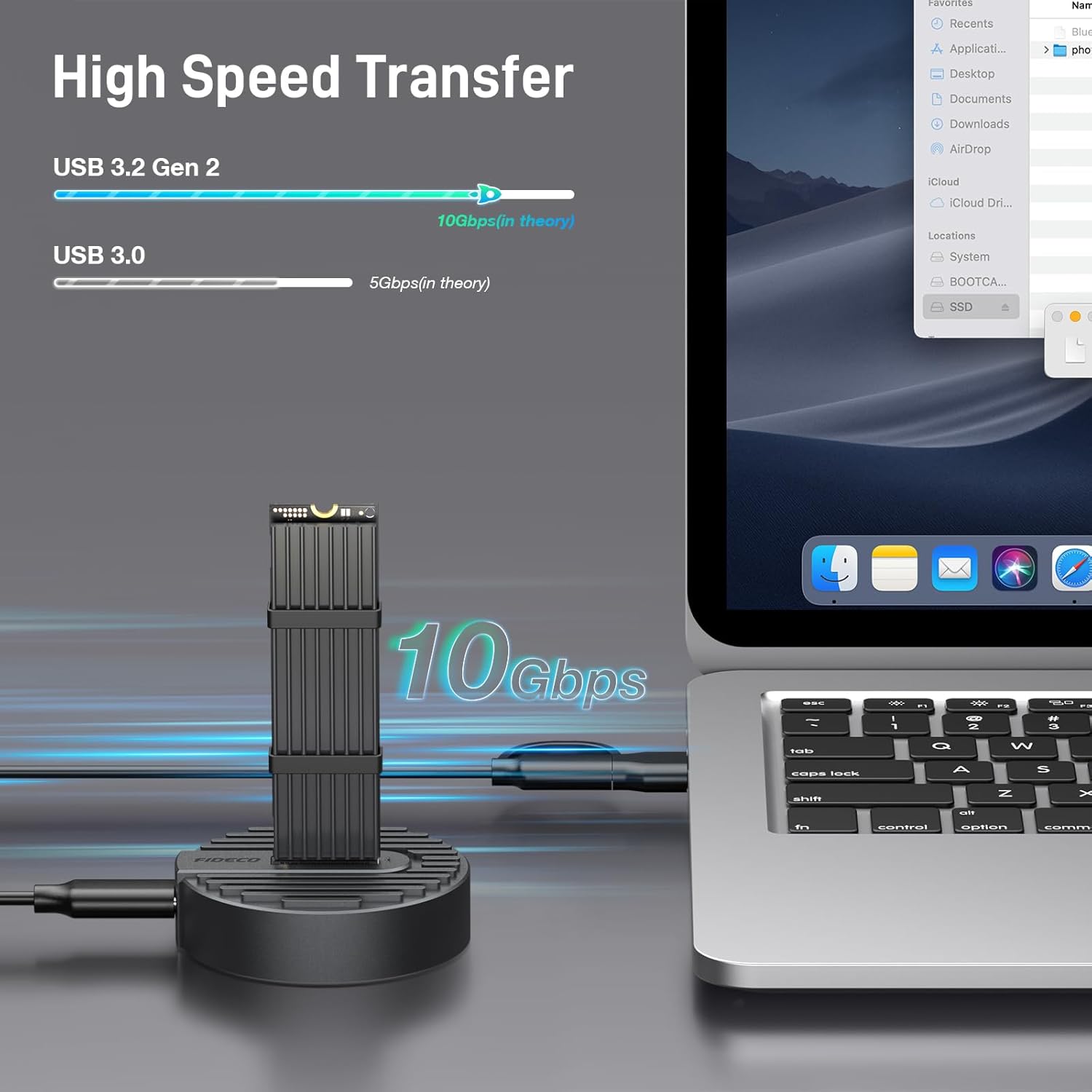
Figure 3: High-speed data transfer capabilities of the FIDECO M.2 SSD adapter, illustrating 10Gbps performance.
3. Package Contents
Please verify that all items are present and in good condition upon opening the package.
- FIDECO M.2 NVMe SATA to USB Adapter (Model M118)
- USB-C to USB-C Cable (with USB-A adapter)
- Heatsink (cooling vest)
- Thermal Pad
- Rubber Bands (for securing heatsink)
4. Setup Guide
Follow these steps to install your M.2 SSD into the FIDECO adapter:
- Prepare the SSD: If using the included heatsink, peel off the protective film from the thermal pad and carefully stick it onto your M.2 SSD.
- Attach Heatsink: Place the heatsink over the thermal pad on the SSD. Use the provided rubber bands to securely fasten the heatsink to the SSD. This ensures optimal heat dissipation.
- Insert SSD: Gently insert the prepared M.2 SSD into the slot on the FIDECO docking station. Ensure it is fully seated. The tool-free design allows for easy insertion.
- Connect to Computer: Connect the FIDECO SSD docking station to your computer using the provided USB-C to USB-C cable, or the USB-C to USB-A adapter if your computer only has USB-A ports.

Figure 4: Visual guide for the easy, tool-free installation of an M.2 SSD into the FIDECO docking station.
5. Operating Instructions
Once connected, the FIDECO M.2 NVMe SATA to USB Adapter operates on a plug-and-play basis, requiring no additional drivers for most operating systems.
- Automatic Recognition: Your computer should automatically detect the connected SSD. The SSD will appear as an external drive in your file explorer (Windows) or Finder (Mac OS).
- Data Transfer: You can now drag and drop files, copy, paste, or perform any data transfer operations as you would with any other external storage device.
- Performance: For optimal performance, ensure your computer's USB port supports USB 3.2 Gen 2 (10Gbps). While compatible with older USB standards, speeds will be limited to the maximum supported by the port.
- Indicator Light: The adapter features an indicator light that typically illuminates when powered and blinks during data transfer activity.

Figure 5: The FIDECO adapter offers driver-free, plug-and-play functionality across various operating systems.

Figure 6: The FIDECO M.2 SSD adapter can be used with a wide range of devices, including desktops, laptops, tablets, and smartphones.
6. Maintenance
Proper maintenance ensures the longevity and optimal performance of your FIDECO M.2 NVMe SATA to USB Adapter.
- Heat Management: M.2 SSDs can generate significant heat during high-speed data transfers. The aluminum design and included heatsink are designed to dissipate this heat. It is normal for the SSD to become warm during operation.
- Handling Precautions: Avoid touching the SSD directly during operation, as it may be hot. Always handle the adapter and SSD with care to prevent physical damage.
- Cleaning: Use a soft, dry cloth to clean the adapter. Avoid using liquid cleaners or solvents.
- Storage: When not in use, store the adapter in a cool, dry place away from direct sunlight and extreme temperatures.
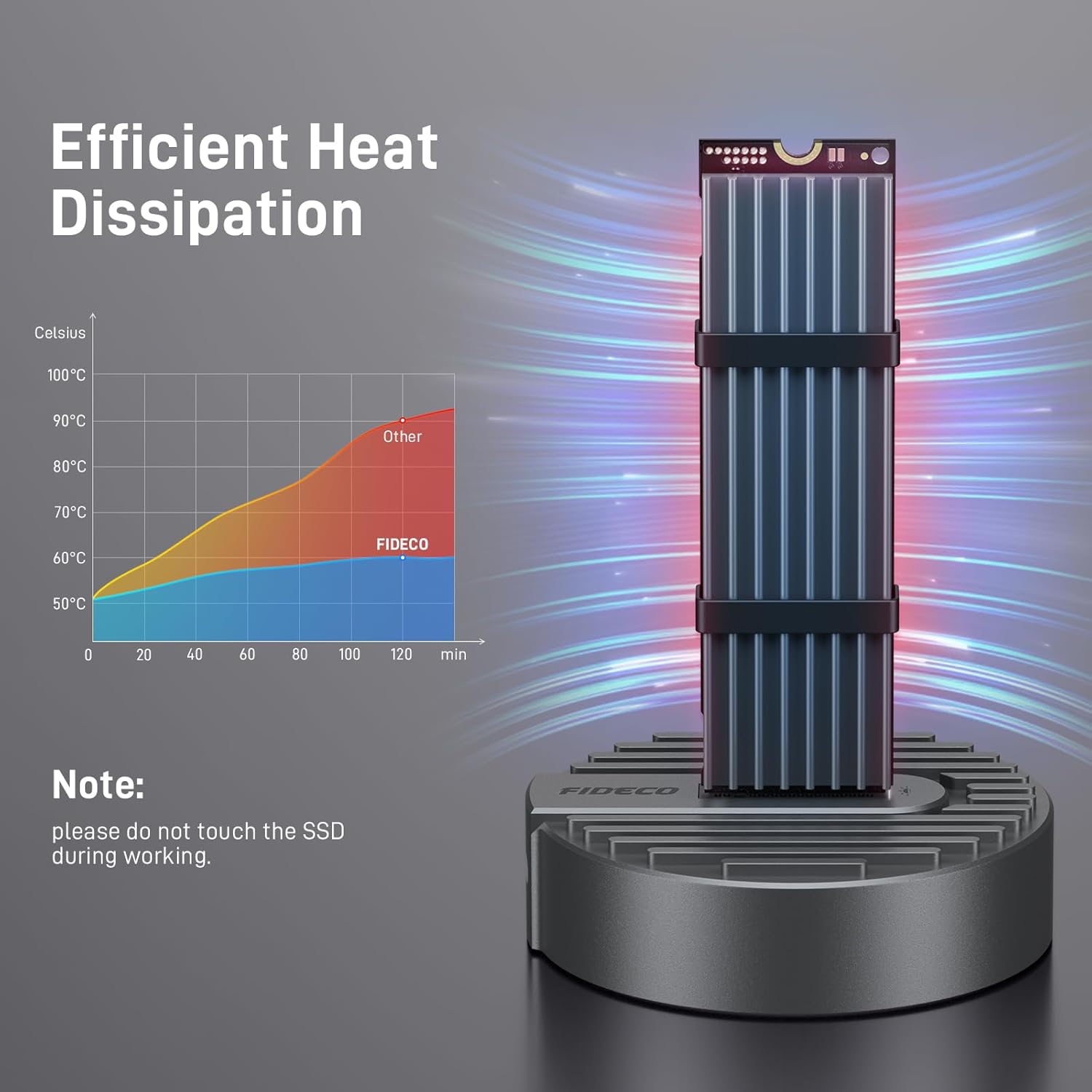
Figure 7: The FIDECO adapter's design promotes efficient heat dissipation, keeping the SSD cooler during operation.
7. Troubleshooting
If you encounter issues with your FIDECO M.2 NVMe SATA to USB Adapter, refer to the following common solutions:
| Problem | Possible Cause / Solution |
|---|---|
| SSD not recognized by computer. |
|
| Slow data transfer speeds. |
|
| Adapter or SSD feels hot. |
|
8. Specifications
| Attribute | Detail |
|---|---|
| Model | M118 |
| Brand | FIDECO |
| Hardware Interface | USB 3.2 Gen 2 |
| Data Transfer Rate | 10 Gigabits Per Second |
| Compatible SSD Types | M.2 PCIe NVMe (M Key, B+M Key), M.2 SATA (B+M Key) |
| Supported SSD Sizes | 2230, 2242, 2260, 2280, 22110 |
| Material | Aluminum |
| Color | Silver |
| Product Dimensions | 6.6 x 1.5 x 0.8 cm |
| Item Weight | 80 Grams |
| Number of Ports | 1 (USB) |
| Batteries Required | No |
9. Warranty and Support
FIDECO products are designed for reliability and performance. For any technical support, questions, or concerns regarding your FIDECO M.2 NVMe SATA to USB Adapter, please contact FIDECO customer service. We are committed to providing prompt assistance and effective solutions.
Please refer to the product packaging or the official FIDECO website for the most up-to-date warranty information and contact details.
Website: www.fideco-it.com