
XTRONS CM141A
XTRONS 14-inch Android Flip-Down Car Monitor
Model: CM141A User Manual
1. Introduction
Thank you for purchasing the XTRONS CM141A 14-inch Android Flip-Down Car Monitor. This device is designed to provide an immersive entertainment experience for rear-seat passengers with its large, high-resolution display and smart features. Please read this manual thoroughly before installation and operation to ensure proper use and to maximize the product's performance and longevity.

The XTRONS CM141A 14-inch Android Flip-Down Car Monitor, shown with its included remote control.
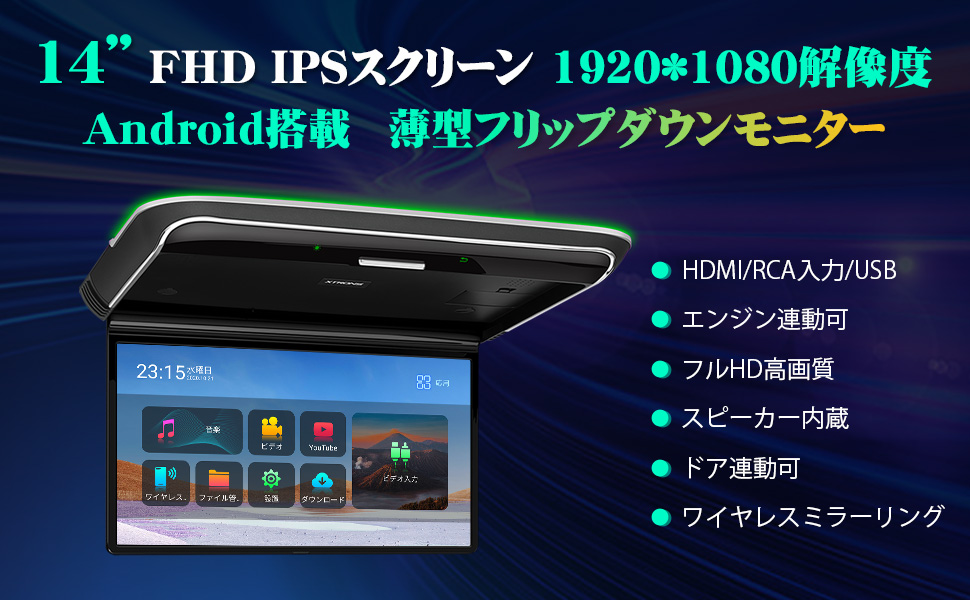
Key features of the XTRONS CM141A, highlighting its Android operating system, various inputs, and wireless mirroring capabilities.
2. Safety Information
- Do not attempt to disassemble or modify the unit. This may cause damage, fire, or electric shock.
- Ensure proper wiring and connections to prevent short circuits or electrical hazards.
- Keep the unit away from water, moisture, and extreme temperatures.
- Do not block ventilation openings to prevent overheating.
- Installation should be performed by a qualified professional to avoid damage to the vehicle or the unit.
- Always operate the vehicle safely. Do not operate the monitor in a way that distracts the driver.
3. Package Contents
Please check that all items are present in the package:
- 1 x XTRONS 14-inch Android Flip-Down Car Monitor (CM141A)
- 1 x Power Cable
- 1 x Remote Control
- 4 x Screws
- 1 x English User Manual (PDF version in Japanese available for download)

Visual representation of the product dimensions and the accessories included in the package.
4. Product Features
- Latest Android 11 System: Enjoy a wide range of Android applications like YouTube and Amazon Video by connecting to Wi-Fi.
- 14-inch IPS Full HD Display: Features a 1920*1080 resolution IPS LCD with a 178° ultra-wide viewing angle for vivid and clear images from any side.
- Multi-color LED Illumination: Choose from various illumination colors to stylishly decorate your car's interior.
- High-Quality Built-in Speakers: Experience clear and immersive audio directly from the monitor.
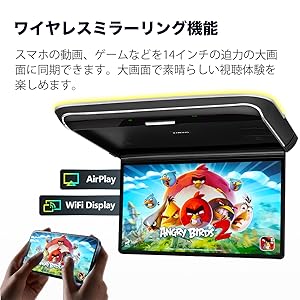
- Screen Mirroring Function: Seamlessly display videos and games from your smartphone onto the 14-inch large screen via AirPlay or Wi-Fi Display.
- Versatile Connectivity: Supports HDMI input (up to 8K resolution), RCA input for connecting navigation/tuner devices, and USB for media playback (up to 128GB, single files not exceeding 4GB).
- Door Linkage & Power Memory: The monitor can be linked to your car's door status. It also remembers the power state before being turned off, resuming to that state when the engine is started again.
- Luxurious Design: Features a dedicated silver line and piano gloss finish, integrating with a high-quality interior design.

The IPS wide viewing angle screen ensures excellent visibility from various seating positions.

The monitor's sleek design with silver accents complements modern car interiors.

Access a variety of entertainment apps directly from the Android 11 system.

Customize your car's ambiance with multi-color LED illumination and utilize the door linkage function.
5. Setup and Installation
Professional installation is highly recommended for this product. Incorrect installation may lead to damage to the unit or vehicle.
5.1. Installation Procedure
- Remove the 6 rubber covers from the main unit.
- Unscrew the 6 screws and detach the mounting iron plate from the monitor.
- Bundle the vehicle's power cable so it can pass through the iron plate, then secure the iron plate to the car's ceiling.
- Attach the monitor to the iron plate using the remaining screws and connect the cables.

Step-by-step diagram for mounting the flip-down monitor to the vehicle's roof.
5.2. Wiring Diagram
Refer to the diagram below for correct wiring connections:

Wiring connections for the monitor, including power, audio, video, and door linkage.
| No. | Connection |
|---|---|
| 1. | GND (Ground) |
| 2. | ACC (Accessory Power) |
| 3. | B+ (Battery Positive) |
| 4. | HDMI Input Terminal |
| 5. | Audio Input (Left) |
| 6. | Audio Input (Right) |
| 7. | Video Input 1 |
| 8. | Video Input 2 |
| 9. | Door Linkage Wiring (- pole) |
| 10. | Door Linkage Wiring (+ pole) |
6. Operating Instructions
6.1. Basic Operation
- Power On/Off: The monitor powers on automatically with the vehicle's ignition (ACC). It retains its previous power state.
- Remote Control: Use the provided remote control to navigate the Android interface, select apps, adjust volume, and control media playback.
- Screen Orientation: The monitor supports horizontal opening and closing up to 155 degrees.
6.2. Android System Navigation
The monitor runs on Android 11, providing a familiar smartphone-like interface. Use the remote control's directional buttons and 'OK' button to navigate menus and select options.

Android interface with music playback and vehicle speed display.
Navigation and radio functions integrated into the Android display.

Access a variety of pre-installed and downloadable applications.
6.3. Wi-Fi and App Installation
Connect the monitor to a Wi-Fi hotspot (e.g., from your smartphone or a car Wi-Fi device) to access online content and download apps from the Google Play Store (if available) or other app sources.
6.4. Screen Mirroring
To use screen mirroring, ensure your smartphone and the monitor are connected to the same Wi-Fi network. Select the screen mirroring option on the monitor and follow the on-screen instructions for AirPlay (iOS) or Wi-Fi Display (Android).

Mirror content from your smartphone directly to the large monitor for an enhanced viewing experience.
7. Connectivity
7.1. HDMI Input
Connect external devices such as game consoles, laptops, or other media players via the HDMI input for high-definition video and audio playback.

Connect various HDMI-enabled devices to the monitor for expanded entertainment options.
7.2. RCA Input
Use the RCA input cables to connect older devices like car navigation systems or DVD players that use analog audio/video outputs.
7.3. USB Playback
Insert a USB drive into the USB port to play music, videos, or view photos. The monitor supports USB drives up to 128GB. Ensure individual files do not exceed 4GB.
8. Maintenance
- Cleaning: Use a soft, dry cloth to clean the monitor screen and body. For stubborn stains, dampen the cloth slightly with water or a mild, non-abrasive cleaner. Do not use harsh chemicals or abrasive materials.
- Storage: If the vehicle will be stored for an extended period, ensure the monitor is powered off.
- Avoid Impact: Protect the screen from sharp objects or heavy impact.
9. Troubleshooting
| Problem | Possible Cause | Solution |
|---|---|---|
| Monitor does not power on. | No power supply; incorrect wiring. | Check power cable connections (B+, ACC, GND). Ensure vehicle ignition is on. |
| No image on screen. | Incorrect input source selected; loose video cable connection. | Verify the correct input source (HDMI, RCA) is selected. Check video cable connections. |
| No sound. | Volume too low; audio cables disconnected; external device audio issue. | Increase volume. Check audio cable connections. Ensure external device audio is working. |
| Remote control not working. | Dead batteries; obstruction; remote sensor blocked. | Replace remote control batteries. Ensure no obstruction between remote and monitor. Clean remote sensor area. |
| Screen mirroring unstable. | Weak Wi-Fi signal; network interference. | Ensure strong Wi-Fi signal. Reduce interference from other devices. Restart both devices. |
10. Specifications
| Feature | Specification |
|---|---|
| Screen Size | 14.1 inches |
| Display Type | IPS LCD |
| Resolution | 1920 x 1080 (Full HD) |
| Operating System | Android 11 |
| Connectivity | HDMI, RCA, USB, Wi-Fi |
| USB Support | Up to 128GB (USB 2.0 only), single files max 4GB |
| Product Dimensions | 36.8 x 29 x 3 cm (14.49 x 11.42 x 1.18 inches) |
| Product Weight | 3.4 kg (7.5 lbs) |
| Battery Usage | No (Powered by vehicle) |
11. Warranty and Support
This XTRONS product comes with a 1-year warranty from the date of purchase. If you encounter any issues or have questions regarding the product, please contact XTRONS customer support. Provide your model number (CM141A) and purchase details for faster assistance.
For further support and to download the Japanese PDF version of the manual, please visit the official XTRONS website or contact your retailer.
Ask a question about this manual
Ask about setup, troubleshooting, compatibility, parts, safety, or missing instructions. Manuals+ will review the question and use this page’s manual context to help answer it.