
1. Introduction
Thank you for choosing the Camcamp 4MP Battery Powered WiFi Camera. This camera is designed to provide reliable outdoor security surveillance, featuring 4MP resolution, PTZ capabilities, two-way audio, smart human detection, and solar power for continuous operation. This add-on camera is specifically compatible with the CAMCAMP SC23 Solar Security Camera System and cannot function independently.
This manual provides detailed instructions for installation, operation, and maintenance to ensure optimal performance and longevity of your device. Please read this manual thoroughly before use and retain it for future reference.

Image: Camcamp 4MP Battery Powered WiFi Camera with an attached solar panel, showcasing its compact design and integrated components.
2. Safety Information
- Ensure the camera is installed in a location where it is protected from direct impact or extreme physical stress.
- Use only the specified power adapter or solar panel for charging.
- Do not disassemble or modify the camera. This may void the warranty and pose safety risks.
- Keep the camera away from strong magnetic fields or corrosive substances.
- Operating temperature range: Consult specifications for optimal performance.
- This camera is IP66 weatherproof, designed for outdoor use, but avoid submerging it in water.
3. Package Contents
Please check the package contents upon unboxing:
- Camcamp 4MP Battery Powered WiFi Camera (Model: BC653)
- Solar Panel
- Mounting Bracket
- Mounting Screws and Wall Anchors
- USB Charging Cable
- User Manual (this document)
4. Product Overview
The Camcamp BC653 camera integrates advanced features for comprehensive outdoor surveillance.
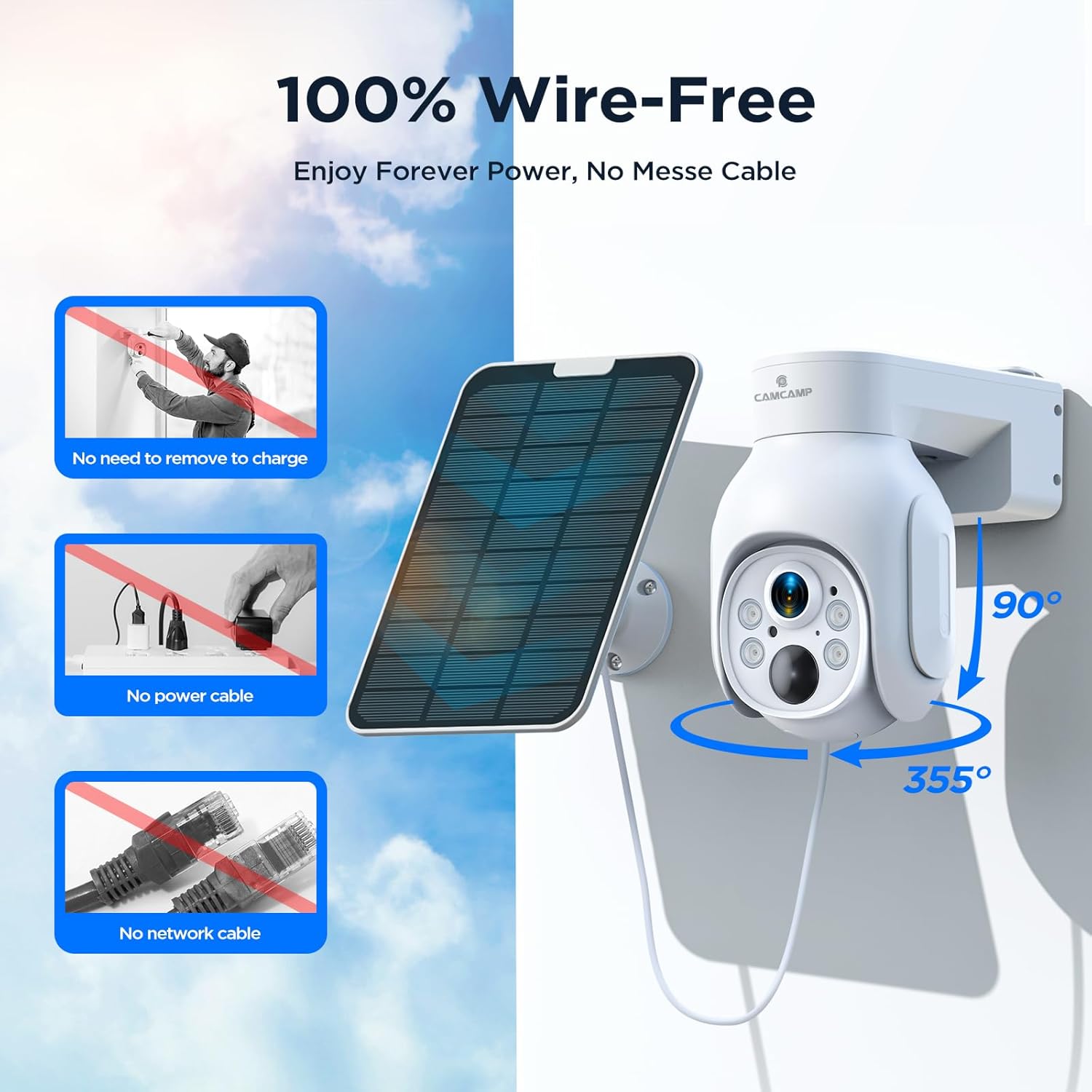
Image: Diagram illustrating the 100% wire-free nature of the camera, showing no need for charging, power cables, or network cables, along with its 355° pan and 90° tilt rotation capabilities.
Key Features:
- 4MP HD Resolution: Captures clear 2560x1440P video.
- 100% Wire-Free & Solar Powered: Built-in rechargeable battery with solar panel for continuous power.
- PTZ Functionality: Pan 355°, Tilt 90° for wide area coverage.
- Color Night Vision: Equipped with spotlights for full-color night vision up to 65 feet.
- Two-Way Audio: Built-in microphone and speaker for real-time communication.
- Smart Human Detection: PIR sensor for accurate motion detection and instant alerts.
- Audible & Visual Alarm: Sound alarm and spotlight activation to deter intruders.
- IP66 Weatherproof: Designed to withstand various outdoor weather conditions.
5. Setup
5.1 Initial Charging
Before first use, fully charge the camera's built-in battery using the provided USB cable and a 5V/2A power adapter (not included). A full charge ensures the camera has sufficient power before solar charging takes over.
5.2 App Installation and Account Setup
This camera operates with the CloudEye 365 application. Download the app from your smartphone's app store (iOS App Store or Google Play Store). Follow the in-app instructions to create an account and log in.
5.3 Connecting to the SC23 System
This camera is an add-on unit for the CAMCAMP SC23 Solar Security Camera System. Ensure your SC23 NVR (Network Video Recorder) is powered on and connected to your network. Refer to your SC23 system's manual for instructions on adding new cameras. Typically, this involves:
- Power on the add-on camera.
- Access the NVR's camera management interface (via monitor or app).
- Initiate the "Add Camera" or "Search Device" function. The NVR should detect the new camera.
- Follow prompts to pair the camera with the NVR.
For direct Wi-Fi connection (if supported by your system setup), follow the CloudEye 365 app's instructions for adding a new device and connecting it to your home Wi-Fi network (2.4GHz only).
5.4 Mounting the Camera and Solar Panel
Choose a mounting location that provides a clear view of the area you wish to monitor and receives ample direct sunlight for the solar panel. The solar panel should be positioned to maximize sun exposure throughout the day.
- Mark Drilling Points: Use the mounting bracket as a template to mark the screw holes on the wall or mounting surface.
- Drill Holes: Drill pilot holes at the marked positions. Insert wall anchors if mounting on masonry or drywall.
- Attach Bracket: Secure the mounting bracket to the wall using the provided screws.
- Mount Camera: Attach the camera to the mounting bracket. Adjust the camera angle for optimal coverage.
- Mount Solar Panel: Secure the solar panel in a location that receives maximum sunlight, ideally facing south (in the Northern Hemisphere). Connect the solar panel cable to the camera's charging port.

Image: The Camcamp camera and solar panel mounted outdoors, demonstrating its IP66 weatherproof rating as it operates effectively during rainfall.
6. Operating Instructions
6.1 Live View
Open the CloudEye 365 app and select your camera from the device list to view the live feed. You can monitor your property in real-time.
6.2 PTZ Control
In the live view interface, use the on-screen controls to pan the camera horizontally (355°) and tilt it vertically (90°) to adjust the viewing angle. The camera also supports 5X digital zoom.
6.3 Two-Way Audio
Tap the microphone icon in the app's live view to activate two-way audio. You can speak through the camera's speaker and hear audio from the camera's microphone. This feature allows for communication with visitors or deterrence of unwanted individuals.

Image: A delivery person interacting with the camera's two-way audio feature, showing speech bubbles indicating communication.
6.4 Smart Human Detection & Alerts
The camera utilizes a PIR sensor for accurate human detection. When motion is detected, the camera will:
- Record video footage.
- Send instant alerts (push notifications) to your smartphone.
- Activate the spotlight and sound an alarm (if configured in settings) to deter intruders.
Adjust detection sensitivity and alert settings within the CloudEye 365 app to suit your needs.

Image: Illustration of the camera detecting a person at night, triggering a flashlight alarm, siren alarm, and an app push notification.
6.5 Night Vision
The camera automatically switches to night vision mode in low-light conditions. With its integrated spotlights, it can provide full-color night vision, offering clearer details than traditional infrared black-and-white night vision.
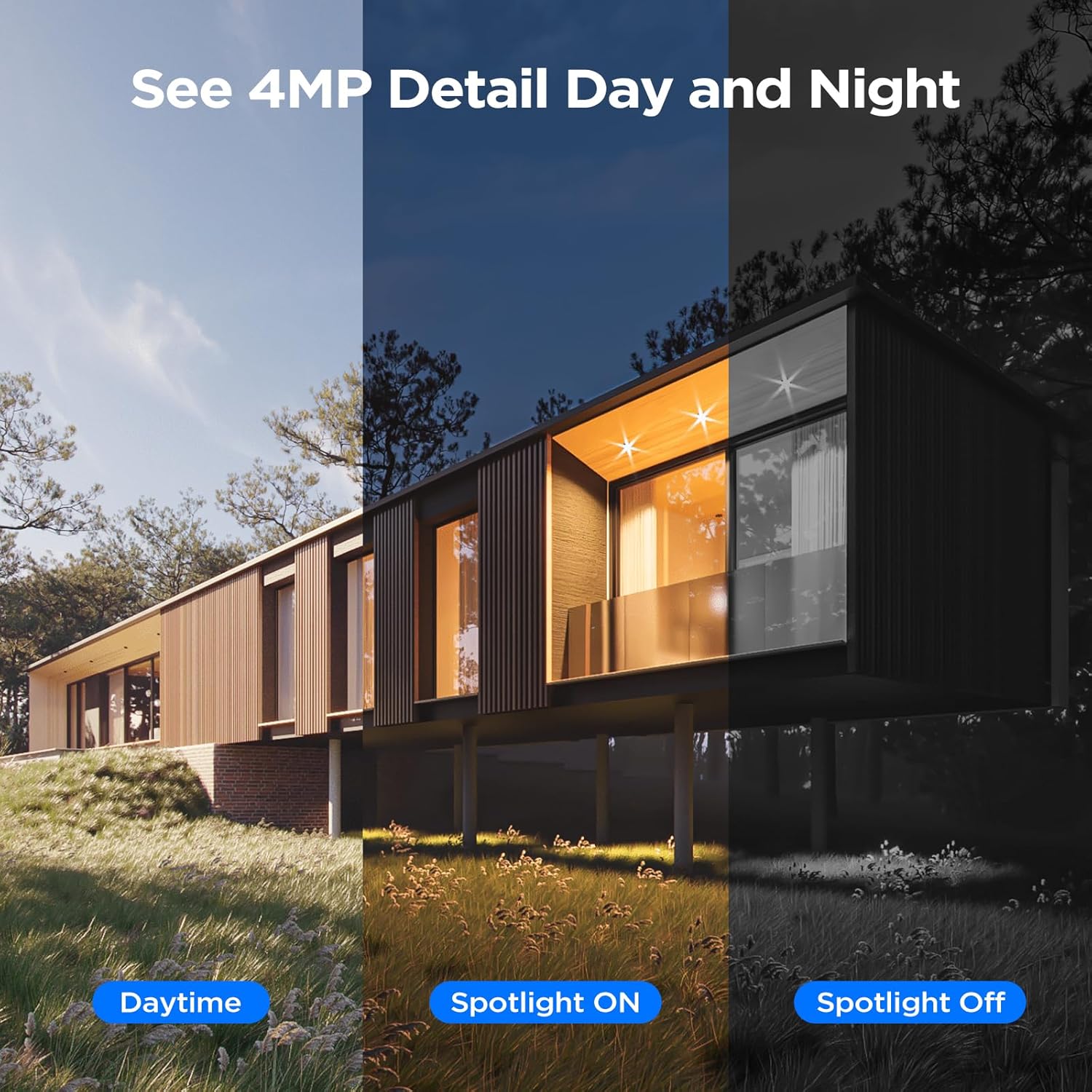
Image: A comparison showing the camera's 4MP detail in different lighting conditions: daytime, spotlight on (color night vision), and spotlight off (infrared night vision).
6.6 Recording and Playback
Recordings are stored on the SC23 NVR system. You can access and play back recorded footage through the CloudEye 365 app or directly from the NVR interface. Ensure sufficient storage is available on your NVR. Cloud storage options may also be available through the app (subscription may apply).
7. Maintenance
- Cleaning: Regularly wipe the camera lens and solar panel with a soft, damp cloth to remove dust and debris. Do not use harsh chemicals.
- Battery Care: While solar-powered, ensure the solar panel is clean and receives adequate sunlight to maintain battery charge. In prolonged cloudy periods, manual charging via USB may be necessary.
- Firmware Updates: Check the CloudEye 365 app periodically for firmware updates. Keeping your camera's firmware updated ensures optimal performance and access to new features.
8. Troubleshooting
| Problem | Possible Cause | Solution |
|---|---|---|
| Camera not powering on. | Low battery; solar panel not charging; faulty cable. | Fully charge the camera via USB. Ensure solar panel is clean and in direct sunlight. Check cable connections. |
| Cannot connect to NVR/Wi-Fi. | Incorrect Wi-Fi password; camera too far from NVR/router; NVR not in pairing mode. | Verify Wi-Fi password. Move camera closer to NVR/router. Ensure NVR is in pairing mode. Reset camera if necessary. |
| Poor video quality. | Dirty lens; weak Wi-Fi signal; insufficient light. | Clean the camera lens. Improve Wi-Fi signal strength. Ensure spotlights are enabled for color night vision. |
| Motion detection not working. | PIR sensitivity too low; detection zone not set; obstructions. | Adjust PIR sensitivity in the app. Configure detection zones. Ensure no physical obstructions block the sensor. |
| Two-way audio issues. | Microphone/speaker muted in app; network latency. | Check app settings for audio mute. Ensure stable network connection. |
9. Specifications
| Feature | Detail |
|---|---|
| Model Number | BC653 |
| Resolution | 4MP (2560x1440P) |
| Power Source | Battery Powered, Solar Powered |
| Battery Type | 2 Lithium Ion batteries (included) |
| Connectivity | Wi-Fi (2.4GHz) |
| PTZ Range | Pan 355°, Tilt 90° |
| Night Vision | Color Night Vision (with spotlights) |
| Audio | Two-Way Audio |
| Detection | PIR Human Detection |
| Weatherproof Rating | IP66 |
| Dimensions (L x W x H) | 13.39 x 11.42 x 15.75 inches |
| Item Weight | 2.03 pounds |
| Compatible System | CAMCAMP SC23 Solar Security Camera System |
10. Warranty and Support
Camcamp is committed to providing quality products and excellent customer service. For any questions or assistance, please contact our support team.
Contact Information:
- Email: Refer to your purchase documentation or the CloudEye 365 app for the latest support email address.
- Phone: (626)-420-9375 (GMT-8 9:00-17:00, Mon-Fri)
- Online Support: Visit the official Camcamp website for FAQs and additional resources.
Please have your model number (BC653) and purchase details ready when contacting support.


Images: Information about Camcamp's company philosophy and commitment to customer service, highlighting over 10 years of expertise.