
iClever BK20
iClever BK20 Bluetooth Keyboard User Manual
Model: BK20
1. Product Overview
The iClever BK20 Bluetooth Keyboard is designed for multi-device use, offering a compact and productive typing experience. It features a numeric keypad, multimedia keys, and broad compatibility across various operating systems.

Image: Top-down view of the iClever BK20 Bluetooth Keyboard, showcasing its full layout including the numeric keypad.

Image: The iClever BK20 keyboard positioned in front of a laptop, demonstrating its compact size and suitability for desktop use.
2. Setup
2.1 Powering On
Locate the power switch on the side of the keyboard. Slide the switch to the "ON" position to power on the device.
2.2 Bluetooth Pairing
- Ensure the keyboard is powered on.
- Hold and press one of the Bluetooth keys (BT1, BT2, or BT3) for approximately 5 seconds to enter pairing mode. The corresponding indicator light will blink rapidly.
- On your device (PC, laptop, tablet, or smartphone), open the Bluetooth settings or interface.
- Search for available Bluetooth devices. Select "iClever BK20 KB" from the list to connect.
- Once connected, the indicator light will stop blinking and remain solid for a few seconds, then turn off to save power.
Video: A step-by-step guide on how to power on and pair the iClever BK20 Bluetooth Keyboard with a device.

Image: Diagram illustrating the multi-device pairing capability of the iClever BK20 keyboard, showing connections to an iMac, MacBook, and iPad.
3. Operating Instructions
3.1 Multi-Device Switching
The iClever BK20 keyboard supports connection with up to three devices simultaneously. To switch between connected devices, simply press the corresponding Bluetooth key (BT1, BT2, or BT3) once. The keyboard will quickly switch its connection to the selected device.
3.2 Enhanced Typing Experience
The keyboard features a scissor key mechanism, providing enhanced feedback and stability for a comfortable and quiet typing experience. Optimized key-travel and anti-slip tapes contribute to precise typing.

Image: Close-up view of the iClever BK20 keyboard keys, highlighting the comfortable and quiet typing experience provided by the scissor switch design.
3.3 Universal Compatibility
The keyboard is compatible with a wide range of devices and operating systems, including PC, laptop, MacBook, iMac, iPad, iPhone, tablets, and smartphones. It supports Mac OS, iOS, Android, and Windows 8/10/11, automatically adapting its layout to the connected system.

Image: An illustration showing the iClever BK20 keyboard connected wirelessly to a variety of devices, including smartphones, tablets, laptops, and desktop computers, emphasizing its broad compatibility.
4. Maintenance
4.1 Charging the Keyboard
The iClever BK20 keyboard features a built-in 300mAh lithium battery and a Bluetooth low energy module, providing extended usage time. To charge the keyboard, connect the included USB-C charge cable to the keyboard's USB-C port and to a power source. A full charge supports approximately 300 hours of working time.
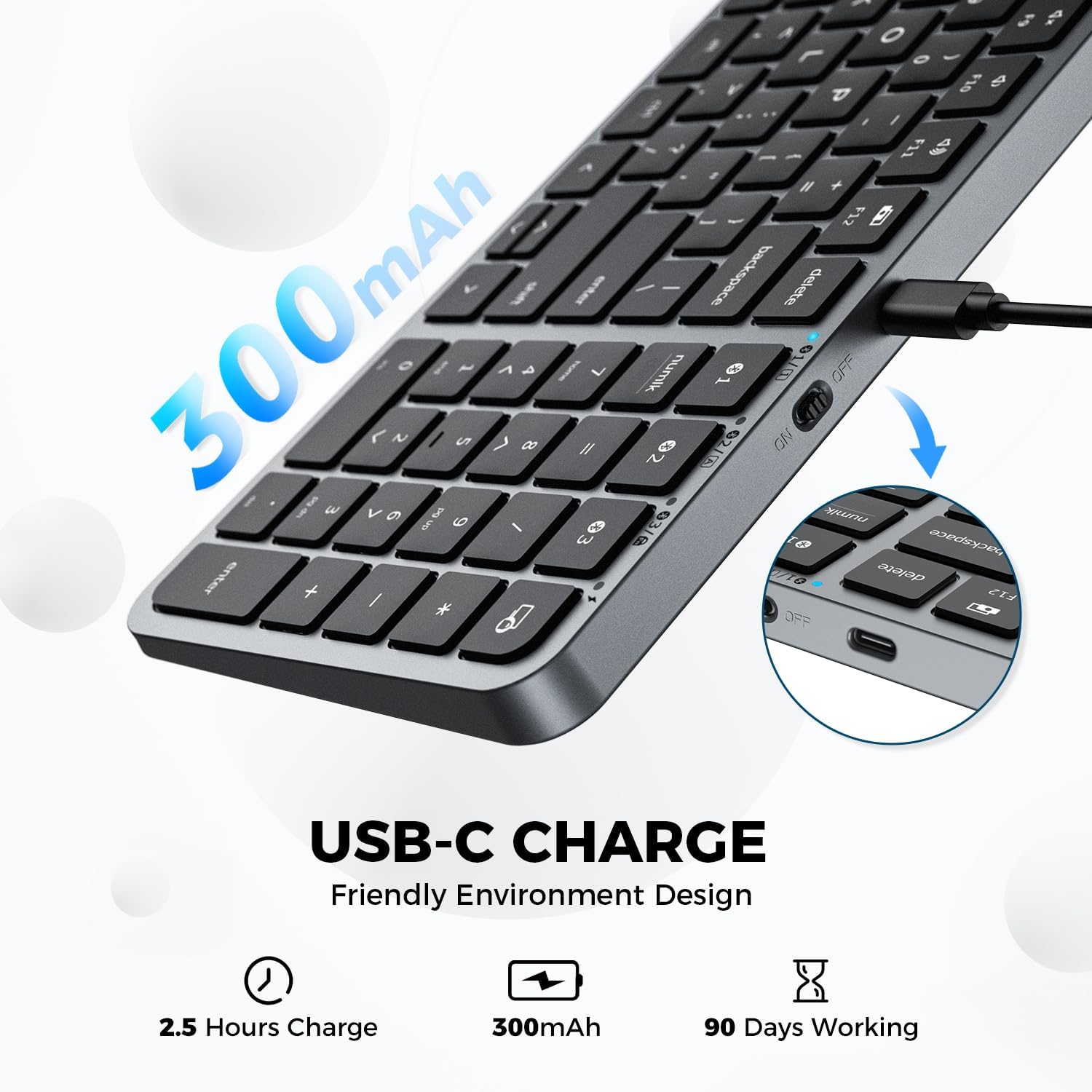
Image: Close-up view of the iClever BK20 keyboard showing the USB-C charging port and indicating its 300mAh battery capacity.
5. Troubleshooting
If you encounter issues with your iClever BK20 keyboard, please refer to the following common solutions:
- Connection Issues: Ensure the keyboard is fully charged and within the Bluetooth range (up to 15m). Re-attempt the pairing process as described in the Setup section.
- Unresponsive Keys: Check for any physical obstructions under the keys. Ensure the keyboard is properly connected to your device.
- Battery Life: If battery life seems shorter than expected, ensure the keyboard is fully charged using the provided USB-C cable.
- OS Compatibility: Verify that your device's operating system is supported (Mac OS, iOS, Android, Windows 8/10/11).
For more detailed troubleshooting steps, please consult the official Troubleshooting Guide (PDF) or the User Manual (PDF).
6. Specifications
| Feature | Detail |
|---|---|
| Product Dimensions | 5.91 x 3.15 x 1.18 inches |
| Item Weight | 1 pounds |
| Manufacturer | iClever |
| ASIN | B0CD1GX8QB |
| Country of Origin | China |
| Item Model Number | BK20 |
| Brand | iClever |
| Compatible Devices | PC, Laptop, iMac, Macbook, Tablet, Smartphone, iPhone, iPad |
| Connectivity Technology | Bluetooth |
| Keyboard Description | Wireless, Bluetooth Keyboard, Scissor Switch, Compact Size, Numeric Keypad, Multimedia Keys |
| Recommended Uses | Office, Home, Business |
| Special Feature | USB-C Charge, Multi-devices, Laptop typing experience, Multi-OS |
| Color | Black |
| Number of Keys | 100 |
| Style | Modern |
| Material | Acrylonitrile Butadiene Styrene |
7. Warranty and Support
iClever is committed to crafting innovative, reliable, and ergonomically designed products. For any product-related inquiries, technical support, or warranty claims, please refer to the official documentation provided with your product or visit the iClever Store on Amazon.
Additional resources:
Related documentsBK20


Ask a question about this manual
Ask about setup, troubleshooting, compatibility, parts, safety, or missing instructions. Manuals+ will review the question and use this page’s manual context to help answer it.