
1. Introduction
This manual provides detailed instructions for the installation, operation, maintenance, and troubleshooting of your Polarlander Q5S Portable Wireless Carplay & Android Auto Motorcycle Navigator. Please read this manual thoroughly before using the device to ensure proper function and safety.
2. Product Overview
The Polarlander Q5S is a 5-inch IPS touch screen monitor designed for motorcycles, offering wireless CarPlay and Android Auto functionality. It features IPX7 waterproofing, dual Bluetooth connectivity, voice control, and a thief-proof detachable design.

Figure 2.1: Polarlander Q5S device with mounting brackets and power cable.
3. Package Contents
Verify that all items are present in the package:
- Polarlander Q5S Main Unit
- Motorcycle Mounting Bracket Kit (U-bolt, ball mounts, screws, nuts, wrench)
- Power Cable (ACC +12V and Ground)
- USB Cable (for 5V, 1.5A power supply)
- Instruction Manual

Figure 3.1: Complete package contents including the main unit, mounting hardware, and cables.
4. Setup and Installation
Follow these steps to install the Q5S device on your motorcycle.
4.1 Mounting the Device
- Choose a Location: Select a suitable position on your motorcycle's handlebars for optimal viewing and accessibility. Ensure it does not obstruct your view or control of the motorcycle.
- Attach the U-Bolt Bracket:
- Place the U-bolt around the handlebar.
- Secure the U-bolt with the provided nuts and the rubber padding to prevent scratching the handlebars. Tighten securely using the supplied wrench.
- Assemble the Ball Mount:
- Attach the ball mount arm to the U-bolt bracket.
- Connect the device's universal ball mount to the other end of the arm.
- Adjust the angle and position of the screen as desired, then tighten the hand screw mount to secure it.

Figure 4.1: Q5S device securely mounted on motorcycle handlebars.
Video 4.1: Installation demonstration of the Portable Motorcycle Monitor Carplay GPS Q5S. This video shows how to attach the device to motorcycle handlebars using the provided U-bolt and ball mount system, including tightening the components and adjusting the screen angle.
4.2 Power Connection
The device requires a 12-24V power supply. Connect the power cable (ACC +12V and Ground) to your motorcycle's electrical system. Alternatively, it can be powered by a USB cable for 5V, 1.5A or above.
- Connect the red wire to the ACC (switched 12V) power source.
- Connect the black wire to the ground.
- Ensure all connections are secure and insulated.
Video 4.2: A3731 Motorcycle CarPlay power connection. This video demonstrates the process of connecting the power wires to the motorcycle's battery terminals, ensuring a proper electrical supply for the device.
Video 4.3: Wireless Motorcycle Apple Carplay 7 Inch GPS Navigation setup. This video illustrates the initial setup steps, including powering on the device and navigating through the main menu to access settings.
Video 4.4: A4058 Motorcycle CarPlay & Android Auto installation. This video provides a comprehensive guide to installing the device, covering both physical mounting and electrical connections, and demonstrating the initial boot-up sequence.
5. Operating Instructions
5.1 Powering On/Off
The device will power on automatically when the motorcycle's ignition is turned on (if connected to ACC power). To manually power off, press and hold the power button located on the side of the unit.
5.2 Wireless CarPlay/Android Auto Connection
The Q5S supports wireless connection to both Apple CarPlay and Android Auto.
- Enable Bluetooth: On your smartphone, enable Bluetooth.
- Pair Device: On the Q5S screen, navigate to the Bluetooth settings or CarPlay/Android Auto section. Search for available devices on your phone and select "FUYU" (or similar device name displayed on the Q5S). Confirm the pairing code if prompted.
- Allow Access: Grant necessary permissions on your smartphone for CarPlay or Android Auto to function correctly.
- Start CarPlay/Android Auto: Once paired, CarPlay or Android Auto will launch automatically on the Q5S screen.

Figure 5.1: Apple CarPlay interface displayed on the Q5S screen during motorcycle operation.

Figure 5.2: Side-by-side view of Apple CarPlay and Android Auto interfaces on the Q5S, demonstrating wireless connectivity with a smartphone.
5.3 Voice Control
Utilize Siri (for CarPlay) or Google Assistant (for Android Auto) for hands-free operation. Activate voice control by pressing the voice command button on the screen or using your helmet's voice assistant feature (if supported and paired).
- "Hey Siri, open the map."
- "Google, play music."
- "Hey Siri, call [Contact Name]."

Figure 5.3: Voice control functionality demonstrated on the Q5S screen, allowing hands-free commands for navigation, music, and calls.
5.4 Navigation
Access navigation applications like Apple Maps, Google Maps, or Waze through CarPlay or Android Auto. Input destinations via voice command or the touch screen.

Figure 5.4: Navigation map displayed on the Q5S screen, showing route information and current location.
5.5 Music Playback
Stream music from your smartphone's music apps. Audio can be played through the built-in speaker, or wirelessly to your Bluetooth helmet/earphones.

Figure 5.5: Music playback interface on the Q5S, illustrating dual Bluetooth connectivity for audio output to a helmet or earphones.
5.6 Phone Calls and Messaging
Make and receive calls, and send messages using voice commands or the touch screen, provided your helmet has a paired Bluetooth headset.
5.7 Brightness Adjustment
Adjust screen brightness for optimal visibility in various lighting conditions. The 1000-nit IPS anti-glare screen is designed for clear outdoor visibility.
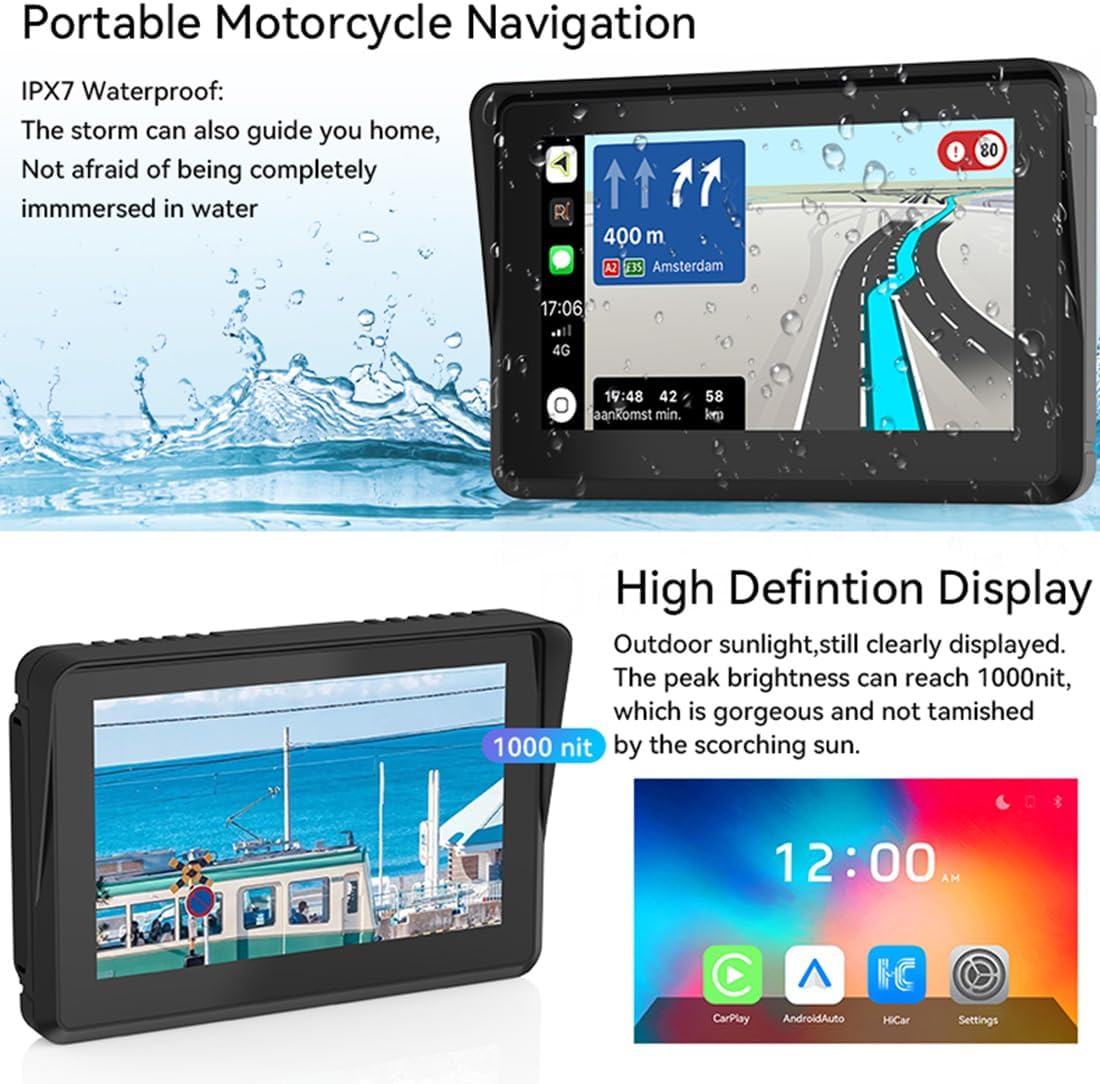
Figure 5.6: High-definition display of the Q5S, showcasing its clarity and brightness even in direct sunlight.
6. Maintenance
6.1 Cleaning the Screen
Use a soft, lint-free cloth to clean the screen. For stubborn marks, slightly dampen the cloth with water or a screen-safe cleaner. Avoid harsh chemicals.
6.2 Waterproofing (IPX7)
The Q5S is IPX7 waterproof, meaning it can withstand immersion in water up to 1 meter for 30 minutes. This protects it from rain and splashes during motorcycle rides. Ensure all ports are securely covered when exposed to water.

Figure 6.1: The Q5S device demonstrating its IPX7 waterproof capability, suitable for all weather conditions.
6.3 Anti-Theft Design
The device features a thief-proof detachable design. When leaving your motorcycle unattended, you can easily detach the main unit from its mount to prevent theft. The mounting bracket remains securely attached to the handlebars.

Figure 6.2: Anti-theft features of the mounting bracket, including special screws and nuts for secure attachment and easy detachment of the main unit.
7. Troubleshooting
| Problem | Possible Cause | Solution |
|---|---|---|
| Device does not power on. | No power supply or incorrect wiring. | Check power cable connections to the motorcycle battery/ACC. Ensure the motorcycle ignition is on. |
| Cannot connect to CarPlay/Android Auto. | Bluetooth not enabled on phone, device not paired, or app permissions denied. | Ensure Bluetooth is on and visible on your phone. Re-pair the device. Grant all necessary app permissions. |
| No audio output. | Volume too low, incorrect audio output selected, or Bluetooth headset not connected. | Increase device volume. Check audio output settings (built-in speaker, Bluetooth headset, AUX). Ensure Bluetooth headset is properly paired. |
| Screen is dim or hard to see in sunlight. | Brightness setting is too low. | Adjust screen brightness in the device settings. The Q5S features a 1000-nit display for optimal outdoor visibility. |
8. Specifications
- Model: Q5S
- Display Size: 5 Inches
- Resolution: 800 x 480 IPS HD Touch Screen
- Brightness: 1000 nits
- Waterproof Rating: IPX7
- Connectivity: Wireless CarPlay, Wireless Android Auto, Dual Bluetooth 5.0, Wi-Fi
- Power Supply: 12-24V (ACC +12V and Ground), 5V/1.5A via USB
- Audio Output: Built-in Speaker, AUX, Stereo (via Bluetooth headset)
- Special Features: Voice Control (Siri/Google Assistant), Anti-glare screen, Thief-proof detachable design
- Item Weight: 1.61 pounds
- Package Dimensions: 6.34 x 4.57 x 4.17 inches
9. Warranty and Support
For warranty information or technical support, please refer to the contact details provided with your purchase or visit the official Polarlander website. Keep your purchase receipt as proof of purchase.
Manufacturer: PolarLander
Date First Available: July 28, 2023

