
1. Introduction
Welcome to the user manual for your Zebra MC9300 MC930P-GSGDG4NA Mobile Computer. This document provides essential information for setting up, operating, maintaining, and troubleshooting your device. Please read this manual carefully to ensure proper use and to maximize the lifespan of your mobile computer.
2. Product Overview
The Zebra MC9300 is a rugged, high-performance handheld mobile computer designed for demanding environments. It features a 4.3-inch display, 2D barcode scanning capabilities, 4GB RAM, 32GB Flash storage, WLAN connectivity, and a 53-key alphanumeric keypad, running on the Android operating system.
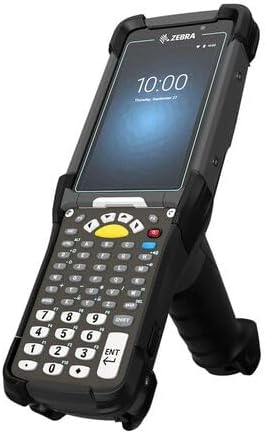
Image 1: Front view of the Zebra MC9300 MC930P-GSGDG4NA Mobile Computer, showcasing its display, keypad, and ergonomic handle.
3. Setup
3.1 Unpacking
Carefully remove all components from the packaging. Verify that the following items are present:
- Zebra MC9300 Mobile Computer
- Rechargeable Battery
- Power Supply Unit (AC Adapter)
- Regulatory Guide and Documentation
3.2 Battery Installation
- Ensure the device is powered off.
- Locate the battery compartment cover on the rear of the device.
- Open the cover and insert the battery, aligning the contacts correctly.
- Securely close the battery compartment cover.
3.3 Initial Charging
Before first use, fully charge the device battery. Connect the power supply unit to the device's charging port and then plug it into a power outlet. The charging indicator will illuminate. A full charge typically takes approximately 4-6 hours.
3.4 Powering On/Off
- To Power On: Press and hold the Power button located on the side of the device until the screen illuminates.
- To Power Off: Press and hold the Power button until the power options menu appears. Select 'Power Off' and confirm.
4. Operating Instructions
4.1 Navigating the Android OS
The MC9300 runs on the Android operating system. Use the touchscreen for navigation, tapping icons to open applications, swiping to scroll, and using standard Android gestures. The physical keypad provides additional input options.
4.2 Using the 2D Barcode Scanner
- Open an application that supports barcode scanning.
- Point the scanner window at the barcode.
- Press one of the scan trigger buttons (typically located on the side or handle) to activate the scanner. A red aiming pattern will appear.
- Align the aiming pattern with the barcode until a successful read is indicated by an audible beep or visual confirmation on the screen.
4.3 Keypad Functions
The 53-key alphanumeric keypad provides tactile input for data entry. Keys include numeric digits (0-9), alphabetic characters, function keys, and navigation keys. Refer to the on-screen keyboard layout or application-specific instructions for detailed key assignments.
4.4 WLAN Connectivity
- Go to Settings > Network & internet > Wi-Fi.
- Toggle Wi-Fi to the 'On' position.
- Select your desired Wi-Fi network from the list of available networks.
- Enter the network password if prompted and tap Connect.
5. Maintenance
5.1 Cleaning the Device
To maintain optimal performance and appearance:
- Use a soft, lint-free cloth dampened with a mild cleaning solution (e.g., isopropyl alcohol or a screen cleaner) to wipe the display and casing.
- Do not use abrasive cleaners or immerse the device in liquids.
- Ensure all ports are dry before connecting any cables.
5.2 Battery Care
To prolong battery life:
- Avoid extreme temperatures.
- Do not allow the battery to fully discharge frequently.
- Store the device with a partial charge if not used for extended periods.
5.3 Software Updates
Regularly check for and install software updates to ensure your device has the latest features, security patches, and performance improvements. Updates can typically be found in the device's Settings > System > System update section.
6. Troubleshooting
6.1 Common Issues and Solutions
- Device not powering on: Ensure the battery is properly installed and fully charged. Try a soft reset by holding the power button for 10-15 seconds.
- Scanner not reading barcodes: Check that the scanning application is active. Ensure the barcode is clean and undamaged. Verify scanner settings in the device configuration.
- WLAN connectivity issues: Confirm Wi-Fi is enabled and you are within range of a known network. Verify the network password. Restart the device and the Wi-Fi router if necessary.
- Slow performance: Close unnecessary applications. Clear cache and temporary files. Consider a factory reset as a last resort (back up data first).
6.2 Contacting Support
If you encounter issues that cannot be resolved using the troubleshooting steps above, please contact the vendor from whom you purchased the renewed device for further assistance.
7. Specifications
| Model | MC9300 MC930P-GSGDG4NA |
| Display | 4.3-inch |
| Scanner Type | 2D Imager |
| RAM | 4GB |
| Flash Storage | 32GB |
| Connectivity | WLAN (Wi-Fi) |
| Keypad | 53-Key Alphanumeric |
| Operating System | Android |
| Manufacturer | Zebra Technologies |
8. Warranty and Support
This Zebra MC9300 mobile computer is offered as a renewed item. Please refer to the specific warranty terms provided by the seller, Breckline Renewed, or Amazon Renewed for details regarding coverage and duration. Warranty terms for renewed products may differ from new products. For technical support or warranty claims, please contact the vendor from whom the device was purchased directly.


