
1. Introduction
This manual provides detailed instructions for the installation, operation, and maintenance of your MekedeTech M6 Pro Plus Android Car Radio. Please read this manual thoroughly before using the device to ensure proper functionality and to maximize your user experience. Keep this manual for future reference.
2. Product Overview
The MekedeTech M6 Pro Plus is an advanced in-dash car stereo system featuring an Android 12 operating system. It is designed to provide comprehensive multimedia and navigation capabilities for your vehicle.

Image 2.1: Front view of the MekedeTech M6 Pro Plus Android Car Radio.
Key Features:
- Operating System: Android 12 with an 8-core processor (2 cores ARM Cortex A75 + 6 cores ARM Cortex A55) for responsive performance.
- Display: 10.36-inch 2000x1200 QLED full-fit screen, offering clear visuals and reduced light reflection.
- Memory: 4GB RAM and 64GB internal storage.
- Connectivity: Qualcomm 3031 Bluetooth 5.1 chip for stable connections, Wireless CarPlay, and Android Auto support.
- Audio: DSP 36-band equalizer and DTS 4.1/5.1 channel surround sound systems for enhanced audio output.
- Control: Supports intelligent voice control for hands-free operation.
- Additional Features: Integrated GPS, 4G LTE support, FM/AM RDS Radio, Split Screen functionality, AHD reversing camera compatibility, and ADAS DVR anti-collision warning support.
3. Package Contents
Verify that all items listed below are included in your product package. If any items are missing or damaged, please contact customer support.

Image 3.1: Visual representation of the package contents.
- 10.36 inch touch screen (Host Device)
- Power cable
- USB cable
- RCA cable
- Reversing cable
- Bracket (2 pieces)
- Fakra GPS Antenna
- Fakra 4G Antenna
- Microphone (MIC)
- USB Plug x3
- Instruction manual
- Packaging Box
4. Setup and Installation
Professional installation is recommended for this device. Ensure the vehicle's power is disconnected before beginning installation. Refer to your vehicle's specific wiring diagram for accurate connections.
4.1 Wiring Diagram
The following diagram illustrates the general connection points for the car radio. Specific wiring may vary based on your vehicle model. If your car requires a CANBUS module, please ensure it is correctly connected.
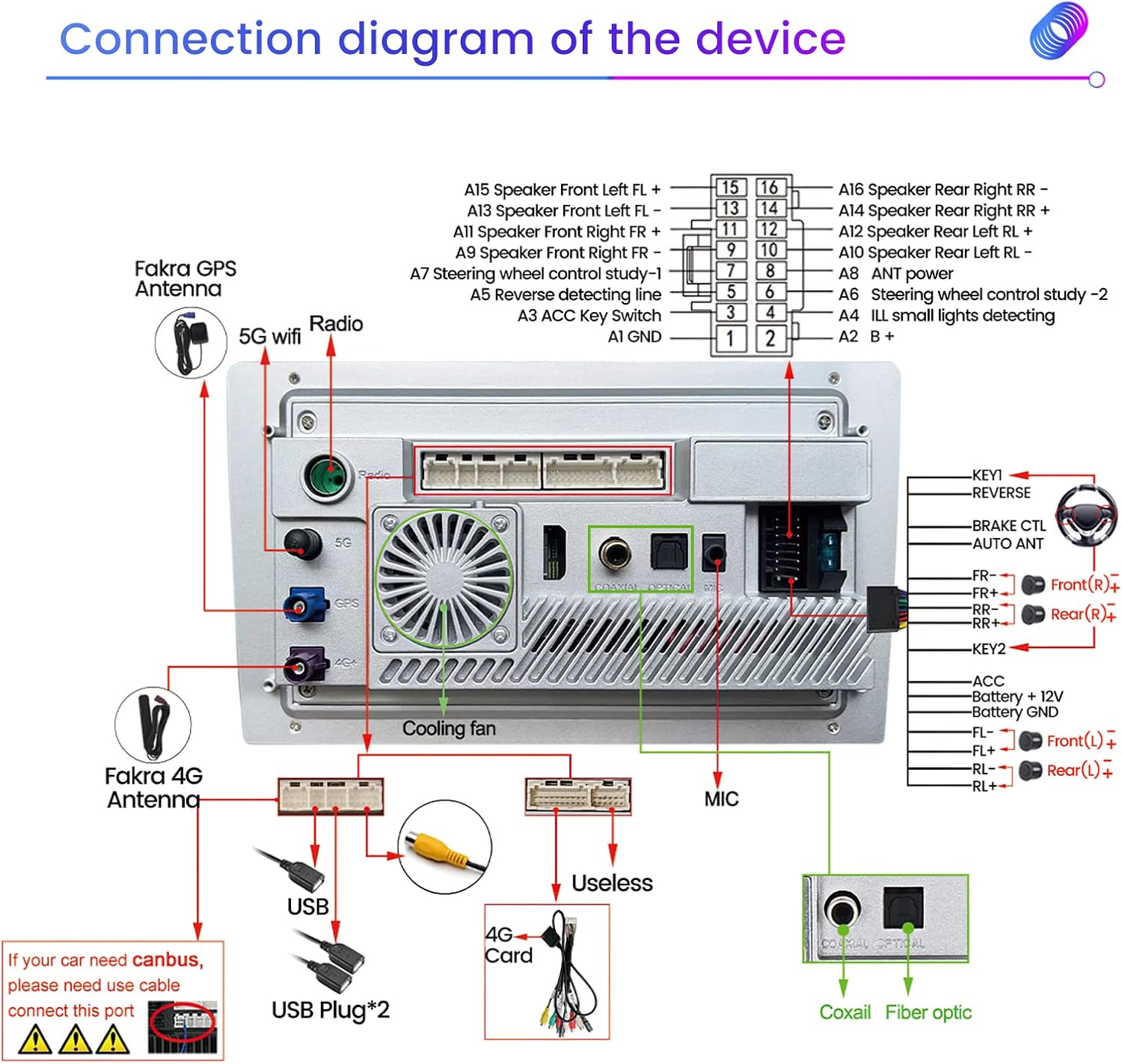
Image 4.1: Connection diagram of the device.
- Power Connections: Connect ACC, Battery +12V, and Battery GND wires to the corresponding vehicle power sources.
- Speaker Outputs: Connect the speaker wires (Front Left FL+, FL-, Front Right FR+, FR-, Rear Left RL+, RL-, Rear Right RR+, RR-) to your vehicle's speakers.
- Antennas: Connect the Fakra GPS Antenna and Fakra 4G Antenna to their respective ports.
- USB Ports: Connect the provided USB cables for external devices or data transfer.
- RCA Connections: Use the RCA cable for audio/video input/output, including subwoofer output.
- Reversing Camera: Connect the reversing cable and an AHD reversing camera (not included) for rear-view functionality.
- Steering Wheel Control: Connect KEY1 and KEY2 wires for steering wheel control integration.
- External Microphone: Connect the external microphone for improved voice command and call quality.
5. Operating Instructions
5.1 Power On/Off and Basic Interface
Press the power button to turn the unit on or off. The main screen displays time, date, speed, and quick access icons for navigation, video player, radio, music player, and settings. The touch screen interface allows for intuitive control.
Image 5.1: Main user interface.
5.2 Wireless CarPlay and Android Auto
The device supports both Wireless CarPlay and Android Auto for seamless smartphone integration.
5.2.1 Wireless CarPlay Connection Steps:
- Connect your iPhone to the car radio via Bluetooth.
- On the car radio, click on the "Car Link" application.
- Wait for the connection to establish. CarPlay can also be connected via a USB cable.

Image 5.2: Wireless CarPlay connection guide.
5.2.2 Wired Android Auto Connection Steps:
- Connect your Android phone to the car radio using a USB cable.
- On the car radio, click on the "Car Link" application.
- Wait for the connection to establish.

Image 5.3: Wired Android Auto connection guide.
5.3 Voice Control
The device supports intelligent voice control for hands-free operation, enhancing driving safety and convenience. You can use voice commands for navigation, music playback, calls, and other functions.

Image 5.4: Examples of voice commands.
5.4 Radio (FM/AM RDS)
Access the FM/AM radio application to tune into your favorite stations. The RDS (Radio Data System) feature provides additional information where available.

Image 5.5: Radio interface.
5.5 GPS Navigation
The unit features a built-in global positioning system for accurate navigation. It supports omni-directional map display and real-time traffic conditions.

Image 5.6: GPS navigation display.
5.6 DSP 36-Band EQ and DTS Sound
Customize your audio experience with the 36-band Digital Sound Processor (DSP) equalizer. The DTS 4.1/5.1 channel surround sound systems provide a dynamic and immersive audio environment.

Image 5.7: DSP equalizer and DTS sound features.
5.7 Split Screen Function
Utilize the split-screen feature to display two applications simultaneously, such as navigation and music, for enhanced convenience.
Image 5.8: Split screen in use.
5.8 4G Connectivity
Insert a 4G SIM card (not included) into the designated slot to enable internet access, allowing for online streaming, app downloads, and real-time data services.
Image 5.9: 4G connectivity feature.
5.9 AHD Reversing Camera Support
The unit supports AHD (Analog High Definition) reversing cameras for clear rear-view imaging. A reversing camera is not included and must be purchased separately.
Image 5.10: AHD reversing camera feature.
5.10 ADAS DVR Anti-collision Warning
The device supports ADAS (Advanced Driver-Assistance Systems) DVR for anti-collision warning and driving recording. This feature requires a compatible DVR camera (not included).
Image 5.11: ADAS DVR feature.
6. Maintenance
To ensure the longevity and optimal performance of your MekedeTech M6 Pro Plus car radio, follow these maintenance guidelines:
- Cleaning: Use a soft, dry cloth to clean the screen and exterior. For stubborn smudges, a slightly damp cloth with a mild, non-abrasive cleaner can be used, but avoid direct spraying onto the unit.
- Temperature: Avoid exposing the unit to extreme temperatures, direct sunlight for prolonged periods, or high humidity.
- Ventilation: Ensure that the cooling fan and ventilation openings are not obstructed to prevent overheating.
- Software Updates: Periodically check for and install official software updates to improve performance and add new features.
7. Troubleshooting
If you encounter issues with your device, refer to the following common problems and solutions. If the problem persists, contact customer support.
| Problem | Possible Cause | Solution |
|---|---|---|
| Unit does not power on. | Incorrect power wiring, blown fuse, vehicle power issue. | Check power cable connections (ACC, B+, GND). Verify vehicle fuse. Consult a professional installer. |
| No sound or distorted audio. | Incorrect speaker wiring, volume too low, audio settings misconfigured. | Check speaker connections. Adjust volume. Reset audio settings or EQ. |
| Touch screen unresponsive or requires multiple touches. | Software glitch, screen calibration issue, physical damage. | Restart the unit. Check for software updates. If persistent, contact support. |
| Wireless CarPlay/Android Auto not connecting. | Bluetooth not paired, "Car Link" app not launched, phone settings. | Ensure Bluetooth is on and paired. Open "Car Link" app. Check phone's CarPlay/Android Auto settings. Try restarting both devices. |
| GPS signal weak or inaccurate. | GPS antenna obstructed or improperly installed. | Ensure GPS antenna has a clear view of the sky and is securely connected. |
| Unit occasionally shuts off or restarts. | Power supply instability, overheating, software issue. | Verify stable power connection. Ensure proper ventilation. Check for software updates. |
8. Specifications
Detailed technical specifications for the MekedeTech M6 Pro Plus Android Car Radio.
| Feature | Specification |
|---|---|
| Model Name | M6ProPlus |
| Operating System | Android 12 |
| Processor | 8-core (2 cores ARM Cortex A75 + 6 cores ARM Cortex A55) |
| Memory (RAM) | 4GB |
| Storage (ROM) | 64GB |
| Display Size | 10.36 Inches |
| Display Resolution | 2000x1200 (2K QLED) |
| Bluetooth Version | 5.1 (Qualcomm 3031 chip) |
| Audio Output Mode | Stereo, DSP 36-Band EQ, DTS 4.1/5.1 Channel Surround |
| Connectivity Technology | Wireless (Wireless CarPlay, Android Auto), 4G LTE |
| Voice Command | Supported (Buttons, Microphone, Touchscreen) |
| Map Type | Worldwide (GPS, GLONASS, BDS) |
| Item Weight | 3.76 pounds |
| Package Dimensions | 11.22 x 6.89 x 4.09 inches |
| Manufacturer | Shenzhen Mekede Technology Co.,Ltd |
9. Warranty and Support
MekedeTech products are covered by a manufacturer's warranty. For specific warranty terms and conditions, please refer to the documentation included with your purchase or visit the official MekedeTech website.
For technical assistance, troubleshooting, or any inquiries regarding your MekedeTech M6 Pro Plus Android Car Radio, please contact MekedeTech customer support. Contact information can typically be found on the product packaging, the official website, or through your point of purchase.