1. Introduction
Thank you for choosing the Bestsee M22PRO 3-Channel Dashcam. This manual provides detailed instructions for the installation, operation, and maintenance of your device. Please read this manual thoroughly before use to ensure proper functionality and to maximize your driving safety and recording experience.
The Bestsee M22PRO dashcam is designed to provide comprehensive surveillance of your vehicle's surroundings and interior, offering peace of mind through continuous recording and advanced safety features.
2. Product Overview
2.1 Package Contents
- Bestsee M22PRO Front Dashcam Unit
- Interior/Rear Camera
- Suction Cup Mount
- Car Charger
- USB Cable
- 64GB Micro-SD Card
- User Manual
2.2 Key Features
- 3-Channel Recording: Simultaneous recording from front (170°), interior (120°), and rear (150°) cameras.
- High Resolution: Front camera records at 1440p, interior and rear cameras at 1080p.
- Super Night Vision & WDR: F/1.8 aperture and Wide Dynamic Range (WDR) technology for clear footage day and night, including 4 IR lights for interior cabin.
- G-Sensor: Automatically locks current video footage upon sudden impact or collision.
- Loop Recording: Overwrites the oldest unlocked files when the memory card is full, ensuring continuous recording.
- 24-Hour Parking Monitor: Provides continuous surveillance when the vehicle is parked (requires optional hardwire kit).
- Wi-Fi & App Control: Connects to a smartphone app for easy viewing, downloading, and sharing of recordings.
- Easy Installation: User-friendly suction cup mount with rotatable design.
- Included 64GB SD Card: Ready for immediate use.

This image displays the Bestsee M22PRO dashcam system, including the main front camera unit, the interior/rear camera, a suction cup mount, a 64GB SD card, and a smartphone screen demonstrating the dashcam's mobile application.
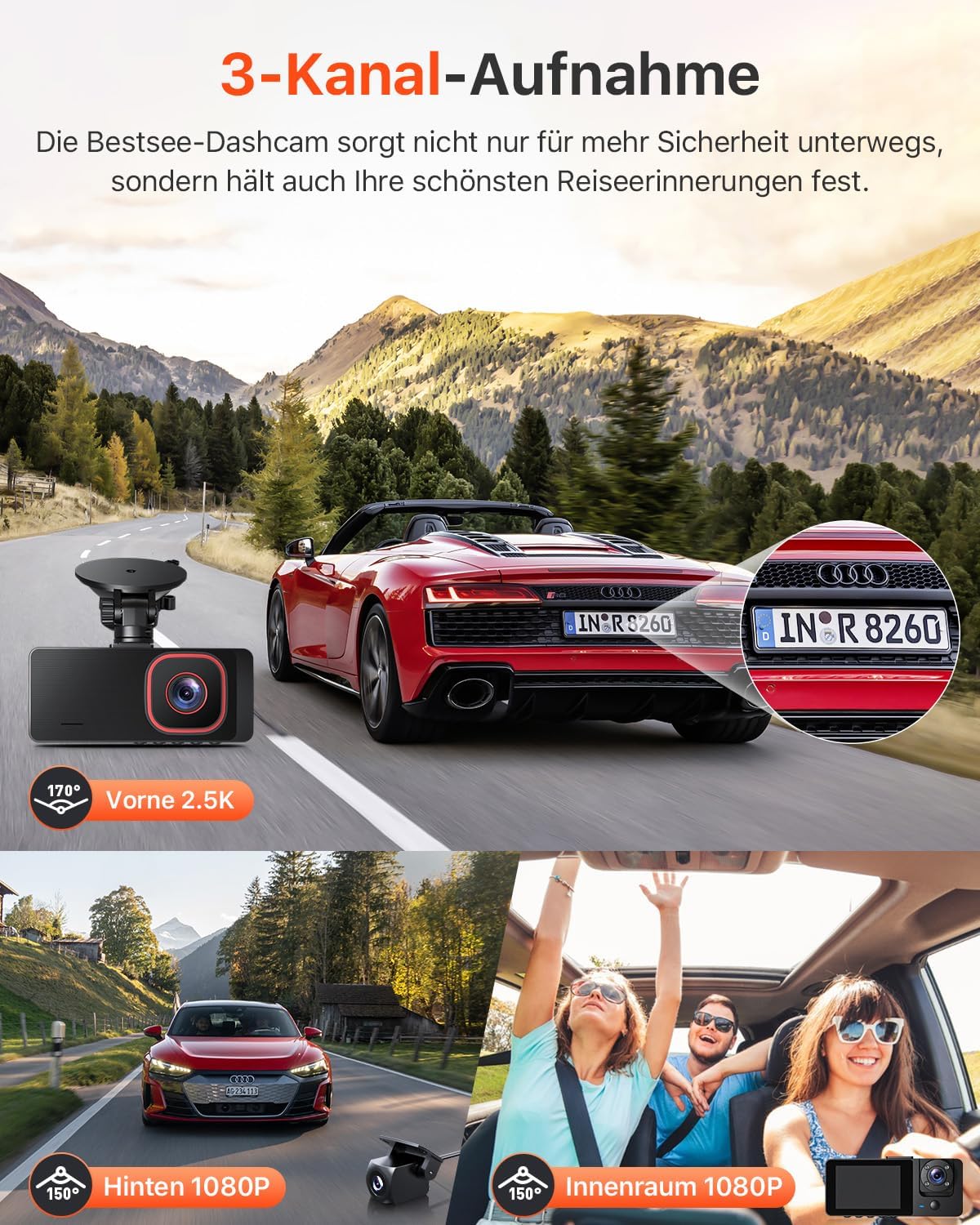
This diagram illustrates the Bestsee M22PRO dashcam's three-channel recording system, capturing views from the front (2.5K), interior (1080P), and rear (1080P) of the vehicle simultaneously, providing comprehensive coverage.

This image features the Bestsee M22PRO dashcam installed on a car's windshield, highlighting its main features through icons: 2.5K resolution, 3-channel video, 2.35-inch IPS screen, app control, 24-hour parking mode, G-Sensor, loop recording, and infrared lighting.
3. Setup & Installation
3.1 Inserting the Micro-SD Card
- Ensure the dashcam is powered off.
- Locate the Micro-SD card slot on the side of the main dashcam unit.
- Insert the provided 64GB Micro-SD card with the gold contacts facing the back of the camera until it clicks into place.
- To remove, gently push the card until it springs out.
Note: For optimal performance, format the SD card within the dashcam's settings menu upon first use and periodically thereafter.
3.2 Mounting the Front Dashcam
- Clean the windshield area where you intend to mount the dashcam.
- Attach the suction cup mount to the main dashcam unit.
- Press the suction cup firmly against the windshield and flip the lever to secure it.
- Adjust the camera angle to ensure a clear view of the road ahead. The mount allows for 170-degree rotation and 360-degree swivel.
3.3 Installing the Interior/Rear Camera
- Connect the interior/rear camera cable to the designated port on the main dashcam unit.
- Route the cable neatly along the vehicle's headliner and A-pillar to avoid obstruction.
- Mount the interior/rear camera in a position that provides a clear view of the vehicle's interior or rear window, depending on your preference. Use the adhesive pad provided.
3.4 Connecting Power
- Plug the car charger into your vehicle's 12V power outlet (cigarette lighter socket).
- Connect the other end of the car charger cable to the power input port on the main dashcam unit.
- Route the power cable along the edge of the windshield and dashboard to keep it tidy and out of the way.

This image illustrates the easy installation of the Bestsee M22PRO dashcam, featuring its detachable suction cup mount. It highlights the 170-degree rotation and 360-degree swivel capabilities of the mount, allowing for flexible positioning and optimal viewing angles.
4. Operating Instructions
4.1 Power On/Off
- Automatic: The dashcam will automatically power on and begin recording when your vehicle's engine starts and power is supplied. It will power off automatically when the engine is turned off.
- Manual: Press and hold the Power button to manually turn the dashcam on or off.
4.2 Basic Recording
Once powered on, the dashcam will automatically start recording in a continuous loop. The screen will display the live view from the selected camera(s).
4.3 Loop Recording
The dashcam records video in segments (e.g., 1, 3, or 5 minutes) and stores them on the Micro-SD card. When the card is full, the oldest unlocked video files are automatically overwritten by new recordings. This ensures continuous recording without manual intervention.

This image visually explains the loop recording function of the Bestsee M22PRO dashcam. It shows the dashcam unit with a circular arrow symbolizing continuous recording, and highlights the included 64GB SD card, which facilitates this feature by overwriting older files when full.

This diagram explains the concept of endless loop recording for the Bestsee M22PRO dashcam, showing a 24-hour cycle. It also correlates different SD card capacities (32GB, 64GB, 128GB) with approximate recording durations (2 hours, 4 hours, 8 hours respectively), indicating how storage impacts continuous recording.
4.4 G-Sensor (Emergency Recording)
The built-in G-Sensor detects sudden impacts or rapid acceleration/deceleration. When triggered, it automatically locks the current video segment, preventing it from being overwritten by loop recording. These emergency files are stored in a separate folder on the SD card.
4.5 Parking Monitor
When enabled, the Parking Monitor feature allows the dashcam to continue surveillance even when your vehicle is parked and the engine is off. It can detect impacts or motion around the vehicle and automatically start recording. This feature requires a continuous power supply, typically achieved through an optional hardwire kit (not included).
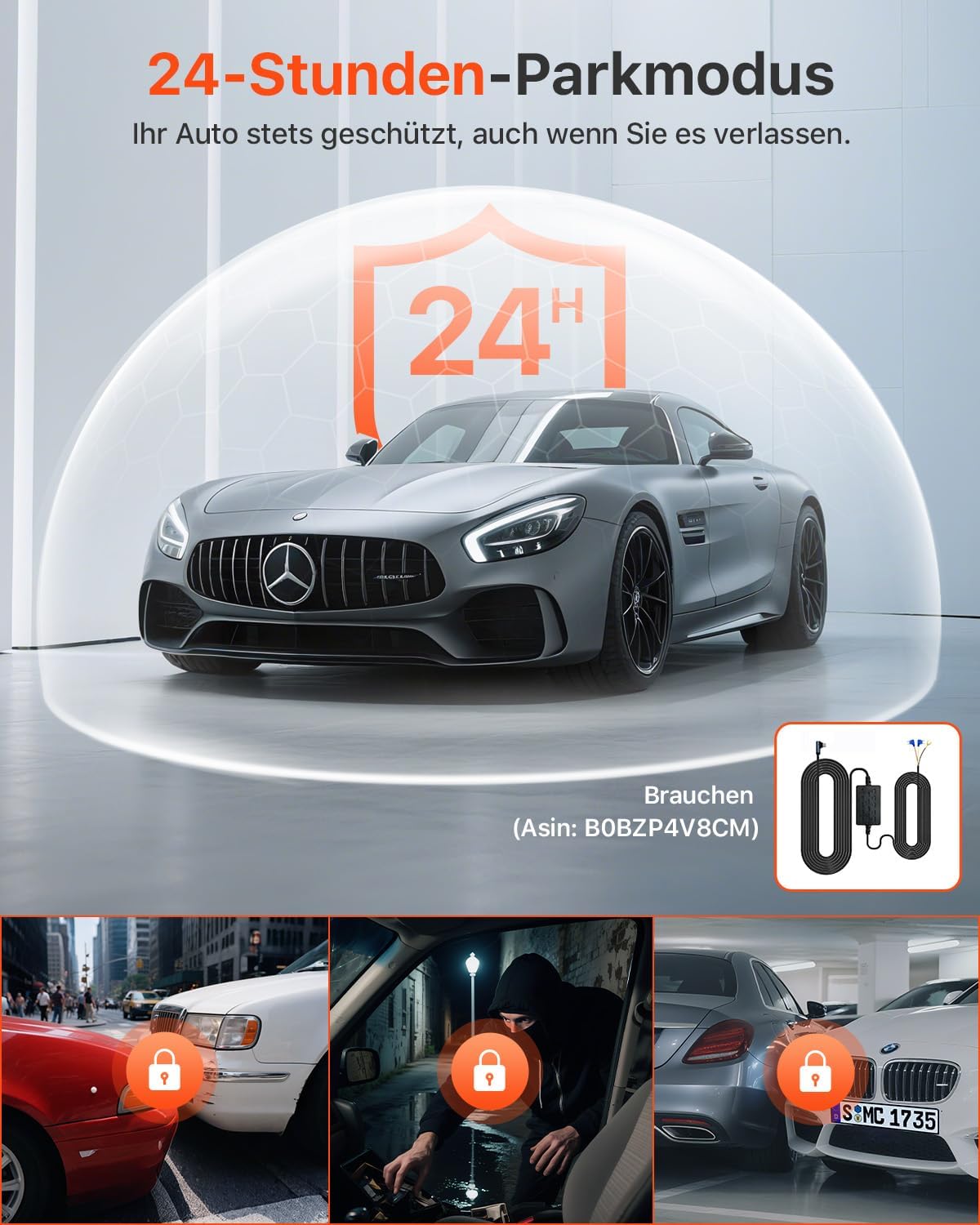
This image illustrates the 24-hour parking mode feature of the Bestsee M22PRO dashcam, showing a car under a protective shield. It also includes smaller inset images depicting scenarios like potential theft or impact, emphasizing the continuous surveillance provided. A hardwire kit, necessary for this feature, is also shown.
4.6 Wide Dynamic Range (WDR)
WDR technology enhances video quality in challenging lighting conditions, such as strong backlighting or low light. It balances exposure to capture clearer details in both bright and dark areas of the frame.
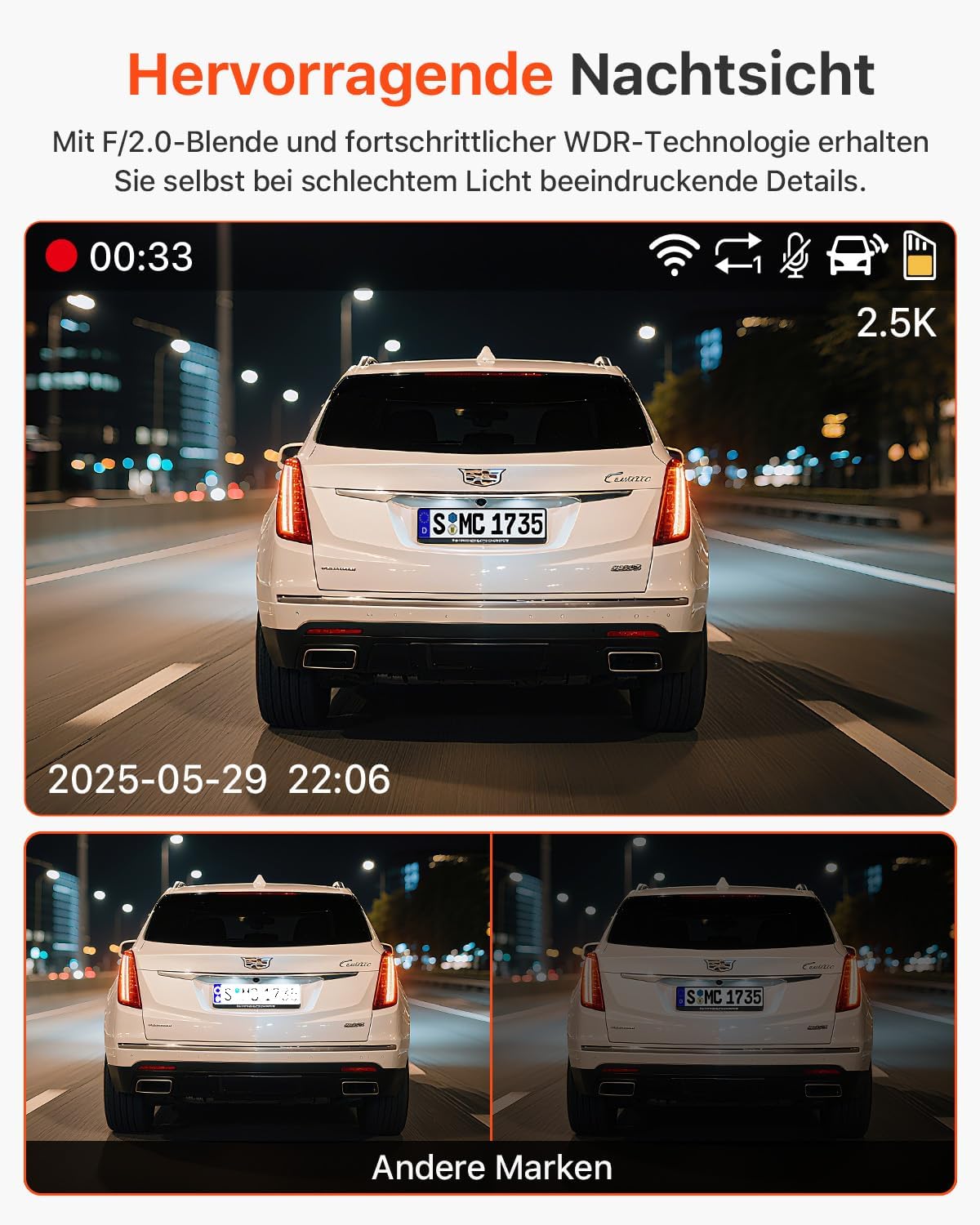
This image demonstrates the superior night vision capabilities of the Bestsee M22PRO dashcam, showcasing clear and detailed footage of a car's rear in low-light conditions, contrasted with less clear footage from other dashcam brands.
5. App Control (Wi-Fi Connectivity)
The Bestsee M22PRO dashcam features built-in Wi-Fi, allowing you to connect it to your smartphone via a dedicated app. This app provides convenient access to your recordings and camera settings.
5.1 Connecting to the App
- Download the official Bestsee dashcam app from your smartphone's app store (iOS or Android).
- Turn on the dashcam's Wi-Fi function through its menu settings.
- On your smartphone, go to Wi-Fi settings and connect to the dashcam's Wi-Fi network (SSID and password will be displayed on the dashcam screen).
- Open the Bestsee app. You should now be able to view live footage, browse recorded videos, download files to your phone, and adjust settings.

This image shows a user interacting with the Bestsee M22PRO dashcam via its mobile application on a smartphone. Icons indicate features such as Wi-Fi connectivity, video download, sharing, and playback, demonstrating convenient access to recorded footage.
6. Maintenance
6.1 Formatting the SD Card
Regularly formatting the Micro-SD card (at least once a month) helps maintain its performance and prevents data corruption. This can be done through the dashcam's menu settings.
6.2 Cleaning the Lens and Screen
Use a soft, lint-free cloth to gently wipe the camera lenses and the dashcam screen. Avoid using abrasive cleaners or solvents that could damage the surfaces.
7. Troubleshooting
- Dashcam does not power on: Ensure the car charger is properly connected to both the dashcam and the vehicle's power outlet. Check if the vehicle's 12V outlet is functioning.
- Recording stops or freezes: Format the Micro-SD card. Ensure you are using a high-speed (Class 10 or higher) Micro-SD card. Replace the SD card if the issue persists.
- Poor video quality: Clean the camera lenses. Ensure the protective film has been removed from the lenses. Adjust exposure settings if available.
- Date/Time resets: This may indicate an issue with the internal battery or power supply. Ensure the dashcam receives continuous power when the vehicle is running.
- Wi-Fi connection issues: Ensure Wi-Fi is enabled on the dashcam and your smartphone. Try restarting both devices.
If you encounter issues not listed here or require further assistance, please contact customer support.
8. Specifications
| Feature | Specification |
|---|---|
| Model Name | M22PRO |
| Brand | Bestsee |
| Front Camera Resolution | 1440p |
| Interior/Rear Camera Resolution | 1080p |
| Front Camera Field of View | 170 Degrees |
| Interior Camera Field of View | 120 Degrees |
| Rear Camera Field of View | 150 Degrees |
| Screen Size | 2.35 Centimeters |
| Special Features | G-Sensor, WDR, Infrared Night Vision, Loop Recording, Parking Monitor |
| Compatible Devices | Smartphone (via App) |
| Mounting Type | Suction Cup Mount |
| Control Method | Touch |
| Battery Composition | Lithium-ion |
9. Warranty & Support
Bestsee is committed to providing excellent after-sales service. If you have any questions, concerns, or require technical support regarding your M22PRO dashcam, please do not hesitate to contact us.
You can reach our customer support team via Amazon message or email. We aim to resolve any issues promptly and efficiently.
For manufacturer details and regulatory information, please refer to the product packaging label.

This image displays the product packaging label for the Bestsee M22PRO dashcam, providing essential information such as manufacturer details (Shenzhen Yulu Technology Co., Ltd.), EC and UK representative contact information, and a warning regarding the lithium-ion battery.
10. Safety Information
- Do not operate the dashcam or access its settings while driving.
- Ensure the dashcam is installed in a location that does not obstruct your view of the road or interfere with airbag deployment.
- Use only the provided car charger and cables to prevent damage to the device.
- Avoid exposing the dashcam to extreme temperatures, direct sunlight for prolonged periods, or moisture.
- Keep the device out of reach of children.
- Dispose of the product and its battery responsibly according to local regulations.