
Fortdows 2G RAM 32G ROM-9Inch
Fortdows Android 12 Car Radio User Manual
Model: 2G RAM 32G ROM-9Inch for Ford Focus 2012-2018
Introduction
This manual provides comprehensive instructions for the installation, operation, and maintenance of your Fortdows Android 12 Car Radio. This unit is specifically designed for Ford Focus models from 2012 to 2018, offering a seamless upgrade to your vehicle's infotainment system.
Please read this manual thoroughly before installation and use to ensure proper functionality and to maximize your experience with the product.
Package Contents
Verify that all components listed below are included in your package:
- Car Radio x 1
- Power Cable x 1
- Canbus x 1
- GPS Module x 1
- RCA Cable x 1
- USB Cable x 2
- Crowbar x 1 (for installation assistance)
- Reversing Control Cable x 1
- Backup Camera x 1
- MIC x 1

Image: Overview of the Fortdows car radio package contents, including the main head unit, various cables (power, RCA, USB, GPS, reversing control), Canbus, crowbar, backup camera, and microphone.
Setup and Installation
This unit is designed for a direct-fit replacement in Ford Focus 2012-2018 models. Professional installation is recommended.
Pre-Installation Steps
- Disconnect Battery: Before starting, disconnect the negative terminal of your car's battery to prevent electrical shorts.
- Remove Original Head Unit: Carefully remove the existing car radio and trim using the provided crowbar or appropriate tools. Refer to your vehicle's service manual for specific instructions on dashboard disassembly.
- Inspect Wiring: Familiarize yourself with the vehicle's existing wiring harness.
Connection Guide
- Power Cable: Connect the provided power cable to the car radio and the vehicle's wiring harness. The included Canbus adapter ensures compatibility with original car functionalities.
- GPS Module: Connect the GPS module and position it in an area with clear sky visibility, such as on the dashboard or under the windshield.
- USB Cables: Connect the two USB cables for external device connectivity. Route them to a convenient location, such as the glove compartment.
- RCA Cable: Connect the RCA cable for audio/video output or input, if using external amplifiers or displays.
- Reversing Control Cable & Backup Camera: Connect the reversing control cable to the car's reverse light signal. Install the backup camera at the rear of the vehicle and connect its video output to the corresponding input on the car radio.
- Microphone (MIC): Connect the external microphone for improved call quality during Bluetooth hands-free operation. Position it near the driver for optimal voice pickup.

Image: Visual comparison showing the original Ford Focus dashboard before installation and the new Fortdows Android 12 car radio seamlessly integrated after installation.

Image: A diagram illustrating the additional button functionality on the integrated face frame. It highlights that for initial installation, these buttons need to be manually configured and activated via the head unit's app software.
Important Note: For the initial installation, the buttons on the integrated face frame may need to be manually configured and activated through the head unit's software application. This ensures full functionality of all physical controls.
Operating Instructions
Basic Operation
- Power On/Off: Press and hold the power button on the unit to turn it on or off. A short press typically mutes/unmutes audio.
- Touchscreen Navigation: Use the 9-inch IPS touchscreen to navigate through menus, select applications, and control settings. The high-resolution display provides clear visuals.
- Volume Control: Adjust volume using the physical rotary knob or on-screen controls.
- Home Screen: Access the main Android home screen to view installed applications and widgets.
Wireless CarPlay & Android Auto
The unit supports wireless Apple CarPlay and Android Auto for seamless smartphone integration.
- Ensure Bluetooth and Wi-Fi are enabled on your smartphone.
- On the car radio, open the CarPlay/Android Auto application.
- Follow the on-screen prompts to pair your phone via Bluetooth. Once paired, the system will automatically establish a Wi-Fi connection for wireless CarPlay/Android Auto.
- You can now access navigation, music, calls, and messages directly from the car radio's display, often with voice control (e.g., "Hey Siri" or "OK Google").

Image: The car radio screen showing the user interface for both Apple CarPlay and Android Auto, demonstrating voice command capabilities for functions like changing songs or opening maps.
Bluetooth Connectivity
Connect your smartphone or other Bluetooth devices for hands-free calling and audio streaming.
- Go to the Bluetooth settings on the car radio.
- Enable Bluetooth and search for available devices.
- Select your device from the list and confirm the pairing code if prompted.
- Once connected, you can make/receive calls, access phone contacts, and stream music.

Image: A visual representation of the Bluetooth functionality, showing a user interacting with the car radio for hands-free calls and music playback.
FM Radio
Access local radio stations with the built-in FM tuner.
- Open the FM Radio application.
- Use the scan function to automatically find and save available stations.
- Manually tune to specific frequencies if desired.

Image: The car radio displaying the FM radio interface, indicating frequency tuning and station selection.
GPS Navigation
The unit comes with a built-in offline map of North America and supports online navigation applications.
- Open the Navigation application.
- Enter your destination or select a point of interest.
- Follow the voice-guided directions and on-screen map.
- For online navigation, ensure the unit is connected to Wi-Fi or a mobile hotspot.

Image: The car radio screen showing a GPS navigation map with route guidance, demonstrating the built-in navigation capabilities.
Wi-Fi Connectivity
Connect to Wi-Fi networks to download apps, browse the internet, and use online services.
- Go to the Wi-Fi settings.
- Turn on Wi-Fi and select your desired network.
- Enter the password if required.
- Once connected, you can access the Google Play Store to download various applications.
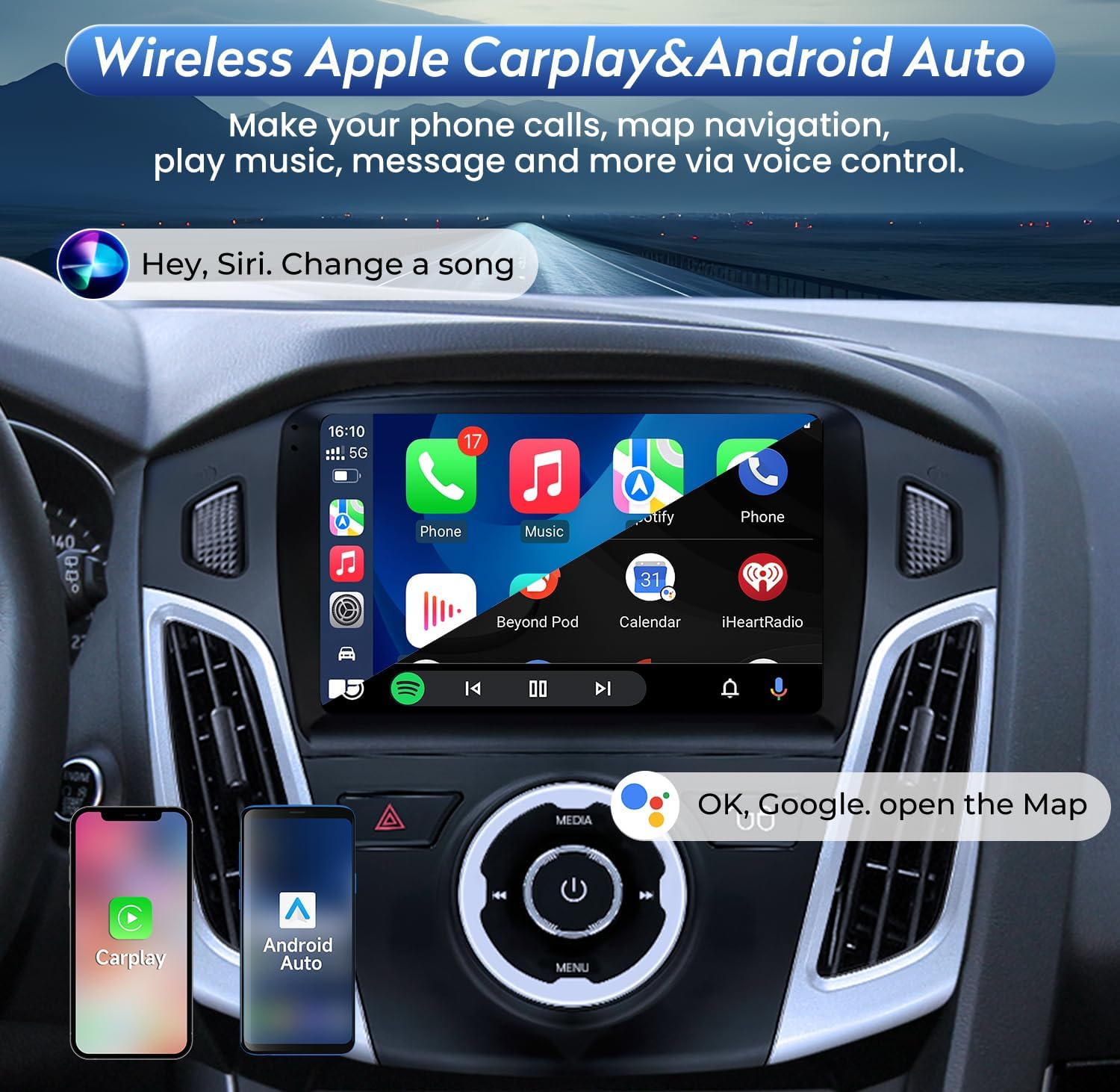
Image: The car radio screen showing various applications like YouTube, Facebook, and other social media/streaming apps, illustrating the Wi-Fi functionality for app downloads and online access.
Backup Camera Functionality
The included 1080P AHD backup camera provides a clear view when reversing.
- When the vehicle is shifted into reverse gear, the car radio will automatically display the rear view from the backup camera.
- Guide lines may be displayed on the screen to assist with parking.

Image: The car radio screen displaying the live feed from the backup camera, complete with parking guidelines, for safer reversing.
Maintenance
- Screen Cleaning: Use a soft, lint-free cloth to clean the touchscreen. For stubborn smudges, slightly dampen the cloth with water or a screen-safe cleaner. Avoid abrasive materials or harsh chemicals.
- Software Updates: Periodically check for software updates through the unit's system settings or the manufacturer's website. Keeping the software updated ensures optimal performance and access to new features.
- General Care: Avoid exposing the unit to extreme temperatures, direct sunlight for prolonged periods, or excessive moisture.
Troubleshooting
| Problem | Possible Cause | Solution |
|---|---|---|
| Unit does not power on. | No power connection; Blown fuse; Incorrect wiring. | Check power cable connections. Inspect vehicle's fuse box and replace any blown fuses. Verify wiring according to the installation guide. |
| No sound. | Volume too low; Mute activated; Speaker wiring issue; Incorrect audio source. | Increase volume. Check if mute is active. Verify speaker connections. Ensure correct audio source is selected. |
| Touchscreen unresponsive or frozen. | Software glitch; System overload. | Perform a soft reset (refer to device settings for reset option, or disconnect/reconnect power). If persistent, consider a factory reset (this will erase data). |
| CarPlay/Android Auto not connecting wirelessly. | Bluetooth/Wi-Fi off on phone/unit; Incorrect pairing; Software issue. | Ensure Bluetooth and Wi-Fi are enabled on both devices. Forget device on both ends and re-pair. Update unit's software. |
| Backup camera not displaying. | Camera not connected; Reversing signal not detected; Faulty camera. | Check camera video input and reversing control cable connection. Ensure the vehicle is in reverse. Test camera if possible. |
| Physical buttons not working. | Buttons not configured after installation. | Access the head unit's app software and manually configure/activate the buttons as described in the setup section. |
If the problem persists after attempting these solutions, please contact Fortdows customer support for further assistance.
Specifications
| Feature | Detail |
|---|---|
| Model Number | 2G RAM 32G ROM-9Inch |
| Operating System | Android 12 |
| Screen Size | 9 Inches (23 cm diagonal) |
| Display Resolution | 1280x800 IPS Touchscreen |
| RAM | 2GB |
| Internal Storage | 32GB |
| Connectivity | Wireless CarPlay, Android Auto, 5G WiFi, Bluetooth 5.0, USB |
| GPS | Built-in GPS module with North America offline map support |
| Radio Tuner | FM/RDS |
| Backup Camera | 1080P AHD (Included) |
| Audio Output Mode | Stereo |
| Vehicle Compatibility | Ford Focus 2012-2018 |
| Item Weight | 6.75 pounds |
| Package Dimensions | 15.35 x 13.54 x 5 inches |
Warranty and Support
Fortdows is committed to providing quality products and customer satisfaction. For any questions regarding installation, operation, or troubleshooting, please contact our customer support team.
Contact Information: Please refer to the contact details provided with your product packaging or visit the official Fortdows website for the most up-to-date support information.
Warranty: Information regarding the product warranty period and terms can be found in the documentation included with your purchase or on the Fortdows official website. Please retain your proof of purchase for warranty claims.
Related documents2G RAM 32G ROM-9Inch


Ask a question about this manual
Ask about setup, troubleshooting, compatibility, parts, safety, or missing instructions. Manuals+ will review the question and use this page’s manual context to help answer it.