
RUXINGX G37
RUXINGX Smartwatch for Women: User Manual
Model: G37 | Brand: RUXINGX
Introduction
Thank you for choosing the RUXINGX Smartwatch for Women. This device is designed to enhance your daily life with its advanced features, including phone call functionality, comprehensive health monitoring, and a wide range of sport modes. This manual provides detailed instructions to help you set up, operate, and maintain your smartwatch, ensuring you get the most out of its capabilities.
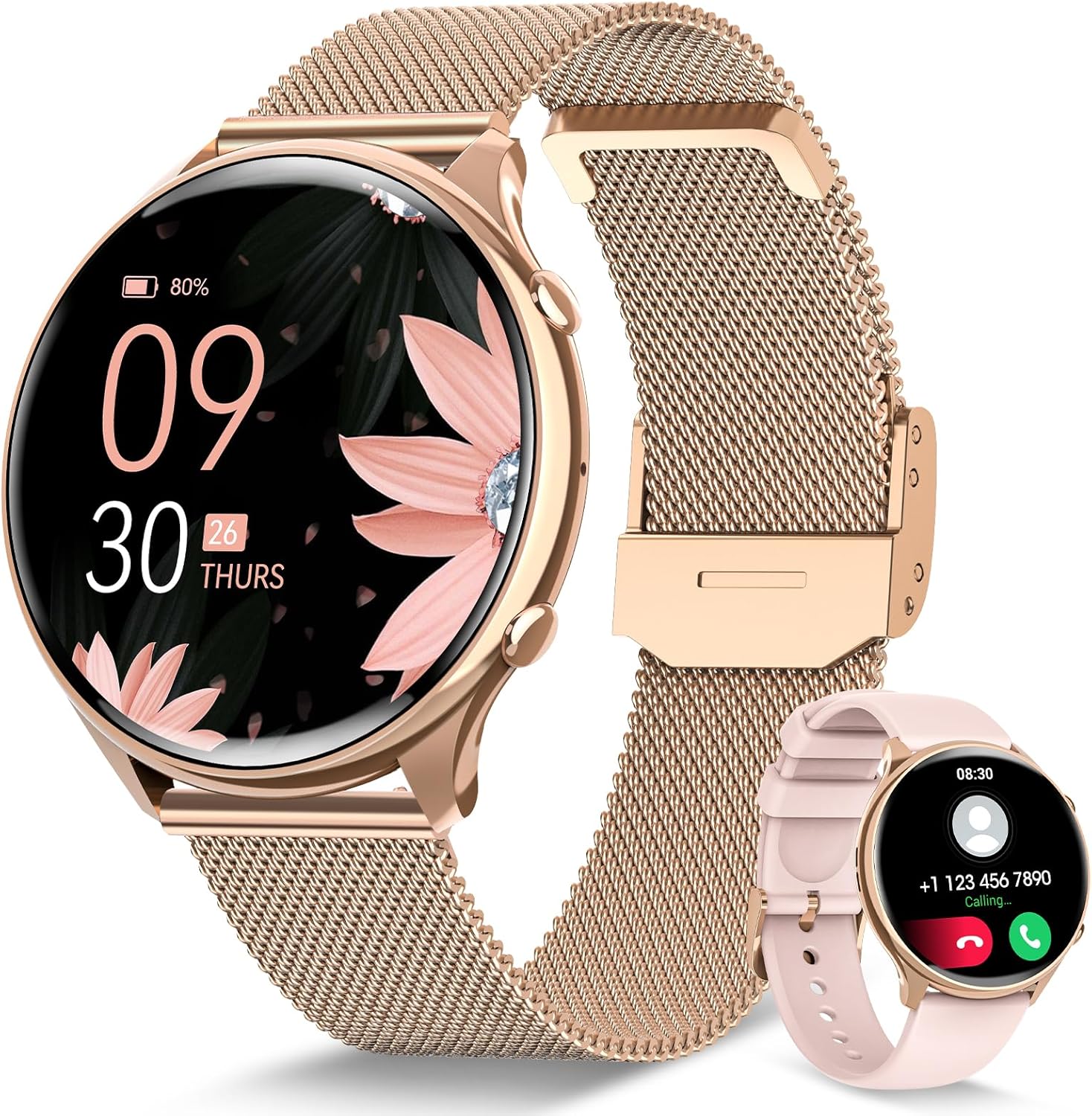
Figure 1: The RUXINGX Smartwatch in Rose Gold, showcasing its elegant design and the two included strap options (Milanese loop and silicone).
What's in the Box
Upon unboxing, please verify that all components are present:
- RUXINGX Smartwatch (Model G37)
- Milanese Loop Strap (Rose Gold)
- Silicone Strap (Pink)
- Magnetic Charging Cable
- User Manual (this document)
Setup Guide
1. Charging the Smartwatch
Before first use, fully charge your smartwatch. Connect the magnetic charging cable to the charging points on the back of the watch and plug the USB end into a standard USB power adapter (not included).
- A full charge takes approximately 2 hours.
- The battery icon on the screen will indicate charging status.

Figure 2: The smartwatch screen showing 100% battery. The image also highlights typical battery life: 2-3 days with Always-on Display, 7-9 days with daily use, and 30 days in reserve mode.
2. App Installation and Pairing
To unlock all features, download and install the "Fitcloud Pro" app on your smartphone.
- Scan the QR code in the manual or search for "Fitcloud Pro" in your phone's app store (compatible with Android 4.4+ and iOS 9.0+).
- Open the app and follow the on-screen instructions to create an account or log in.
- Enable Bluetooth on your smartphone.
- In the "Fitcloud Pro" app, navigate to "Device" and select "Add Device". The app will search for your smartwatch (G37).
- Select "G37" from the list to pair. Confirm the pairing request on both your phone and the smartwatch.
- For Bluetooth call functionality, ensure the watch is connected for both data and audio. This usually requires a second Bluetooth connection prompt after initial pairing.

Figure 3: Illustration of the smartwatch successfully connected to a smartphone via Bluetooth, enabling convenient call functions directly from the watch. The image also shows the "Connected" status on the watch screen and a checkmark in the app indicating successful pairing.

Figure 4: This image demonstrates the one-time Bluetooth pairing process and the audio switch feature. It shows the watch connected to the phone and options to enable or disable call audio and media audio, allowing sound to play through the watch.
3. Strap Installation and Adjustment
Your smartwatch comes with two interchangeable straps: a Milanese loop and a silicone strap. To change or adjust the strap:
- Locate the quick-release pins on the back of the strap.
- Slide the pin inwards to detach the strap.
- Align the new strap with the watch lugs and slide the pin outwards to secure it.
- Ensure the strap is securely fastened before wearing.

Figure 5: A diagram illustrating the smartwatch dimensions (45mm diameter) and the two included strap types: a silicone strap (90mm and 120mm sections) and a Milanese loop strap (adjustable from 153mm to 212mm wrist circumference), designed for women's wrists.
Operating Instructions
1. Basic Navigation
- Touchscreen: Swipe left/right to navigate between main screens (e.g., health data, sport modes). Swipe up/down to access quick settings or notifications.
- Side Button: Press to return to the home screen or wake the device. A long press may access power options or voice assistant.
- Shortcut Key: The side button can be customized in the app to quickly access your favorite function.
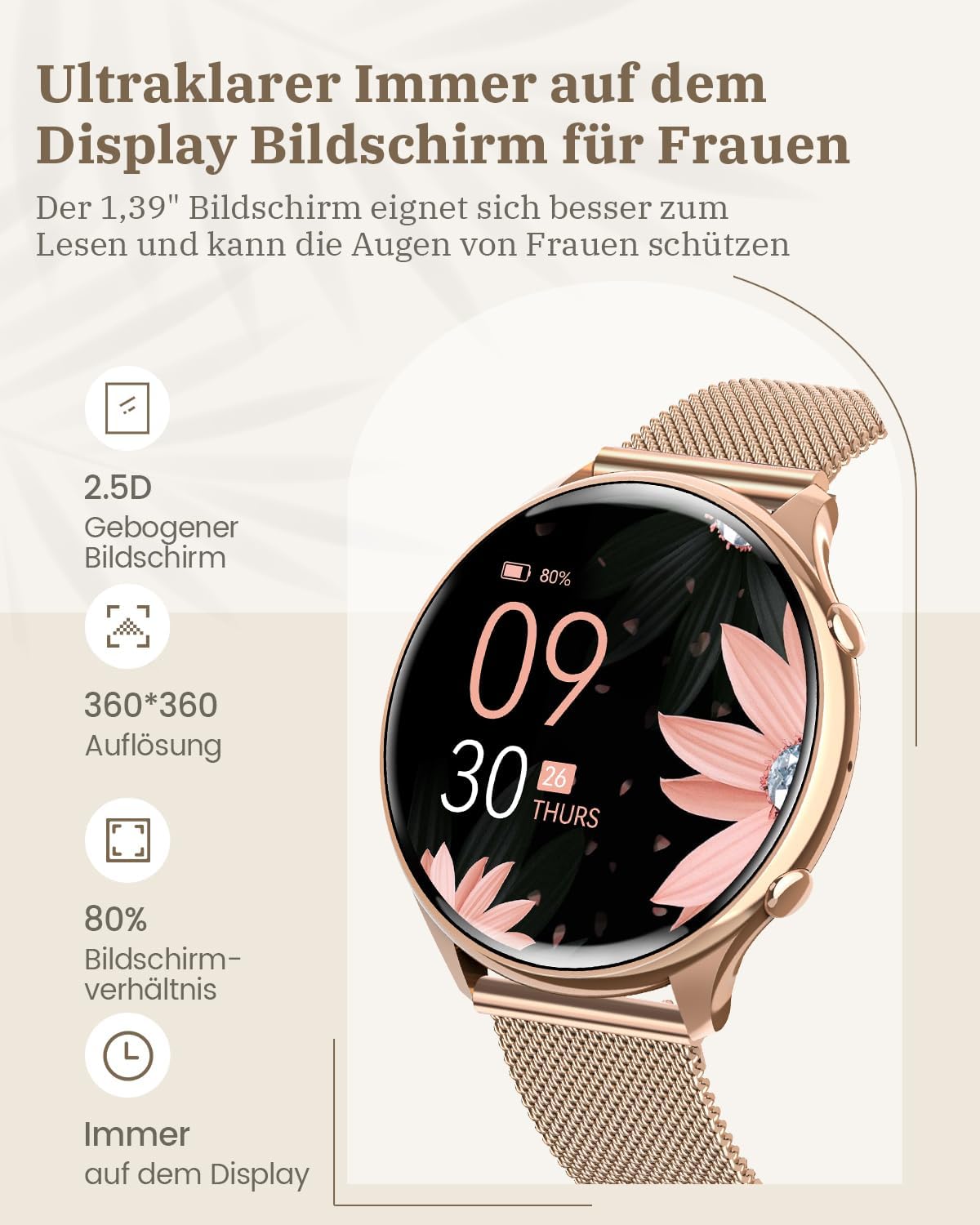
Figure 6: This image highlights the smartwatch's display features, including its 2.5D curved screen, 360x360 resolution, 80% screen-to-body ratio, and Always-on Display capability, designed for clear and eye-friendly viewing.

Figure 7: The smartwatch interface displaying four distinct menu modes, offering various visual styles and layouts for navigation, including options for telephone, frequent contacts, blood pressure, and dialer.
2. Communication Features
- Bluetooth Calls: Once paired, you can make, answer, and reject calls directly from your watch. Access the dialer or contacts list on the watch.
- Notifications: Receive real-time notifications from apps like WhatsApp, Facebook, SMS, and more. Manage notification settings in the "Fitcloud Pro" app.
- Voice Assistant: Compatible with your phone's voice assistant. Activate it from the watch to ask questions, set reminders, or control music.
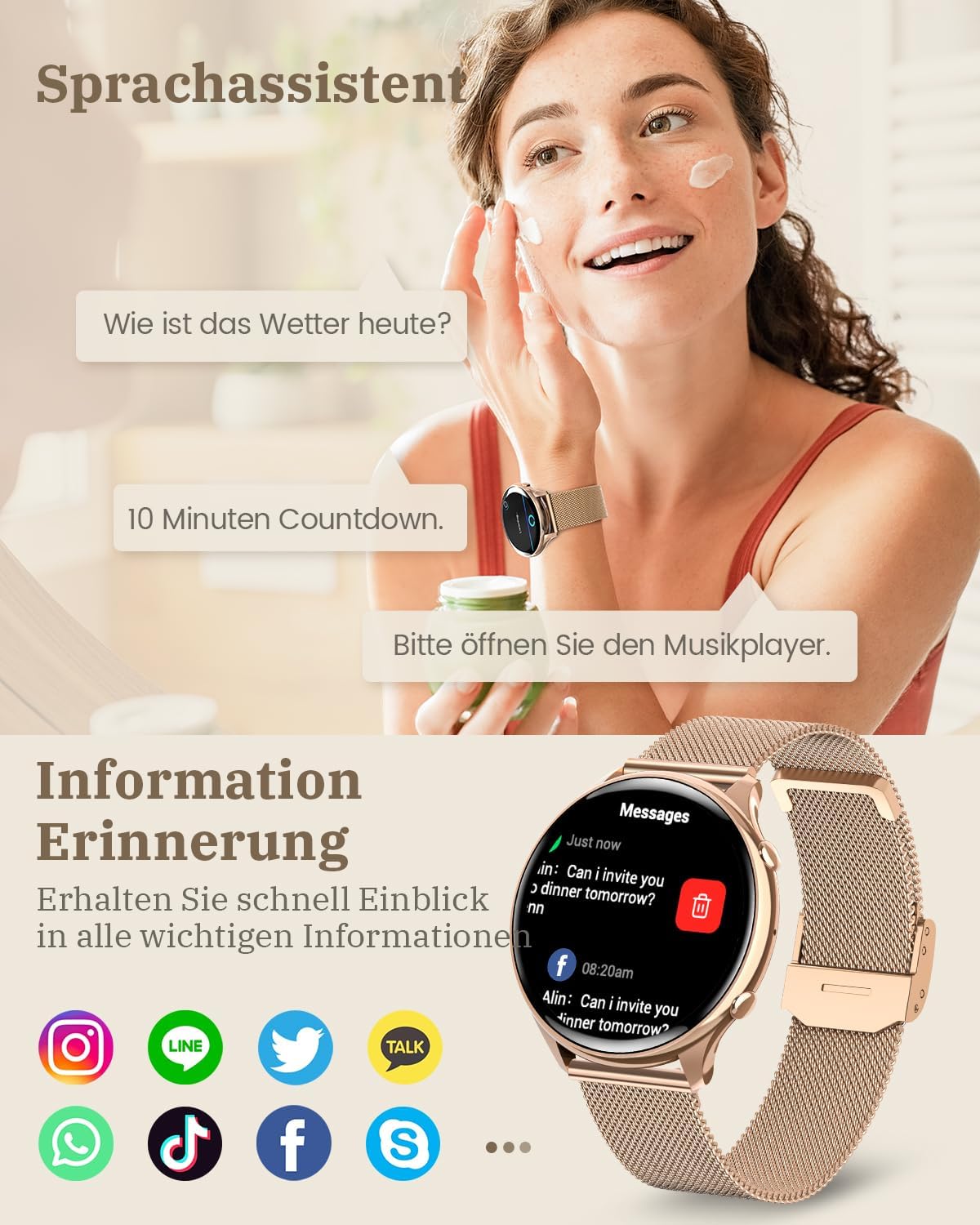
Figure 8: The smartwatch screen showing interactions with a voice assistant (e.g., "How's the weather today?", "10-minute countdown", "Please open the music player") and displaying incoming message notifications from various social media platforms like WhatsApp, Facebook, and SMS.
3. Health Monitoring
The smartwatch continuously monitors various health metrics:
- Heart Rate: Real-time heart rate tracking.
- Blood Oxygen (SpO2): Measures blood oxygen saturation levels.
- Blood Pressure: Provides estimated blood pressure readings.
- Sleep Monitor: Tracks sleep stages (deep, light, awake) and provides sleep quality analysis.
- Menstrual Cycle Tracking: Supports menstrual period prediction, ovulation tracking, and pregnancy preparation reminders.
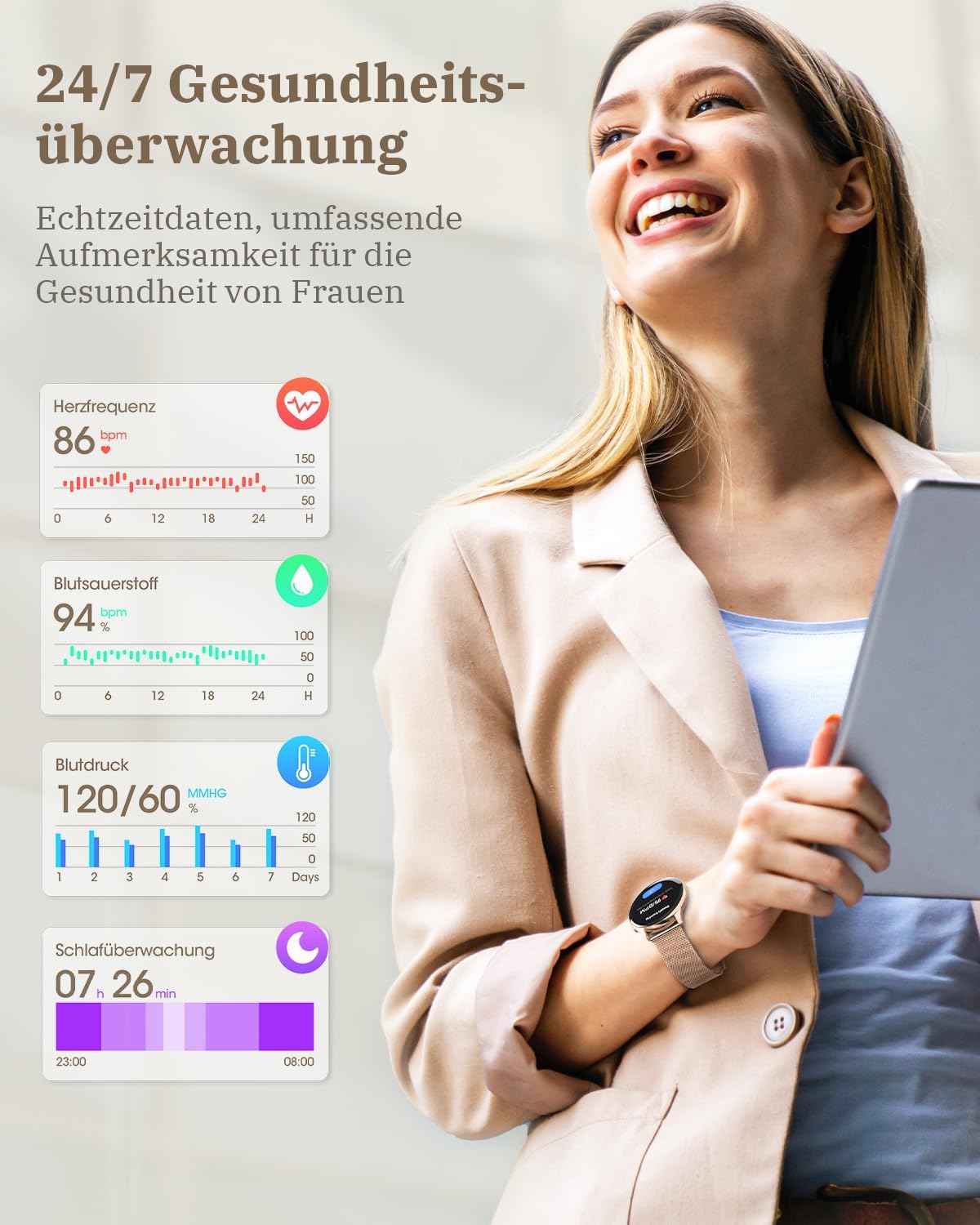
Figure 9: The smartwatch interface showing real-time health data, including heart rate (86 bpm), blood oxygen (94%), blood pressure (120/60 mmHg), and sleep duration (7h 26min), providing comprehensive health oversight.

Figure 10: The smartwatch interface showing detailed data for women's health, including menstrual cycle tracking, ovulation prediction, and pregnancy preparation, with a calendar view highlighting different cycle phases.
4. Sport Modes and Activity Tracking
The smartwatch offers over 120 sport modes to track your workouts accurately.
- Activity Tracking: Records steps, distance, calories burned, and active minutes.
- Sport Modes: Select your preferred activity (e.g., Yoga, Running, Fitness) to get specific metrics.
- GPS Tracking: While the watch does not have built-in GPS, it can use your phone's GPS to map your outdoor activities via the app.

Figure 11: A woman meditating, with the smartwatch displaying icons representing various sport modes, including yoga, running, cycling, and swimming, indicating the 120+ available sport modes.

Figure 12: The smartwatch screen showing detailed sport data, including daily steps (10356/8000), calories burned (856 Kcal), and distance covered (12.34 Km), along with a 7-day step data graph.
5. Customization and Other Features
- Watch Faces: Choose from over 200 watch faces in the "Fitcloud Pro" app or create your own custom watch face using your photos.
- Always-on Display: Keep the time visible without touching the screen (may affect battery life).
- Alarms: Set multiple alarms through the app or directly on the watch.
- Music Control: Control music playback on your smartphone (play, pause, skip tracks).
- Remote Camera: Use your watch as a remote shutter for your phone's camera.
- Weather Forecast: Get real-time weather updates on your wrist.
- Sedentary Reminder: Get alerts to move if you've been inactive for too long.

Figure 13: The smartwatch showcasing a selection of over 200 watch faces, including floral and abstract designs, and the option to create custom DIY watch faces using personal photos.

Figure 14: The smartwatch demonstrating its Always-on Display feature with both analog and digital clock options, and a user setting an alarm for 08:00 AM, highlighting time management capabilities.

Figure 15: The smartwatch displaying a detailed weather forecast with various conditions and temperatures, alongside an illustration of the shortcut key, which allows quick access to frequently used functions like music control, weather, and health metrics.
Maintenance
- Cleaning: Wipe the watch and straps regularly with a soft, dry cloth. For stubborn dirt, use a slightly damp cloth and dry thoroughly. Avoid harsh chemicals.
- Water Resistance: The smartwatch is IP68 waterproof, meaning it is resistant to dust and can withstand immersion in water up to 1.5 meters for 30 minutes. It is suitable for daily use, hand washing, and light swimming, but not for hot showers, saunas, or diving.
- Battery Care: To prolong battery life, avoid extreme temperatures. Charge the device before the battery is completely depleted.

Figure 16: A woman swimming with the smartwatch, illustrating its IP68 water resistance and suitability for various activities, including the 120 sport modes.
Troubleshooting
| Problem | Possible Solution |
|---|---|
| Smartwatch won't turn on. | Ensure the watch is fully charged. Connect to the charger and wait a few minutes. |
| Cannot pair with smartphone. |
|
| Inaccurate health data. |
|
| Notifications not received. |
|
| Short battery life. |
|
Specifications
| Feature | Detail |
|---|---|
| Model Name | G37 |
| Brand | RUXINGX |
| Display | HD Full Touchscreen, 360x360 Resolution, 2.5D Curved Glass |
| Connectivity | Bluetooth BLE5.3 |
| Compatibility | Android 4.4 or higher / iOS 9.0 or higher |
| Battery Life (Typical Use) | 7-9 Days |
| Battery Life (Always-on Display) | 2-3 Days |
| Charging Time | Approx. 2 Hours |
| Weight | 39 grams |
| Water Resistance | IP68 |
| Health Monitoring | Heart Rate, SpO2, Blood Pressure, Sleep, Menstrual Cycle |
| Sport Modes | 120+ |
| GPS | Connected GPS (via smartphone) |
Warranty and Support
RUXINGX products are manufactured to the highest quality standards. For any issues or support inquiries, please refer to the contact information provided with your purchase or visit the official RUXINGX website. Please retain your proof of purchase for warranty claims.
For further assistance, you may also refer to the RUXINGX Store on Amazon.
Ask a question about this manual
Ask about setup, troubleshooting, compatibility, parts, safety, or missing instructions. Manuals+ will review the question and use this page’s manual context to help answer it.