1. Product Overview
This manual provides detailed instructions for the Redragon K633 Mechanical Gaming Keyboard and the Redragon M910-KS Gaming Mouse. This bundle is designed to enhance your gaming experience with high-performance features and customizable options.
2. Setup Guide
2.1. Unboxing and Initial Inspection
Carefully remove all components from the packaging. Ensure all items listed in the package contents are present and undamaged.

Image: The Redragon K633 Mechanical Gaming Keyboard and M910-KS Gaming Mouse, along with included accessories like the USB-C cable, keycap puller, and user manual.
2.2. Keyboard Connection (K633)
- Locate the USB-C port on the keyboard.
- Connect the provided USB-C to USB-A cable to the keyboard and your computer's USB port.
- The keyboard is plug-and-play and should be recognized automatically by your operating system.

Image: The Redragon K633 keyboard connected via its detachable USB-C cable, highlighting its wide compatibility with various operating systems.
2.3. Mouse Connection (M910-KS)
- The M910-KS mouse supports both wireless and wired connections.
- Wireless Mode: Locate the USB receiver stored in the compartment on the underside of the mouse. Plug the USB receiver into an available USB port on your computer. Turn on the mouse using the switch on the bottom.
- Wired Mode: Connect the provided USB cable to the mouse's USB-C port and your computer's USB port. The mouse will function as a wired mouse and charge simultaneously.

Image: The Redragon M910-KS Gaming Mouse showcasing its customizable RGB illumination and ergonomic design.
3. Operating Instructions
3.1. K633 Keyboard Features
- 60% Compact Layout: Designed for space-saving and portability, while retaining essential gaming functions.
- Adjustable RGB Backlighting: Cycle through various lighting modes and colors using the dedicated function keys (refer to the included quick start guide for specific key combinations).
- Anti-Ghosting & N-Key Rollover: Ensures every keystroke is registered accurately, even during intense gaming sessions.
- Hot-Swappable Mechanical Switches: Allows for easy replacement of switches without soldering, enabling customization of typing feel.

Image: Close-up view of the Redragon K633 keyboard demonstrating its hot-swappable mechanical switches, allowing users to easily change switch types.
Video: A demonstration of the Redragon Mechanical Gaming Keyboard's RGB lighting effects and compact design. This video highlights the visual appeal and functionality of the keyboard's illumination.
3.2. M910-KS Mouse Features
- Adjustable DPI: Cycle through preset DPI levels (e.g., 500, 1000, 2000, 3000, 4000) using the dedicated DPI button. The LED indicator color changes with each DPI setting.
- Customizable RGB Backlighting: Change the mouse's RGB lighting modes and colors using the dedicated button.
- Programmable Buttons: The mouse features multiple programmable buttons, including side buttons, which can be customized via software for macros or specific functions.
- High Polling Rate: Offers a high polling rate for precise and responsive tracking.

Image: The Redragon M910-KS Gaming Mouse illustrating its five default adjustable DPI levels (500-4000) and corresponding LED light colors. The DPI can be adjusted up to 8000 via driver software.
4. Software Support
Both the K633 keyboard and M910-KS mouse support professional software for advanced customization. This software allows you to:
- Customize RGB lighting effects and colors.
- Program macros for specific keys/buttons.
- Reassign key/button functions.
- Adjust DPI settings beyond the default presets for the mouse.
Please visit the official Redragon website to download the latest software for your specific models.
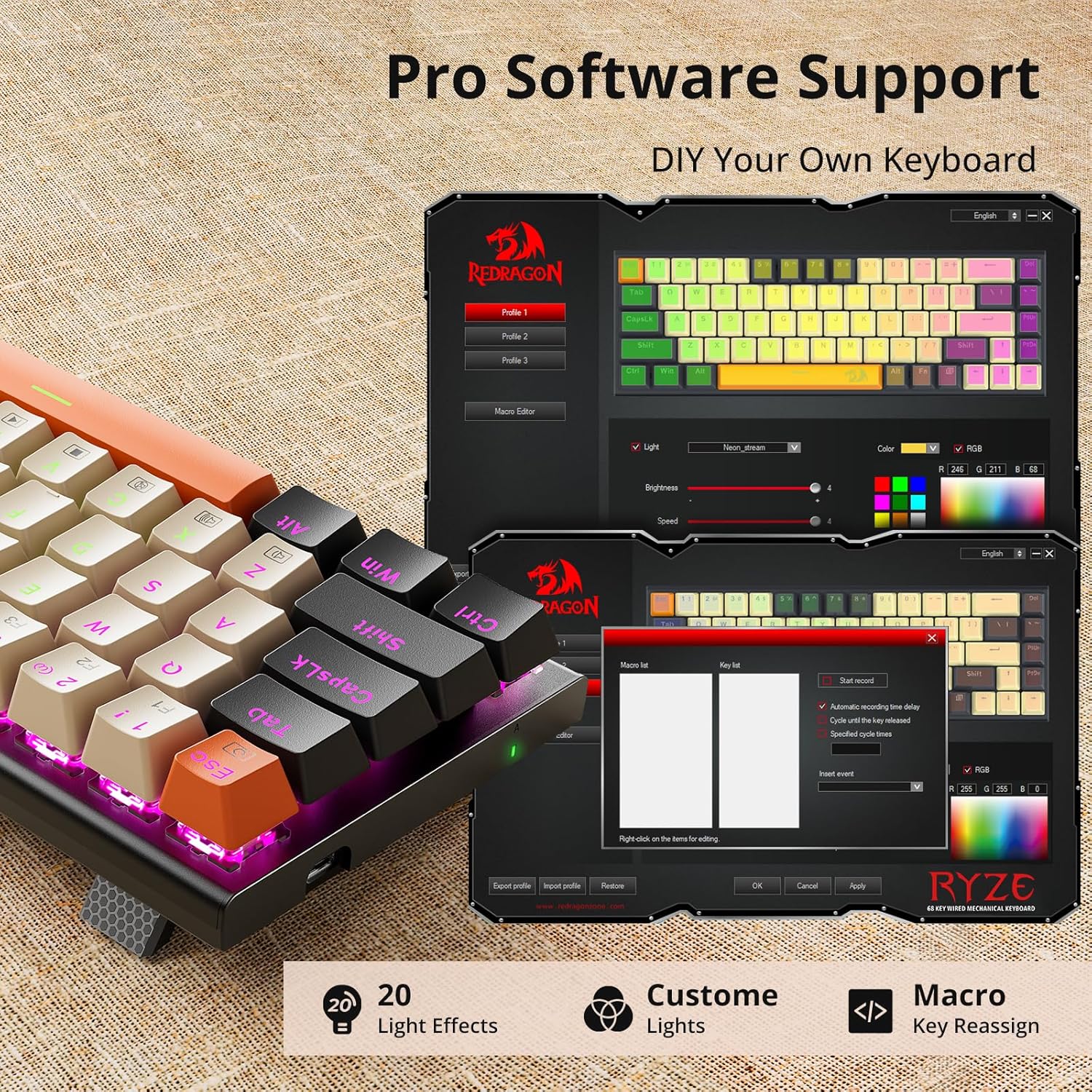
Image: The Redragon K633 keyboard shown with its accompanying software interface, demonstrating options for light effects, custom lights, macro programming, and key reassignments.
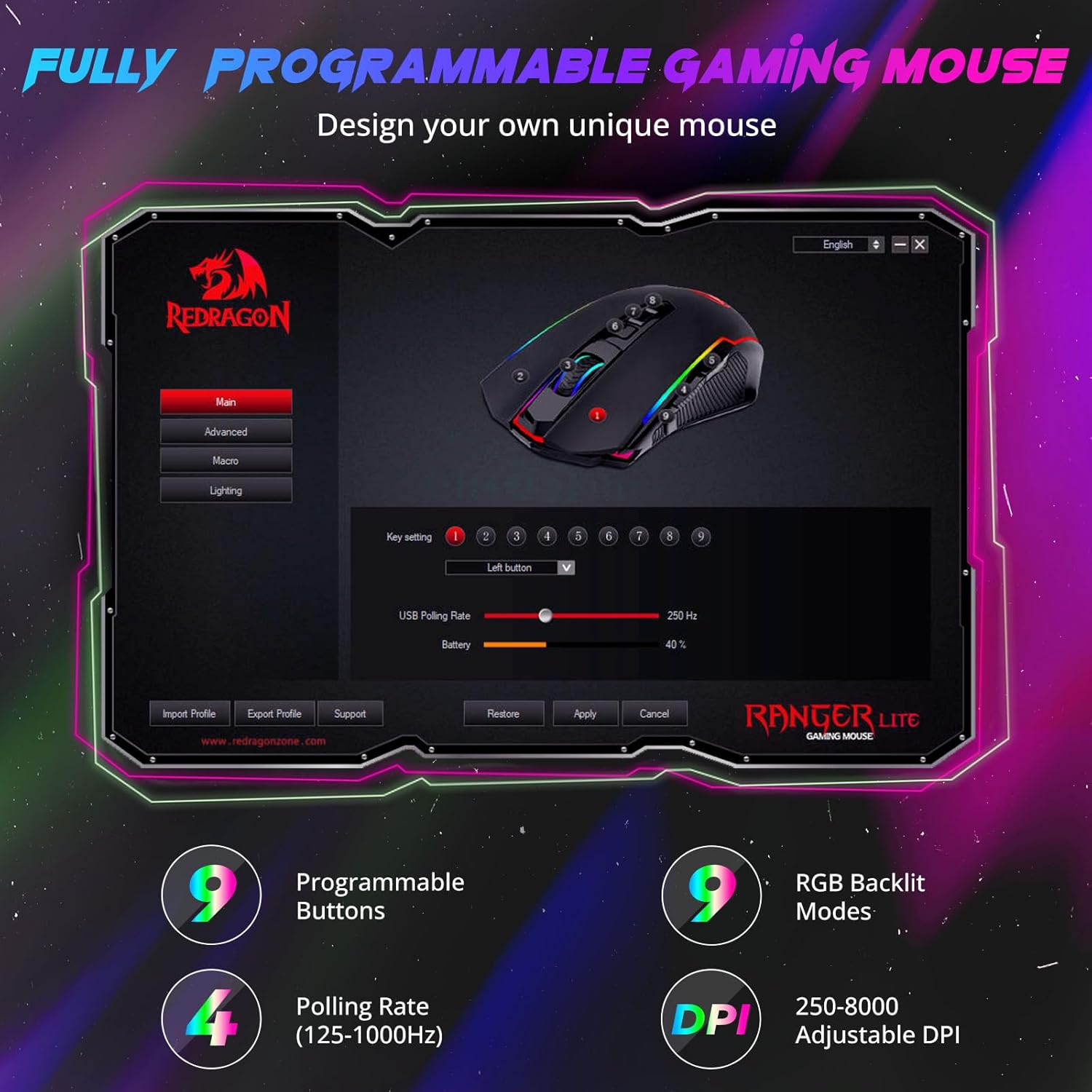
Image: The Redragon M910-KS mouse displayed with its software interface, highlighting options for programmable buttons, RGB backlit modes, polling rate adjustment, and DPI settings (250-8000).
5. Maintenance
5.1. Cleaning
- Disconnect both devices from your computer before cleaning.
- Use a soft, dry cloth to wipe down the surfaces of the keyboard and mouse.
- For stubborn dirt, lightly dampen the cloth with water or a mild cleaning solution. Avoid harsh chemicals.
- For the keyboard, use the included keycap puller to remove keycaps for deeper cleaning of dust and debris.
5.2. Storage
When not in use, store the keyboard and mouse in a cool, dry place away from direct sunlight and extreme temperatures.
6. Troubleshooting
- Device Not Responding:
- Ensure the USB cable/receiver is securely connected to the computer.
- Try connecting to a different USB port.
- For the mouse, ensure it is powered on and fully charged.
- Restart your computer.
- Backlighting Not Working:
- Check if the backlighting is turned off or set to a very low brightness level via function keys or software.
- Ensure the device is properly connected.
- Keys/Buttons Not Registering:
- Clean around the affected keys/buttons to remove any obstructions.
- If using the keyboard, ensure the hot-swappable switch is properly seated.
- Test the device on another computer to rule out system-specific issues.
7. Specifications
| Feature | Specification |
|---|---|
| Brand | Redragon |
| Keyboard Model | K633 |
| Mouse Model | M910-KS |
| Color | Black/Orange (as per product listing) |
| Connectivity Technology | USB (Wired for Keyboard, Wired/Wireless for Mouse) |
| Compatible Devices | Gaming Console, PC |
| Keyboard Layout | 60% QWERTY |
| Number of Keys (Keyboard) | 60 |
| Keyboard Backlighting | Single Color (Customizable RGB via software) |
| Mouse DPI | Up to 8000 (Adjustable via driver) |
| Mouse Hand Orientation | Ambidextrous |
| Operating System Compatibility | Windows, MacOS, Linux, ChromeOS |
8. Warranty and Support
Redragon products typically come with a manufacturer's warranty. Please refer to the warranty card included in your product packaging or visit the official Redragon website for detailed warranty information and terms.
For technical support, driver downloads, or further assistance, please visit the Redragon Official Store on Amazon or their official website.


