
RDYMONKEY Audio Guestbook
RDYMONKEY Audio Guest Book Instruction Manual
Model: Audio Guestbook
Record Customized Audio Messages for Special Occasions
1. Introduction
The RDYMONKEY Audio Guest Book is a unique and innovative device designed to capture heartfelt audio messages from your guests at various events. Whether it's a wedding, birthday, party, or any special occasion, this vintage-style telephone allows loved ones to record their wishes, confessions, or memories, creating a lasting auditory keepsake.
It offers unlimited recording potential, making it a perfect alternative to traditional guest books. Simply pick up the phone, leave your message after the beep, and hang up. This manual provides detailed instructions on setting up, operating, and maintaining your Audio Guest Book.

Figure 1: Front view of the RDYMONKEY Audio Guest Book (Blue-Key model).
2. Setup
Before using your Audio Guest Book, ensure it is properly set up and charged.
2.1 Components Overview
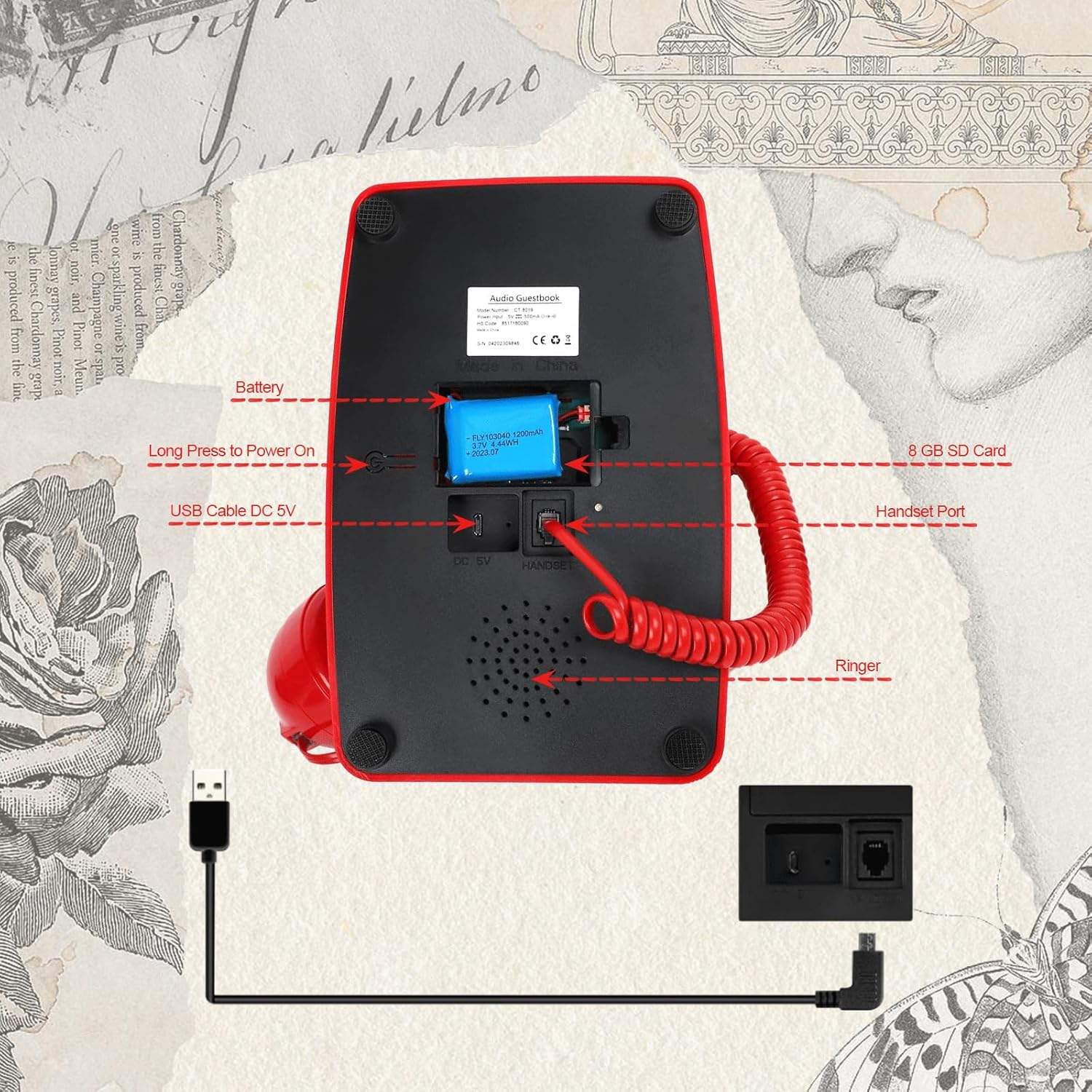
Figure 2: Underside of the Audio Guest Book with labeled ports.
- Battery Compartment: Houses the rechargeable battery.
- 8 GB SD Card Slot: For storing recorded messages.
- USB Cable DC 5V Port: For charging and connecting to a computer.
- Handset Port: Connects the telephone handset to the main unit.
- Ringer: The speaker for audio playback.
- Power On/Off Button: Long press to power on/off.
2.2 Initial Charging
The device requires charging before first use. Use the provided USB cable.
- Locate the USB Cable DC 5V Port on the underside of the phone.
- Plug one end of the USB cable into the phone and the other end into a compatible USB power adapter (not included) or a computer's USB port.
- During charging, a red light will illuminate.
- Once fully charged, the indicator light will turn blue.
Note: If the battery is low, the red light will flash.
2.3 SD Card and Handset Installation
- Ensure the 8 GB SD card is securely inserted into its designated slot.
- Connect the coiled cord of the handset to the Handset Port.
3. Operating Instructions
Follow these steps to record and manage messages on your Audio Guest Book.
3.1 Recording the Owner's Greeting Message (Host Message)
This message will be played to guests when they pick up the handset.
- Ensure the handset is on-hook (placed on the phone cradle).
- Long press the ERC button (the middle button on the rotary dial, labeled "GREETING").
- The phone will start recording with a "beep" sound.
- Release the ERC button to end the recording.
- The external speaker will automatically play your recorded greeting message.
To replay the owner's message, simply press the ERC button statically once while the handset is on-hook. You can record a new greeting message at any time by repeating these steps; the new recording will replace the previous one.
Video 1: Detailed demonstration of recording and playback functions (0:00 - 2:44).
3.2 Recording Guest Messages
This is how your guests will leave their messages.
- When a guest picks up the handset, they will hear the owner's pre-recorded greeting message.
- After the greeting message finishes, there will be a "beep" sound.
- The guest can then begin speaking their message.
- Once the guest finishes recording, they should hang up the handset. The message will be automatically saved.
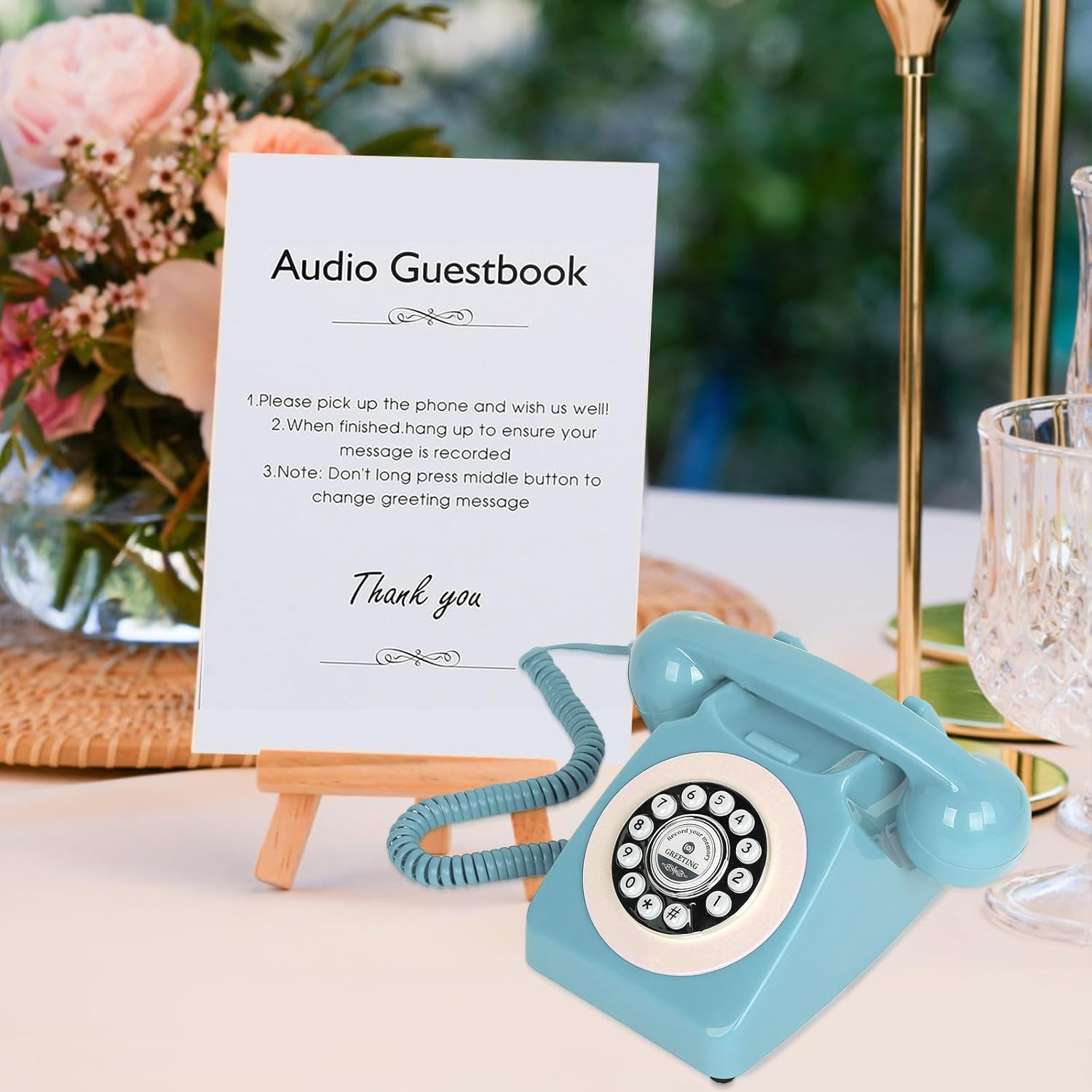
Figure 3: Audio Guest Book set up with a sign for guest instructions.
3.3 Viewing and Accessing Messages
Messages are stored on the internal SD card and can be accessed via a computer.
- Connect the Audio Guest Book to your computer using the provided USB cable. Alternatively, you can remove the TF (SD) card and use a card reader to access its contents.
- Open the connected drive or SD card folder on your computer.
- You will find two main folders:
- "GREETING" folder: Contains the owner's recorded greeting message (e.g., GREETING.MP3).
- "GUEST" folder: Contains all the recorded guest messages (e.g., 0000.MP3, 0001.MP3, etc.).
- You can play these MP3 files using any standard media player on your computer.
Note: The USB data cable also charges the battery while connected to a computer.
3.4 Changing the Recording Prompt Tone
You can customize the "beep" sound that prompts guests to record.
- Connect the Audio Guest Book to your computer (as described in 3.3).
- Create a new folder on the root directory of the SD card.
- Record your desired prompt sound (e.g., a short phrase or custom tone) and save it as an MP3 file.
- Place this MP3 file into the newly created folder. The system will automatically use this new sound instead of the default "beep" when prompting for recordings.
4. Maintenance
To ensure the longevity and optimal performance of your RDYMONKEY Audio Guest Book, follow these maintenance guidelines:
- Cleaning: Use a soft, dry cloth to wipe down the exterior of the phone. Avoid using abrasive cleaners or solvents, as they may damage the finish.
- Battery Care:
- Charge the device fully before long periods of storage.
- Avoid completely draining the battery frequently, as this can reduce its lifespan.
- Store the device in a cool, dry place when not in use.
- SD Card Handling:
- Always safely eject the device from your computer before disconnecting the USB cable or removing the SD card.
- Handle the SD card carefully to prevent damage to the card or the slot.
- Storage: Store the Audio Guest Book in its original packaging or a protective case to prevent dust accumulation and physical damage.
5. Troubleshooting
If you encounter any issues with your Audio Guest Book, refer to the following common problems and solutions:
| Problem | Possible Cause | Solution |
|---|---|---|
| Device does not power on. | Low or no battery charge. | Charge the device fully. Ensure the charging cable is securely connected. |
| No sound when picking up the handset. | No owner's greeting recorded or handset not properly connected. | Record an owner's greeting message (see Section 3.1). Check if the handset cable is firmly plugged into the Handset Port. |
| Guest messages are not saving. | SD card full, not inserted correctly, or corrupted. | Check SD card insertion. Ensure there is sufficient space on the SD card. Try reformatting the SD card (this will erase all data, so back up first). |
| Cannot access files on computer. | Improper USB connection or driver issue. | Ensure the USB cable is securely connected to both the phone and the computer. Try a different USB port or cable. Restart your computer. |
| Red indicator light flashing. | Low battery. | Charge the device immediately. |
| Blue indicator light. | Device is working or fully charged. | This is normal operation. No action required. |
6. Specifications
- Model: Audio Guestbook
- Dimensions (Approximate):
- Length: 9.4 inches
- Width: 8.5 inches
- Height: 5.1 inches
- Storage: 8 GB SD Card (included)
- Power Input: DC 5V via USB cable
- Battery: Rechargeable (Batteries required: Yes)
- Colors Available: Red, White, Yellow, Pink, Blue, Beige, Black (availability may vary by model)

Figure 4: Product dimensions.

Figure 5: Available color options for the Audio Guest Book.
7. Warranty and Support
For warranty information or technical support, please refer to the product packaging or contact RDYMONKEY customer service directly. Contact details are typically provided on the product box or the official brand website.