
Jectse Jectsek5gah4tegb-12
Jectse M29 Digital Voice Recorder User Manual
Model: Jectsek5gah4tegb-12
1. Introduction
Thank you for choosing the Jectse M29 Digital Voice Recorder. This compact and versatile device is designed for high-quality audio recording, offering features such as voice activation, noise reduction, and automatic saving functions. Please read this manual carefully to ensure proper use and optimal performance of your device.
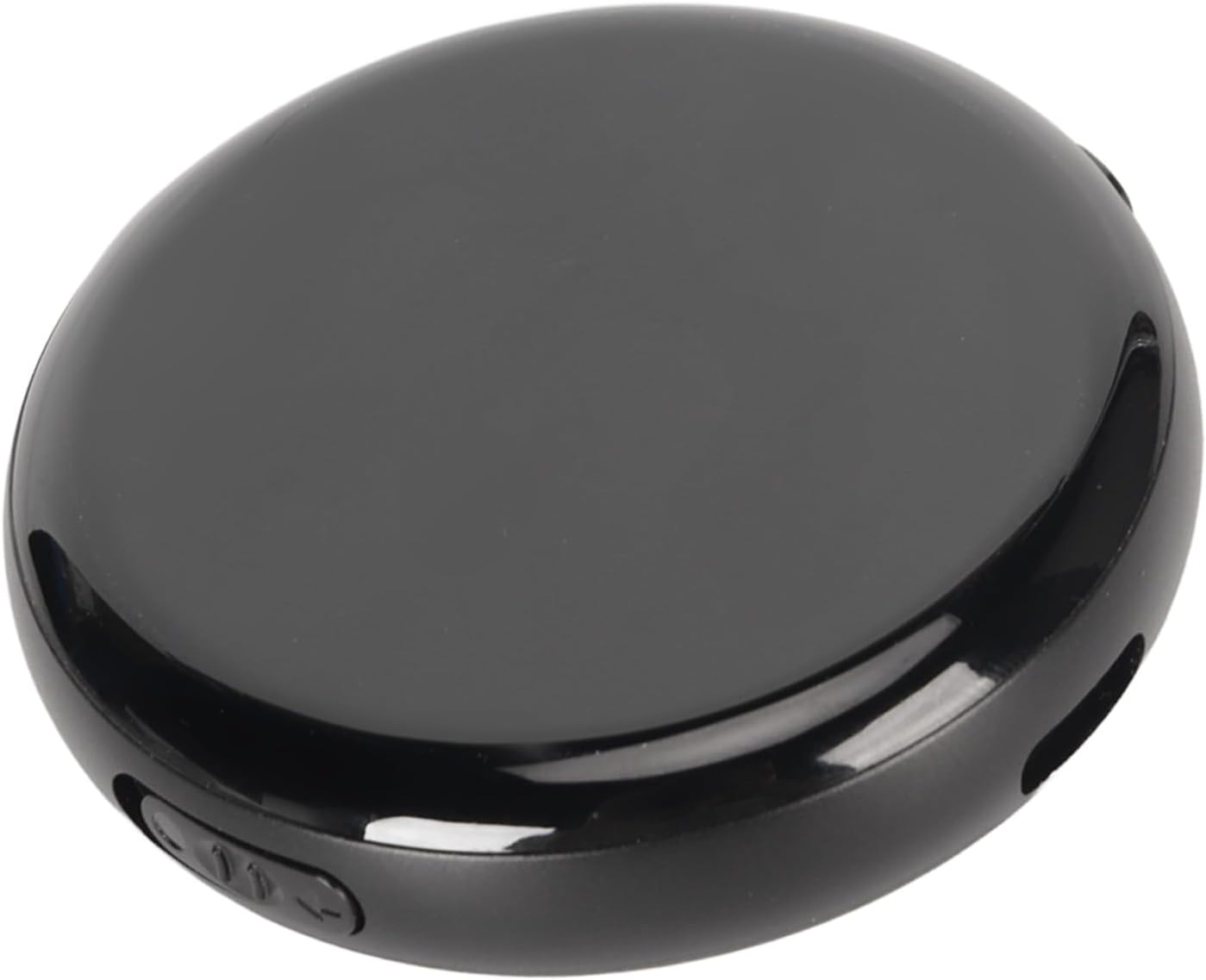
Image 1.1: The Jectse M29 Digital Voice Recorder, showcasing its sleek, compact design.
Key features include:
- Up to 100 hours of recording capacity.
- HD audio recording with intelligent noise reduction.
- Voice-activated recording (VOR).
- One-click recording and saving.
- Automatic save on low battery.
- Timestamping for easy file management.
- Music playback functionality.
- U disk function for data transfer.

Image 1.2: Visual representation of the recorder's key features, including one-click recording, noise-canceling, voice-activated recording, segmented recording, timed recording, timestamp, save without power, music playback, and U disk function.
2. Safety Information
To ensure safe and effective operation, please observe the following precautions:
- Do not expose the device to extreme temperatures, direct sunlight, or high humidity.
- Avoid dropping or subjecting the device to strong impacts.
- Keep the device away from water and other liquids.
- Do not attempt to disassemble or modify the device. This will void the warranty.
- Use only the provided or recommended charging cables and accessories.
- Dispose of the device and its battery responsibly according to local regulations.
3. Product Overview
3.1 Components
The Jectse M29 Digital Voice Recorder typically includes the main recording unit and a USB charging/data cable. Specific components may vary slightly.
3.2 Controls and Indicators
Familiarize yourself with the device's buttons and ports:
- Power/Recording Switch: Used to turn the device on/off and initiate/save recordings.
- Volume Buttons: Adjust playback volume.
- Headphone Jack: For connecting headphones for private listening.
- USB Port: For charging and connecting to a computer.
- Microphone: Built-in microphone for audio input.

Image 3.1: The recorder showing indicators for audio recording and silent pause functions, highlighting the microphone and control buttons.
4. Setup
4.1 Charging the Device
Before first use, fully charge the recorder. Connect the device to a USB power adapter (not included) or a computer's USB port using the provided USB cable. The charging indicator will show the charging status.
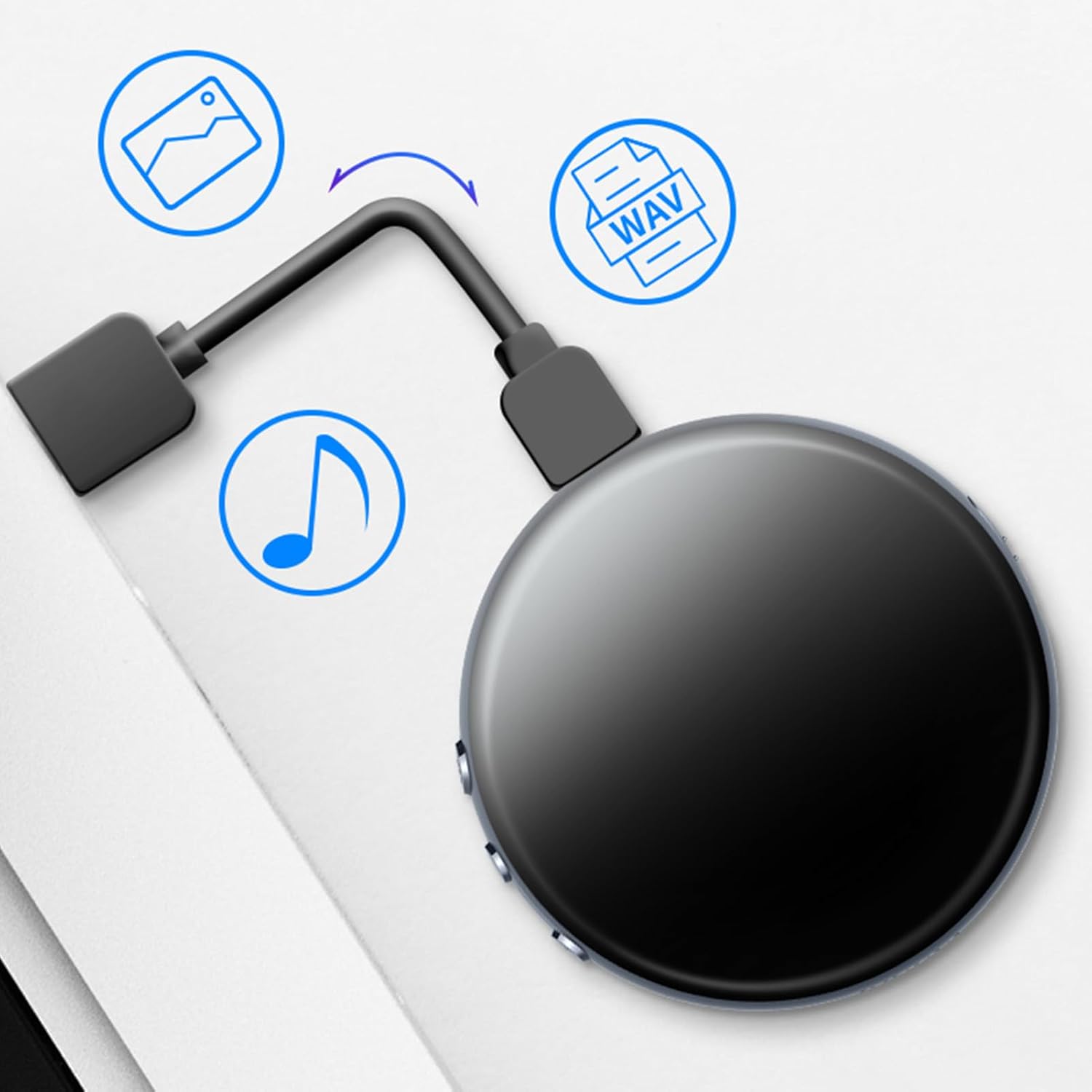
Image 4.1: The recorder connected to a computer, illustrating its USB connectivity for charging and data transfer (U disk function).
4.2 Initial Setup and Time Synchronization
For accurate timestamps on your recordings, it is recommended to synchronize the device's internal clock with your computer's time. Connect the recorder to your computer via USB. The device's built-in time chip will allow for time synchronization, ensuring recording files are named by time for clear management.

Image 4.2: The recorder positioned in front of a clock, symbolizing its smart timestamp feature and efficient file management capabilities.
5. Operating Instructions
5.1 Basic Recording (One-Click)
To start recording, simply slide the power/recording switch to the "ON" position. The device will automatically begin recording. To save the recording, slide the switch back to the "OFF" position. The recording will be saved automatically.

Image 5.1: Illustration of the one-push mechanism to start recording and the action to save the recording, highlighting the intuitive control switch.
5.2 Voice-Activated Recording (VOR)
The device supports voice-activated recording, which starts recording automatically when sound is detected and pauses when silence occurs, saving storage space. Refer to the device's specific settings (if accessible via PC connection) to enable or adjust VOR sensitivity.
5.3 Noise-Canceling Recording
The Jectse M29 features intelligent noise reduction technology to ensure clear audio quality even in noisy environments. This feature is typically active by default.
5.4 Segmented and Timed Recording
The recorder supports segmented recording (breaking long recordings into smaller files) and timed recording (scheduling recordings). These advanced features may require connecting the device to a computer and using specific software or configuration files. Please consult the device's internal files when connected to a PC for detailed instructions on setting these parameters.
5.5 Playback
After recording, you can play back audio files directly on the device using the built-in speaker or by connecting headphones to the headphone jack.
- Speaker Playback: The device will play audio through its integrated speaker.
- Headphone Playback: Insert headphones into the 3.5mm jack for private listening.
- Volume Adjustment: Use the volume buttons to increase or decrease the playback volume.

Image 5.2: The recorder illustrating both speaker and headphone playback options, emphasizing its versatility for audio output.
5.6 File Management (U Disk Function)
Connect the recorder to your computer using the USB cable. The device will be recognized as a removable disk (U disk). You can then easily transfer, copy, delete, or organize your recording files (typically in MP3, WMA, or WAV format) on your computer. The timestamp feature helps in identifying and managing files efficiently.
5.7 Automatic Save on Low Battery
The device is equipped with a smart power management system. When the battery level is critically low, the recorder will automatically save any ongoing recording files before shutting down to prevent data loss.

Image 5.3: Diagram illustrating the automatic save process: low battery detected, recording files saved automatically, followed by automatic shutdown.
6. Maintenance
6.1 Cleaning
Wipe the device with a soft, dry cloth. Do not use liquid cleaners or abrasive materials, as they may damage the surface or internal components.
6.2 Storage
When not in use for extended periods, store the device in a cool, dry place, away from direct sunlight and extreme temperatures. Ensure the battery is partially charged before storing to prolong its lifespan.
7. Troubleshooting
| Problem | Possible Cause | Solution |
|---|---|---|
| Device does not turn on. | Battery is depleted. | Charge the device fully. |
| Cannot record. | Insufficient storage space. | Delete old files to free up space. |
| Poor audio quality. | Microphone obstructed; high ambient noise. | Ensure microphone is clear; record in quieter environment. |
| Device not recognized by PC. | Faulty USB cable; driver issue. | Try a different USB port/cable; restart PC. |
8. Specifications
| Feature | Detail |
|---|---|
| Brand | Jectse |
| Model Number | Jectsek5gah4tegb-12 |
| Storage Capacity | 8 GB |
| Audio Formats | MP3-Audio, WMA, WAV |
| Microphone Form Factor | Built-in |
| Hardware Interface | USB |
| Compatible Devices | Personal Computer |
| Packaging Dimensions | 15 x 9 x 4 cm; 163 Grams |
9. Warranty and Support
For warranty information and technical support, please refer to the documentation included with your purchase or contact Jectse customer service. Keep your proof of purchase for warranty claims.
For further assistance, you may visit the official Jectse store on Amazon: Jectse Store
Ask a question about this manual
Ask about setup, troubleshooting, compatibility, parts, safety, or missing instructions. Manuals+ will review the question and use this page’s manual context to help answer it.