
ODK 40 Inch Pure White
ODK Reversible Gaming Desk Instruction Manual
Model: 40 Inch Pure White
Brand: ODK
1. Introduction
Thank you for choosing the ODK Reversible Gaming Desk. This manual provides detailed instructions for assembly, operation, and maintenance to ensure you get the most out of your new desk. Designed for versatility and functionality, this desk features integrated USB charging ports, LED lighting, and adaptable storage solutions, making it ideal for gaming, studying, or home office use.

Figure 1.1: The ODK Reversible Gaming Desk, showcasing its main features including the monitor stand, LED lighting, and side storage shelves.
2. Safety Information
- Read all instructions carefully before assembly and use.
- Keep all small parts and packaging materials away from children and pets to prevent choking hazards.
- Ensure all screws and fasteners are securely tightened before use. Periodically check and re-tighten as needed.
- Do not overload the desk or shelves beyond their stated weight capacity.
- Place the desk on a flat, stable surface to prevent tipping.
- Keep electrical components (USB ports, power outlets, LED lights) away from water and moisture.
- Do not attempt to modify or repair the electrical components yourself. Contact qualified personnel for service.
- Use only the provided power cord and adapter for the LED lights and charging ports.
3. Package Contents
Before beginning assembly, verify that all parts listed below are present and undamaged. If any parts are missing or damaged, please contact customer service.
| Part | Description | Quantity |
|---|---|---|
| Desk Top Panel | Main desktop surface | 1 |
| Monitor Stand | Elevated shelf for monitor | 1 |
| Side Storage Shelves | Multi-tier shelving unit | 1 set |
| Metal Frame Components | Legs, support bars | Various |
| Power Outlet Strip | 3 AC outlets, 2 USB ports | 1 |
| LED Light Strip | RGB LED strip with controller | 1 |
| CPU Stand | Movable platform for CPU tower | 1 |
| Desk Hook | Accessory hook for headphones/bags | 1 |
| Hardware Pack | Screws, bolts, Allen wrench, adjustable foot pads | 1 set |
| Instruction Manual | This document | 1 |
4. Assembly Instructions
Follow these steps carefully for proper assembly. It is recommended to assemble the desk with two people.
- Unpack and Identify Parts: Lay out all components on a clean, soft surface to prevent scratches. Refer to the "Package Contents" section to identify each part.
- Assemble the Main Desk Frame: Attach the desk legs to the main desktop panel using the provided screws. Ensure all connections are firm but do not overtighten initially.
- Install the Monitor Stand: Secure the monitor stand to the designated area on the desktop.
- Attach the Side Storage Shelves: Decide whether you want the shelves on the left or right side of the desk. Attach the shelving unit frame to the main desk frame. The shelves are reversible, allowing for flexible placement.
- Install Adjustable Shelves: The middle shelf within the storage unit is removable and height-adjustable. Position it according to your storage needs (e.g., for a CPU tower or as a two-tier bookshelf).
- Mount the Power Outlet Strip: Secure the power outlet strip to the underside of the monitor stand or desktop as indicated in the detailed diagram.
- Apply the LED Light Strip: Adhere the LED light strip to the designated area, typically under the monitor stand or along the back edge of the desktop, ensuring the adhesive is clean and dry.
- Attach the Desk Hook: Install the accessory hook on either side of the desk for headphones or bags.
- Install Adjustable Foot Pads: Screw the adjustable non-slip foot pads into the bottom of the desk legs. These can be adjusted to stabilize the desk on uneven surfaces.
- Final Tightening: Once all components are in place, carefully tighten all screws and fasteners to ensure the desk is sturdy and stable.

Figure 4.1: Detailed dimensions of the desk and its components, useful for planning your space.

Figure 4.2: Illustration of the adjustable shelf within the side storage unit, demonstrating how it can be configured for different storage needs, including a CPU tower.

Figure 4.3: The convenient desk hook, providing additional storage for headphones or bags.

Figure 4.4: Detail of the adjustable foot pads, which help ensure desk stability on uneven floors and protect surfaces from scratches.
5. Key Features
- Integrated USB Charging Ports & Power Outlets: The desk is equipped with 3 standard AC power outlets and 2 USB charging ports (5V/2A) for convenient access to power for your electronic devices.
- Colorful LED Lights: Features an LED strip with 10 static colors, 6 brightness levels, and 10 dynamic modes. Controlled via an inline switch, it also includes a memory function to recall your last setting.
- Spacious and Adjustable Design: Offers a 31.5" (W) x 19.7" (D) tabletop and a 27.6" (W) x 7.4" (D) monitor stand. The 7.9" (W) x 18.1" (D) x 45.6" (H) open shelves can be installed on either the left or right side.
- CPU Stand & Reversible Shelf: Includes a dedicated CPU stand and open shelves. The middle shelf is removable, allowing it to function as a 2-tier bookshelf or a larger CPU compartment. The entire shelving unit is reversible.
- Super Sturdy & Stable Construction: Constructed from a premium metal frame and high-quality MDF board, ensuring durability, scratch resistance, and water resistance. Adjustable non-slip foot pads provide stability.

Figure 5.1: The recessed power strip, offering convenient access to 3 AC outlets and 2 USB charging ports for all your devices.
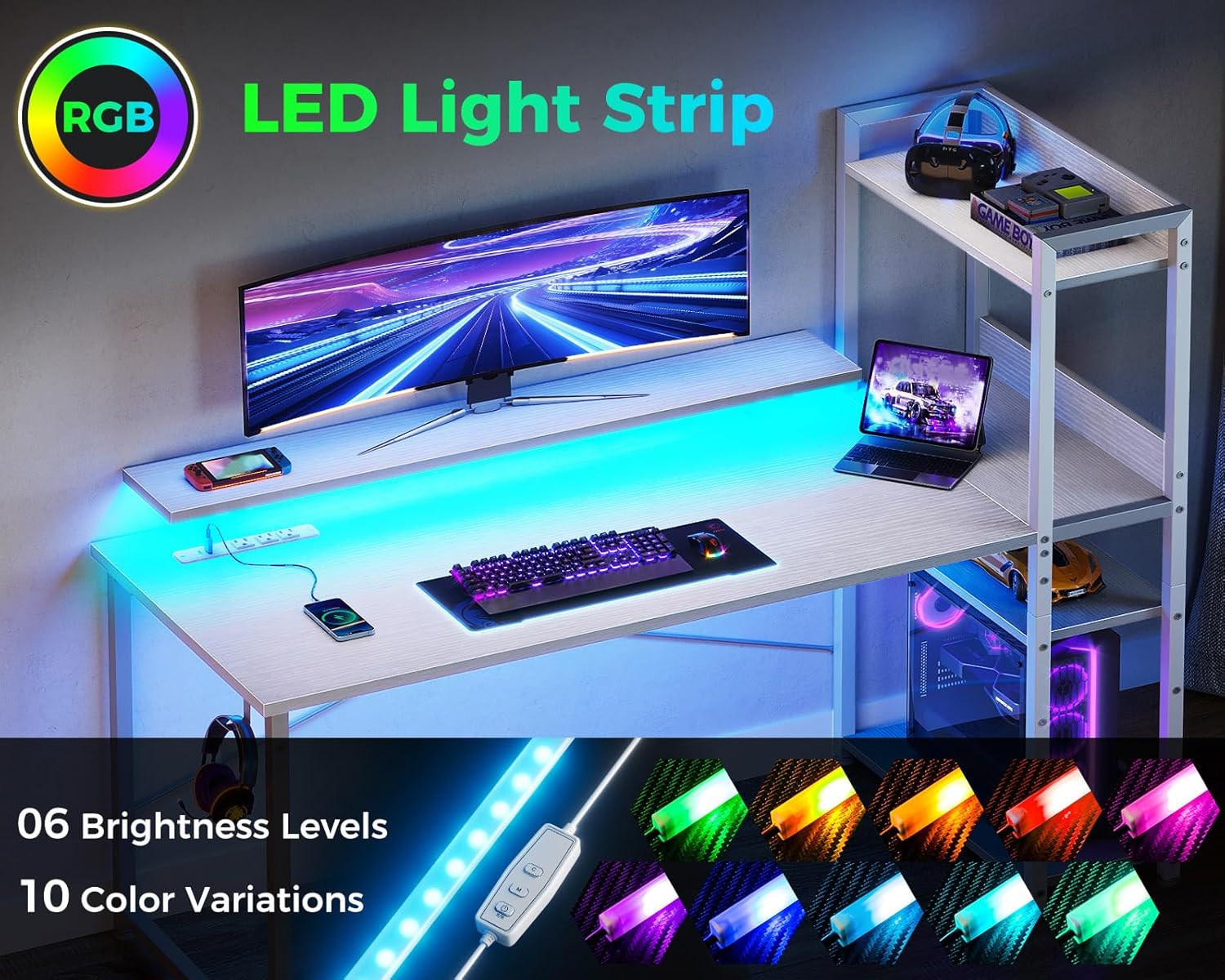
Figure 5.2: The integrated LED light strip, featuring multiple colors and brightness levels to enhance your workspace or gaming setup.

Figure 5.3: The reversible design allows the storage shelves to be positioned on either the left or right side of the desk, adapting to your room layout.
6. Operating Instructions
6.1 Using the Power Outlets and USB Ports
Simply plug your devices into the available AC outlets or USB ports located on the recessed power strip. Ensure the desk's main power cord is connected to a functional wall outlet.
6.2 Controlling the LED Lights
The LED light strip is controlled by an inline switch. Refer to the diagram below for button functions:
- "C" (Static Color Button): Press once to switch to static color mode. Each subsequent press changes the color.
- "M" (Dynamic Mode Button): Press once to switch to dynamic mode effect. Each subsequent press changes the dynamic mode. Press and hold for 3 seconds to enter demo mode, where the strip cycles through various dynamic modes automatically.
- Power Button (On/Off) & Brightness/Speed:
- In static mode, press this button to adjust the brightness (6 grades).
- In dynamic mode, press this button to adjust the speed of the effect.
- Press and hold this button to turn off the strip. Press again to turn it on.
The LED strip has a memory function, retaining the last color, brightness, or mode setting when powered off and on again.

Figure 6.1: Controls for the LED light strip, detailing the functions of the static color, dynamic mode, and power/brightness buttons.
7. Maintenance
- Cleaning: Wipe the desk surfaces with a soft, damp cloth. Avoid harsh chemicals or abrasive cleaners that could damage the finish.
- Spills: Immediately wipe up any spills to prevent water damage, especially around electrical components.
- Tightening: Periodically check all screws and fasteners to ensure they remain tight. Re-tighten as necessary to maintain stability.
- Electrical Components: Keep the power strip and LED lights free from dust and debris. Do not immerse in water.
8. Troubleshooting
| Problem | Possible Cause | Solution |
|---|---|---|
| Desk is wobbly/unstable | Loose screws; uneven floor | Ensure all assembly screws are tightened. Adjust the non-slip foot pads to level the desk on uneven surfaces. |
| LED lights not working | Not plugged in; loose connection; faulty strip/controller | Check if the LED strip is properly plugged into the power outlet. Ensure all connections are secure. If still not working, contact customer support. |
| USB ports/AC outlets not providing power | Desk not plugged in; power strip switch off; circuit overload | Verify the desk's main power cord is securely plugged into a working wall outlet. Check if the power strip has an on/off switch or reset button. Avoid overloading the outlets. |
| Missing or damaged parts | Shipping damage; packaging error | Do not proceed with assembly. Contact ODK customer service immediately with your purchase details. |
9. Product Specifications
| Feature | Detail |
|---|---|
| Brand | ODK |
| Model | 40 Inch Pure White Reversible Gaming Desk |
| Product Dimensions (D x W x H) | 19.7"D x 39.4"W x 45.6"H |
| Tabletop Dimensions (W x D) | 31.5"W x 19.7"D |
| Monitor Stand Dimensions (W x D) | 27.6"W x 7.4"D |
| Side Shelf Dimensions (W x D x H) | 7.9"W x 18.1"D x 45.6"H |
| Color | Pure White |
| Material | Premium Metal Frame, High-Quality MDF Board |
| Special Features | Built-In USB Outlet, Monitor Stand, Reversible Design, LED Lights, CPU Stand, Adjustable Feet |
| Power Outlets | 3 AC Outlets (120V/12A) |
| USB Charging Ports | 2 USB Ports (5V/2A) |
| LED Light Features | 10 Static Colors, 6 Brightness Grades, 10 Dynamic Modes, Memory Function |
| Assembly Required | Yes (Includes all assembly tools) |
| Item Weight | 20 Kilograms |
10. Warranty & Support
ODK provides a limited warranty for this product. If your ODK computer desk arrives damaged, missing parts, or scratched, please do not hesitate to contact our professional customer support team. We are committed to helping you solve any problems within 24 hours.
For support, please refer to the contact information provided with your purchase or visit the official ODK website.
Related documents40 Inch Pure White


Ask a question about this manual
Ask about setup, troubleshooting, compatibility, parts, safety, or missing instructions. Manuals+ will review the question and use this page’s manual context to help answer it.