
Introduction
This manual provides detailed instructions for the TQQ UKGW281BTKeyboard Bluetooth QWERTZ Wireless Keyboard. Please read this manual carefully before use to ensure proper operation and to maximize the lifespan of your device. This keyboard is designed for use with various tablets, smartphones, and computers, offering an ergonomic QWERTZ layout and stable Bluetooth connectivity.
Package Contents
Upon opening the package, please verify that all items listed below are present and in good condition:
- 1 x TQQ Bluetooth Wireless Keyboard
- 1 x USB Charging Cable
- 1 x User Manual (this document)
- 1 x Dust Film
Setup
1. Charging the Keyboard
Before initial use, fully charge the keyboard. Connect the provided USB charging cable to the keyboard's charging port and to a USB power source (e.g., computer, USB wall adapter). The charging indicator light will illuminate during charging and turn off when fully charged. A full charge typically takes 2 to 3 hours.

Image: The keyboard's charging port and indicators for standby time (over 130 days) and charging time (2 hours).
2. Pairing with Your Device
- Ensure the keyboard is charged.
- Turn on the keyboard using the power switch, usually located on the side or back. The Bluetooth indicator light will start blinking, indicating it's in pairing mode.
- On your device (tablet, smartphone, PC), go to Settings and enable Bluetooth.
- Search for available Bluetooth devices. You should see "Bluetooth Keyboard" or a similar name in the list.
- Select the keyboard from the list to initiate pairing. Your device may display a pairing code. Type this code on the TQQ keyboard and press Enter.
- Once paired, the Bluetooth indicator light on the keyboard will stop blinking and remain solid or turn off, depending on the model. The device will show the keyboard as "Connected."

Image: The TQQ Bluetooth keyboard shown with various compatible tablets, illustrating its broad compatibility across different operating systems.
3. Switching Operating Systems
The keyboard supports multiple operating systems. To optimize key functions for your specific OS, use the following shortcuts:
- Fn + Q: For Android devices
- Fn + W: For Windows devices
- Fn + E: For iOS devices (iPad/iPhone)

Image: The keyboard layout highlighting the dedicated keys for switching between Android, Windows, and iOS operating systems using the Fn key combination.
Operating Instructions
Keyboard Layout and Special Functions
This keyboard features a QWERTZ layout with scissor-switch keys for a comfortable and responsive typing experience. It includes dedicated function keys and multimedia shortcuts.

Image: The keyboard displaying its hotkeys and multimedia function row (F1-F12), which can be accessed with the Fn key.
- Function Keys (F1-F12): These keys perform various system-specific functions when pressed in combination with the Fn key. Refer to your device's operating system for specific functions. Common functions include screen brightness control, volume control, media playback, and search.
- Scissor-Switch Keys: The keyboard utilizes a stable scissor mechanism under each key, providing a precise and sensitive typing feel.
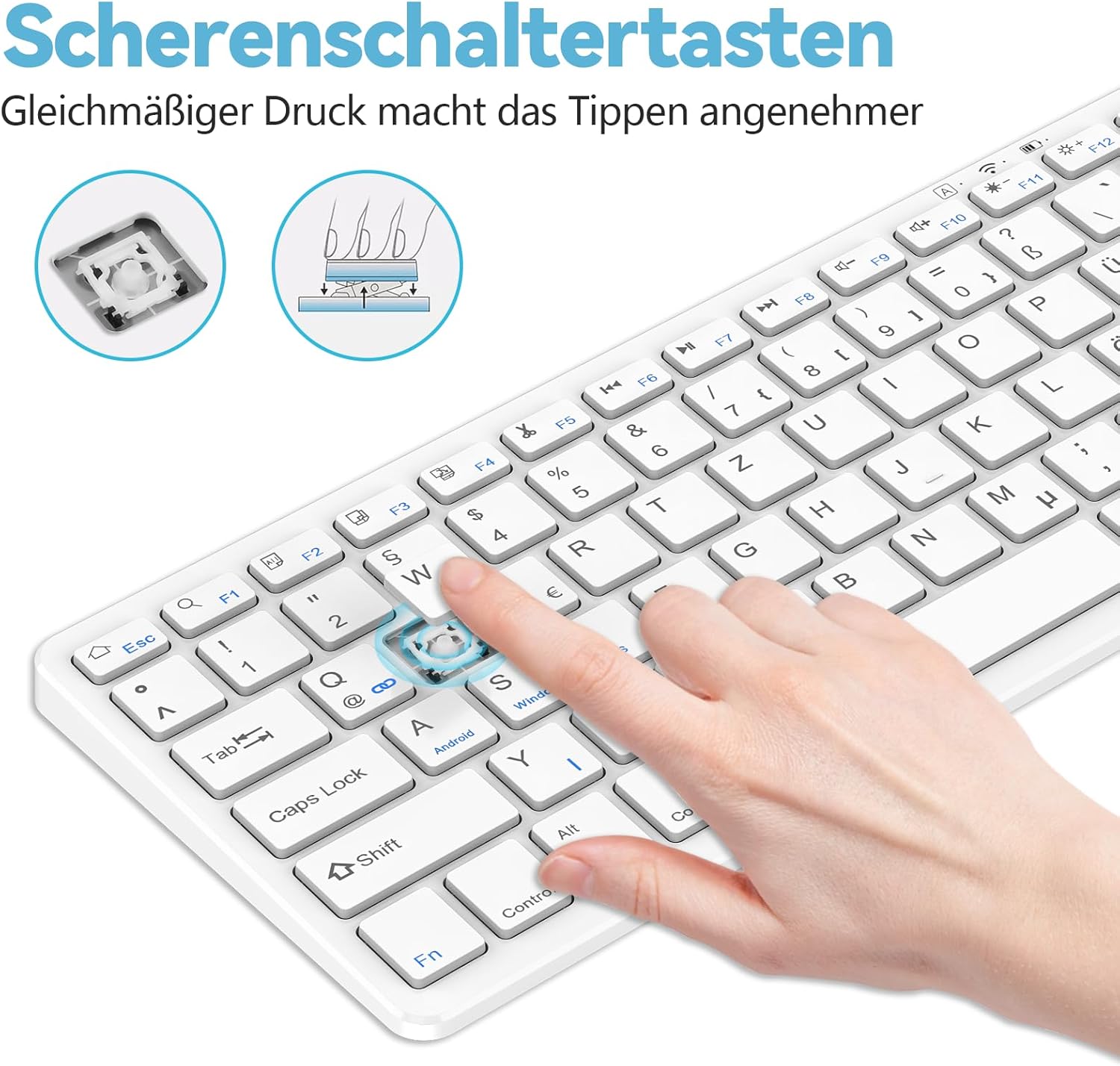
Image: A close-up view of the keyboard keys, illustrating the scissor-switch mechanism that ensures uniform pressure and comfortable typing.
Maintenance
Cleaning
To clean your keyboard, gently wipe the surface with a soft, damp cloth. Avoid using harsh chemicals or abrasive materials. For dust between keys, use a can of compressed air. Ensure the keyboard is powered off before cleaning.
Storage
Store the keyboard in a cool, dry place away from direct sunlight and extreme temperatures. When not in use for extended periods, turn off the keyboard to conserve battery life. The included dust film can be used to protect the keys from dust and spills.
Troubleshooting
- Keyboard not connecting:
- Ensure the keyboard is charged and powered on.
- Make sure Bluetooth is enabled on your device.
- Try unpairing and re-pairing the keyboard from your device's Bluetooth settings.
- Ensure the keyboard is within the 10-meter Bluetooth range of your device.
- Keys not responding or typing incorrectly:
- Check if the correct operating system mode is selected (Fn+Q for Android, Fn+W for Windows, Fn+E for iOS).
- Recharge the keyboard if the battery is low.
- Restart both the keyboard and your connected device.
- Short battery life:
- Ensure the keyboard is fully charged before use.
- Turn off the keyboard when not in use for extended periods.
Specifications
| Model Number | UKGW281BTKeyboard |
| Brand | TQQ |
| Connectivity Technology | Bluetooth |
| Keyboard Layout | QWERTZ |
| Compatible Devices | Laptop, PC, Smartphone, Tablet, iPad (Android, Windows, iOS) |
| Battery Type | Lithium-polymer (500mA) |
| Charging Time | 2-3 hours |
| Standby Time | ≥ 130 days |
| Operating Distance | Up to 10 meters (33 feet) |
| Dimensions (L x W x H) | 28.3 cm x 12 cm x 1.1 cm (11.14 in x 4.72 in x 0.43 in) |
| Weight | Approximately 11.9 ounces (337 grams) |
| Special Features | Ergonomic, Lightweight, Portable, Multimedia Keys, Rechargeable |

Image: A diagram illustrating the precise dimensions of the TQQ Bluetooth keyboard, including length, width, height, and the height of the non-slip feet.
Warranty and Support
Warranty Information
This TQQ Bluetooth Wireless Keyboard comes with a 24-month warranty from the date of purchase. This warranty covers manufacturing defects and workmanship. It does not cover damage caused by misuse, accidents, unauthorized modifications, or normal wear and tear.
Customer Support
If you have any questions, concerns, or require assistance with your TQQ Bluetooth Wireless Keyboard, please contact our customer support team. Refer to the contact information provided with your purchase or visit the official TQQ website for support details. Please have your model number (UKGW281BTKeyboard) and purchase date ready when contacting support.