
1. Introduction
This manual provides detailed instructions for the installation and operation of your Polarlander QXS-O08 Universal Car Steering Wheel Remote Controller. This device is designed to enhance your driving experience by providing convenient control over your car's Android or Wince system-connected GPS navigation, multimedia player, DVD, and radio functions directly from your steering wheel. It features 8 multi-functional keys with backlighting for clear visibility.
2. Product Features
- Multifunctional Control: Manage volume (Vol+/Vol-), track selection (Next/Last), mute, answer/hang up calls, and mode switching.
- Backlit Keys: Keys illuminate for easy use in low-light conditions.
- Universal Compatibility: Supports various Android and Wince car multimedia systems.
- Wired Connection: Ensures stable and reliable control without relying on Bluetooth.
- Compact Design: Easily mounts on your steering wheel for convenient access.
3. Package Contents
Please verify that all items are present in your package:
- 1 x Steering Wheel Controller with Cable
- 1 x Instruction Manual (this document)
4. Installation Guide
Follow these steps to properly install your steering wheel remote controller:
- Find the Proper Installation Position: Identify a suitable flat surface on your steering wheel or steering column where the controller can be easily accessed without obstructing driving. The controller can be installed on either the right or left side of the steering wheel.
- Prepare for Mounting: The controller comes with 3M adhesive for mounting. Clean the chosen surface thoroughly to ensure optimal adhesion.
- Mount the Controller: Remove the protective paper from the 3M adhesive on the back of the controller. Align the controller carefully and press firmly to secure it in position. Note: For enhanced stability, especially on curved surfaces or in high-temperature environments, consider using additional secure mounting methods such as screws (not included) after disassembling the unit.
- Wire Connection: Connect the controller's wires to your car's multimedia navigation device. The controller typically has two wires: KEY and GND. Connect the KEY wire to the SWC (Steering Wheel Control) input of your multimedia device and the GND wire to a ground point. Ensure connections are secure.
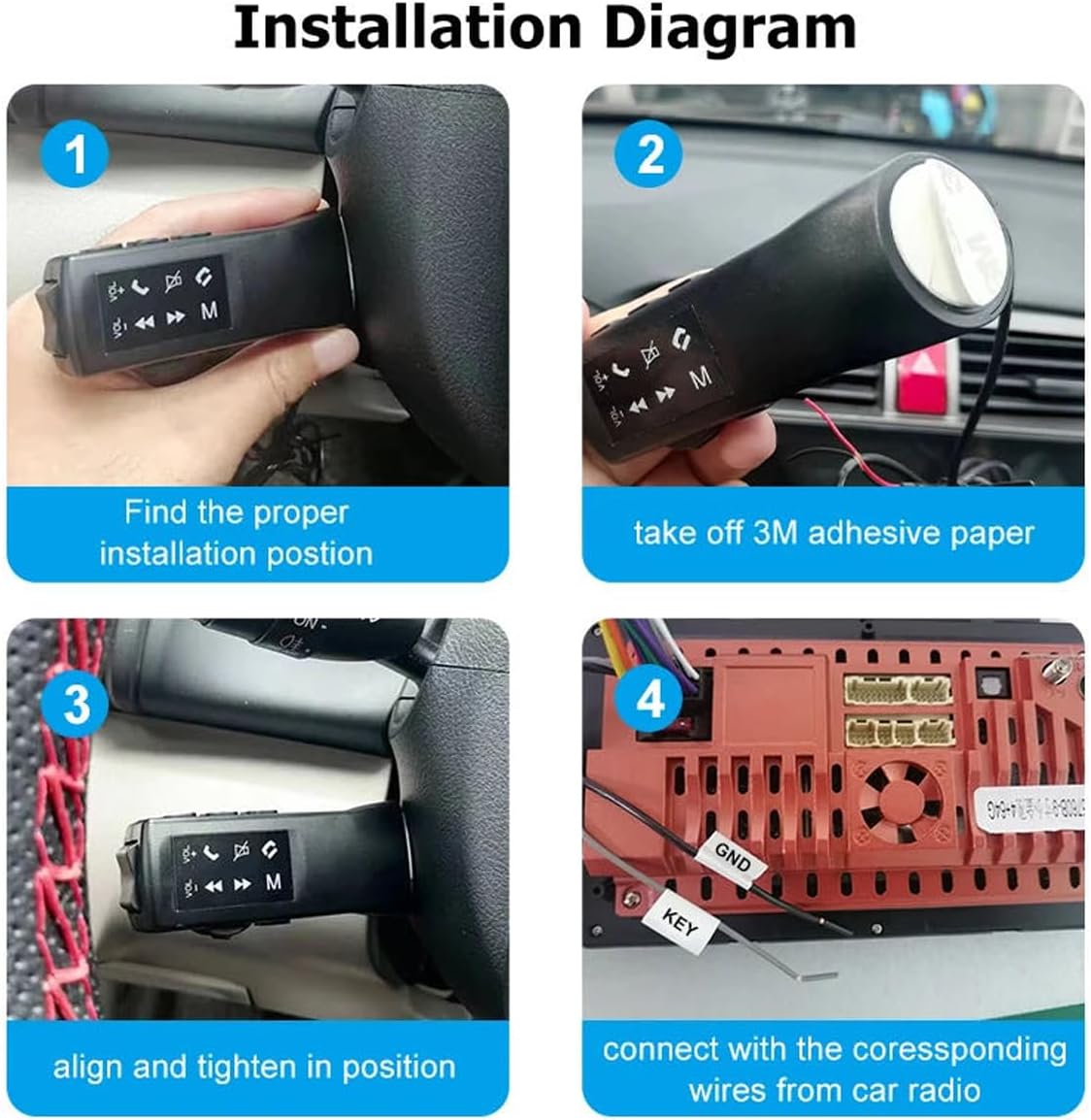
Image 4.1: Step-by-step installation diagram for the steering wheel controller.

Image 4.2: Examples of the controller installed on the left and right sides of a steering wheel.

Image 4.3: The steering wheel controller with its wiring for connection.
5. Operating Instructions
After successful physical installation and wiring, you need to configure the controller through your car's multimedia system.
5.1. Onboard Control Learning (Key Pairing)
This process teaches your multimedia system to recognize the signals from the steering wheel controller buttons:
- Access Navigation Settings: On your car's multimedia device, navigate to the system settings.
- Find Steering Wheel Control Learning: Locate the 'Steering Wheel Control Learning' or 'SWC' interface page.
- Initiate Learning: Click on the 'Refresh' key (if available) or the corresponding function icon on the screen that you wish to program.
- Press Controller Button: While the screen is ready to learn, press the desired button on your steering wheel controller (e.g., 'VOL+').
- Repeat for All Keys: Repeat steps 3 and 4 for each function (Vol-, Next, Last, Mute, Answer, Hang Up, Mode) until all desired keys are programmed.
- Save Settings: After programming all keys, click 'Save' or 'Confirm' on the multimedia device to store the settings.

Image 5.1: Example of a 'Steering Learn' interface on a car multimedia system.
5.2. Key Functions
The controller features 8 keys with the following standard functions:
- VOL +: Increase volume.
- VOL -: Decrease volume.
- Next: Skip to the next track/station.
- Last: Go to the previous track/station.
- Answer: Answer an incoming call.
- Mute: Mute/unmute audio.
- Mode (M): Switch between audio sources (e.g., Radio, USB, AUX).
- Hang Up: End a call.

Image 5.2: Detailed view of the controller's 8 multi-functional keys.
6. Troubleshooting
- Controller not responding:
- Ensure all wires (KEY and GND) are correctly and securely connected to your multimedia device.
- Verify that the 'Steering Wheel Control Learning' process was completed successfully for all keys. Repeat the learning process if necessary.
- Confirm your car's multimedia system supports wired steering wheel controls.
- Adhesive not holding: The included 3M adhesive may not be sufficient for all surfaces or conditions. Consider using alternative, more robust mounting solutions such as screws or stronger automotive-grade adhesive for a permanent fix.
- No Bluetooth Functionality: This controller operates via a wired connection and does not support Bluetooth. It must be connected directly to your car's multimedia navigation system.
- Incompatibility with CANBUS: This steering wheel controller does not support car configurations that utilize a CANBUS system for steering wheel controls. Please check your vehicle's specifications before installation.
7. Specifications
| Model Number | QXS-O08 |
| Brand | Polarlander |
| Product Dimensions | 5.51 x 3.15 x 2.17 inches (14 x 8 x 5.5 cm) |
| Item Weight | 2.15 ounces (61 grams) |
| Color | Black |
| Special Feature | Universal compatibility with Android/Wince systems |
| Max Number of Supported Devices | 1 (the car's multimedia unit) |
| Compatible Devices | DVD/Blu-ray Player, Multimedia Navigation Device, Radio |

Image 7.1: Product dimensions of the steering wheel controller.
8. Warranty and Support
For warranty information or technical support, please refer to your purchase documentation or contact the seller directly. Keep your proof of purchase for any warranty claims.