
NOVOO 5 in 1
NOVOO USB C Hub 5-in-1 User Manual
Model: 5 in 1
Introduction
This manual provides detailed instructions for the NOVOO USB C Hub 5-in-1. This versatile dongle is designed to expand the connectivity of your USB-C enabled devices, offering essential ports for various applications. It features a 4K HDMI output, two USB 3.0 ports, and dedicated slots for SD and microSD cards, making it an ideal solution for enhancing productivity and media connectivity.
Please read this manual thoroughly before using the product to ensure proper operation and to maximize its capabilities.
Product Overview
The NOVOO USB C Hub 5-in-1 is a compact and durable aluminum accessory designed for seamless integration with your USB-C devices. It provides multiple connectivity options through a single USB-C port.

Figure 1: NOVOO USB C Hub 5-in-1 and its included components, including USB-C cable, HDMI cable, USB flash drive, and SD/microSD cards.
Key Features:
- 4K HDMI Output: Supports 4K@30Hz or 1080P video streaming to external displays.
- USB 3.0 Ports (x2): Offers data transfer speeds up to 5Gbps for connecting peripherals like keyboards, mice, and external hard drives.
- SD/TF Card Reader: Enables quick access to files from SD and microSD cards simultaneously.
- Durable Design: Constructed from aluminum for enhanced durability and efficient heat dissipation.
- Plug and Play: No additional drivers required for most compatible operating systems.

Figure 2: Detailed view of the NOVOO USB C Hub 5-in-1, highlighting its various ports and their functionalities.
Setup
The NOVOO USB C Hub 5-in-1 is designed for simple plug-and-play operation. Follow these steps to set up your hub:
- Connect the Hub: Insert the USB-C connector of the NOVOO hub into an available USB-C port on your compatible device (e.g., MacBook Pro, MacBook Air, Dell XPS, Huawei MateBook, Google Chromebook Pixel).
- Connect Peripherals:
- HDMI Display: Connect an HDMI cable from your monitor or TV to the HDMI port on the hub. Ensure your display supports 4K@30Hz for optimal resolution.
- USB Devices: Plug your USB 3.0 or USB 2.0 devices (e.g., keyboard, mouse, USB flash drive, external hard drive) into the USB 3.0 ports. Note that for external HDDs/SSDs, only one can be connected at a time due to power requirements.
- Memory Cards: Insert your SD or microSD card into the corresponding slot. Both can be used simultaneously.
- Verify Connection: Your operating system should automatically detect the hub and connected devices. No additional drivers are typically required.

Figure 3: The NOVOO USB C Hub 5-in-1 connected to a laptop, showcasing its portability and ease of use.
Operating Instructions
HDMI Video Output:
The HDMI port allows you to mirror or extend your device's screen to an external display. For 4K@30Hz resolution, ensure your host device, HDMI cable (HDMI 2.0 or higher recommended), and external display all support this resolution.
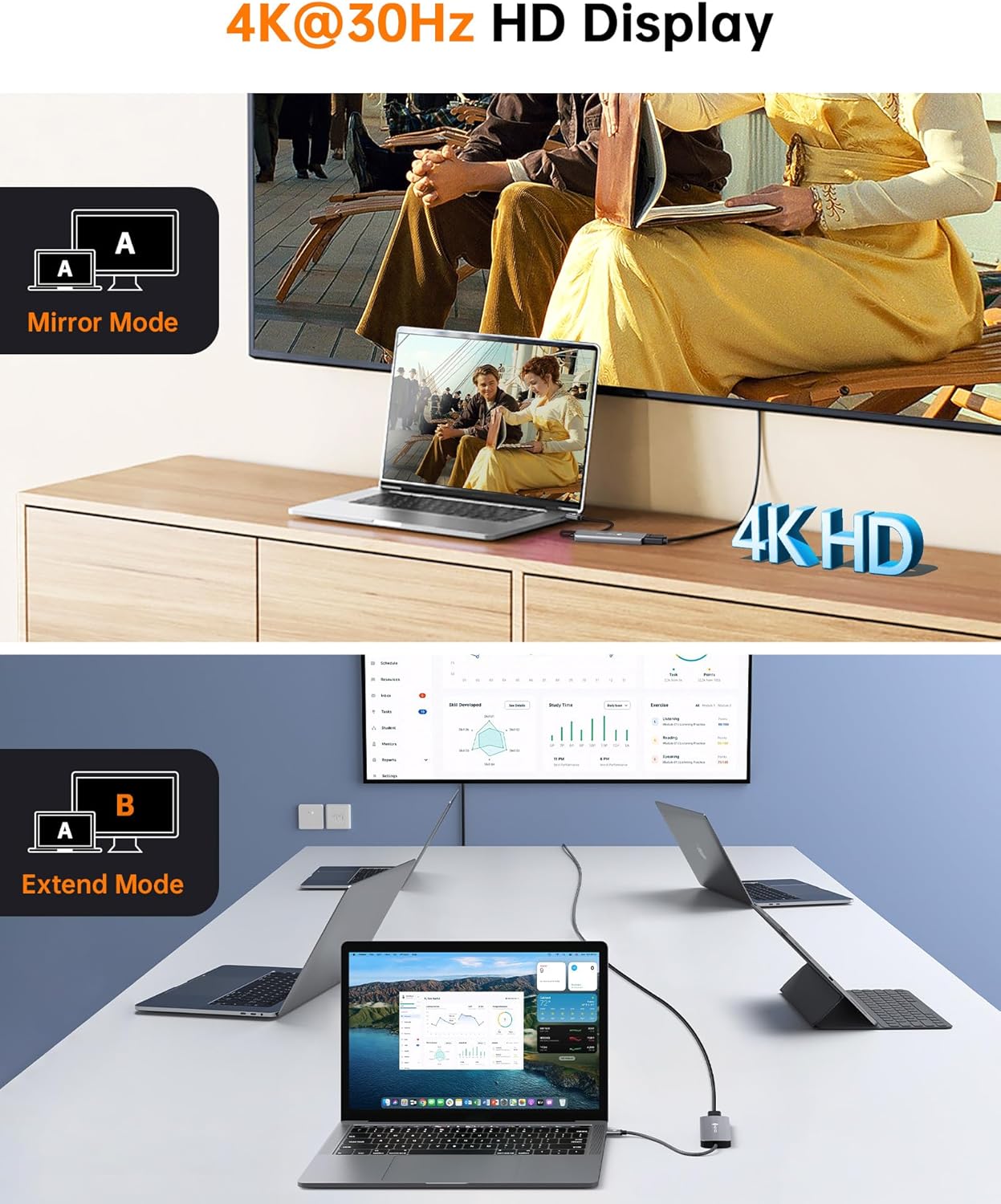
Figure 4: Demonstrating Mirror Mode (displaying the same content on both screens) and Extend Mode (extending the desktop across multiple screens) using the HDMI output.
USB 3.0 Data Transfer:
The two USB 3.0 ports provide high-speed data transfer up to 5Gbps. This is ideal for quickly moving large files, connecting external storage, or using USB peripherals.

Figure 5: High-speed data transfer via USB 3.0 ports, capable of transferring files in seconds.
SD/MicroSD Card Reader:
Insert your SD or microSD card into the designated slots. The hub supports simultaneous reading and writing for both card types, providing fast access to your media files.

Figure 6: Using the speedy card reader for SD and microSD cards, supporting simultaneous use.
Maintenance
- Keep the hub clean by wiping it with a soft, dry cloth. Avoid using liquid cleaners or solvents.
- Store the hub in a cool, dry place away from direct sunlight and extreme temperatures.
- Avoid dropping or subjecting the hub to strong impacts, as this may damage internal components.
- Do not attempt to disassemble or repair the hub yourself. Refer to qualified service personnel if issues arise.
Troubleshooting
| Problem | Possible Cause | Solution |
|---|---|---|
| No display output via HDMI. |
|
|
| USB devices not recognized. |
|
|
| SD/MicroSD card not detected. |
|
|
| Hub feels warm during use. | Normal operation. | The aluminum casing is designed to dissipate heat. This is normal, especially during heavy use (e.g., 4K video streaming, large file transfers). |
Specifications
| Feature | Detail |
|---|---|
| Model | 5 in 1 |
| Dimensions (L x W x H) | 3.74 x 1.18 x 0.35 inches (9.5 x 3 x 0.9 cm) |
| Weight | 1.44 ounces (40.8 grams) |
| Input Port | USB Type-C |
| Output Ports |
|
| Compatible Devices | MacBook Pro (2016-2021), MacBook Air (2018-2021), iMac (2017), Dell XPS, Huawei MateBook, Google Chromebook Pixel, Digital Cameras, Tablets, Gaming Consoles, Routers, Laptops, and other USB-C enabled devices. |
| Material | Aluminum Alloy |
| Operating System Compatibility | macOS, ChromeOS, Windows, Linux |
Warranty and Support
NOVOO products are backed by a manufacturer's warranty. For specific warranty terms and conditions, please refer to the warranty card included with your product or visit the official NOVOO website. For technical support, troubleshooting assistance, or any inquiries regarding your NOVOO USB C Hub, please contact NOVOO customer service through their official channels.
You can find more information and support resources on the NOVOO Store on Amazon.
Related documents5 in 1

Ask a question about this manual
Ask about setup, troubleshooting, compatibility, parts, safety, or missing instructions. Manuals+ will review the question and use this page’s manual context to help answer it.