
1. Introduction and Safety Information
Thank you for choosing the AITEK DELTA-M2410 23.8-inch Full HD Gaming Monitor. This manual provides essential information for setting up, operating, and maintaining your monitor. Please read it carefully before use and retain it for future reference.
Important Safety Instructions:
- Always disconnect the power cord from the electrical outlet before cleaning the monitor.
- Do not expose the monitor to rain or moisture to avoid fire or shock hazards.
- Do not open the monitor casing. There are no user-serviceable parts inside. Refer all servicing to qualified service personnel.
- Place the monitor on a stable, flat surface to prevent it from falling.
- Ensure proper ventilation around the monitor. Do not block ventilation openings.
- Use only the power adapter supplied with the monitor.
2. Package Contents
Please check the package for the following items:
- AITEK DELTA-M2410 23.8" Full HD Gaming Monitor
- Monitor Stand (Base and Neck)
- Power Adapter
- HDMI Cable
- User Manual (this document)
3. Setup
3.1 Assembling the Stand
- Carefully remove the monitor from its packaging, keeping the screen protected.
- Attach the stand neck to the monitor panel by aligning the tabs and pushing firmly until it clicks into place.
- Attach the stand base to the stand neck. Secure it with the provided screw, usually located at the bottom of the base.
- Place the assembled monitor on a stable, level desk or table.
3.2 Connecting the Monitor
- Power Connection: Connect the power adapter to the monitor's power input port, then plug the other end into a suitable electrical outlet (110/220V compatible).
- Video Connection:
- For optimal Full HD quality, connect one end of the provided HDMI cable to the monitor's HDMI port and the other end to the HDMI output port on your computer or gaming console.
- Alternatively, you can use a VGA cable to connect to the monitor's VGA port and your computer's VGA output.
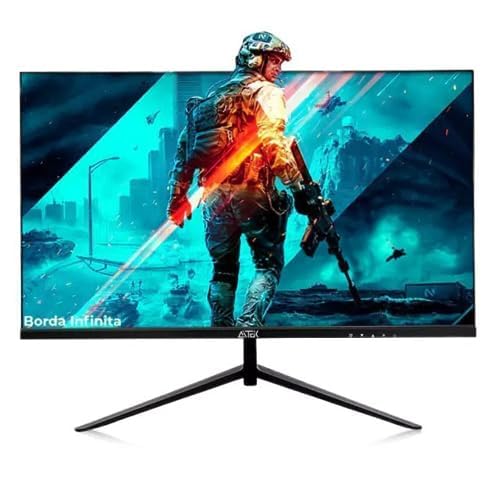
Figure 1: Rear view of the AITEK DELTA-M2410 monitor showing power and video connections.
4. Operating Instructions
4.1 Power On/Off
- Press the power button, usually located on the bottom right or rear of the monitor, to turn it on or off.
- The power indicator light will illuminate when the monitor is on.
4.2 On-Screen Display (OSD) Menu
The OSD menu allows you to adjust various monitor settings. Use the control buttons (joystick or individual buttons) on the monitor to navigate and select options.
- Input Select: Choose between HDMI and VGA inputs.
- Picture Settings: Adjust brightness, contrast, sharpness, and color temperature.
- Color Settings: Fine-tune RGB levels or select preset color modes.
- Audio: Adjust volume if external speakers are connected to the monitor's audio output (if available).
- Gaming Features: Access specific gaming modes or settings (e.g., response time, crosshair overlay if supported).
4.3 Adjusting the Display
The monitor stand allows for tilt adjustment to find a comfortable viewing angle. Gently tilt the monitor panel forward or backward to your preferred position.
5. Maintenance
5.1 Cleaning the Monitor
- Always unplug the monitor before cleaning.
- Use a soft, lint-free cloth lightly dampened with water or a mild, non-abrasive screen cleaner.
- Do not spray cleaner directly onto the screen.
- Avoid using benzene, thinner, ammonia-based cleaners, or abrasive materials.
5.2 Storage
When storing the monitor for an extended period, ensure it is powered off, unplugged, and stored in a cool, dry place away from direct sunlight and extreme temperatures. Use the original packaging if available for best protection.
6. Troubleshooting
| Problem | Possible Solution |
|---|---|
| No image on screen |
|
| Image is blurry or distorted |
|
| Colors are incorrect |
|
7. Specifications
| Feature | Detail |
|---|---|
| Model | DELTA-M2410 |
| Brand | AITEK |
| Screen Size | 23.8 inches |
| Resolution | 1920 x 1080 (Full HD 1080p) |
| Aspect Ratio | 16:9 |
| Connectivity | 1x HDMI, 1x VGA |
| Power Input | 110/220V |
| Weight | 3.69 Kilograms |
| Color | Black |
| Panel Surface | Glossy |
8. Warranty and Support
AITEK provides a limited warranty for this product. Please refer to the warranty card included in your package for detailed terms and conditions, including coverage period and service procedures. Keep your purchase receipt as proof of purchase.
For technical support or service inquiries, please contact AITEK customer service through the contact information provided on the warranty card or the official AITEK website.
9. Media Integration
Product Videos
No official product videos from the seller for the AITEK DELTA-M2410 monitor were found in the provided data. If available, relevant videos would be embedded here to demonstrate features or setup processes.