
1. Product Overview
The Mcdodo USB C Cable CA-1100 is a 4ft (1.2m) Type-C to Type-C cable designed for fast charging and data transfer. It features a digital wattage meter to display real-time charging power and is constructed with a durable nylon braided cord.
Key Features:
- 100W Power Delivery (PD) fast charging support.
- Integrated LED digital display for real-time wattage monitoring.
- Durable nylon braided exterior.
- Up to 480Mbps data transfer speed.

Figure 1: Mcdodo USB C Cable CA-1100 with digital display.
2. Setup Instructions
Using the Mcdodo USB C Cable CA-1100 is straightforward. No complex setup is required.
- Connect to Power Source: Insert one end of the USB-C cable into a compatible USB-C power adapter or port on a computer/power bank. Ensure the power source supports Power Delivery (PD) for optimal fast charging.
- Connect to Device: Insert the other end of the USB-C cable into the USB-C charging port of your compatible device (e.g., smartphone, tablet, laptop, gaming console).
- Verify Connection: Once connected, the digital display on the cable connector will illuminate, showing the real-time charging wattage.

Figure 2: Cable connected to a device and power source, displaying wattage.
3. Operating Instructions
The Mcdodo USB C Cable CA-1100 is designed for both charging and data transfer.
3.1 Charging Your Device
Connect the cable as described in the Setup section. The LED display will show the current charging wattage. This allows you to confirm if your device is fast charging (higher wattage) or trickle charging (lower wattage).

Figure 3: LED display indicating fast charging (left) and trickle charging (right).
The displayed wattage may vary depending on the connected device's battery level, charging protocol, and the power adapter's output capabilities. For example, a device with a low battery will typically draw higher wattage for fast charging, while a nearly full battery will draw lower wattage for trickle charging.

Figure 4: Example of charging speed comparison.
3.2 Data Transfer
To transfer data, connect the cable between two compatible USB-C devices (e.g., a smartphone and a laptop). The cable supports data transfer speeds up to 480Mbps (USB 2.0 standard).

Figure 5: Data transfer between devices.
4. Maintenance
To ensure the longevity and optimal performance of your Mcdodo USB C Cable CA-1100, follow these maintenance guidelines:
- Storage: Store the cable in a cool, dry place away from direct sunlight and extreme temperatures. Avoid tightly coiling or bending the cable at sharp angles.
- Cleaning: Use a soft, dry cloth to gently wipe the cable and connectors. Do not use liquid cleaners or abrasive materials.
- Handling: Always grasp the connector head when plugging or unplugging the cable. Avoid pulling directly on the cable itself, as this can damage the internal wires.
- Inspection: Periodically inspect the cable for any signs of wear, fraying, or damage to the connectors. Discontinue use if any damage is observed.
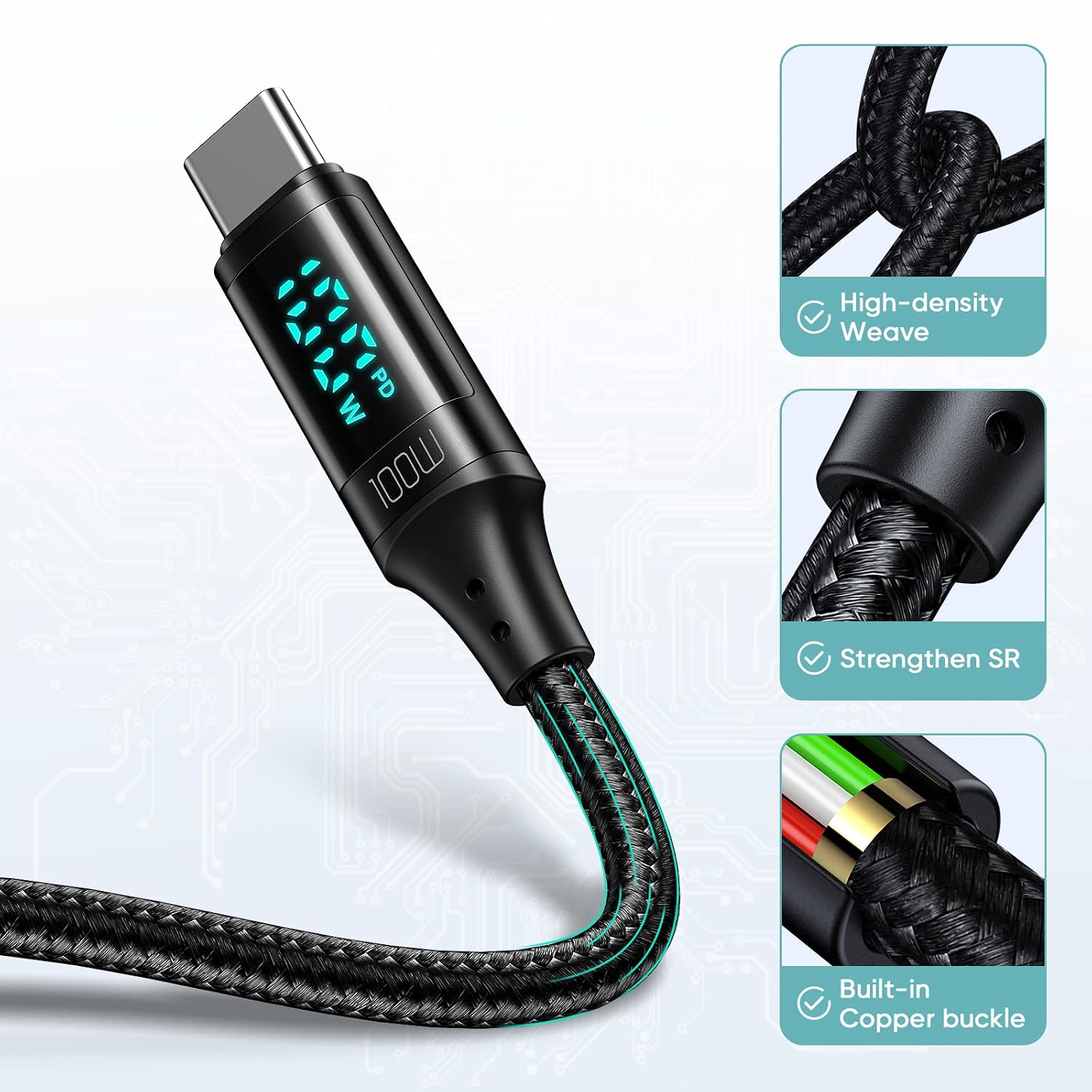
Figure 6: Cable construction for durability.
5. Troubleshooting
If you encounter issues with your Mcdodo USB C Cable CA-1100, refer to the following common problems and solutions:
| Problem | Possible Cause | Solution |
|---|---|---|
| Device not charging. | Loose connection, incompatible power adapter, faulty device port. | Ensure both ends of the cable are securely connected. Try a different power adapter or device port. Verify the power adapter supports your device's charging requirements. |
| Slow charging speed. | Power adapter does not support fast charging, device not compatible with PD, high background app usage. | Use a power adapter that supports 100W Power Delivery. Close unnecessary background applications on your device. Ensure your device supports fast charging protocols. |
| Digital display not working. | Cable not connected, display malfunction. | Ensure the cable is properly connected to both a power source and a device. If the issue persists, the display may be faulty. |
| Data transfer not working. | Incorrect connection, device settings, incompatible ports. | Ensure both devices are properly connected and configured for data transfer. Check device settings for USB connection mode (e.g., File Transfer). |
6. Specifications
Detailed specifications for the Mcdodo USB C Cable CA-1100:
- Brand: mcdodo
- Model Name: CA-1100
- Connector Type: USB Type C (Male-to-Male)
- Cable Type: USB
- Length: 4ft (approximately 1.2 meters)
- Maximum Wattage: 100W
- Maximum Current: 5 Amps
- Maximum Voltage: 20 Volts
- Data Transfer Rate: 0.48 Gigabits Per Second (480 Mbps)
- Outer Material: Nylon Braided
- Special Feature: LED Digital Wattage Display, Fast Charging
- Compatible Devices:
- Phones: iPhone 15/15Pro/15Plus/15ProMax, Samsung Galaxy S23/S22/S21/S20 Series, Note20/10/9, A90/A80/A72/A60/A51/A50/A12/A11, Google Pixel series, Motorola Moto Z/G series, LG G/V series.
- Tablets: iPad Pro 12.9" (2018/2020), iPad Pro 11" (2018/2020), iPad Air 10.9".
- Laptops: Apple MacBook (2015-2023), Huawei Matebook, Xiaomi Air/Pro, Lenovo Yoga/ThinkPad, Microsoft Surface Pro/Go, Dell XPS, HP Elitebook.
- Gaming Consoles: Nintendo Switch.

Figure 7: Wide compatibility with Type-C interface devices.
7. Product Video
Watch the official product video for a visual guide on the Mcdodo USB C Cable's features and usage.
Video 1: PD 100W USB C to USB C Cable overview. This video demonstrates the cable's fast charging capabilities and digital display in action.
8. Warranty and Support
For warranty information or technical support, please refer to the product packaging or contact Mcdodo customer service directly. Contact details can typically be found on the manufacturer's official website or through your retailer.
