
Introduction
Thank you for choosing the Elecshion Dual-Lens Articulating Borescope. This advanced inspection camera is designed for detailed visual inspection in hard-to-reach areas, featuring a 5-inch IPS screen, dual articulating lenses, and a semi-rigid gooseneck cable. This manual provides essential information for the safe and effective operation, maintenance, and troubleshooting of your device.
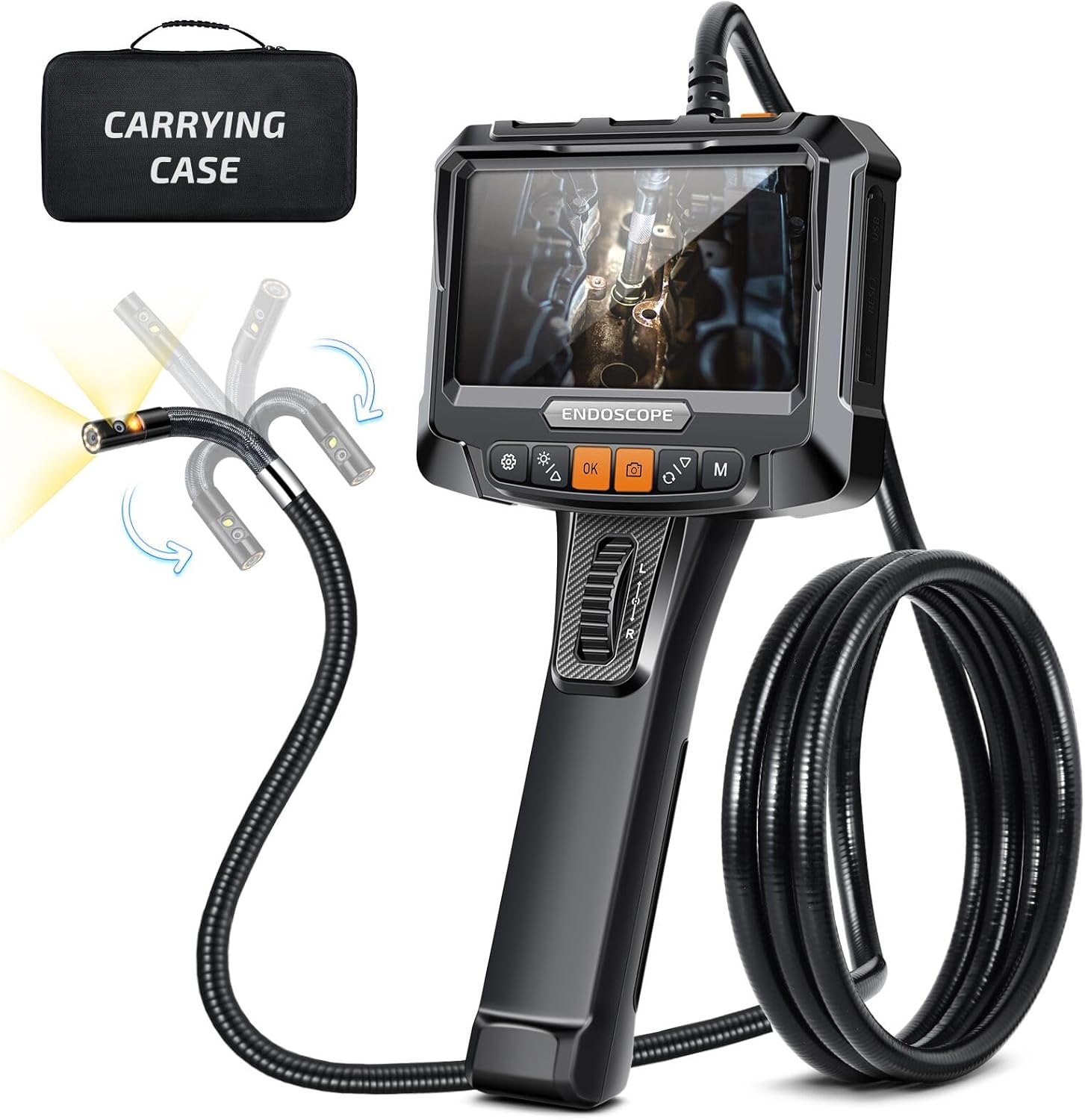
Figure 1: Elecshion Dual-Lens Articulating Borescope with its carrying case and the flexible probe demonstrating articulation.
Safety Information
- Do not use the borescope in environments with flammable or explosive gases.
- Keep the device away from strong electromagnetic fields.
- The probe is IP67 waterproof, but the main unit is not. Do not immerse the main unit in water.
- Avoid bending the probe cable excessively or forcefully, as this may damage internal components.
- Do not attempt to disassemble or modify the device. Refer all servicing to qualified personnel.
- Ensure the device is fully charged before extended use to prevent unexpected power loss during inspection.
Package Contents
Verify that all items are present in the package:
- Elecshion Dual-Lens Articulating Borescope (Main Unit with integrated probe)
- USB Charging Cable
- 32GB MicroSD Card (pre-installed or separate)
- User Manual (this document)
- Carrying Case
Product Overview
Familiarize yourself with the main components of your borescope.

Figure 2: The 5-inch IPS LCD screen provides a clear, high-contrast display with a 180-degree viewing angle.

Figure 3: The dual-lens system offers both 90-degree and 75-degree viewing angles for comprehensive inspection without dead spots.

Figure 4: The 5-foot semi-rigid gooseneck cable allows for precise positioning and navigation in complex environments.

Figure 5: The probe boasts an IP67 waterproof and oil-proof rating, suitable for various challenging inspection environments.
Setup
1. Charging the Device
Before first use, fully charge the borescope. Connect the provided USB charging cable to the charging port on the main unit and to a standard USB power adapter (not included). The charging indicator will show the charging status. A full charge typically takes 3-4 hours.
2. Inserting the MicroSD Card
The device comes with a 32GB MicroSD card. Locate the MicroSD card slot on the side or bottom of the main unit. Insert the MicroSD card with the gold contacts facing down until it clicks into place. To remove, gently push the card in until it springs out.
Operating Instructions
1. Power On/Off
Press and hold the Power button (usually marked with ● or ▪) for 3 seconds to turn the device on. The screen will illuminate. To turn off, press and hold the Power button again until the screen shuts down.
2. Adjusting LED Lights
The probe is equipped with adjustable LED lights. Use the dedicated light adjustment button (often marked with a light bulb icon) to cycle through different brightness levels. This helps illuminate dark inspection areas.
3. Articulating the Probe
The articulating head allows for precise control of the probe's direction. Use the articulation control wheel or lever on the main unit to bend the probe tip up to 180 degrees in two directions. This feature eliminates blind spots during inspection.

Figure 6: The articulation control allows the probe head to bend, providing a super wide angle of view without blind spots.
4. Capturing Photos and Videos
- Photo Capture: Press the Photo button (often marked with a camera icon) to take a still image. The image will be saved to the MicroSD card.
- Video Recording: Press the Video button (often marked with a video camera icon) to start recording. Press it again to stop recording. Videos are saved in AVI format to the MicroSD card.

Figure 7: The borescope utilizes a 6nm OV photosensitive chip for superior image clarity in both photo and video modes.
5. Viewing and Managing Files
Access the playback mode from the main menu to view captured photos and videos. Use the navigation buttons to browse through files. You can delete files directly from the device if needed.
Maintenance
- Cleaning the Probe: After each use, especially in dirty or oily environments, gently wipe the probe and lens with a soft, damp cloth. For stubborn residue, a small amount of mild detergent can be used, followed by wiping with a clean, damp cloth. Ensure the lens is clear for optimal image quality.
- Battery Care: To prolong battery life, avoid fully discharging the battery frequently. If storing the device for an extended period, charge it to approximately 50% every 3 months.
- Storage: Store the borescope in its carrying case in a cool, dry place, away from direct sunlight and extreme temperatures.
Troubleshooting
| Problem | Possible Cause | Solution |
|---|---|---|
| Device does not power on. | Low battery; Power button not held long enough. | Charge the device fully. Press and hold the Power button for at least 3 seconds. |
| No image on screen. | Probe cable not securely connected; Lens is dirty. | Ensure the probe cable is firmly connected. Clean the probe lens. |
| Cannot save photos/videos. | MicroSD card full or not inserted correctly; Card error. | Check MicroSD card insertion. Delete old files or format the card (backup data first). Try a different MicroSD card. |
| Probe articulation is stiff or unresponsive. | Debris in articulation mechanism; Cable kinked. | Gently clean the articulation joint. Ensure the cable is not severely bent or kinked. Do not force articulation. |
Specifications
| Feature | Detail |
|---|---|
| Model Number | E450 |
| Screen Size | 5-inch IPS LCD |
| Probe Diameter | 8mm |
| Cable Length | 5 feet (approx. 1.5 meters) |
| Lens Type | Dual-Lens (90° and 75° views) |
| Articulation Angle | Up to 180 degrees (two-way) |
| Waterproof Rating | IP67 (for probe only) |
| Video Resolution | 1080p |
| Storage | 32GB MicroSD Card (included) |
| Battery Capacity | 2000mAh (2 Lithium Ion batteries included) |
| Item Weight | 3.1 pounds |
| Dimensions | 17.09 x 9.45 x 3.39 inches (Package) |
Warranty and Support
Elecshion products come with a lifetime warranty. If you encounter any issues with your product, please do not hesitate to contact Elecshion customer support. We are committed to assisting you with any concerns or problems you may have.
For support, please visit the official Elecshion store page on Amazon or contact their customer service directly. Elecshion Amazon Store
Official Product Videos
No official product videos from the seller were found in the provided data for this model.