
1. Introduction
Thank you for choosing the Ourlife Action Camera S81TR. This camera is designed to capture your adventures in stunning detail, offering 5K 30FPS video and 48MP photos. With features like 6-axis gyroscope stabilization, a professional waterproof case, and dual touch screens, it is an ideal companion for sports, outdoor activities, and underwater exploration. This manual provides comprehensive instructions for setup, operation, maintenance, and troubleshooting to ensure you get the most out of your camera.
2. Product Overview and Components
The Ourlife Action Camera S81TR comes with a comprehensive accessory kit to support various shooting scenarios. Familiarize yourself with the main components and accessories included in your package.
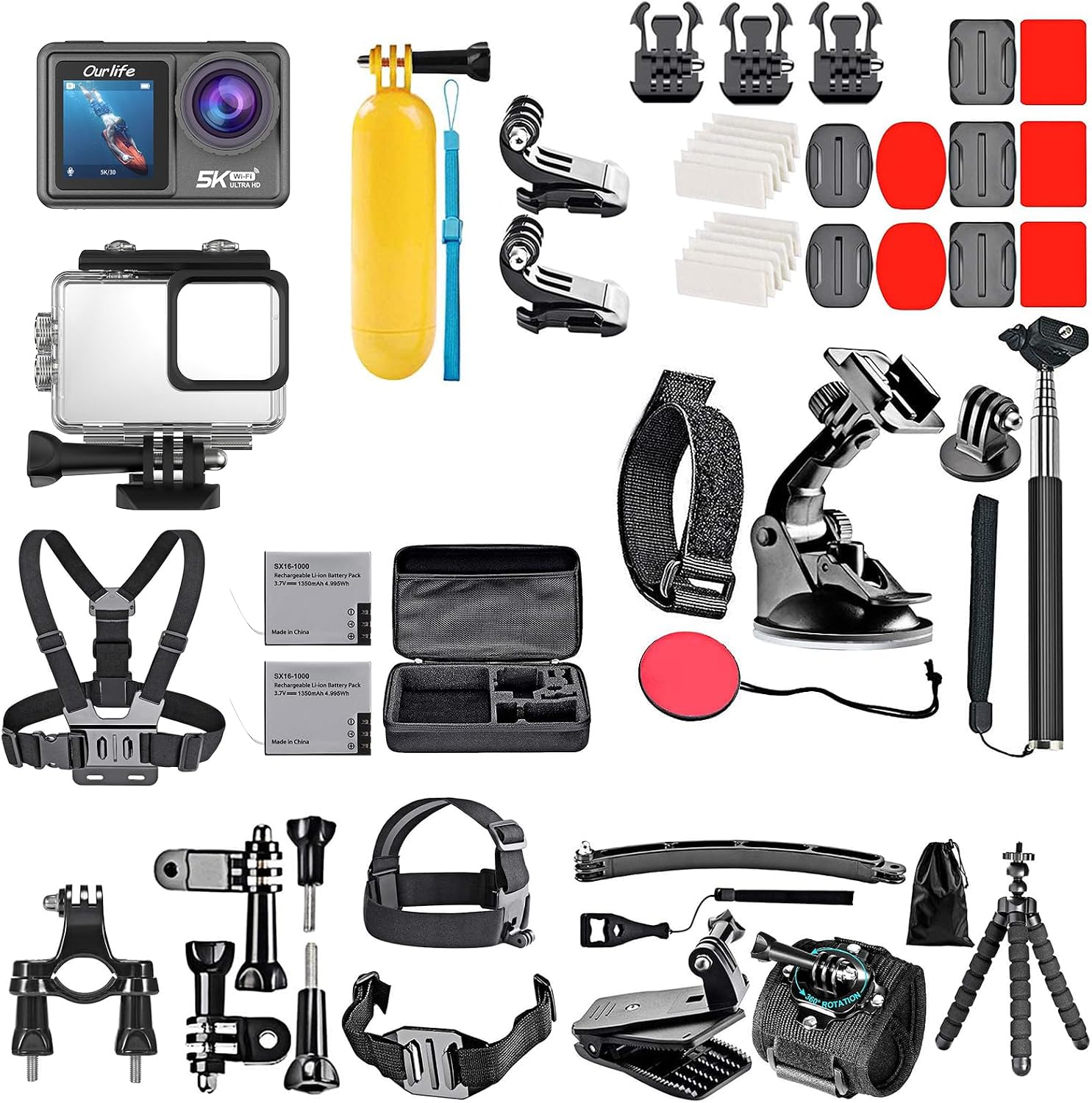
Figure 2.1: Ourlife Action Camera S81TR and included 50-piece accessory kit. This image displays the camera, waterproof housing, two batteries, a battery case, and a wide array of mounts and accessories including head straps, chest straps, helmet mounts, wrist straps, floating handle, handlebar mount, suction cup, flexible tripod, and selfie stick.
Key Components:
- Ourlife Action Camera S81TR: The main camera unit with dual touch screens (2.0-inch front, 1.3-inch rear).
- Waterproof Housing: IP68-rated, allowing submersion up to 131FT/40M.
- Rechargeable Batteries (x2): Two 1350mAh batteries for extended shooting.
- 50-piece Camera Accessories Kit: Includes various mounting options such as head, chest, helmet, wrist, and floating handle straps, as well as handlebar, suction cup, flexible tripod, and selfie stick accessories.
3. Setup
3.1 Charging the Batteries
Before first use, fully charge both 1350mAh batteries. Insert the batteries into the camera or an external charger (if provided) and connect to a power source using the supplied USB cable. The charging indicator will show the charging status and turn off when fully charged.
3.2 Inserting a MicroSD Card
The camera requires a MicroSD card (not included) for storing photos and videos. Use a high-speed (Class 10 or UHS-I/UHS-3) MicroSD card up to 128GB for optimal performance. Locate the MicroSD card slot on the side of the camera, insert the card with the contacts facing the correct direction until it clicks into place. To remove, press the card gently until it springs out.
3.3 Attaching the Waterproof Case
For underwater use or protection against dust and impact, place the camera inside the IP68 professional waterproof housing. Ensure the camera fits snugly and the housing latch is securely closed. Before diving, always perform a leak test by submerging the empty case in water for a few minutes to confirm it is sealed properly.
3.4 Attaching Accessories and Mounts
The camera comes with a versatile 50-piece accessory kit. Attach the camera to various mounts (e.g., head strap, chest strap, helmet mount, handlebar mount, suction cup, flexible tripod, selfie stick) using the standard action camera mounting system. Ensure all connections are secure before use, especially during high-action activities.
4. Operating Instructions
4.1 Powering On/Off
To power on the camera, press and hold the Power/Mode button located on the front or top of the camera until the screen illuminates. To power off, press and hold the same button until the screen turns off.
4.2 Navigating the Dual Touch Screens
The S81TR features a 2.0-inch front display and a 1.3-inch rear screen, both touch-enabled for easy navigation. Swipe and tap on the screens to access menus, change settings, and review footage. The front screen is ideal for framing shots, while the rear screen provides a larger view for detailed adjustments and playback.

Figure 4.1: The Ourlife Action Camera S81TR showcasing its dual touch screens. The front screen is visible on the left, displaying a live preview, while the larger rear screen on the right shows a recorded video of a skier. This setup allows for flexible framing and viewing.
4.3 Video Recording and Photo Capture
Press the Shutter/Record button to start or stop video recording. The camera supports 5K 30FPS ultra-clear video. For still photos, switch to photo mode and press the Shutter button. The camera captures crisp 48MP photos.
4.4 Gyro Stabilization
The S81TR features 6-axis gyroscope stabilization to ensure smooth and steady footage, even during intense action. This feature is automatically enabled in most video modes to minimize shakes and vibrations.

Figure 4.2: A visual representation of the 6-Axis Gyro Stabilization feature. The image shows a quad bike rider in motion, with a toggle switch indicating the stabilization can be turned ON or OFF, demonstrating its effect on footage quality.
4.5 Multiple Shooting Modes
Explore various shooting modes to enhance your creativity:
- Zoom: Adjust the focal length for closer shots.
- Fast/Slow Motion: Capture dynamic scenes with speed adjustments.
- Time-Lapse: Condense long events into short, captivating videos.
- Loop Recording: Continuously record, overwriting the oldest footage, ideal for dashcam use.
- Lens Distortion Correction: Corrects the fisheye effect common in wide-angle lenses.
- Wind Noise Reduction: Improves audio quality in windy conditions.
- Diving Mode: Optimizes color balance for vibrant underwater footage.
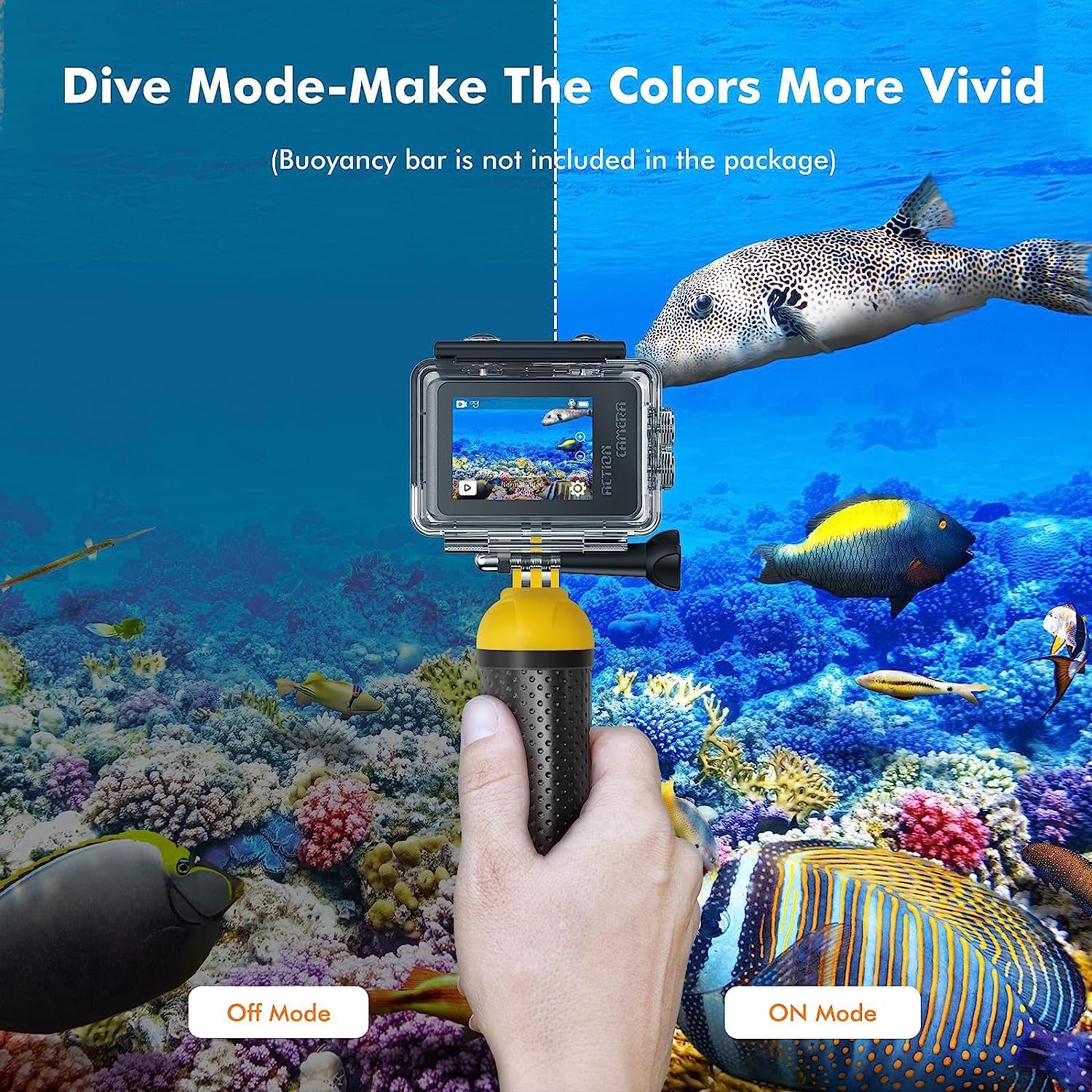
Figure 4.3: A split image demonstrating the effect of Dive Mode. The left side shows an underwater scene in "Off Mode" with muted colors, while the right side shows the same scene in "ON Mode" with significantly more vibrant and accurate colors, highlighting the camera's ability to enhance aquatic memories.
4.6 Wi-Fi Connectivity
Connect your S81TR camera to your smartphone or tablet via Wi-Fi to control it remotely, preview footage, and share content instantly. Download the official Ourlife app from your device's app store. Follow the in-app instructions to pair your camera.

Figure 4.4: An illustration of the camera's Wi-Fi connectivity feature. A smartphone is shown remotely controlling the Ourlife camera, with icons for Wi-Fi, sharing, Facebook, YouTube, LinkedIn, and Pinterest, indicating instant social media sharing capabilities.
5. Maintenance
Proper maintenance ensures the longevity and optimal performance of your Ourlife Action Camera S81TR.
- Cleaning the Camera and Lens: Use a soft, lint-free cloth to clean the camera body and screens. For the lens, use a specialized lens cleaning cloth and solution to avoid scratches.
- Waterproof Case Care: After each use in water, rinse the waterproof case with fresh water and allow it to air dry. Inspect the rubber seal for any debris or damage before each use to ensure a watertight seal.
- Battery Care: Store batteries in a cool, dry place. Avoid fully discharging batteries for extended periods. If storing for a long time, charge them to about 50% capacity.
- Storage: Store the camera and accessories in a dry, dust-free environment away from direct sunlight and extreme temperatures.
6. Troubleshooting
If you encounter issues with your Ourlife Action Camera S81TR, refer to the following common problems and solutions:
| Problem | Possible Cause | Solution |
|---|---|---|
| Camera does not power on. | Battery is depleted or not inserted correctly. | Ensure batteries are fully charged and correctly inserted. Try a different charged battery. |
| Video footage is shaky. | Gyro stabilization is off or extreme movement. | Ensure 6-axis gyroscope stabilization is enabled in settings. Minimize excessive camera movement. |
| MicroSD card error. | Card is full, corrupted, or incompatible. | Format the MicroSD card in the camera's settings. Try a different, high-speed MicroSD card. Ensure it's not full. |
| Poor underwater color. | Diving mode is not activated. | Activate "Diving Mode" in the camera settings for optimized underwater color balance. |
| Wi-Fi connection issues. | Incorrect password, app issues, or distance. | Ensure correct Wi-Fi password. Restart camera and phone. Keep devices within range. Reinstall the Ourlife app. |
If the problem persists, please contact Ourlife customer support for further assistance.
7. Specifications
Detailed technical specifications for the Ourlife Action Camera S81TR:
| Feature | Detail |
|---|---|
| Brand | Ourlife |
| Model | S81TR |
| Video Capture Resolution | 5K 30FPS Ultra HD |
| Photo Resolution | 48MP |
| Stabilization | 6-axis Gyro Stabilization |
| Screen Size | 2.0-inch Front Touch Screen, 1.3-inch Rear Touch Screen |
| Waterproof Depth | Up to 131FT / 40M (with IP68 waterproof housing) |
| Battery Capacity | 2 x 1350mAh Rechargeable Batteries |
| Special Features | Diving Mode, Zoom, Fast/Slow Motion, Time-Lapse, Loop Recording, Lens Distortion Correction, Wind Noise Reduction, Wi-Fi Connectivity |
| Included Components | Camera, 2 Batteries, 50pcs Camera Accessories Kit |
| Compatible Devices | GoPro Hero 11/10/9/8/7/6/5/4, GoPro Max, GoPro Fusion, DJI Osmo Action, Insta360, AKASO, APEMAN, Campark, SJCAM (for accessories) |
8. Warranty and Support
Ourlife products are designed and manufactured to the highest quality standards. For warranty information and customer support, please refer to the warranty card included in your product packaging or visit the official Ourlife website.
For further assistance, you may also visit the Ourlife Store on Amazon: Ourlife Store