
1. Product Overview
The TECLAST T40Air is a high-performance tablet designed for various tasks, from entertainment to productivity. It features a 10.4-inch display, 16GB RAM, 256GB ROM, and runs on Android 13, powered by an octa-core processor. Its lightweight design and robust battery ensure portability and extended usage.

Image 1.1: Front and back view of the TECLAST T40Air Tablet, showcasing its sleek design and dual rear cameras.
Video 1.1: An official overview of the TECLAST T40Air Android Tablet, highlighting its key features and design.
2. Initial Setup
2.1 Unboxing and First Use
Carefully remove the tablet and all accessories from the packaging. Inspect the device for any physical damage. Before first use, it is recommended to fully charge the tablet.
2.2 Charging the Tablet
Connect the provided USB-C cable to the tablet's charging port and the other end to the 18W PD fast charging adapter. Plug the adapter into a power outlet. The battery indicator on the screen will show the charging status. A full charge typically takes approximately 2-3 hours.
2.3 Powering On/Off
- To Power On: Press and hold the Power button located on the side of the tablet until the TECLAST logo appears on the screen.
- To Power Off: Press and hold the Power button until a power menu appears. Select 'Power off' and confirm.
- To Restart: From the power menu, select 'Restart'.
2.4 Initial Configuration
Upon first power-on, the tablet will guide you through the initial setup process:
- Language Selection: Choose your preferred language.
- Wi-Fi Connection: Select your Wi-Fi network and enter the password to connect to the internet.
- Google Account: Sign in with your Google account or create a new one. This is essential for downloading apps from the Google Play Store and syncing data.
- Date & Time: Set the correct date and time, or allow the network to set it automatically.
- Security: Set up a screen lock (PIN, pattern, password, or Face Unlock).
2.5 SIM Card Installation (Optional)
The T40Air supports 4G LTE connectivity. To install a SIM card:
- Locate the SIM card tray on the side of the tablet.
- Use the provided SIM ejector tool to open the tray.
- Place the Nano-SIM card(s) into the designated slots, ensuring correct orientation.
- Gently push the tray back into the tablet until it clicks into place.

Image 2.1: The TECLAST T40Air Tablet highlighting its 4G LTE support and SIM card tray location.
3. Operating Instructions
3.1 Navigating Android 13
The TECLAST T40Air runs on Android 13, offering an intuitive user experience. Use touch gestures to navigate:
- Tap: Select an item.
- Swipe: Scroll through screens or lists.
- Pinch-to-zoom: Zoom in or out on images and web pages.
- Long press: Access contextual menus or move icons.
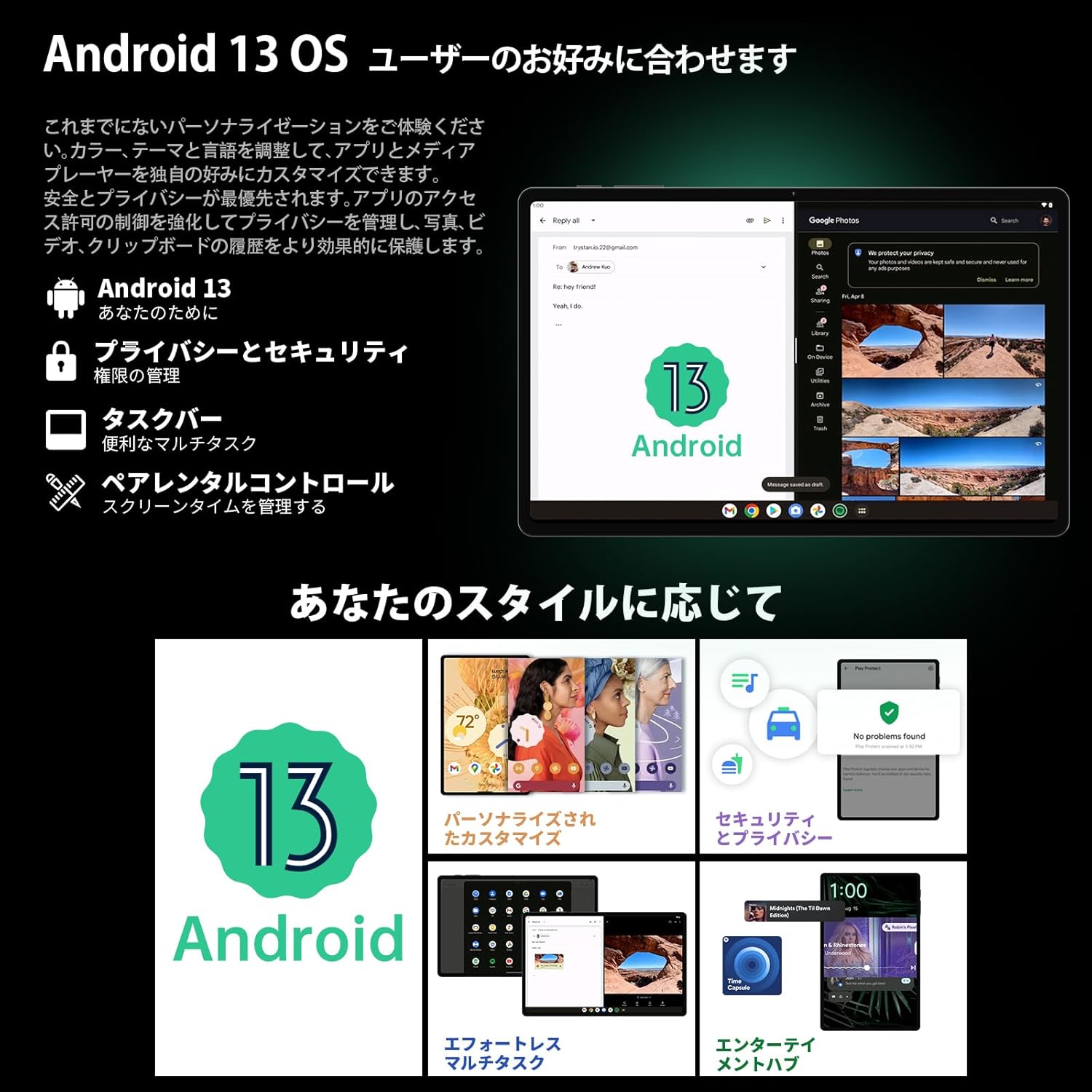
Image 3.1: The Android 13 interface on the TECLAST T40Air Tablet, showing personalization and security features.
3.2 Display Features
The 10.4-inch 2K FHD IPS display provides vibrant colors and sharp details. It features:
- TDDI Fully Laminated: Enhances touch responsiveness and visual clarity.
- Eye Protection Mode: Reduces blue light to prevent eye strain.
- Reading Mode: Optimizes the screen for comfortable reading.
- Dark Mode & Dim Mode: Adjusts screen brightness and color for different lighting conditions.

Image 3.2: Visual representation of the TECLAST T40Air Tablet's display features, including eye protection and reading modes.
3.3 Camera Usage
The tablet is equipped with a 13MP rear dual camera and an 8MP front camera.
- Taking Photos: Open the Camera app, frame your shot, and tap the shutter button.
- Recording Videos: Switch to video mode in the Camera app and tap the record button.
- Front Camera: Use for video calls and selfies.

Image 3.3: The TECLAST T40Air Tablet showcasing its camera capabilities and 3.5mm headphone jack.
3.4 Audio and Connectivity
- SWEET 4 Speakers: Enjoy immersive audio with the tablet's quad-speaker system and Smart K Digital Amplifier.
- 3.5mm Headphone Jack: Connect your wired headphones for private listening.
- Wi-Fi: Supports 2.4GHz and 5GHz dual-band Wi-Fi (802.11ac) for stable and fast internet.
- Bluetooth 5.0: Connect wireless accessories like headphones, keyboards, and mice.
- VoLTE: Enables high-quality voice calls over 4G LTE networks.
3.5 Face Unlock
The tablet supports Face Unlock for convenient and secure access. Set it up in the Security settings. Ensure good lighting conditions for optimal performance.
4. Maintenance
4.1 Cleaning the Tablet
To clean your tablet, use a soft, lint-free cloth. For stubborn smudges, slightly dampen the cloth with water or a screen cleaner. Avoid using harsh chemicals, abrasive materials, or excessive moisture.
4.2 Battery Care
- Avoid exposing the tablet to extreme temperatures.
- Do not let the battery completely drain frequently.
- Use the original charger or a certified 18W PD charger for optimal charging.
4.3 Software Updates
Regularly check for and install software updates to ensure your tablet has the latest features, security patches, and performance improvements. Go to Settings > System > System update.
4.4 Storage Management
The tablet comes with 256GB of internal storage, expandable via microSD card up to 1TB. Regularly manage your storage by:
- Deleting unnecessary files and apps.
- Moving large files to a microSD card.
- Utilizing cloud storage services.

Image 4.1: The TECLAST T40Air Tablet highlighting its 16GB RAM, 256GB ROM, and support for microSD card expansion.
5. Troubleshooting
This section addresses common issues you might encounter with your TECLAST T40Air Tablet.
5.1 Device Not Powering On
- Ensure the battery is sufficiently charged. Connect the charger and wait a few minutes before attempting to power on.
- Press and hold the Power button for at least 10-15 seconds to force a restart.
5.2 Wi-Fi Connection Issues
- Check if Wi-Fi is enabled in Settings > Network & internet > Wi-Fi.
- Ensure you have entered the correct Wi-Fi password.
- Restart your Wi-Fi router and the tablet.
- Try connecting to a different Wi-Fi network to isolate the issue.
5.3 Slow Performance
- Close unused background applications.
- Clear cache data for apps that are running slowly (Settings > Apps > [App Name] > Storage & cache > Clear cache).
- Ensure you have sufficient free storage space.
- Restart the tablet.
5.4 Screen Not Responding
- Restart the tablet by holding the Power button.
- Ensure the screen is clean and free from moisture or debris.
5.5 Factory Reset (Last Resort)
If issues persist, you may consider performing a factory reset. Warning: This will erase all data on your tablet. Back up important data before proceeding.
Go to Settings > System > Reset options > Erase all data (factory reset) and follow the on-screen instructions.
6. Specifications
Below are the technical specifications for the TECLAST T40Air Tablet:
| Feature | Specification |
|---|---|
| Model Number | T40Air |
| Display Size | 10.4 Inches |
| Screen Resolution | 1920 x 1080 pixels (2K FHD IPS) |
| RAM | 16 GB |
| Flash Memory Size (ROM) | 256 GB |
| Processor Brand | Rockchip or Unisoc (Octa-core) |
| Operating System | Android 13 |
| Wireless Type | 5 GHz Radio Frequency, 802.11a/b/g/n/ac |
| Bluetooth | Bluetooth 5.0 |
| Average Battery Life | 5 Hours (7200mAh) |
| Item Weight | 1.01 pounds (approx. 460g) |
| Product Dimensions | 9.6 x 6.1 x 0.3 inches |
| Special Feature | Lightweight |
7. Warranty and Support
7.1 Product Warranty
The TECLAST T40Air Tablet comes with a standard manufacturer's warranty. Please refer to the warranty card included in your product packaging for specific terms, conditions, and duration. Keep your proof of purchase for warranty claims.
7.2 Customer Support
If you encounter any issues not covered in this manual or require further assistance, please contact TECLAST customer support. You can typically find contact information on the official TECLAST website or through your retailer's support channels.
- Visit the official TECLAST website for FAQs and support resources.
- Contact the seller or retailer for product-specific support and return policies.


