
Introduction
This manual provides detailed instructions for the setup, operation, maintenance, and troubleshooting of your IWEGGO Q2S Pro 7-inch Android 15 Tablet. Please read this manual thoroughly before using your device to ensure proper functionality and to maximize your user experience. Keep this manual for future reference.
Package Contents
Verify that all items are present in your product package:
- IWEGGO Q2S Pro 7-inch Android 15 Tablet
- Protective Case
- Type-C Charging Cable
- User Manual (this document)
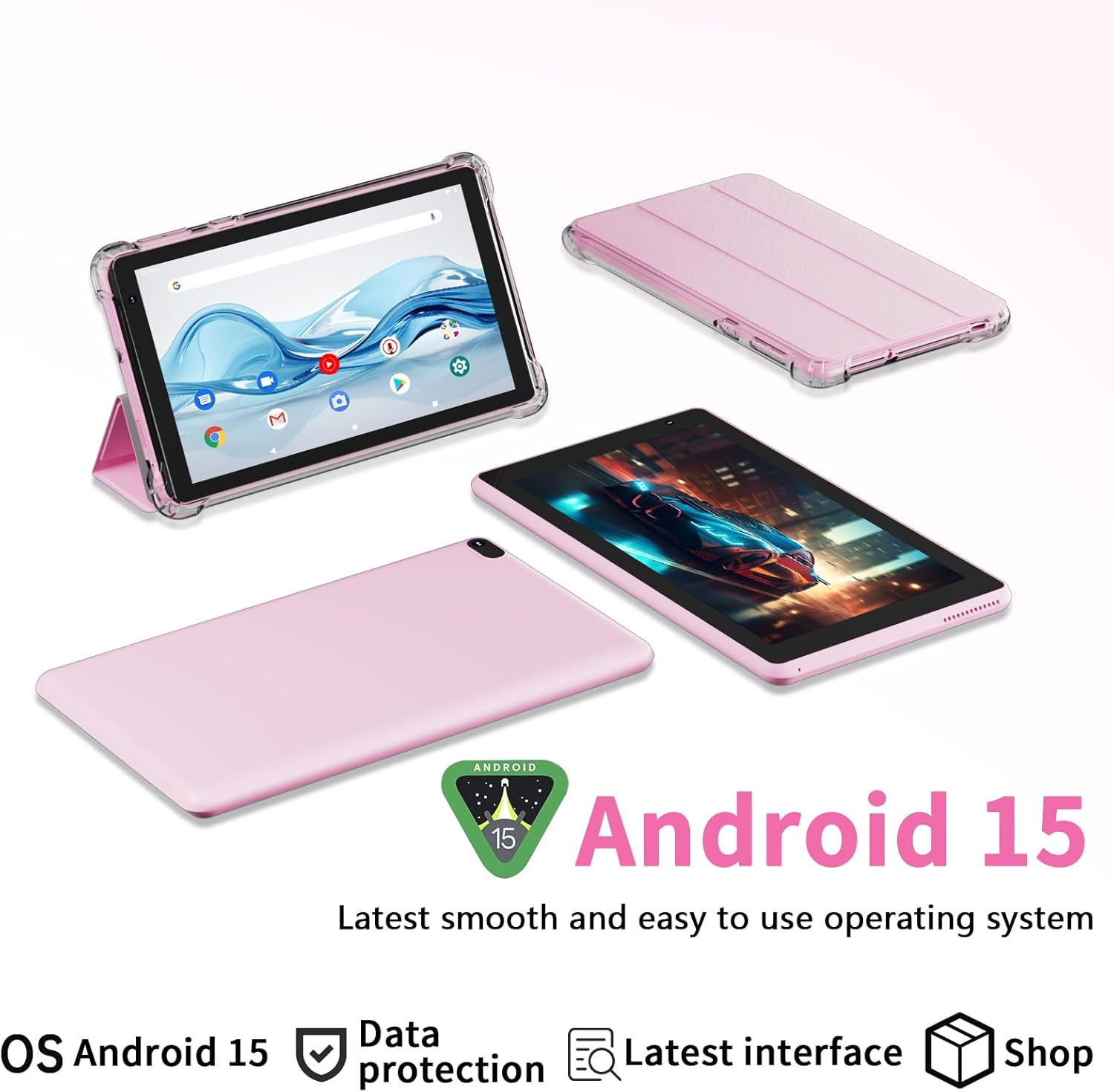
Image: The IWEGGO Q2S Pro tablet, its protective case, and the Type-C charging cable.
Device Overview
Familiarize yourself with the physical components of your tablet.

Image: Front view of the IWEGGO Q2S Pro tablet with its protective case.
Key Components:
- 7-inch Display: High-definition screen for visual interaction.
- Front Camera: Located on the front bezel, used for video calls and selfies.
- Rear Camera: Located on the back of the tablet, used for taking photos and videos.
- Power Button: Used to turn the tablet on/off or put it to sleep/wake it up.
- Volume Buttons: Used to adjust the audio volume.
- Type-C Port: For charging the tablet and data transfer.
- 3.5mm Headphone Jack: For connecting wired headphones.
- MicroSD Card Slot: For expanding storage capacity.
- Speakers: For audio output.
Setup
1. Charging the Tablet
Before first use, fully charge your tablet. Connect the provided Type-C cable to the tablet's charging port and the other end to a compatible USB power adapter (not included) or a computer's USB port. The charging indicator on the screen will show the charging status.
Note: Use a 5V 2A charger for optimal charging. Using chargers with higher power output may prevent charging or damage the device.

Image: The tablet being used for high-resolution video viewing.
2. Powering On/Off
- To Power On: Press and hold the Power button until the IWEGGO logo appears on the screen.
- To Power Off: Press and hold the Power button until the power options menu appears. Select "Power off" and confirm.
- To Sleep/Wake: Briefly press the Power button to put the tablet into sleep mode or wake it up.
3. Initial Setup
Upon first power-on, the tablet will guide you through the initial setup process. This includes selecting your language, connecting to a Wi-Fi network, and signing in with your Google account. A Google account is required to download applications from the Google Play Store.
4. Inserting a MicroSD Card (Optional)
To expand the tablet's storage, you can insert a MicroSD card (up to 1TB, not included). Locate the MicroSD card slot, gently insert the card with the gold contacts facing down until it clicks into place. The tablet will recognize the new storage.

Image: Visual representation of the tablet's storage capabilities.
Operating the Tablet
1. Navigation Basics
- Touch: Tap an icon to open an app or select an item.
- Swipe: Drag your finger across the screen to scroll through pages or lists.
- Pinch-to-Zoom: Place two fingers on the screen and move them apart or together to zoom in or out.
- Home Screen: Tap the Home button (usually a circle or house icon) to return to the main screen.
- Back: Tap the Back button (usually a triangle or arrow icon) to go back to the previous screen.
- Recent Apps: Tap the Recent Apps button (usually a square icon) to view and switch between recently used applications.
2. Connecting to Wi-Fi
To access the internet, connect your tablet to a Wi-Fi network:
- Go to Settings > Network & internet > Wi-Fi.
- Turn on Wi-Fi. The tablet will scan for available networks.
- Select your desired network from the list.
- If prompted, enter the network password and tap Connect.
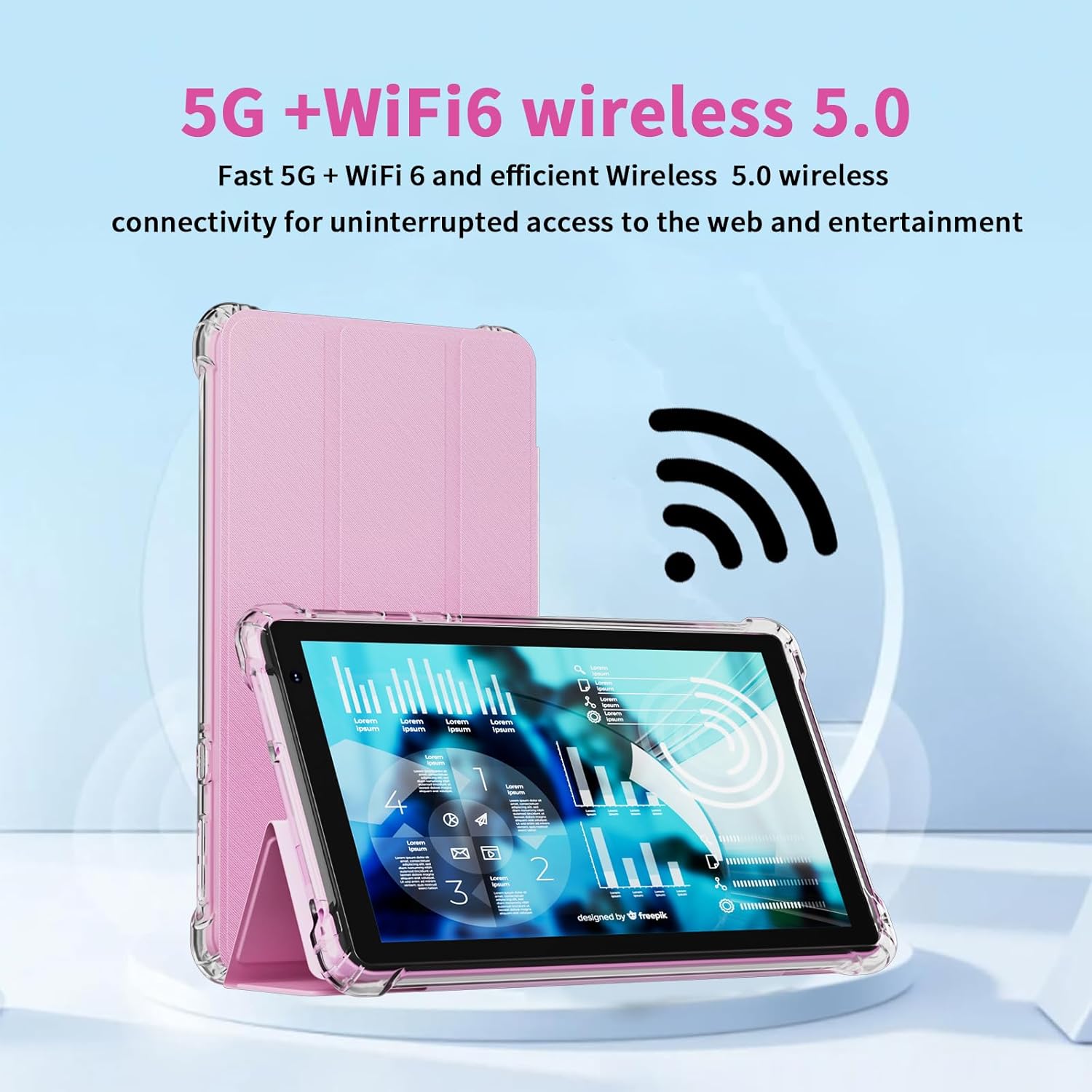
Image: Tablet showcasing its advanced wireless connectivity features.
3. Bluetooth Pairing
To connect to Bluetooth devices (e.g., headphones, speakers):
- Go to Settings > Connected devices > Bluetooth.
- Turn on Bluetooth.
- Ensure your Bluetooth device is in pairing mode.
- Select your device from the list of available devices and follow any on-screen prompts to complete pairing.
4. Camera Usage
The tablet features a 2MP front camera and a 5MP rear camera.
- Open the Camera application.
- Tap the shutter button to take a photo.
- Switch between front and rear cameras using the camera switch icon.
- Select video mode to record videos.

Image: Details of the tablet's front and rear cameras.
5. Application Management
Download new applications from the Google Play Store. To manage installed apps:
- Install: Open the Play Store app, search for your desired app, and tap Install.
- Uninstall: Go to Settings > Apps > See all apps. Select the app you wish to uninstall and tap Uninstall.
- Force Stop/Clear Cache: If an app is misbehaving, you can force stop it or clear its cache from the same app info screen.

Image: Examples of applications available on the tablet.
6. Display Settings
Customize your display for optimal viewing:
- Go to Settings > Display.
- Adjust Brightness level, enable Adaptive brightness, or set Night Light for reduced eye strain.
- Change Screen timeout to conserve battery.
7. Sound Settings
Manage audio output and notifications:
- Go to Settings > Sound & vibration.
- Adjust media, call, ring, and alarm volumes.
- Select ringtones and notification sounds.
8. Storage Management
Monitor and manage your tablet's storage:
- Go to Settings > Storage.
- View how much space is used by apps, photos, videos, and other files.
- You can free up space by uninstalling unused apps or deleting unnecessary files.
Maintenance
1. Cleaning the Tablet
Use a soft, lint-free cloth to clean the screen and body of the tablet. Avoid using harsh chemicals or abrasive materials, as these can damage the screen or finish. For stubborn smudges, slightly dampen the cloth with water or a screen-cleaning solution.
2. Battery Care
- Avoid extreme temperatures, as they can degrade battery life.
- Do not leave the tablet fully charged or fully discharged for extended periods.
- Use only the provided Type-C cable for charging.
3. Software Updates
Regularly check for and install software updates to ensure your tablet has the latest features, security patches, and performance improvements.
- Go to Settings > System > System update.
- Follow the on-screen instructions to check for and install any available updates.
Troubleshooting
Here are solutions to common issues you might encounter:
| Problem | Solution |
|---|---|
| Tablet does not power on. | Ensure the tablet is charged. Connect it to a power source for at least 30 minutes. If it still doesn't turn on, perform a forced restart by holding the Power button for 10-15 seconds. |
| Slow performance or apps crashing. | Close unused applications. Clear app caches (Settings > Apps > select app > Storage & cache > Clear cache). Restart the tablet. Ensure sufficient storage space is available. |
| Cannot connect to Wi-Fi. | Ensure Wi-Fi is enabled on the tablet. Restart your Wi-Fi router. Verify the Wi-Fi password. Try forgetting the network and reconnecting. |
| Tablet is not charging. | Ensure the charging cable is securely connected. Use the provided Type-C cable and a compatible 5V 2A power adapter. Try a different power outlet. |
| Screen is unresponsive. | Perform a forced restart by holding the Power button for 10-15 seconds. If the issue persists, contact customer support. |
Specifications
| Feature | Detail |
|---|---|
| Model | Q2S Pro |
| Operating System | Android 15 |
| Display Size | 7 Inches |
| Screen Resolution | 1024 x 600 Pixels |
| Processor | 1.6 GHz Quad-core |
| RAM | 8GB (3GB physical + 5GB virtual) |
| Internal Storage (ROM) | 32GB |
| Expandable Storage | Up to 1TB via MicroSD card |
| Rear Camera | 5MP |
| Front Camera | 2MP |
| Wireless Connectivity | 5G WiFi, WiFi 6, Bluetooth |
| Battery Capacity | 3000mAh Lithium Ion |
| Average Battery Life | Up to 8 hours |
| Ports | Type-C, 3.5mm Headphone Jack |
| Dimensions (LxWxH) | 7.5 x 4.3 x 0.3 inches |
| Item Weight | 13.4 ounces |
Warranty and Support
For warranty information and technical support, please refer to the warranty card included with your product or contact IWEGGO customer service directly. Contact details can typically be found on the manufacturer's official website or on the product packaging.
Please have your product model (Q2S Pro) and purchase details ready when contacting support.