Introduction
This manual provides essential information for setting up, operating, and maintaining your Westinghouse 43 Inch 1080P FHD Roku Smart TV. Please read these instructions carefully before use and retain them for future reference.
What's in the Box
Upon unpacking, ensure all items listed below are present:
- Westinghouse Roku TV
- TV Stand (2 pieces)
- Power Cable
- Roku Remote with Batteries
- Quick Start Guide

Image: Westinghouse Roku TV with remote and stand, illustrating the contents of the box.
Setup
Attaching the TV Stand
If placing the TV on a table or entertainment unit, attach the included stand pieces to the bottom of the TV. Ensure screws are tightened securely to prevent instability.
Wall Mounting
For wall mounting, the TV supports a VESA mount standard of 200 x 200 mm. A wall mount kit is not included and must be purchased separately. Follow the instructions provided with your wall mount kit for safe and secure installation.

Image: Rear view of the TV highlighting the VESA mount points (200mm x 200mm).
Power Connection
Connect the power cable to the TV's power input and then to a standard electrical outlet (100-240 VAC 50-60 Hz).
Connectivity
Your Westinghouse Roku TV offers a variety of connectivity options for your devices:
- HDMI Ports: 4 (including 1 ARC port for audio return channel)
- Composite Video Input: 1
- Optical Digital Audio Input: 1
- USB Ports: 2 (1 x USB 2.0, 1 x USB 3.0)
- Ethernet Port: For wired internet connection
- Wi-Fi: Built-in for wireless internet access
- Bluetooth: For connecting compatible audio devices
These inputs allow you to connect cable boxes, game consoles, streaming sticks, sound bars, DVD/Blu-ray players, or a digital antenna for local channels.

Image: Detailed view of the TV's various input and output ports, including HDMI, USB, Optical Audio, and Composite Audio/Video.
Operating Your Roku TV
Roku OS Interface
The TV runs on the Roku OS, providing a user-friendly interface for accessing streaming content. The home screen displays various streaming apps and inputs.
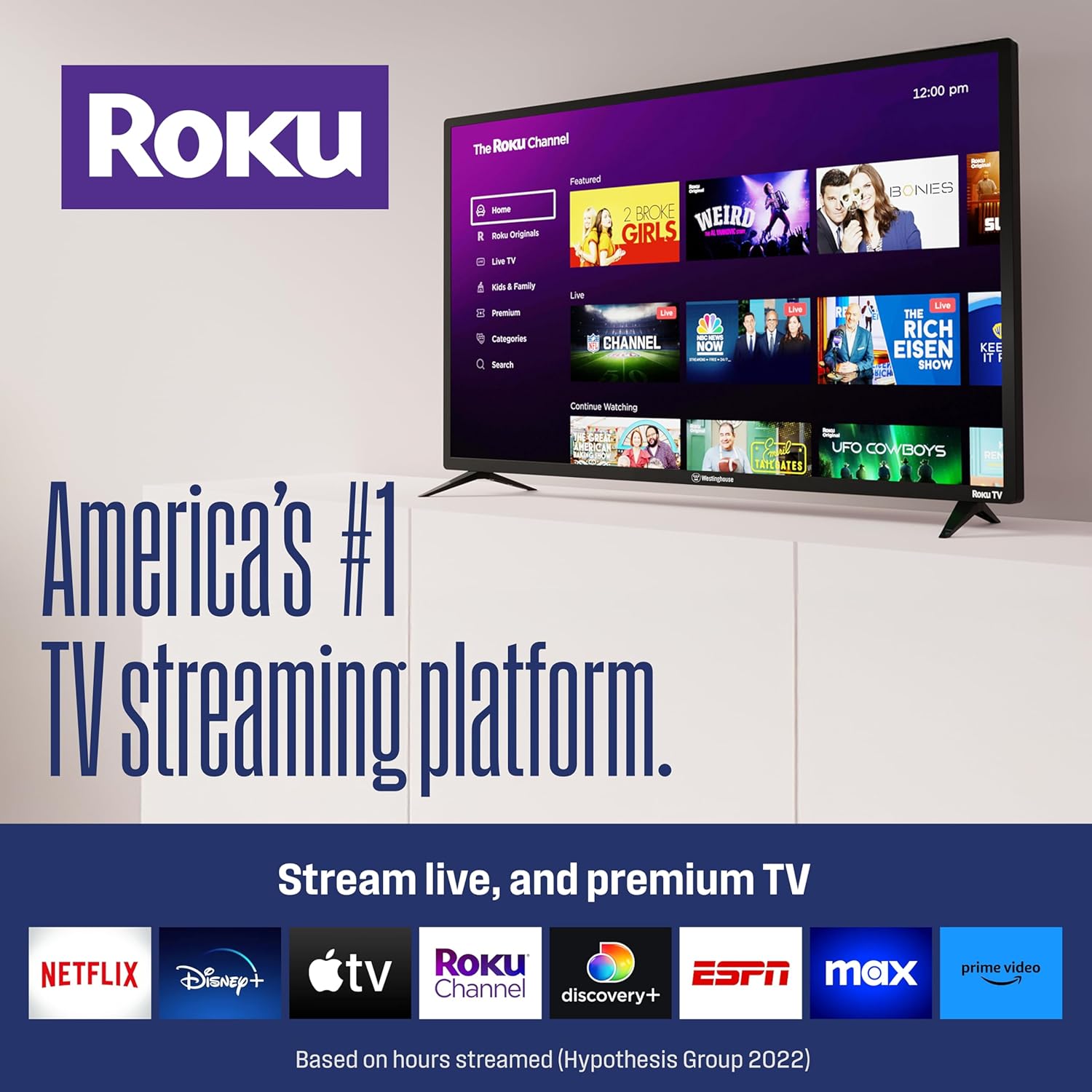
Image: The Roku TV home screen, showing popular streaming applications like Netflix, Prime Video, Hulu, and Disney+.
Streaming and Apps
Access a wide selection of streaming apps such as Netflix, Prime Video, MAX, Apple TV+, Disney+, ESPN+, Hulu, Fox Sports, YouTube TV, Pluto TV, Peacock, and NFL. The Roku Channel also offers over 350 free live TV channels.
Remote Control and Voice Control
The included Roku remote is designed for simplicity. It features dedicated buttons for popular streaming services and volume controls. The TV supports voice control through compatible devices like Amazon Alexa, Google Assistant, and Apple HomeKit, allowing you to find entertainment, control streaming, and power the TV with voice commands.
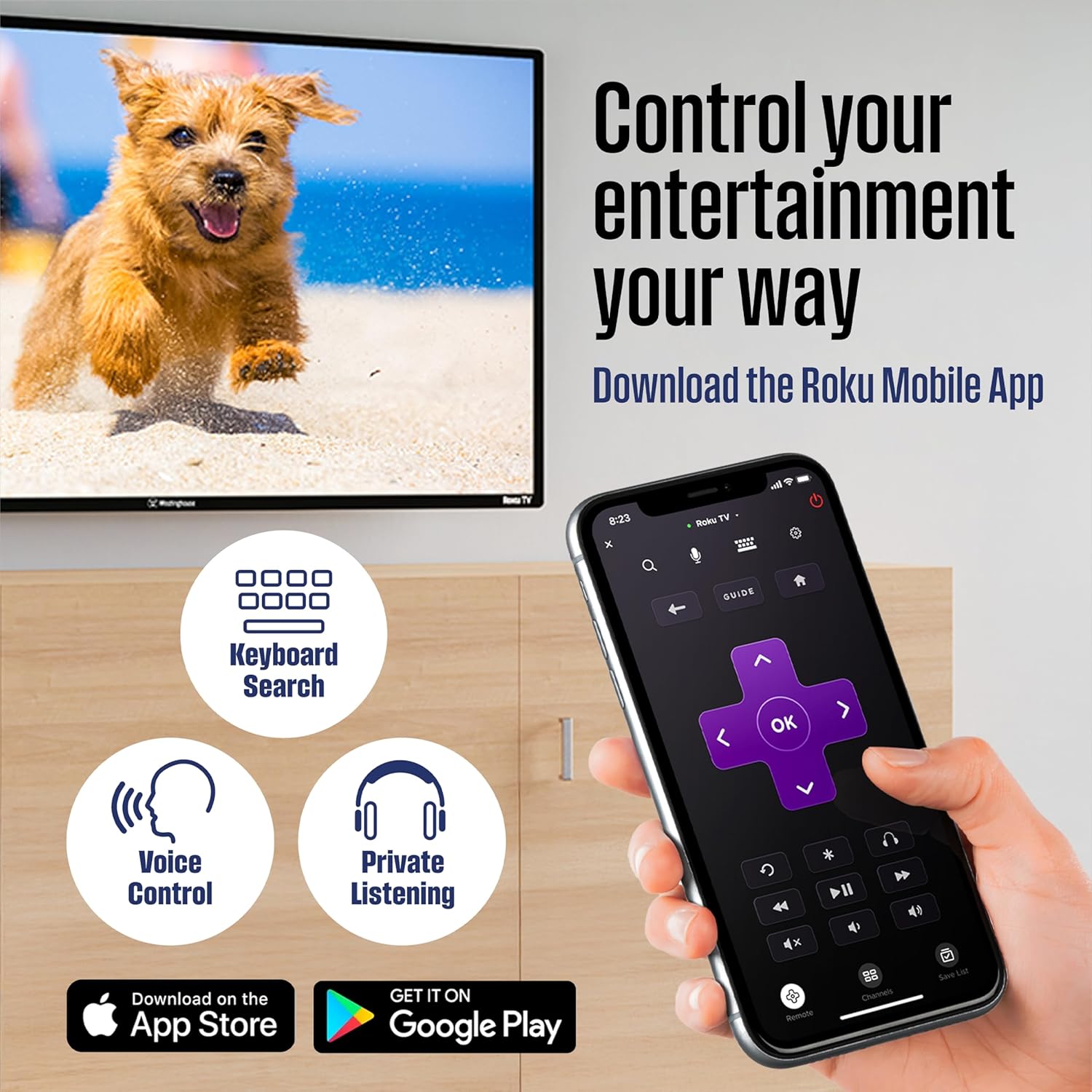
Image: The Roku remote control, highlighting its intuitive button layout for easy navigation and quick access to streaming services.
Casting and Screen Mirroring
Sync videos, music, or photos from your mobile device to your TV using the free Roku Mobile App or Apple AirPlay2. The TV also supports Miracast for screen mirroring.
Video: An official product video from Westinghouse Electronics showcasing the features of the Westinghouse Roku TV, including its smart capabilities and ease of use.
Maintenance
Cleaning the Screen
To clean the screen, gently wipe it with a soft, lint-free cloth. For stubborn marks, lightly dampen the cloth with water or a screen-specific cleaning solution. Avoid harsh chemicals or abrasive materials.
General Care
Keep the TV in a well-ventilated area, away from direct sunlight, heat sources, and moisture. Do not block ventilation openings. Unplug the TV during lightning storms or when unused for extended periods.
Troubleshooting
No Power
- Ensure the power cable is securely connected to both the TV and the electrical outlet.
- Verify the outlet is functioning by plugging in another device.
- Check the power indicator light on the TV.
No Picture/Sound
- Confirm the correct input source is selected on the TV.
- Check all cable connections (HDMI, composite, etc.) for looseness.
- Adjust the volume on the TV and any connected audio devices.
Network Connectivity Issues
- Restart your router and modem.
- Go to the TV's network settings and re-scan for Wi-Fi networks or check the wired connection.
- Ensure the TV is within range of your Wi-Fi router.
Specifications
| Feature | Specification |
|---|---|
| Screen Size | 43 Inches |
| Display Technology | LED |
| Resolution | 1080p (1920 x 1080) |
| Refresh Rate | 60 Hz |
| Aspect Ratio | 16:9 |
| Connectivity Technology | Bluetooth, Ethernet, HDMI, USB, Wi-Fi |
| Total HDMI Ports | 4 |
| Total USB Ports | 2 (1 x USB 2.0, 1 x USB 3.0) |
| Operating System | Roku OS |
| Control Method | App, Voice Control |
| VESA Mount Standard | 200 x 200 mm |
| Product Dimensions (D x W x H) | 8.1" x 38.3" x 24.2" |
| Power Consumption | 74 Watts |
| Model Number | WR43FX2212 |
Warranty and Support
This Westinghouse Roku TV comes with a limited warranty. For specific details regarding warranty coverage, duration, and how to obtain service, please refer to the warranty card included with your product or visit the official Westinghouse Electronics support website.
For further assistance, troubleshooting tips, or to contact customer support, please visit the Westinghouse Electronics website or consult your Quick Start Guide.


