
Ninyoon Ninyoon-0724b
Ninyoon 4K Digital USB Microscope Instruction Manual
Model: Ninyoon-0724b
Introduction
This manual provides detailed instructions for the setup, operation, and maintenance of your Ninyoon 4K Digital USB Microscope. Please read this manual thoroughly before using the device to ensure proper functionality and to maximize your viewing experience.

The Ninyoon 4K Digital USB Microscope with its professional stand, connected to a monitor and smartphone for detailed viewing.
Product Overview
The Ninyoon 4K Digital USB Microscope is designed for detailed observation and analysis, offering 4K resolution and broad compatibility across various devices. It features a professional stand for stable viewing and adjustable LED lighting.
Key Features:
- 4K (3840x2160P) Resolution: Provides high-definition imaging for clear and detailed observations.
- Professional Stand: Ensures stability and precise positioning for various applications.
- Wide Device Compatibility: Works with iOS (iPhone, iPad), Android phones and tablets, Windows (XP, 7, 8, 10, 11), Mac (iMac, Mac mini/Pro, MacBook Air/Pro), Linux, and Chrome OS systems.
- Wide Angle & Long Focal Length: Suitable for observing larger objects like coins or for tasks requiring working distance, such as soldering.
- Adjustable 8 LED Lights: Integrated lighting with adjustable brightness for optimal illumination of specimens.

The microscope connected to a laptop, showcasing its 4K Ultra HD capability and integrated shutter button.
What's in the Box

All components included in the Ninyoon 4K Digital USB Microscope package.
- 4K Microscope (x1)
- Bracket (x1)
- Base (x1)
- Mount (x1)
- Screws (x2) + Screwdriver (x1)
- USB Cable (x1)
- Instruction Manual (x1)
Setup Guide
1. Assembling the Stand
- Attach the bracket to the base using the provided screws and screwdriver.
- Insert the microscope into the mount on the bracket.
- Adjust the height of the microscope using the adjustment knob on the stand for optimal viewing distance.

The microscope set up on its stand, ready for observing various objects.
2. Connecting to a PC (Windows/Mac/Linux/Chrome OS)
- Connect the microscope to your PC using the provided USB cable.
- Turn on the microscope by pressing the power button.
- Open your computer's camera software (e.g., Camera app on Windows, Photo Booth on Mac, or a compatible webcam application on Linux/Chrome OS).
- Select the microscope as the active camera device.
Video demonstrating how to connect and use the Ninyoon 4K Digital USB Microscope with a PC, including opening the software and taking photos.
3. Connecting to a Mobile Device (iPhone/iPad/Android)
- Download and install the "WiFi Check" application from your device's app store.
- Turn on the microscope by pressing the power button.
- Go to your mobile device's Wi-Fi settings and connect to the Wi-Fi network emitted by the microscope (usually named "WiFi_Check" followed by numbers/letters).
- Open the "WiFi Check" app. Allow access to the network if prompted.
Video tutorial on setting up the Ninyoon 4K Digital USB Microscope with a mobile phone, including app installation and Wi-Fi connection.

Connectivity options for the Ninyoon 4K Digital USB Microscope.
Operating Instructions
1. Adjusting Magnification and Focus
- Place the object you wish to observe on the base plate.
- Adjust the microscope's height using the stand's knob to get a general focus.
- Fine-tune the focus by rotating the magnification wheel on the microscope body until the image is clear on your connected device.
- For mobile devices, use the zoom +/- buttons on the microscope for additional digital magnification (Note: These buttons do not function when connected to Windows/Mac/Chrome/Linux).
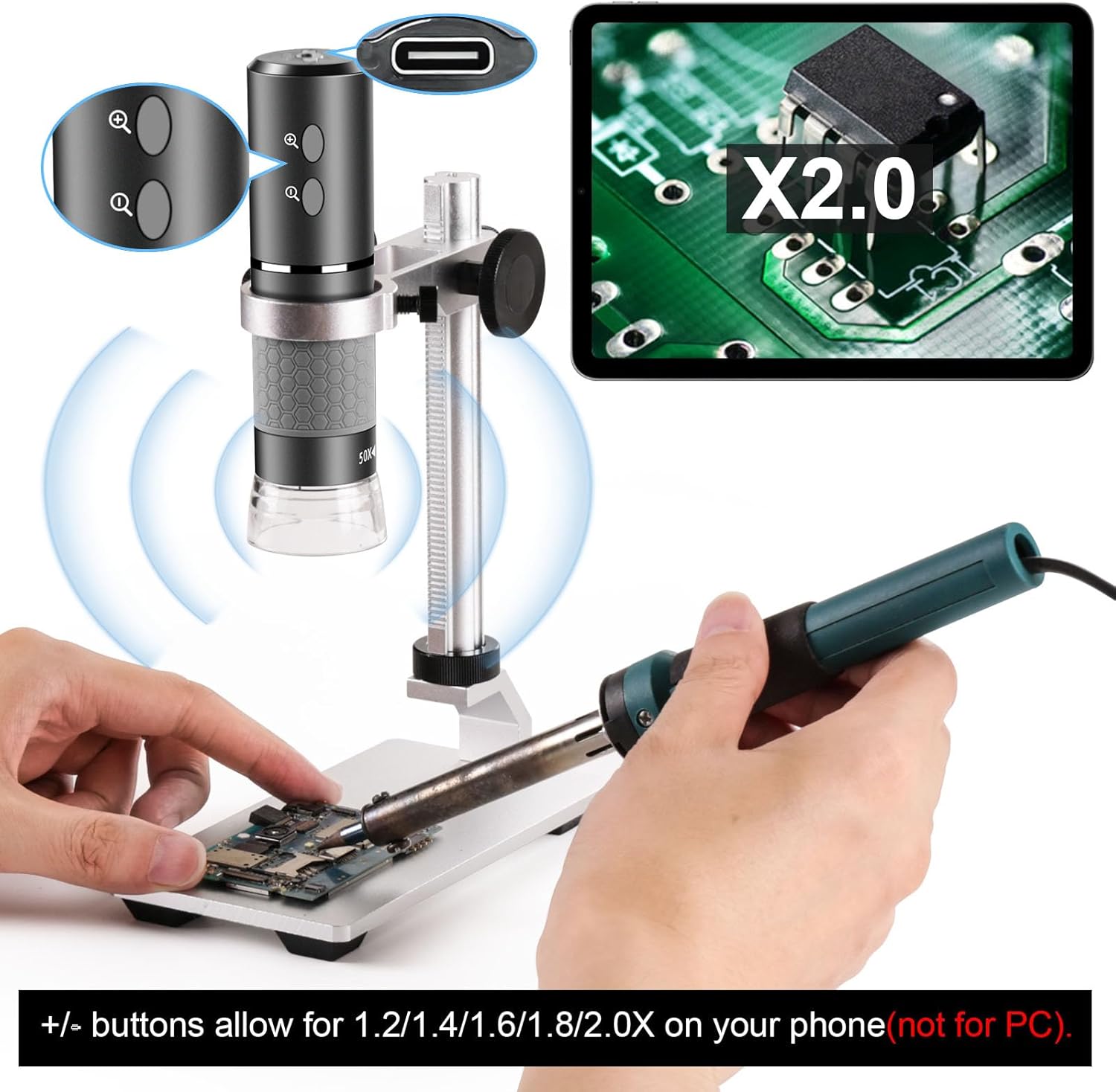
The microscope's zoom buttons and a magnified view of a circuit board on a tablet.
2. Adjusting LED Lighting
- The microscope features 8 built-in LED lights.
- Rotate the LED dial on the microscope body to adjust the brightness from 0% to 100% for optimal illumination.

Demonstration of the adjustable LED lighting on the Ninyoon 4K Digital USB Microscope.
3. Taking Photos and Videos
- Using the Shutter Button: Press the physical shutter button on the microscope body to capture an image.
- Using Software Controls: Within the connected application (PC camera software or "WiFi Check" app), locate and click the shutter icon to take a photo or the video icon to start/stop recording.
- Captured images and videos will be saved to your device's gallery or the application's designated folder.
Video showcasing features of the Ninyoon 4K Digital USB Microscope when used with a mobile phone, including taking photos and videos.
Maintenance
- Cleaning: Use a soft, dry cloth to clean the microscope body and stand. For the lens, use a specialized lens cleaning cloth and solution. Avoid abrasive materials.
- Storage: Store the microscope in a dry, dust-free environment when not in use. Keep it away from extreme temperatures and direct sunlight.
- Battery: The microscope contains a Lithium Polymer battery. Charge it regularly to maintain battery health. Avoid fully discharging the battery for extended periods.
Troubleshooting
| Problem | Possible Solution |
|---|---|
| No image on screen (PC) |
|
| No image on screen (Mobile) |
|
| Image is blurry |
|
| Zoom buttons not working on PC | The zoom +/- buttons on the microscope are designed for mobile device use only and are not functional with Windows/Mac/Chrome/Linux operating systems. Digital zoom may be available through your computer's camera software. |
Specifications
- Model Name: Ninyoon-0724b
- Resolution: 4K (3840x2160P)
- Magnification Maximum: 1000x
- Compatible Devices: Laptop, Personal Computer, Smartphone, Tablet (iOS, Android, Windows, Mac, Chrome, Linux)
- Light Source Type: LED (8 built-in, adjustable)
- Material: Metal
- Item Weight: 14 ounces (398 Grams)
- Package Dimensions: 6.42 x 6.38 x 2.44 inches
- Batteries: 1 Lithium Polymer battery required (included)
- Power Source: Corded Electric (for charging)
- Color: Grey
Warranty and Support
Ninyoon is committed to providing reliable after-sales service. For any quality issues, products will be replaced with new ones. Please refer to the contact information provided in your product packaging or on the official Ninyoon website for support.
For further assistance, you may also contact Ninyoon customer service directly.
An overview video of the Ninyoon 4K Microscope Pro, highlighting its features and capabilities.
Ask a question about this manual
Ask about setup, troubleshooting, compatibility, parts, safety, or missing instructions. Manuals+ will review the question and use this page’s manual context to help answer it.