
1. Introduction
This manual provides detailed instructions for the installation, configuration, and operation of your Binardat 8 Port 10 Gigabit SFP Managed Switch. This high-performance network switch is designed to provide robust and flexible connectivity solutions for various environments, from home offices to data centers, leveraging 10 Gigabit SFP+ fiber technology for high-speed data transfer.
2. Safety Information
- Always connect the device to a grounded power outlet.
- Do not expose the switch to water or excessive humidity.
- Ensure proper ventilation around the device to prevent overheating. Although fanless, adequate airflow is recommended.
- Do not open the casing of the switch. Refer all servicing to qualified personnel.
- Use only the power adapter supplied with the device.
- Handle SFP modules and fiber optic cables with care. Avoid looking directly into active fiber ports.
3. Package Contents
Verify that all items are present in your package:
- 1 x Binardat 8 Port 10 Gigabit SFP Managed Switch
- 1 x Power Adapter (12V DC)
- 1 x User Manual (this document)

Image: The product packaging box for the Binardat 8 Port 10 Gigabit SFP Managed Switch.
4. Product Overview
The Binardat 8 Port 10 Gigabit SFP Managed Switch features 8 x 10Gbps SFP+ ports, supporting 1G, 2.5G, and 10G SFP modules. It offers a high switching capacity of 160Gbps, ensuring non-blocking 10G line speed forwarding across all ports. The switch is L3/L2 web-managed, providing extensive control over your network.
4.1 Front Panel

Image: Front view of the Binardat 8 Port 10 Gigabit SFP Managed Switch, showing the 8 SFP+ ports and LED indicators.

Image: Detailed diagram of the switch's front panel, highlighting PWR, SYS, Reset buttons, and the 8 SFP+ ports with their respective DATA, LINK/ACT, 10G, and 100M/2.5G indicators. The rear panel shows the DC input port.
- PWR LED: Indicates power status (On: Normal).
- SYS LED: Indicates system status (Blinking: Starting; On: Normal).
- Reset Button: Short press to restart. Press and hold for 5 seconds to restore factory settings.
- SFP+ Ports (1-8): 10Gbps SFP+ ports for fiber or SFP to RJ45 modules.
- DATA/LINK/ACT LEDs: Indicate data activity and link status for each port.
4.2 Key Features
- Full 10G SFP+ Ports: 8 ports supporting 1G/2.5G/10G SFP modules.
- L3/L2 Web Managed: Supports advanced management features including IPv4/IPv6, Static Route, OSPF, RIP, BGP4, DHCP Server, QoS, ACL, SNMP, STP/RSTP/MSTP (ERPS), Bandwidth Control, Flow Control, Spanning Tree, Link Aggregation, Loop Detection, VLAN configuration, IP-MAC-VLAN Port Binding, and Telnet/SSH.
- 160Gbps Bandwidth: High data bandwidth for non-blocking forwarding.
- Standard SFP Slot: Open standard, compatible with multi-mode, single-mode, and SFP to RJ45 modules (modules not included).
- Fanless Design: Ensures quiet and stable operation.
- Metal Case: Durable and suitable for desktop or wall mount installation.

Image: Visual representation of the Layer 3 management capabilities, including SNMP, Static Routing, DDOS Protection, DHCP, ACL, IGMP, LACP, QoS, and VLAN.

Image: Icons depicting the switch's features: Full 10G SFP+ Port, L3 Features, Web Management, Fanless, Jumbo Frame support, and Wall Mountable design.
5. Setup
5.1 Physical Installation
The Binardat 10G SFP Managed Switch can be placed on a desktop or mounted on a wall. Ensure the installation location is dry, well-ventilated, and away from direct sunlight or heat sources.
- Desktop Placement: Place the switch on a stable, flat surface.
- Wall Mounting: Use appropriate screws and anchors (not included) to secure the switch to a wall using the mounting holes on the device.

Image: The Binardat switch shown mounted vertically on a wall, demonstrating its wall-mountable design.
5.2 Connecting the Switch
- Connect Power: Plug the supplied power adapter into the DC input port on the rear of the switch, then plug the adapter into a power outlet. The PWR LED on the front panel should illuminate.
- Insert SFP Modules: Insert compatible 1G, 2.5G, or 10G SFP+ modules into the desired SFP+ ports (1-8). Ensure they are fully seated.
- Connect Fiber/RJ45 Cables: Connect your fiber optic cables or SFP to RJ45 modules to the SFP+ ports. The corresponding LINK/ACT LEDs should light up, indicating a successful connection.
- Initial Access: For initial configuration, connect a computer directly to one of the switch's ports (via an SFP to RJ45 module if your computer doesn't have an SFP+ port). Configure your computer's IP address to be in the same subnet as the switch's default IP (e.g., 192.168.2.x).
6. Operating Instructions
6.1 Web Management Interface
The Binardat 10G SFP Managed Switch can be configured and monitored via a web-based management interface. This allows for easy setup and advanced network management without requiring command-line interface (CLI) expertise.
- Access the Interface: Open a web browser and enter the default IP address of the switch: 192.168.2.1
- Login: Enter the default credentials:
Username: admin
Password: admin - Configuration: Once logged in, you can access various settings such as VLAN configuration, IP-MAC-VLAN Port Binding, QoS, Static Routing, and more. It is highly recommended to change the default login credentials immediately after initial access for security purposes.

Image: A screenshot of the web management interface, showing system configuration, device info, and port status. The default IP, username, and password are also indicated.
6.2 Network Performance
The switch is designed for high-speed and long-distance fiber networks, suitable for home, office, and data center environments. It supports a 12KB Jumbo Frame to transfer more data efficiently.

Image: A visual comparison demonstrating how a 10G switch improves speed by 10x compared to a Gigabit switch, and saves 80% of time for 1TB video transmission (3.3 mins vs 16.7 mins).

Image: Examples of applications for the switch, including NAS servers, WiFi 6 APs, servers with fiber adapters, gaming PCs, and 4K video streaming, suitable for online gaming, small/home offices, home entertainment, and workstations.
7. Maintenance
The Binardat 10G SFP Managed Switch features a fanless design, reducing the need for mechanical maintenance. However, regular care can prolong its lifespan and ensure optimal performance:
- Cleaning: Periodically clean the exterior of the switch with a soft, dry cloth. Do not use liquid or aerosol cleaners.
- Ventilation: Ensure that the ventilation holes on the sides of the switch are not obstructed to allow for proper heat dissipation.
- Cable Management: Keep cables organized and free from kinks or excessive bends, especially fiber optic cables.
- Firmware Updates: Check the Binardat official website periodically for firmware updates to ensure your switch has the latest features and security enhancements.

Image: Illustration of airflow through the fanless design of the Binardat switch, highlighting its passive cooling capabilities.
8. Troubleshooting
If you encounter issues with your Binardat switch, refer to the following common troubleshooting steps:
- No Power: Ensure the power adapter is securely connected to both the switch and a working power outlet. Check the PWR LED.
- No Link/Activity: Verify that SFP+ modules are fully inserted and compatible. Check the fiber or RJ45 cables for damage. Ensure the connected device is powered on and functioning correctly.
- Slow Boot Time: The switch may take approximately 28 seconds for the SYS LED to start blinking (indicating it's starting) and up to 52 seconds for SFP ports to be recognized. This is normal behavior for some managed switches.
- Web Interface Inaccessible: Ensure your computer's IP address is in the same subnet as the switch (default 192.168.2.1). Try clearing your browser's cache or using a different browser. Verify physical connection.
- SFP Module Compatibility: While the switch supports open standard SFP modules, some specific modules (e.g., certain Broadcom chipsets) may have compatibility issues. It is recommended to use high-quality, reputable brand optical modules.
- Reset to Factory Settings: If configuration issues persist, press and hold the Reset button for 5 seconds until the SYS LED blinks rapidly, then release. This will restore the switch to its default factory settings.
9. Specifications
| Feature | Specification |
|---|---|
| Model | 10G SFP Managed |
| Switch Type | Managed |
| Number of Ports | 8 x 10Gbps SFP+ |
| Data Transfer Rate | 10 Gigabits Per Second |
| Switching Capacity | 160Gbps |
| Interface Type | SFP+ |
| Product Dimensions (L x W x H) | 6.6" x 3.7" x 1.25" |
| Item Weight | 1.72 pounds (0.78 Kilograms) |
| Case Material | Metal |
| Cooling | Fanless |
| Voltage | 12 Volts (DC) |
| Operating Temperature | -10°C to +50°C |
| Included Components | 10G Switch, Power Adapter |
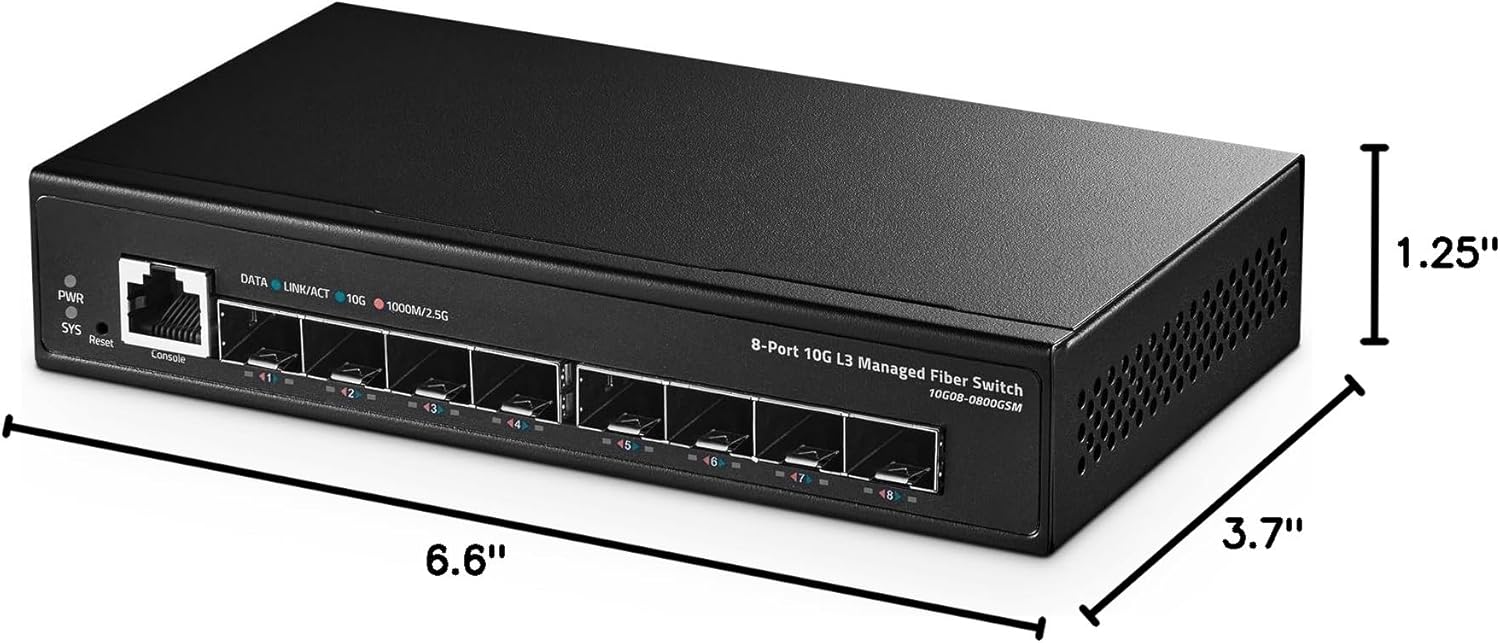
Image: Diagram showing the physical dimensions of the switch: 6.6 inches (length), 3.7 inches (width), and 1.25 inches (height).
10. Warranty and Support
Binardat products are designed for reliability and performance. For specific warranty information and terms, please refer to the warranty card included with your product or visit the official Binardat website. For technical support, product inquiries, or further assistance, please contact Binardat customer service through their official channels.
You can find more information and support resources on the Binardat brand store: Binardat Store on Amazon.
