
SONOFF AIBridge-26
SONOFF iHost Smart Home Hub User Manual
Model: AIBridge-26
1. Introduction
The SONOFF iHost Smart Home Hub is a private local server designed for secure and efficient home automation. It offers local control over devices and scenes, ensuring data privacy and reliable operation even without internet connectivity. The iHost supports both LAN devices and Zigbee standard protocol devices, allowing for a comprehensive smart home ecosystem.
This manual provides detailed instructions for setting up, operating, and maintaining your SONOFF iHost Smart Home Hub.

Image: The SONOFF iHost Smart Home Hub alongside its product packaging.
2. What's in the Box
- AIBridge-26 x 1 (SONOFF iHost Smart Home Hub)
3. Key Features
- Private Local Server: Connect and control devices locally, link scenes, and configure intelligent security. All device data remains local and private.
- LAN & Zigbee Compatibility: Supports connecting and controlling LAN devices and Zigbee standard protocol devices. Operates even if the internet is disconnected and manages up to 128 sub-devices.
- Local Data Storage: All data, including scene logs, operation logs, and security logs, are stored in a local database for enhanced security. Each data type supports local storage of up to 2000 entries.
- Open API and Addon Integration: iHost supports open API and Docker containerization, allowing users to install or develop more Add-ons for customized smart home experiences.
4. Setup Guide
4.1 Initial Power On and Network Connection
To begin, connect the power cable to your iHost device and plug in the network cable to establish a local area network connection. The device will power on automatically.
Video: Demonstrates how to power on the SONOFF iHost and connect the network cable.

Image: Visual guide for connecting power and network cables to the iHost.
4.2 Accessing the Admin Console and Setting Password
Once powered on and connected to the network, open a web browser and navigate to http://ihost.local/ to access the iHost center admin console. You will be prompted to set up your password for secure access.
Video: Shows the process of logging into the iHost admin console and setting the password.
Image: Screenshot of the iHost login page for the admin console.
4.3 Changing Device Name
You can personalize your iHost by changing its device name through the settings in the admin console.
Video: Instructions on how to change the device name within the iHost settings.
4.4 Firmware Update (OTA)
Keep your iHost updated with the latest features and security patches by performing Over-The-Air (OTA) firmware updates. This can be done by linking your eWelink account and checking for updates.
Video: Guide on how to perform an OTA firmware update for the iHost.
5. Operating Instructions
5.1 Smart Scene Configuration
The iHost allows you to create custom smart scenes for automated actions based on various triggers. This enables seamless interaction between your smart devices.
Video: Tutorial on configuring smart scenes for local control and device linkage.

Image: Overview of local automation capabilities including auto, manual, security, and special scenes.
5.2 Smart Security Modes
The iHost offers various security modes (Home, Away, Sleep) that can be armed or disarmed via the web console or the physical security button on the device. You can customize alarm triggers and volumes for each mode.
Video: Demonstrates setting up and managing smart security modes on the iHost.
5.3 LAN Device Management
Manage and control various devices within your local area network (LAN) directly through the iHost, enabling diverse usage scenarios without relying on cloud services.

Image: Diagram illustrating LAN device management through the iHost.
5.4 Zigbee Device Management
The iHost supports a wide range of SONOFF Zigbee devices, including smart switches, plugs, and sensors, creating a comprehensive Zigbee ecosystem. You can add Zigbee sub-devices through the web admin console or by clicking the pairing button on the iHost.
Video: Shows how to add Zigbee sub-devices to the SONOFF iHost.
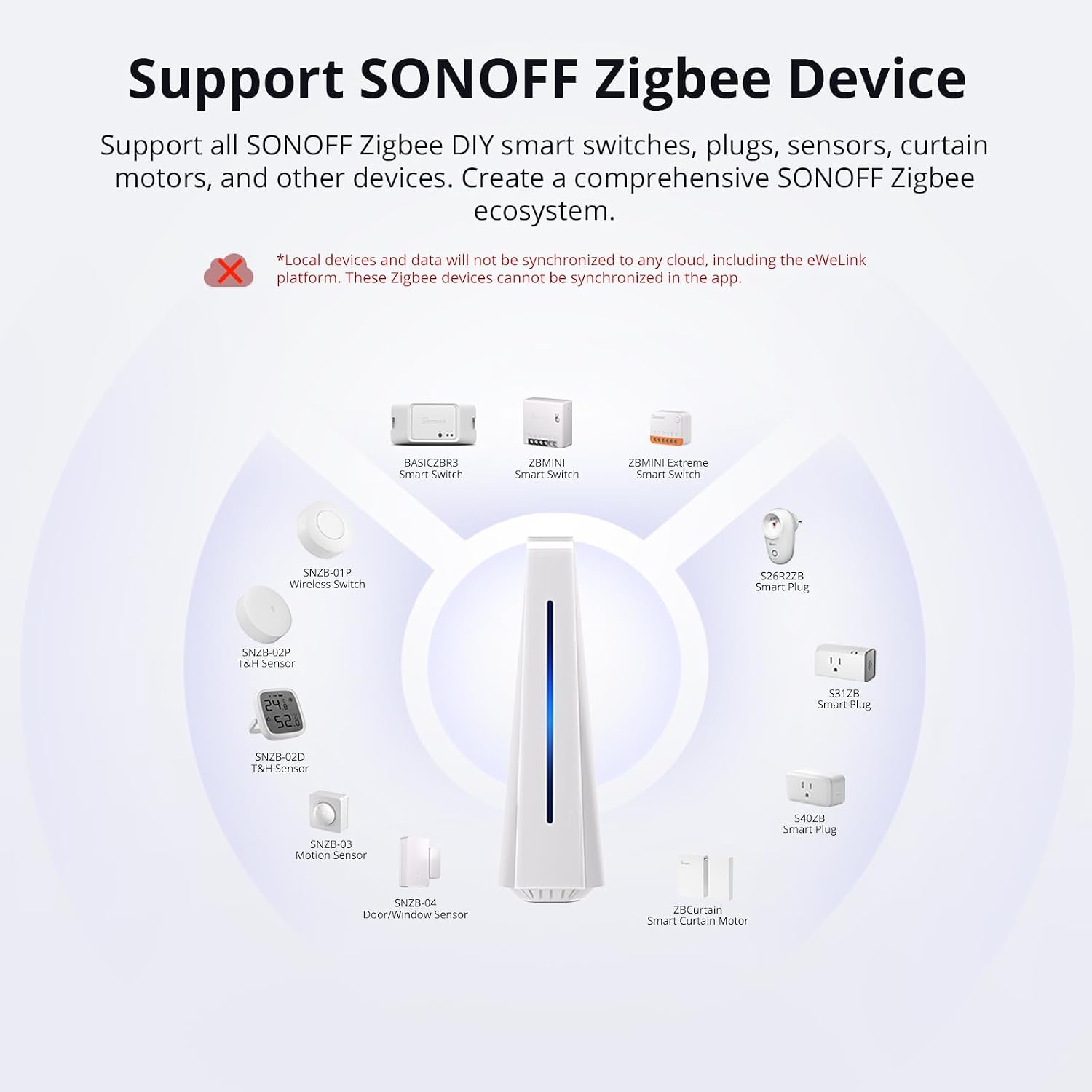
Image: Visual representation of the SONOFF iHost supporting various Zigbee devices.

Image: Screenshot of the Zigbee Map feature for viewing device connectivity status.
5.5 Add-on Management
The iHost supports various Add-ons, including eWelink Smart Home and Homebridge, to expand its functionality and integrate with other platforms. Add-ons can be installed and managed through the Docker hub in the iHost admin console.
Video: Tutorial on installing and running Add-ons on the SONOFF iHost.
Video: Guide on installing the Homebridge Add-on and syncing devices.
5.6 eWelink CAST Integration
eWelink CAST allows you to create personalized dashboards for your devices and scenes, accessible through a web browser or the eWelink CAST app. This feature also enables arming/disarming smart security and receiving notifications.
Video: Tutorial on using eWelink CAST with SONOFF iHost.

Image: Shows the personalized dashboard feature of eWelink CAST.
5.7 Node-RED for Advanced Automation
Install the Node-RED Add-on in iHost to create complex scenes with greater versatility, including weather triggers and integration with third-party nodes.

Image: Visual of Node-RED interface for advanced automation.
5.8 Matter Bridge for Wider Compatibility
Synchronize various devices within iHost to platforms like Alexa, Google Home, and Apple Home using the Matter bridge, allowing non-Matter protocol devices to be used in Matter-supported platforms.

Image: Diagram showing iHost bridging to Matter and Home networks.
6. Maintenance
Regularly check for and install firmware updates as described in Section 4.4 to ensure optimal performance and security. Keep the device in a clean, dry environment and avoid extreme temperatures.
7. Troubleshooting
If you encounter issues with your SONOFF iHost, consider the following:
- Device Unresponsive: Check power and network cable connections. Restart the device if necessary.
- Device Pairing Issues: Ensure the device is in pairing mode and within range. Refer to specific device manuals for pairing instructions.
- Network Connectivity Problems: Verify your router's status and ensure the iHost has a stable LAN connection.
- Add-on Malfunction: Check the Add-on logs in the iHost admin console for error messages. Reinstall or update the Add-on if needed.
For persistent issues, please refer to the official SONOFF support resources or contact customer service.
8. Specifications
| Feature | Detail |
|---|---|
| Item Weight | 12.7 ounces (360 Grams) |
| Product Dimensions | 4.7 x 1.6 x 5.3 inches |
| Item Model Number | AIBridge-26 |
| Brand | SONOFF |
| Wireless Communication Standard | 802.11ac |
| Compatible Devices | LAN devices and Zigbee standard protocol devices |
| Color | White |
| Voltage | 5 Volts |
| Special Feature | Local Data Storage |
9. Warranty and Support
For warranty information and technical support, please visit the official SONOFF website or contact their customer service directly. Keep your purchase receipt for warranty claims.
SONOFF Official Website: Visit the SONOFF Store on Amazon
Related documentsAIBridge-26


Ask a question about this manual
Ask about setup, troubleshooting, compatibility, parts, safety, or missing instructions. Manuals+ will review the question and use this page’s manual context to help answer it.