
1. Introduction and Overview
The Microseven M7B4K-PSAA is a professional 4K (8MP) IP Power over Ethernet (PoE) security camera designed for robust surveillance. This camera features a Sony CMOS Sensor, a 2.8mm lens providing a 150° wide-angle view, and digital zoom capabilities. It is equipped with 18 IR LEDs for up to 100ft clear night vision and an automatic IR filter for true day/night video. The camera boasts an IP66 weatherproof rating and a durable all-metal casing, suitable for outdoor use.
Key functionalities include two-way audio with an amplified microphone and high-power speaker, intelligent human/vehicle motion detection with real-time alerts, and flexible recording options to a microSD card (up to 256GB, not included), Microseven Cloud, Microseven NVR, or an FTP server. The M7B4K-PSAA is open-source compatible, supporting RTSP, RTMP, Blue Iris, and other third-party software, and integrates with Alexa for voice control.
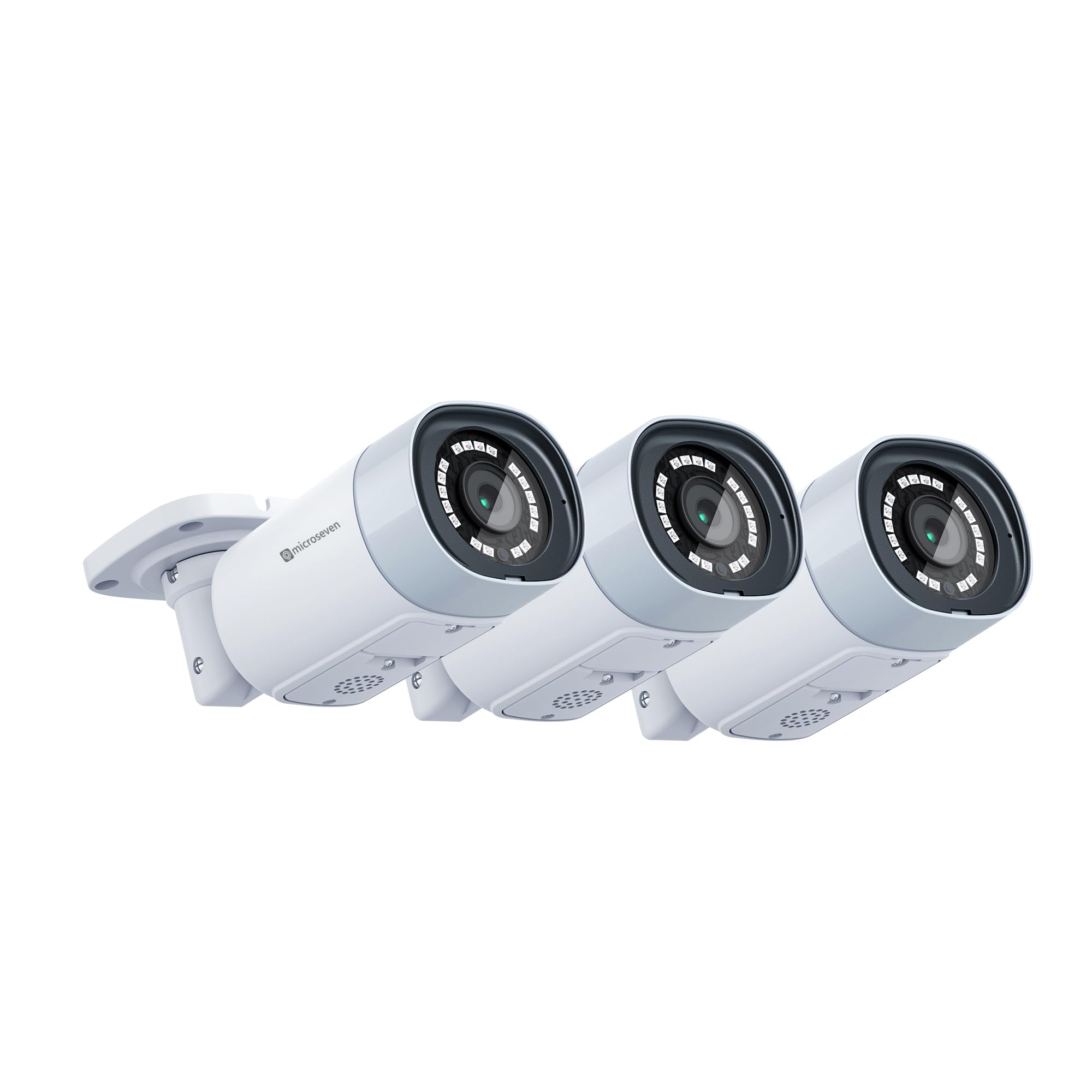
Image 1.1: Three Microseven M7B4K-PSAA 4K IP PoE security cameras. These cameras offer 8MP resolution and wide-angle viewing.

Image 1.2: Resolution comparison illustrating the superior detail of 8MP compared to 5MP and 2MP.
2. Setup
2.1 Unboxing and Components
Before installation, verify that all components are present:
- Microseven M7B4K-PSAA Camera(s)
- Mounting Screws and Anchors
- Waterproof Connector for Ethernet Cable
- Quick Start Guide (this manual)
2.2 Physical Installation
- Choose a Location: Select a suitable outdoor location that provides the desired viewing angle and is within range of your network infrastructure. Ensure the camera is mounted securely.
- Mount the Camera: Use the provided mounting screws and anchors to securely attach the camera to a wall or ceiling. The universal ball mount allows for flexible positioning.
- Connect Power and Network:
- PoE (Recommended): Connect an Ethernet cable from a PoE switch or PoE injector to the camera's Ethernet port. This provides both power and data.
- Standard Power: If not using PoE, connect a 12V DC power adapter (not included) to the camera's power input and an Ethernet cable to your network router/switch.
- Wi-Fi: For wireless connectivity, ensure the camera is powered on and within range of your 2.4/5 GHz Wi-Fi network. Configuration will be done via the Microseven App or CMS.
- Secure Connections: Use the waterproof connector for the Ethernet cable to protect against environmental elements.
2.3 Initial Configuration
After physical installation and power connection, configure the camera using the Microseven software:
- Download Software: Download the Microseven CMS (Camera Management System) for Windows or macOS, or the Microseven App for iOS or Android from the official Microseven website or app stores.
- Discover Camera: Launch the software/app. The application should automatically discover cameras on your local network. If not, use the 'Add Camera' function and manually enter the camera's IP address (if known) or scan the network.
- Set Password: For security, change the default password immediately upon first access.
- Network Settings (for Wi-Fi): If using Wi-Fi, navigate to the camera's network settings within the app/CMS and connect to your desired 2.4/5 GHz Wi-Fi network.

Image 2.1: Microseven Camera Management System (CMS) interface for managing multiple camera feeds.

Image 2.2: Software platform compatibility for Microseven cameras, including desktop and mobile applications.
3. Operating the Camera
3.1 Live View and Playback
Access the live video feed and recorded footage through the Microseven App or CMS software. You can view multiple cameras simultaneously and navigate through recorded events.
3.2 Recording Options
The M7B4K-PSAA offers flexible recording configurations:
- Continuous Recording: Records 24/7.
- Scheduled Recording: Records during specified time intervals.
- Motion-Activated Recording: Records only when motion is detected.
Recordings can be saved to a microSD card (up to 256GB, not included), Microseven Cloud, Microseven NVR, or an FTP server. Configure these options within the camera settings in the app or CMS.
3.3 Motion Detection and Alerts
The camera features intelligent human/vehicle motion detection to reduce false alarms. Configure detection zones and sensitivity:
- Detection Type: Choose between human-only detection or regular motion detection.
- Alerts: Set up real-time alerts via email (with images), app push notifications (with video clips), or FTP uploads (video clips and images).
- Smart Alert Zone: Define specific areas within the camera's view for motion detection to minimize irrelevant alerts.

Image 3.1: Motion alert notifications with video clips displayed on a mobile device and desktop.

Image 3.2: Visual representation of human motion detection, highlighting a detected person.
3.4 Two-Way Audio
Utilize the built-in amplified microphone and high-power speaker for two-way communication. Access this feature through the Microseven App or CMS to listen and talk back.
3.5 Night Vision Control
The camera automatically switches to night vision in low-light conditions. You can manually enable or disable the IR LEDs and modify other camera properties remotely using the Microseven software.
3.6 Time-Lapse Recording
Configure the camera to capture time-lapse videos, allowing you to condense long periods into short, viewable clips. This feature is accessible through the camera's settings in the Microseven software.
4. Maintenance
Regular maintenance ensures optimal performance and longevity of your Microseven camera:
- Clean the Lens: Periodically clean the camera lens with a soft, damp cloth to remove dust, dirt, or water spots that may obscure the view. Avoid abrasive cleaners.
- Check Connections: Ensure all cable connections (Ethernet, power) are secure and free from damage. Verify the waterproof connector is properly sealed.
- Firmware Updates: Check the Microseven website or app for available firmware updates. Keeping the firmware updated ensures access to the latest features and security enhancements.
- SD Card Management: If using a microSD card for storage, periodically check its status and ensure it has sufficient space. Format the card if necessary (this will erase all data).
- Software Updates: Keep the Microseven CMS and mobile apps updated to their latest versions for compatibility and performance improvements.
5. Troubleshooting
If you encounter issues with your Microseven M7B4K-PSAA camera, refer to the following common troubleshooting steps:
5.1 No Power/No Indicator Lights
- Check Power Source: Ensure the PoE switch/injector or power adapter is functioning correctly and providing power.
- Cable Connection: Verify the Ethernet cable is securely connected to both the camera and the PoE source/router.
- Test with Different Port/Cable: If possible, try connecting to a different PoE port or using a different Ethernet cable.
5.2 No Video Feed
- Network Connectivity: Ensure the camera is properly connected to your network (wired or Wi-Fi). Check your router/switch status.
- Software/App Status: Verify that the Microseven App or CMS is running and the camera is added correctly. Try refreshing the device list.
- IP Address Conflict: Ensure the camera has a unique IP address on your network. Check your router's DHCP client list.
- Firewall Settings: If accessing remotely, ensure your network firewall is not blocking the camera's ports.
- Reboot Camera: Power cycle the camera by disconnecting and reconnecting its power source.
5.3 Motion Detection False Alarms
- Adjust Sensitivity: Lower the motion detection sensitivity in the camera settings.
- Configure Detection Zones: Exclude areas with frequent irrelevant motion (e.g., trees swaying, busy roads) using the smart alert zone feature.
- Human-Only Detection: Enable human-only detection if available in your firmware version to filter out non-human movements.
5.4 Two-Way Audio Issues
- Volume Levels: Check the volume settings on your viewing device and within the Microseven App/CMS.
- Microphone/Speaker Obstruction: Ensure the camera's microphone and speaker are not blocked.
- Network Bandwidth: Poor network connection can affect audio quality. Ensure stable bandwidth.
For further assistance, refer to the Microseven support website or contact customer service.
6. Specifications
| Feature | Specification |
|---|---|
| Brand | MICROSEVEN |
| Model Number | M7B4K-PSAA |
| Connectivity Technology | Wired (PoE), Wireless (2.4/5 GHz Wi-Fi) |
| Video Capture Resolution | 3840x2160 (4K/8MP) |
| Special Feature | Two-Way Audio, Human/Vehicle Motion Detection |
| Memory Storage Capacity | Supports up to 256 GB Micro SD Card (not included) |
| Power Source | Corded Electric (PoE or 12V DC adapter) |
| Item Dimensions L x W x H | 6 x 2.4 x 2.4 inches |
| Operating System Compatibility | Android, iOS, Windows, macOS |
| Recommended Uses For Product | Outdoor Surveillance |
| Night Vision Range | 100 Feet |
| Lens Type | Wide Angle (2.8mm lens, 150° view) |
| Weatherproof Rating | IP66 |
| UPC | 018406663859 |
7. Warranty and Support
Microseven provides free software (CMS for Windows/macOS) and free mobile applications (iOS/Android) to manage and operate your camera. For detailed warranty information, technical support, and frequently asked questions, please visit the official Microseven website. Keep your purchase receipt for warranty claims.
Microseven cameras are designed for broad compatibility, working with various third-party software and systems such as Blue Iris, Milestone, Synology, QNAP, and ONVIF-compliant devices.

Image 7.1: Compatibility with various NVRs, software, and smart home platforms.


