
Introduction
This manual provides comprehensive instructions for the setup, operation, maintenance, and troubleshooting of your Poly Plantronics Savi 8420 Office DECT Headset System. Please read this manual thoroughly to ensure proper use and to maximize the performance and longevity of your device.
The Savi 8420 Office system is designed for business communication, offering seamless connectivity across multiple devices including desk phones, computers, and mobile phones via DECT and Bluetooth technologies.
Setup
Package Contents
Ensure all components are present:
- Savi 8420 Office Headset
- DECT Base Station
- USB Cable
- Telephone Interface Cable
- Power Adapter
Connecting the Base Station
The DECT base station serves as the central hub for your headset, connecting to your desk phone, computer, and mobile device.
- Power Connection: Connect the power adapter to the base station and plug it into a power outlet. The base station display will illuminate.
- Desk Phone Connection: Use the telephone interface cable to connect the base station to your desk phone. Refer to your desk phone's manual for specific port locations (typically the headset port or handset port).
- Computer Connection: Connect the USB cable from the base station to an available USB port on your computer. This enables PC audio and softphone integration.
- Mobile Device Pairing (Bluetooth): Activate Bluetooth on your mobile device. On the Savi 8420 base, press and hold the Bluetooth pairing button until the indicator light flashes. Select 'Poly Savi 8420' from your mobile device's Bluetooth list to pair.
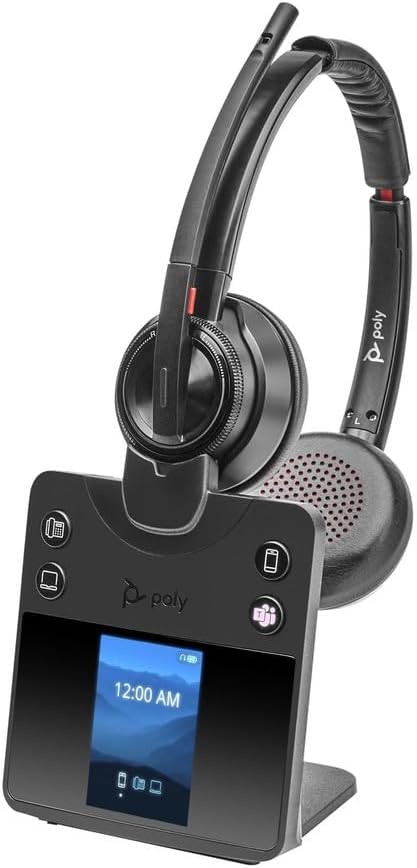
Image: The Poly Plantronics Savi 8420 Office DECT Headset System, showing the stereo headset docked on its black base station. The base station features a digital display and control buttons for phone, computer, and mobile connectivity.
Charging the Headset
Place the headset into the charging cradle on the base station. The headset will begin charging automatically. A full charge takes approximately 3 hours and provides up to 13 hours of talk time.
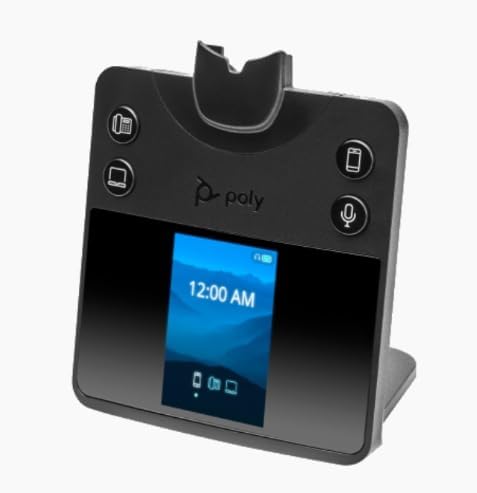
Image: The black Poly Plantronics Savi 8420 Office DECT Headset System base station, viewed from the front. It has a digital display showing '12:00 AM' and icons for phone, computer, and mobile connections. Control buttons are visible on either side of the display.
Operating Instructions
Basic Call Management
- Answering/Ending Calls: Press the call control button on the headset or the corresponding phone/computer/mobile button on the base station.
- Volume Adjustment: Use the volume controls on the headset or the base station to adjust listening volume.
- Mute: Press the mute button on the headset to mute or unmute your microphone. The base station display may indicate mute status.
Switching Between Devices
The Savi 8420 Office system allows you to seamlessly switch between connected devices. Use the dedicated buttons on the base station (phone, computer, mobile) to select the active audio source.
Advanced Features
- Active Noise Cancellation (ANC): The headset features Active Noise Cancellation to reduce background noise for improved focus. Refer to the headset controls for ANC activation.
- Microphone: The integrated microphone is designed for clear voice transmission. Ensure the microphone boom is positioned correctly for optimal performance.
- Remote Control: The headset offers remote control capabilities for call management, allowing you to move freely while on a call.
Maintenance
Cleaning
Regular cleaning helps maintain the performance and hygiene of your headset system.
- Wipe the headset and base station with a soft, dry, anti-static cloth.
- Avoid using harsh chemicals, cleaning solvents, or strong detergents.
- Do not immerse any part of the system in water.
Battery Care
The headset contains a rechargeable Lithium Ion battery. To prolong battery life:
- Charge the headset fully before first use.
- Avoid extreme temperatures.
- Store the headset in a cool, dry place if not used for extended periods.
Troubleshooting
If you experience issues with your Savi 8420 Office system, refer to the following common solutions:
- No Audio/Headset Not Working:
- Ensure the base station is powered on and the headset is charged.
- Verify the correct device (phone, PC, mobile) is selected on the base station.
- Check all cables are securely connected.
- For PC connection, ensure the Savi 8420 is selected as the default audio device in your computer's sound settings.
- For mobile connection, re-pair the Bluetooth connection if necessary.
- Difficulty Switching Between PC and Phone:
- Ensure both the PC and phone connections are properly established and recognized by the base station.
- Confirm that the base station's firmware is up to date. Check the manufacturer's support website for the latest updates.
- A brief delay or lag can occur during switching; allow a few seconds for the connection to stabilize.
- Bluetooth Connectivity Issues (Mobile):
- Ensure your mobile device is within range of the base station.
- If the headset connects to your mobile device when you are far away, consider disabling Bluetooth on your mobile device when not in use or when you are out of the intended range.
- Remove and re-pair the Bluetooth connection on both the base station and your mobile device.
- Base Station Display Brightness:
- The base station display is designed to be continuously on. There are no user-adjustable settings for dimming or turning off the screen.
Specifications
| Model Name | Savi 8420-M Office |
| Item Model Number | 2-221104-201 |
| Brand | Plantronics (Poly) |
| Connectivity Technology | DECT |
| Wireless Communication Technology | DECT, Bluetooth 5.2 |
| Included Components | Headset, Base Station, Cables |
| Compatible Devices | Telephones, Computers, Mobile Devices |
| Charging Time | 3 Hours |
| Battery Life | 13 Hours |
| Control Method | Remote |
| Special Feature | Microphone Included, Active Noise Cancellation |
| Earpiece Shape | Over-ear cup |
| Product Dimensions | 7.4 x 4.7 x 8.2 inches |
| Item Weight | 1.76 pounds (0.8 Kilograms) |
| UPC | 017229181946 |
Warranty Information
This Poly Plantronics product is covered by a manufacturer's limited warranty. Specific warranty terms and conditions, including duration and coverage details, are typically provided with your product packaging or can be found on the official Poly website. Please retain your proof of purchase for warranty claims.
Customer Support
For further assistance, technical support, or to inquire about service, please visit the official Poly website or contact their customer service department. You may need your product model number (2-221104-201) and serial number when contacting support.


