
1. Introduction
This manual provides detailed instructions for the setup, operation, and maintenance of your Luqeeg 1080P HD Video Camera, Model Luqeeg5t32wd7gak. Please read this manual thoroughly before using the device to ensure proper functionality and safety.
The Luqeeg 1080P HD Video Camera is designed for versatile surveillance applications, offering high-definition video capture, motion detection, and remote monitoring capabilities.
2. Product Overview
2.1 Key Features
- 1080P HD Video Capture: Records clear and detailed video footage.
- Wi-Fi Connectivity: Enables real-time monitoring and video playback via a mobile device.
- Built-in Hotspot: Allows direct connection for live streaming without a memory card.
- Compact and Portable Design: Suitable for various indoor and outdoor applications.
- Smart Motion Detection: Automatically detects activity and sends alerts.
- Intelligent Overwrite Function: Manages storage by replacing older recordings with new ones.
- Hide Mode: Allows control of monitoring light for discreet operation with a 140-degree field of view.
- Night Vision: Provides clear recording in low-light conditions up to 6 meters.
2.2 Package Contents
Please check the package for the following items:
- Luqeeg 1080P HD Video Camera (Model: Luqeeg5t32wd7gak)
- USB Power Cable
- User Manual (This document)
- Mounting Accessories (if applicable, not explicitly listed but implied by "Wall Mount")

Figure 1: Luqeeg 1080P HD Video Camera and included USB power cable.
3. Safety Information
- Ensure the camera is powered by a 5V power source.
- Avoid exposing the camera to extreme temperatures or direct sunlight for prolonged periods.
- Do not immerse the camera in water. The IP65 rating indicates protection against dust and low-pressure water jets, but not submersion.
- Keep the device away from strong magnetic fields.
- Do not attempt to disassemble or repair the camera yourself. Contact customer support for assistance.
- Ensure proper ventilation around the camera during operation.
4. Setup
4.1 Physical Installation
- Choose a Location: Select a suitable location for the camera, considering its 140-degree field of view and power source accessibility. The camera is suitable for both indoor and outdoor use (IP65 rated).
- Mounting: Use the provided mounting accessories to secure the camera to a wall or other stable surface. Ensure the camera is positioned to capture the desired area.
- Power Connection: Connect the USB power cable to the camera's power input and then to a 5V power adapter (not included) or a USB port.

Figure 2: Front view of the Luqeeg 1080P HD Video Camera, showing the lens.

Figure 3: Rear view of the camera, illustrating the mounting bracket.
4.2 App Installation and Connection
- Download the App: Search for the designated control app (compatible with Android smartphones) on your device's app store and install it.
- Account Registration: Open the app and follow the on-screen instructions to register a new account or log in if you already have one.
- Add Device: In the app, select the option to "Add Device" or "Scan Device."
- Connect to Wi-Fi:
- Via Home Wi-Fi: Follow the app's instructions to connect the camera to your home Wi-Fi network. Ensure your Wi-Fi network is 2.4GHz, as 5GHz networks may not be supported.
- Via Built-in Hotspot: If you do not have a memory card installed or prefer direct connection, enable the camera's built-in hotspot. Connect your mobile device to this hotspot via your phone's Wi-Fi settings. This allows for instant live streaming.
- Configuration: Once connected, you can configure camera settings such as video quality, motion detection sensitivity, and recording preferences within the app.

Figure 4: Illustrates the camera's Wi-Fi connectivity and remote viewing on a smartphone.

Figure 5: Detailed views of the camera's components, including the lens and USB port for power/data.
5. Operation
5.1 Live View and Recording
Once the camera is connected to the app, you can access the live video feed. From the live view interface, you can initiate manual recordings, take snapshots, and adjust various settings.
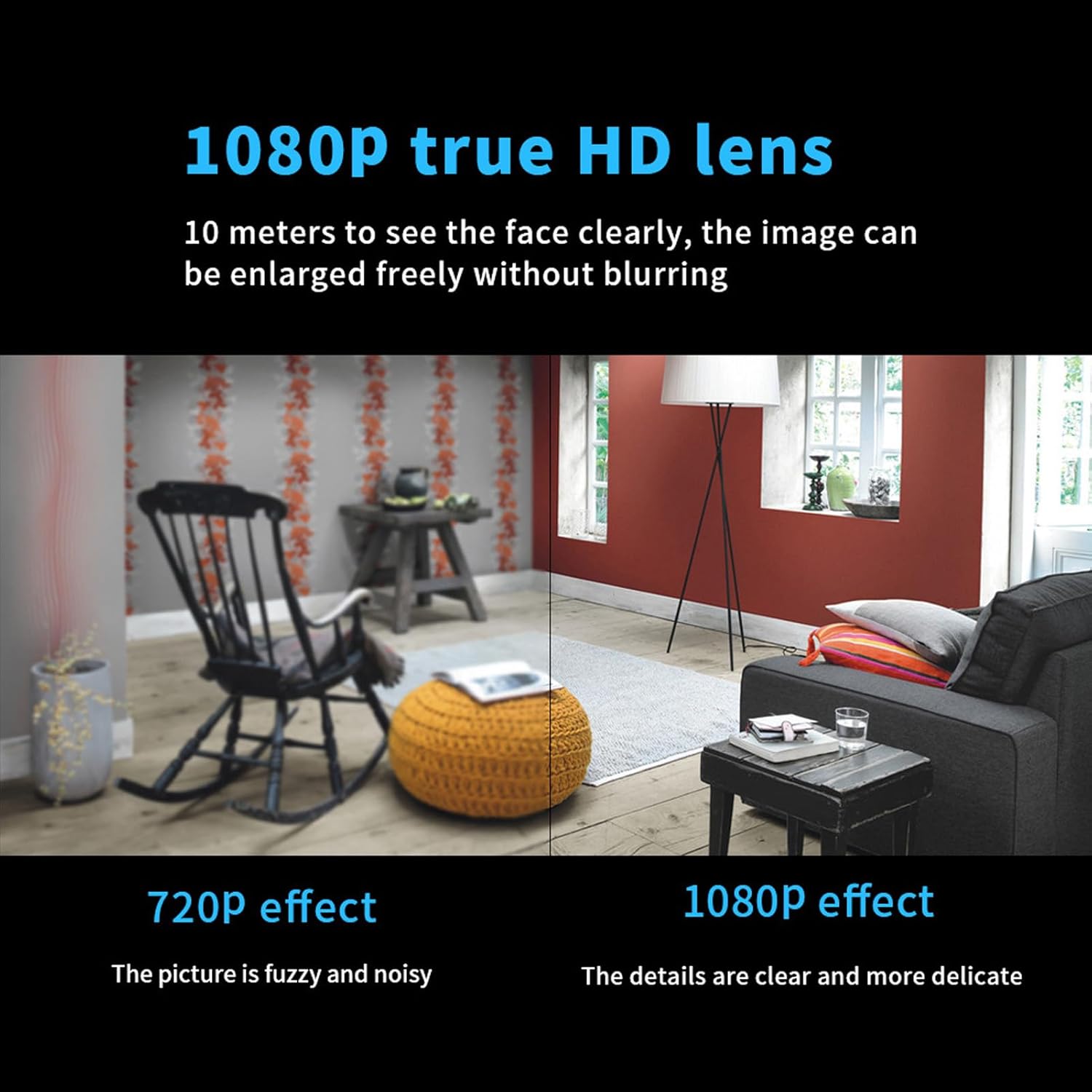
Figure 6: Visual comparison demonstrating the clarity of 1080P HD video capture versus 720P.
5.2 Motion Detection
The camera features a smart motion detection system. When motion is detected, the camera can automatically start recording and send alerts to your mobile device. You can customize the sensitivity of motion detection and alert preferences within the app.
- Enable/Disable: Toggle motion detection on or off in the app settings.
- Sensitivity: Adjust the detection sensitivity to minimize false alarms.
- Alerts: Configure push notifications to receive instant alerts on your smartphone.
5.3 Night Vision
The camera is equipped with infrared night vision technology, allowing it to capture clear video footage in low-light or complete darkness up to 6 meters. This feature activates automatically when ambient light levels are low.

Figure 7: Illustrates the camera's ability to record clearly in both daylight and dark environments using night vision.
5.4 Hide Mode
For discreet surveillance, the camera offers a "Hide Mode" feature. This mode allows you to control the monitoring light, making the camera less noticeable while maintaining its full 140-degree field of view. Refer to the app settings to activate and configure Hide Mode.
5.5 Audio Recording
The camera is capable of recording audio, providing clear sound evidence alongside video footage. This feature enhances the overall surveillance capability.

Figure 8: Representation of the camera's clear audio recording function.
5.6 Storage Management
The camera supports local storage via a memory card (not included). The intelligent overwrite function ensures that your storage is always managed efficiently by replacing the oldest recordings with new ones when the card is full. This eliminates the need for manual deletion.
You can also review recorded footage directly through the mobile application.
5.7 User Sharing
The camera supports multi-user real-time sharing. The main account holder can add multiple sub-accounts, allowing family members or authorized individuals to view videos simultaneously. This feature can be configured within the app.

Figure 9: Depicts the user sharing functionality, allowing multiple users to access the camera feed.
6. Maintenance
- Cleaning: Use a soft, dry cloth to clean the camera lens and body. Avoid using harsh chemicals or abrasive materials.
- Firmware Updates: Periodically check the mobile app for available firmware updates to ensure optimal performance and access to new features.
- Storage Management: While the intelligent overwrite function manages storage, it is recommended to periodically back up important recordings to another device.
- Power Cycle: If the camera experiences issues, try disconnecting and reconnecting the power source to perform a soft reset.
7. Troubleshooting
| Problem | Possible Cause | Solution |
|---|---|---|
| Camera not powering on | No power supply; faulty cable/adapter | Check power connection; try a different USB cable or power adapter. |
| Cannot connect to Wi-Fi | Incorrect Wi-Fi password; camera too far from router; 5GHz network | Verify Wi-Fi password; move camera closer to router; ensure router is broadcasting 2.4GHz Wi-Fi. |
| App cannot find camera | Camera not in pairing mode; network issue | Ensure camera is powered on and indicator light is blinking (if applicable); restart camera and app; check network connection. |
| Poor video quality | Dirty lens; low bandwidth; low light conditions | Clean the camera lens; ensure stable Wi-Fi connection; verify night vision is active in low light. |
| Motion detection not working | Feature disabled; sensitivity too low; incorrect detection zone | Enable motion detection in app; increase sensitivity; adjust detection zone. |
| Recordings not saving | No memory card; faulty memory card; storage full | Insert a compatible memory card; format memory card in app; check if intelligent overwrite is enabled. |
8. Specifications
| Feature | Detail |
|---|---|
| Brand | Luqeeg |
| Model Name | Luqeeg5t32wd7gak |
| Video Capture Resolution | 1080p |
| Field Of View | 140 Degrees |
| Connectivity Technology | Wired, Wireless (Wi-Fi) |
| Connectivity Protocol | Wi-Fi |
| Power Source | Corded Electric (5 Volts) |
| Compatible Devices | Smartphone (Android) |
| Indoor/Outdoor Usage | Indoor, Outdoor |
| Mounting Type | Wall Mount |
| Night Vision Range | 6 Meters |
| Low light technology | Night Color (Infrared) |
| Alert Type | Motion Only |
| International Protection Rating | IP65 |
| Control Method | App |
| Item Weight | 1.06 ounces |
| Material | Metal Plastic |
| Batteries Required? | No |

Figure 10: Overview of key features including HD 1080p, 140-degree wide angle, night vision, motion detection, and remote viewing.
9. Warranty and Support
For warranty information and technical support, please refer to the contact details provided with your purchase or visit the official Luqeeg website. Keep your purchase receipt as proof of purchase for warranty claims.
For further assistance, you may also contact the seller directly through the platform where the product was purchased.