
Introduction
The BOSS GM-800 is a guitar synthesizer designed to expand the sonic capabilities of your instrument. It utilizes the Serial GK interface and the ZEN-Core engine to generate a wide range of sounds, from acoustic instruments to various synthesizer tones. This manual provides essential information for setting up, operating, and maintaining your GM-800.
Setup
Proper setup is crucial for optimal performance of your GM-800. Follow these steps to connect your device.
1. Required Components
- BOSS GM-800 Unit: The main synthesizer pedal.
- GK Pickup: A BOSS GK-5 or GK-5B divided pickup is required for direct connection via a BGK-15 or BGK-30 Serial GK cable.
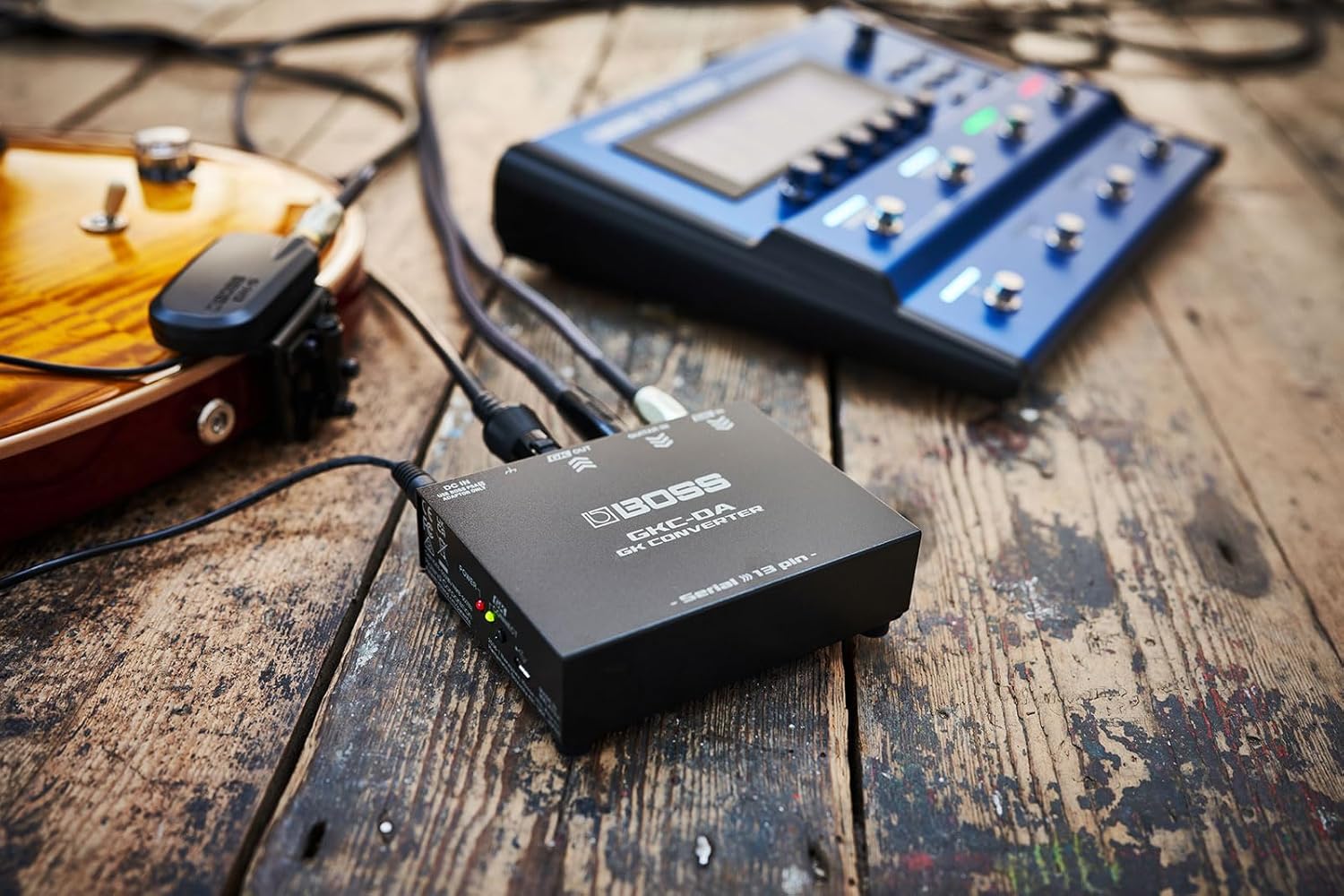
- Legacy GK Pickup (Optional): If using a GK-3 or GK-3B pickup, a GKC-AD converter is necessary to adapt the 13-pin output to the Serial GK input.
- Power Adapter: Use only the specified Roland PSB-1U adaptor.
- Audio Cables: Standard 1/4-inch instrument cables for audio output.
2. Connection Diagram
Refer to the diagram below for typical connection configurations.

This diagram illustrates the various ways to connect your guitar or bass to the GM-800, including direct Serial GK connections and using converters for legacy 13-pin GK pickups.
3. Connecting the GK Pickup
- Connect your guitar or bass equipped with a GK-5 or GK-5B pickup to the GM-800's GK IN jack using a Serial GK cable (BGK-15 or BGK-30).
- If using a GK-3 or GK-3B pickup, connect it to the GKC-AD converter's 13-pin input. Then, connect the GKC-AD converter's Serial GK output to the GM-800's GK IN jack.
4. Audio Output
- Connect the GM-800's R/MONO or L/PHONES output jacks to your amplifier, mixer, or audio interface using standard 1/4-inch instrument cables.
5. Power Connection
- Connect the Roland PSB-1U AC adaptor to the GM-800's DC IN jack. Ensure the adaptor is securely connected before plugging it into a power outlet.

The rear panel of the GM-800 showing various input and output jacks, including GK IN, R/MONO, L/PHONES, MIDI, USB, and DC IN.

The BOSS GKC-DA GK Converter, used to connect legacy 13-pin GK pickups to the GM-800's Serial GK input.
Operating the GM-800
The GM-800 offers extensive sound creation and control capabilities. This section covers basic operation.
1. User Interface Overview

The front panel of the BOSS GM-800, displaying the main screen, control knobs, footswitches, and navigation buttons.
The GM-800 features a central display, multiple control knobs, and footswitches for navigation and sound manipulation. The 'SELECT' and 'GK' knobs, along with 'EXIT', 'WRITE', and 'MENU' buttons, are used for system navigation and parameter adjustments.
2. ZEN-Core Engine

A diagram illustrating the ZEN-Core ecosystem, showing various compatible instruments and software, including the GM-800.
The GM-800 is powered by the ZEN-Core synthesis system, providing a vast library of high-quality sounds. This engine allows for detailed sound design and integration with other ZEN-Core compatible devices and software.
3. Scene Workflow
The GM-800 utilizes a 'Scene' workflow, allowing you to combine and edit multiple Tones. Each Scene can contain up to four parts, each with its own sound and string assignment. Effects can be applied to individual parts or the overall Scene.
4. Tone Editing and Effects
Access the 'MENU' button to navigate through various parameters for Tone editing. The GM-800 includes a wide selection of effects such as chorus, delay, distortion, modulation, reverb, and synth effects, which can be customized to shape your sound.
5. Computer Integration
The BOSS GM-800 connected via USB to a laptop, demonstrating its integration with computer-based editing software.
The GM-800 can be connected to a computer via USB for deeper editing and management of Tones and Scenes. Software applications may be available to enhance this functionality.
Maintenance
To ensure the longevity and optimal performance of your GM-800, follow these maintenance guidelines.
- Cleaning: Wipe the unit with a soft, dry cloth. Avoid using abrasive cleaners or solvents.
- Storage: Store the GM-800 in a dry environment, away from extreme temperatures and direct sunlight.
- Power Off: To power off the unit, disconnect the AC adaptor from the power outlet. The GM-800 does not feature a dedicated power switch.
Troubleshooting
If you encounter issues with your GM-800, refer to the following common problems and solutions.
No Sound Output
- Check Connections: Ensure all audio cables are securely connected to the GM-800's output jacks and your amplifier/mixer.
- Verify GK Pickup Connection: Confirm the GK pickup is properly connected to the GM-800 (or via the GKC-AD converter) and that the cable is not damaged.
- Output Level: Check the 'OUTPUT LEVEL' knob on the GM-800 and ensure it is not set to minimum.
- Amplifier/Mixer Settings: Ensure your connected amplifier or mixer is powered on and its input levels are correctly set.
Tracking Issues / Unwanted Notes
- GK Pickup Installation: Ensure the GK pickup is installed correctly on your guitar, with appropriate distance from the strings and proper alignment. Refer to your GK pickup's manual for detailed installation instructions.
- GM-800 Settings: Adjust the GK signal levels and low velocity cutoff settings within the GM-800's menu to optimize tracking for your playing style.
- Playing Technique: Clean playing technique, including minimizing ghost notes and string noise, can significantly improve tracking performance.
Unit Does Not Power On
- Power Adaptor: Confirm that the Roland PSB-1U AC adaptor is securely connected to both the GM-800 and a working power outlet.
- Power Outlet: Test the power outlet with another device to ensure it is functional.
Specifications
| Model Number | GM-800 |
| Item Weight | 4.16 pounds (1.89 kg) |
| Product Dimensions | 15.3 x 7.55 x 4.6 inches (38.86 x 19.18 x 11.68 cm) |
| Hardware Interface | Serial Interface |
| Signal Format | Analog |
| Material Type | Metal, Plastic |
| Power Source | Corded Electric |
| Amperage | 300 Milliamps |
| Audio Output Effects | Chorus, Delay, Distortion, Modulation, Reverb, Synth |
Warranty Information
Warranty details for the BOSS GM-800 are typically provided with the product packaging or can be found on the official BOSS/Roland website. Please refer to these resources for specific terms and conditions regarding your product's warranty coverage.
Support
For further assistance, technical support, or to download the latest drivers and software for your BOSS GM-800, please visit the official BOSS website:
You may also consult the comprehensive owner's manual available on the website for more in-depth information on advanced features and settings.


