
1. Product Overview
This manual provides detailed instructions for the installation and maintenance of your ARSSLY screen replacement for the Samsung Galaxy A03 Core. This product is specifically designed for Samsung Galaxy A03 Core models A032M/DS and A032F/DS. Please verify your phone's model number before proceeding with any installation steps.
The replacement screen is engineered to provide a high-quality display with clear images and accurate touch response, closely matching the original screen's performance.
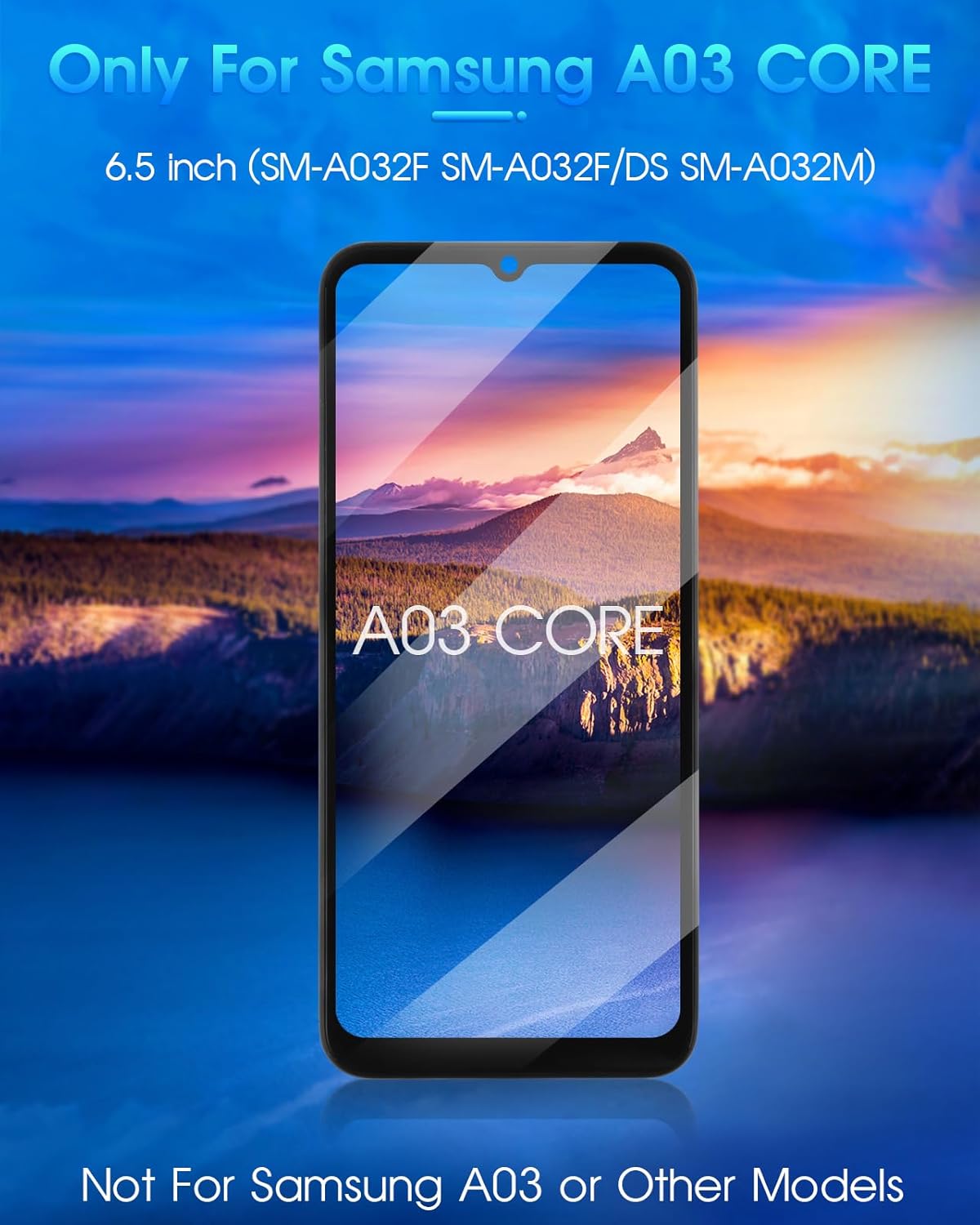
Image: The ARSSLY screen replacement for Samsung Galaxy A03 Core, highlighting its compatibility with specific models.
2. Package Contents
Your package should contain the following items:
- 1x LCD screen replacement with frame for Samsung Galaxy A03 Core
- 1x Screen Protector
- 1x Repair Tools Kit (may not be suitable for all products; professional tools may be required for some screen models)

Image: The complete package, including the screen replacement unit, screen protector, and a set of basic repair tools.
3. Setup and Pre-Installation Testing
Before proceeding with the full installation, it is crucial to perform a pre-installation test of the new screen. This helps ensure the screen is fully functional before permanent attachment.
3.1. Important Considerations
- Compatibility: This screen is compatible only with Samsung Galaxy A03 Core models A032M/DS and A032F/DS.
- Professional Assistance: Screen replacement is a delicate operation. If you are not confident in your ability to perform the installation, consider seeking professional assistance.
- Avoid Excessive Force: To prevent damage, avoid applying excessive force to the screen corners during installation.

Image: A visual warning indicating areas on the screen, particularly the corners, where excessive force should be avoided during installation to prevent damage.
3.2. Pre-Installation Testing Steps
Follow these steps to test the new screen before final installation:
- Power Off: Ensure your phone is completely powered off before connecting the new display.
- Connect Flex Cable: Carefully connect the new screen's flex cable to the phone's motherboard.
- Initial Power On: Power on the phone and enter the diagnostic mode (usually by dialing *#0*# on Samsung devices) to test display colors (Red, Green, Blue) and touch sensitivity.
- Full Touch Test: Verify that the entire screen responds to touch accurately and smoothly.
Video: A demonstration of how to test a new LCD screen before full installation, including checking display colors and touch functionality. This video is universal for various phone models.
4. Installation Guide
For a successful screen replacement, it is highly recommended to watch a detailed video tutorial. Many comprehensive guides are available online, such as on YouTube, that can walk you through each step of the process for the Samsung Galaxy A03 Core.
4.1. General Installation Steps (Refer to video for details)
- Preparation: Gather all necessary tools. Power off your device completely.
- Remove SIM Tray: Eject the SIM card tray.
- Separate Back Cover: Carefully separate the back cover from the phone frame.
- Disconnect Battery: Disconnect the battery flex cable to prevent short circuits.
- Remove Old Screen: Detach the old, damaged screen assembly.
- Clean Frame: Clean any old adhesive or debris from the phone frame.
- Install New Screen: Carefully place the new screen assembly into the frame, ensuring proper alignment.
- Reconnect Components: Reconnect the battery flex cable and any other components that were disconnected.
- Secure Back Cover: Reattach the back cover.
- Final Test: Power on the device and perform a final functional test.
Video: A general overview of the LCD screen replacement process for Samsung Galaxy A03, demonstrating key steps involved in replacing the display.
Video: A brief demonstration of screen replacement with frame for Samsung Galaxy A03 Core, showing the physical component and its integration.
5. Operating the New Screen
Once successfully installed, your new ARSSLY screen replacement for the Samsung Galaxy A03 Core should function seamlessly, offering a responsive and clear visual experience.
- Display Quality: The screen is designed to provide high resolution and original color display, ensuring images are vibrant and text is sharp.
- Touch Sensitivity: Expect superior sensitive touch response across the entire screen, allowing for smooth navigation and interaction.
- Durability Features: The screen incorporates features such as explosion-proof design, scratch resistance, and anti-fingerprint properties to enhance durability and user experience.

Image: A comparison demonstrating the high resolution and original color display capabilities of the replacement screen.

Image: Illustration of the superior sensitive touch, explosion-proof, and anti-fingerprint features of the screen.
6. Maintenance
To prolong the life and maintain the performance of your new screen, consider the following maintenance tips:
- Screen Protector: Always use a screen protector to guard against scratches and minor impacts.
- Gentle Cleaning: Clean the screen with a soft, lint-free cloth. Avoid harsh chemicals or abrasive materials.
- Avoid Pressure: Do not apply excessive pressure to the screen, especially around the edges and corners.
- Protection from Drops: Use a protective case for your phone to minimize damage from accidental drops.
7. Troubleshooting
If you encounter issues after installing your new screen, refer to the following common problems and their solutions. For more detailed visual guidance, please refer to the troubleshooting video provided in the Setup section.
7.1. Screen Does Not Turn On or Shows Black Screen
Reason: The phone was not powered off before connecting the new display, or the battery cable was not properly connected.
Solution:
- Power off the phone completely.
- Disconnect the battery cable from the motherboard.
- Reconnect the battery cable firmly.
- Power on the phone to check if the issue is resolved.
7.2. Touch Not Sensitive or Unresponsive
Reason: The flex cable connector for the screen is loose, connected in the wrong position, or the connector itself is damaged/out of shape.
Solution:
- Power off the phone.
- Carefully remove the screen's flex cable from its connector on the motherboard.
- Clean the connector on both the screen's flex cable and the motherboard using a soft brush or lint-free cloth.
- Inspect the connector for any signs of damage or being out of shape. If damaged, contact customer support.
- Reconnect the flex cable, ensuring it is seated correctly and securely.
- Power on the phone and test the touch functionality.
8. Specifications
| Feature | Detail |
|---|---|
| Product Name | Screen Replacement with Frame for Samsung Galaxy A03 Core |
| Compatible Models | Samsung Galaxy A03 Core A032M/DS, A032F/DS |
| Brand | ARSSLY |
| Package Dimensions | 7.4 x 3.9 x 1.1 inches |
| Item Weight | 4.2 ounces |
| ASIN | B0CCDTFYP6 |
| Other Display Features | Wireless |
| Date First Available | July 20, 2023 |
9. Warranty and Support
We are committed to providing excellent products and services. Your ARSSLY screen replacement comes with the following:
- Free Replacement: A free replacement is offered within three months in case of non-human damage.
- Customer Service: If you experience any problems with the product you have received, please contact our customer service immediately. We aim to respond within 24 hours to resolve any issues.
For further assistance or inquiries, please refer to the contact information provided with your purchase or on the product's listing page.