
TMEZON MZ-IP-V718TW+MZ-VDP-NF402
TMEZON 2-Wire Wi-Fi Video Intercom System User Manual
Model: MZ-IP-V718TW+MZ-VDP-NF402
1. Introduction
Thank you for choosing the TMEZON 2-Wire Wi-Fi Video Intercom System. This system provides enhanced security and convenience for your home or office, allowing you to see, hear, and speak to visitors from anywhere via the 7-inch touchscreen monitor or your smartphone. This manual will guide you through the installation, operation, and maintenance of your new intercom system.
2. Product Components
The TMEZON 2-Wire Wi-Fi Video Intercom System typically includes the following components:
- 7-inch Indoor Touchscreen Monitor
- 1080P Outdoor Doorbell Camera
- RFID Access Control Cards (8 included)
- Mounting Brackets and Screws
- Power Adapter
- User Manual

Figure 2.1: TMEZON 2-Wire Wi-Fi Video Intercom System components including indoor monitor, outdoor doorbell, access cards, and smartphone displaying the app. This image displays the complete TMEZON 2-Wire Wi-Fi Video Intercom System. It includes the indoor 7-inch touchscreen monitor, the outdoor 1080P doorbell camera, eight RFID access control cards, and a smartphone showing the TuyaSmart application interface for remote control.
3. Setup
3.1 Installation
The TMEZON intercom system uses a 2-wire connection for power and data transmission between the indoor monitor and the outdoor doorbell. Ensure all power is disconnected before beginning installation.
- Mount the Outdoor Doorbell: Choose a suitable location near your entrance, typically at eye level. Secure the mounting bracket to the wall using the provided screws. Connect the 2-wire cable from your indoor location to the doorbell unit, ensuring correct polarity if specified. Attach the doorbell unit to the bracket. The doorbell is IP65 weather-resistant.
- Mount the Indoor Monitor: Select a central location inside your home. Secure the monitor's mounting bracket to the wall. Connect the 2-wire cable from the outdoor doorbell to the indoor monitor. Connect the power adapter to the monitor and plug it into a power outlet.
- Power On: Once all connections are secure, power on the system. The monitor should display the TMEZON logo and then the main interface.
3.2 App Setup (TuyaSmart)
To utilize remote features, download and configure the TuyaSmart application on your smartphone.
- Download App: Search for "TuyaSmart" in your smartphone's app store (iOS App Store or Google Play Store) and install it.
- Register/Login: Open the app and register a new account or log in if you already have one.
- Add Device: On the indoor monitor, navigate to the Wi-Fi settings and connect it to your home Wi-Fi network. In the TuyaSmart app, tap "Add Device" or the "+" icon. Follow the on-screen prompts to add your TMEZON intercom system. This typically involves scanning a QR code displayed on the monitor or selecting the device type manually.
- Configuration: Once connected, you can configure various settings, view live feeds, and receive notifications from the intercom system directly on your phone.

Figure 3.1: Smartphone displaying the TMEZON intercom app interface with options for screenshot, unlock, playback, record, and settings. This image illustrates the ease of monitoring and controlling the intercom system via your smartphone. The screen shows the live video feed from the doorbell camera, along with various control options such as taking a screenshot, unlocking the door, playing back recordings, and accessing advanced settings.
4. Operating Instructions
4.1 Answering Calls
When a visitor presses the doorbell button, the indoor monitor will ring and display the live video feed from the outdoor camera. Your smartphone (if connected to the app) will also receive a notification.
- On Monitor: Tap the "Answer" icon on the touchscreen to initiate two-way audio communication.
- On Smartphone: Tap the notification to open the TuyaSmart app and answer the call remotely.

Figure 4.1: Person interacting with the TMEZON indoor monitor, confirming identity before opening the door. This image demonstrates how to confirm a visitor's identity using the indoor monitor before granting access. The monitor displays the live video feed from the doorbell, allowing for two-way communication.
4.2 Unlocking Methods (3-in-1)
The system offers three convenient ways to unlock a connected electric lock:
- Via IC Card: Swipe one of the provided RFID access control cards over the designated sensor area on the outdoor doorbell unit. The door will unlock briefly.
- Via Smartphone App: While viewing the live feed or during a call on the TuyaSmart app, tap the "Unlock" icon.
- Via Indoor Monitor: During a call or while viewing the live feed on the indoor monitor, tap the "Unlock" icon on the touchscreen.

Figure 4.2: Hand swiping an RFID access control card on the TMEZON outdoor doorbell for unlocking. This image shows one of the three unlocking methods: using an RFID access control card. Simply swipe the card over the designated area on the outdoor doorbell unit to unlock the connected door.
4.3 Automatic Snapshot and Recording
The system can automatically capture images or record videos when the doorbell is pressed or motion is detected (if enabled). These files are stored on a Micro SD card (up to 128GB, not included) inserted into the indoor monitor.
- Viewing Recordings: Access stored snapshots and videos from the "Media" or "Playback" section on the indoor monitor or through the TuyaSmart app.

Figure 4.3: Video playback of a person walking, shown on a smartphone and a larger screen, indicating recording capabilities. This image highlights the system's ability to automatically capture snapshots or record videos when the doorbell is pressed or motion is detected. These recordings can be reviewed on the indoor monitor or remotely via the smartphone app, as shown here with a video playback of a person.
4.4 Motion Detection and Alarm
The outdoor doorbell camera features an integrated motion detection sensor. When motion is detected, the system can trigger an alarm, take a snapshot, record a video, and send a notification to your smartphone.
- Enabling Motion Detection: Navigate to the settings menu on the indoor monitor or in the TuyaSmart app to enable and configure motion detection sensitivity and recording options.
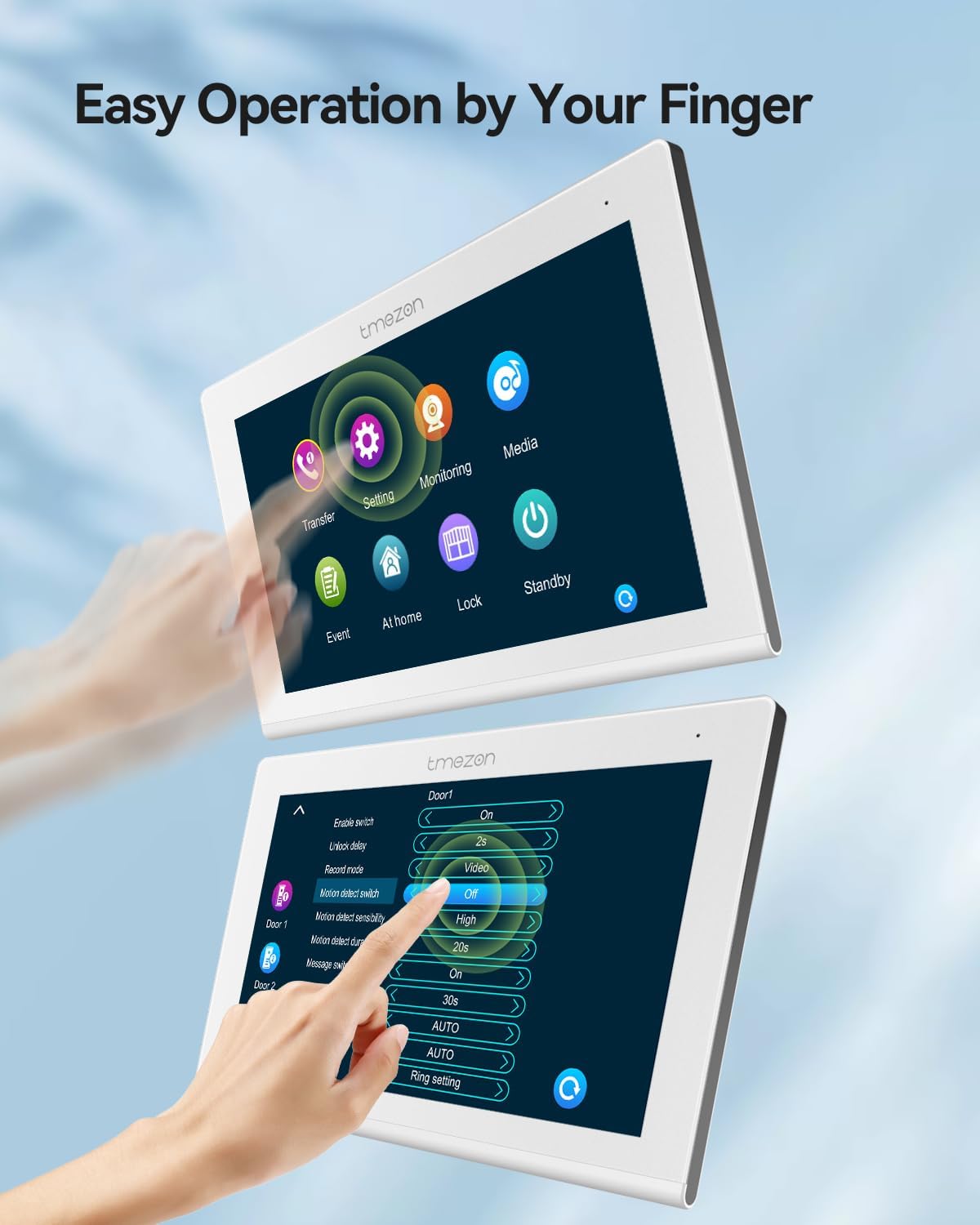
Figure 4.4: Graphic illustrating motion detection by the TMEZON doorbell camera, triggering a notification on a smartphone. This image demonstrates the motion detection feature. The doorbell camera detects movement in its field of view, and an alert is sent to your smartphone via the TuyaSmart app, allowing you to monitor activity around your entrance.
4.5 Day and Night Vision
The 1080P doorbell camera provides clear images both during the day and at night. The integrated infrared sensor automatically activates in low-light conditions to ensure continuous monitoring.

Figure 4.5: Comparison of day and night vision images from the TMEZON doorbell camera, showing clear 1080P resolution in both conditions. This image illustrates the 1080P resolution capabilities of the doorbell camera, providing clear images both during the day and at night. The integrated infrared sensor ensures visibility even in low-light conditions.
5. Maintenance
Regular maintenance ensures the longevity and optimal performance of your TMEZON intercom system.
- Cleaning: Use a soft, dry cloth to clean the indoor monitor and outdoor doorbell. For stubborn dirt, a slightly damp cloth can be used, but avoid excessive moisture or harsh chemicals.
- SD Card Management: Periodically check the Micro SD card for storage space. Back up important recordings and format the card as needed to prevent it from becoming full.
- Firmware Updates: Check the TMEZON website or the TuyaSmart app for any available firmware updates to ensure your system has the latest features and security enhancements.
6. Troubleshooting
If you encounter issues with your intercom system, refer to the following common problems and solutions:
| Problem | Possible Cause | Solution |
|---|---|---|
| No video on monitor/app | Loose wiring, power issue, camera malfunction. | Check 2-wire connections. Ensure power is supplied to the monitor. Restart the system. |
| No audio during call | Microphone/speaker issue, network delay. | Check volume settings. Ensure stable Wi-Fi connection. Restart the system. |
| App not receiving notifications | App permissions, network issues, incorrect settings. | Ensure app notifications are enabled in phone settings. Check Wi-Fi connectivity. Verify motion detection/doorbell settings in the app. |
| Door not unlocking | Incorrect wiring to lock, lock malfunction, card not programmed. | Verify electric lock wiring. Test the lock independently. Ensure RFID cards are correctly programmed. |
7. Specifications
| Feature | Detail |
|---|---|
| Model Number | MZ-IP-V718TW+MZ-VDP-NF402 |
| Indoor Monitor | 7-inch LCD Touchscreen |
| Outdoor Doorbell Camera | 1080P HD, 110° Wide Angle, Integrated Infrared Sensor |
| Weather Resistance | IP65 (Outdoor Doorbell) |
| Unlocking Methods | IC Card, Smartphone App (TuyaSmart), Indoor Monitor |
| Storage | Supports Micro SD Card up to 128GB (not included) |
| Connectivity | 2-Wire System, Wi-Fi (for App connectivity) |
| Multi-Device Support | Up to 6x IP Monitors, 2x Doorbell Cameras, 2x CCTV Cameras, 3x Electric Locks |
| Dimensions (Package) | 25.4 x 24.6 x 5.4 cm; 1.28 kilograms |
| Manufacturer | TMEZON |
8. Warranty and Support
For warranty information and technical support, please refer to the documentation included with your purchase or visit the official TMEZON website. Specific warranty terms may vary by region and retailer.
Related documentsMZ-IP-V718TW+MZ-VDP-NF402


Ask a question about this manual
Ask about setup, troubleshooting, compatibility, parts, safety, or missing instructions. Manuals+ will review the question and use this page’s manual context to help answer it.