
Moman WF11T
Moman WF11T Digital Photo Frame User Manual
Model: WF11T
Introduction
This manual provides detailed instructions for the setup, operation, maintenance, and troubleshooting of your Moman WF11T Digital Photo Frame. Please read this manual thoroughly before using the device to ensure proper functionality and longevity.
The Moman WF11T is a 10.1-inch WiFi IPS Touch Screen Digital Photo Frame designed for instant sharing of photos and videos with family and friends, offering a vibrant display and versatile placement options.
Package Contents
Before proceeding with the setup, please verify that all items are present in the package:
- Moman WF11T Digital Photo Frame
- Digital Photo Frame Box
- DC Power Adapter
- Wall Mount Accessories
- Greeting Card (for gifting purposes)

Image: Overview of the Moman WF11T package contents.
Setup Guide
1. Initial Power-On and Language Selection
- Connect the DC power adapter to the frame's DC input port.
- Plug the adapter into a power outlet. The frame will automatically power on.
- Follow the on-screen prompts to select your preferred language.

Image: Rear view of the Moman WF11T frame, highlighting the DC input and other ports.
2. Wi-Fi Connection
- From the main menu, navigate to Settings.
- Select Wi-Fi and choose your network from the list.
- Enter your Wi-Fi password using the on-screen keyboard. The frame supports 2.4 GHz networks.
- Confirm the connection.
3. App Installation and Pairing
To share photos and videos, download the Frameo app on your smartphone or tablet.
- Search for "Frameo" on the Google Play Store (for Android) or Apple App Store (for iOS).
- Install the app.
Pairing the frame with the app:
- On the Moman WF11T frame, go to Add Friend or Connect. A unique code will be displayed.
- Open the Frameo app on your device and follow the instructions to add a new frame using the displayed code.
- Once paired, you can start sending photos and 15-second videos to your frame.

Image: Easy setup and photo/video sharing via the Frameo app.

Image: The multi-user connection feature, allowing multiple people to share content to the frame.
Operating Instructions
1. Navigating the Touchscreen
The Moman WF11T features a highly sensitive IPS HD touchscreen. You can navigate menus, view photos, and adjust settings with simple taps and swipes.

Image: Demonstrating the high sensitivity touchscreen for easy operation.
2. Viewing Photos and Videos
- Photos and videos sent to the frame will automatically appear in a slideshow.
- Tap the screen to pause the slideshow and access options.
- Swipe left or right to manually browse through content.
- Videos will play automatically. The frame supports video playback up to 15 seconds in length.

Image: The frame supports both photo slideshows and video playback.
3. Adjusting Settings
Access the settings menu to customize your frame's behavior:
- Brightness: Adjust screen brightness for optimal viewing in different lighting conditions.
- Sleep Mode: Set a schedule for the frame to automatically turn off the screen to save energy.
- Playback Order: Customize the order in which photos and videos are displayed.
- Image Scaling: Choose how images are scaled to fit the screen.
- Captions: Add personalized captions to your photos.
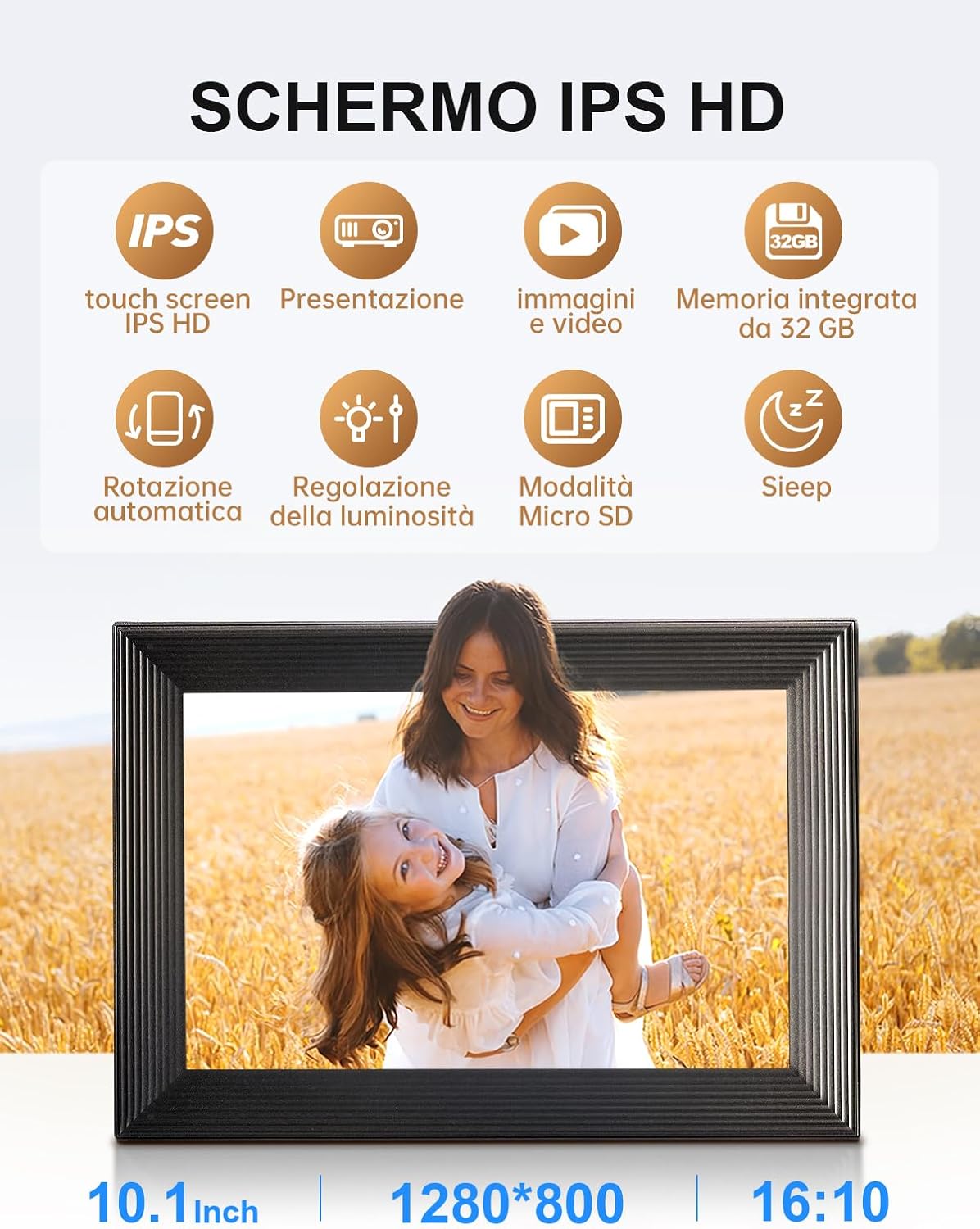
Image: Key features and settings of the IPS HD screen.

Image: The sleep mode feature, which automatically turns off the screen during set hours.
4. Orientation and Mounting
The Moman WF11T supports automatic rotation, allowing you to place it horizontally or vertically. It can be used on a desktop or mounted on a wall.
- Desktop Placement: Use the integrated stand to position the frame on any flat surface.
- Wall Mounting: Utilize the included wall mount accessories to securely attach the frame to a wall. The frame will automatically adjust its display orientation.

Image: The frame's auto-rotate function and versatile placement options.

Image: Automatic rotation and wall mounting options for flexible display.
Storage and Media Management
The Moman WF11T comes with 32GB of built-in memory, capable of storing approximately 30,000 to 40,000 photos.
1. Expanding Storage
For additional storage or backup, the frame supports a TF/micro SD card up to 32GB. Insert the card into the designated slot on the frame.

Image: The frame's 32GB built-in memory and Micro SD card support.

Image: Built-in 32GB storage and Micro SD card support for media management.
2. Supported File Formats
- Images: JPG, JPEG
- Videos: MP4 (up to 15 seconds)
Maintenance
Proper maintenance ensures the longevity and optimal performance of your digital photo frame.
- Cleaning the Screen: Use a soft, lint-free cloth to gently wipe the screen. For stubborn smudges, slightly dampen the cloth with water or a screen-cleaning solution designed for electronics. Avoid harsh chemicals or abrasive materials.
- Cleaning the Frame: Wipe the frame's exterior with a dry, soft cloth.
- Storage: When not in use for extended periods, store the frame in a cool, dry place away from direct sunlight and extreme temperatures.
- Power: Always use the original DC power adapter provided with the frame.
Troubleshooting
| Problem | Possible Cause | Solution |
|---|---|---|
| Frame does not power on. | Power adapter not connected or faulty. | Ensure the power adapter is securely connected to the frame and a working power outlet. Try a different outlet. |
| Cannot connect to Wi-Fi. | Incorrect password, out of range, or network issue. | Double-check the Wi-Fi password. Move the frame closer to the router. Ensure your router is broadcasting a 2.4 GHz signal. Restart the frame and router. |
| Photos/Videos not appearing. | Not sent correctly, incorrect format, or storage full. | Verify content was successfully sent via the Frameo app. Ensure files are in JPG, JPEG, or MP4 format (videos max 15 seconds). Check available storage on the frame. |
| Touchscreen unresponsive. | Temporary software glitch. | Restart the frame by unplugging and re-plugging the power adapter. |
| Images appear distorted or low quality. | Low resolution source image or incorrect scaling settings. | Ensure the original images are of high resolution. Adjust image scaling settings in the frame's menu. |
Specifications
| Feature | Detail |
|---|---|
| Model Number | WF11T |
| Screen Size | 10.1 Inches |
| Display Type | IPS HD Touch Screen |
| Resolution | 1280 x 800 pixels |
| Aspect Ratio | 16:10 |
| Internal Storage | 32GB (approx. 30,000-40,000 photos) |
| Expandable Storage | Micro SD Card (up to 32GB) |
| Connectivity | Wi-Fi (2.4 GHz only) |
| Supported Image Formats | JPG, JPEG |
| Supported Video Formats | MP4 (max 15 seconds) |
| Power Source | DC Power Adapter (included) |
| Product Dimensions | 21 x 5 x 2.51 cm |
| Product Weight | 840 grams |
Warranty and Support
Warranty Information
The Moman WF11T Digital Photo Frame comes with a one-year after-sales warranty service from the date of purchase. This warranty covers manufacturing defects and malfunctions under normal use.
Please retain your proof of purchase for warranty claims.
Customer Support
For technical assistance, troubleshooting not covered in this manual, or warranty inquiries, please contact Moman customer support through the official Moman website or your retailer's support channels.
No official product videos from the seller were available for embedding in this manual.
Related documentsWF11T

Ask a question about this manual
Ask about setup, troubleshooting, compatibility, parts, safety, or missing instructions. Manuals+ will review the question and use this page’s manual context to help answer it.