
Introduction
The Ecowitt HP2560 is a Wi-Fi enabled weather station display console featuring a 7-inch TFT screen. It includes a built-in indoor temperature, humidity, and barometric pressure sensor. This console acts as a gateway, connecting with various Ecowitt sensors to send data to the internet via Wi-Fi.
It supports displaying a wide range of weather data, including outdoor temperature and humidity, wind speed and direction, and rain data, when paired with compatible Ecowitt sensors (sold separately).
Users can view live data, manage sensor calibration, and publish data to online weather services like Weather Underground, WOW, Weather Cloud, and Ecowitt Weather via mobile applications.
Setup
Unpacking and Initial Inspection
Carefully remove all components from the packaging. Ensure the display console and any included accessories are present and undamaged.
Powering On
Connect the DC 5V 1A power adapter to the console and a power outlet. The console will power on automatically.
Indoor Sensor Probe
Unfold the temperature sensor probe of the HP2560 TFT display console to ensure accurate indoor temperature readings.
Wi-Fi Configuration
The console functions as a Wi-Fi gateway. Connect it to your home Wi-Fi network to enable data upload to online services. Refer to the WS View Plus/Ecowitt APP for detailed Wi-Fi setup instructions.

Operating Instructions
Display Overview
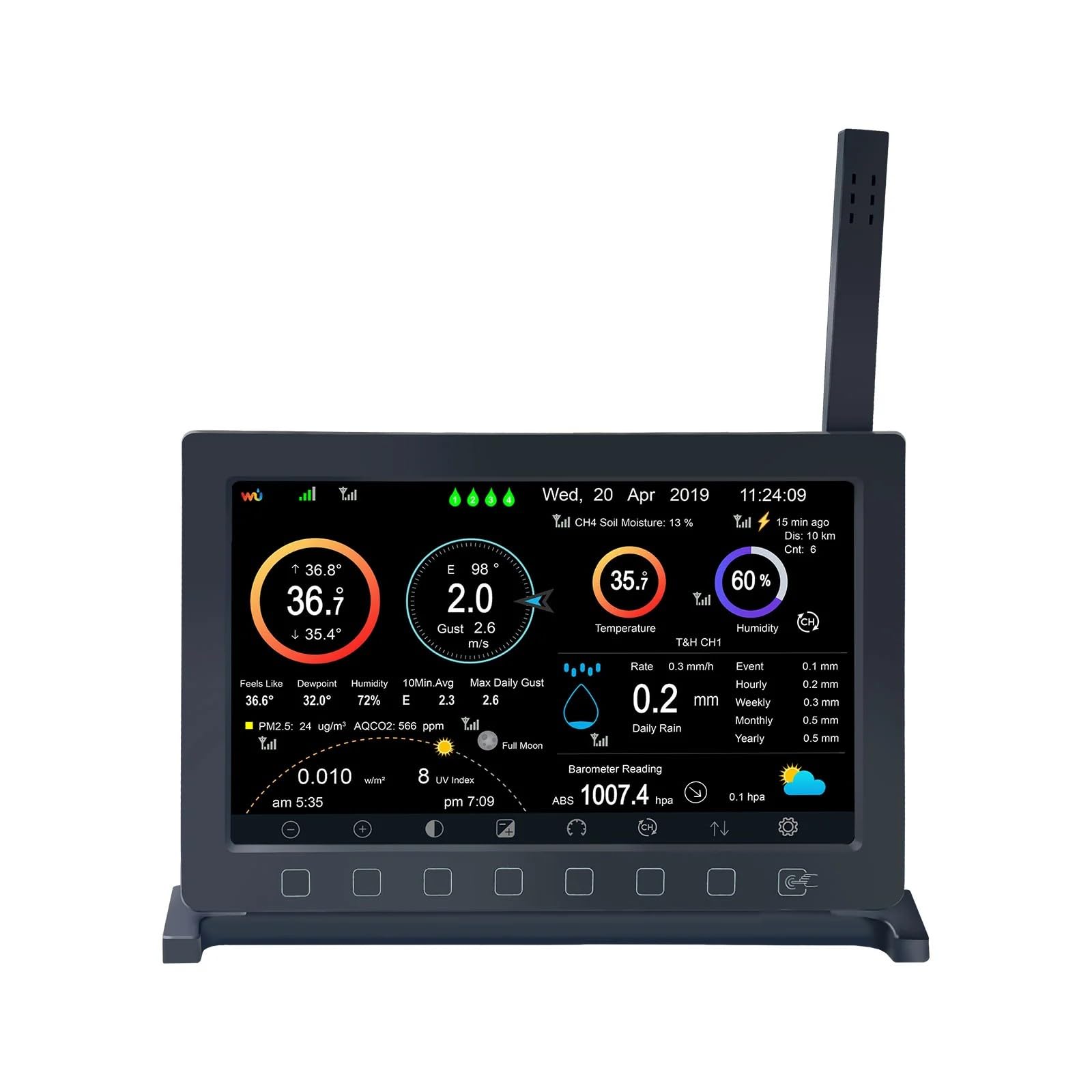
The 7-inch TFT display shows real-time indoor temperature, humidity, and barometric pressure. When connected to external Ecowitt sensors, it also displays outdoor temperature, humidity, wind speed/direction, and rainfall data.
Touch Buttons
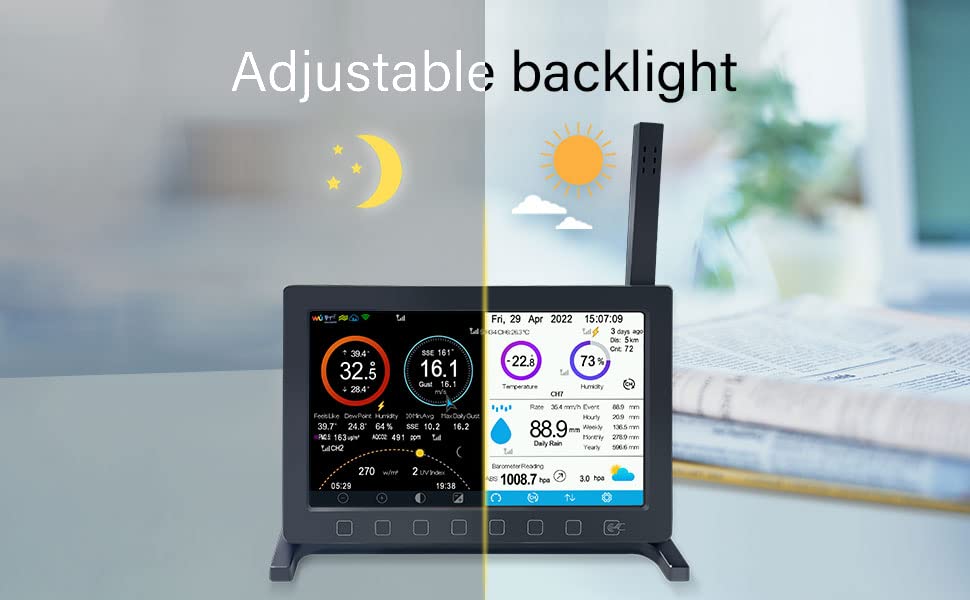
Utilize the touch buttons located below the screen for navigation and settings adjustments.
Mobile Application
Download the WS View Plus or Ecowitt APP to your mobile device. This app allows you to view live data, manage sensor settings, and perform calibration.
Internet Weather Services
The HP2560 supports uploading all collected sensor data to various internet weather platforms, including Weather Underground, WOW, Weather Cloud, and Ecowitt Weather. Custom sites using Wunderground or Ecowitt protocols are also supported.
Sensor Compatibility
The console is designed to connect with a wide range of Ecowitt sensors. This includes up to 8 WH51 soil moisture sensors, WH31 thermo-hygrometers, WN36 pool thermometers, WN34 thermometers; up to 4 WH41/WH43 air quality sensors, WH55 water leak detectors; and 1 WS90 outdoor sensor array, WH40 rain gauge sensor, WH45 air quality sensor, or WS68 anemometer sensor.
Maintenance
Temperature Sensor Probe
Regularly ensure the indoor temperature sensor probe is unfolded for accurate readings. If it is folded, indoor temperature accuracy may be compromised.
Firmware Updates
The console supports firmware updates via a micro SD card (max 32GB, Fat32 format, SD card not included). Check the Ecowitt website for the latest firmware versions and instructions.
Cleaning
Use a soft, dry cloth to clean the display and console exterior. Avoid abrasive cleaners or solvents.
Troubleshooting
No Display/Power
Ensure the DC 5V 1A power adapter is securely connected and the power outlet is functional.
Inaccurate Indoor Temperature
Verify that the indoor temperature sensor probe is fully unfolded.
No Outdoor Sensor Data
Check that external Ecowitt sensors are properly installed, powered, and within range of the HP2560 console. Refer to individual sensor manuals for specific setup instructions.
Wi-Fi Connectivity Issues
Ensure the console is within range of your Wi-Fi router. Re-check Wi-Fi settings using the WS View Plus/Ecowitt APP. If issues persist, try restarting the console and your router.
Data Upload Failure
Confirm stable internet connection. Verify settings for internet weather services within the mobile application.
Support
For further assistance, visit the Ecowitt support website or contact their customer service.
Specifications
| Brand | ECOWITT |
| Model Number | HP2560C |
| Display Type | 7.5'' TFT Display |
| Power Source | DC 5V 1A |
| Connectivity | Wi-Fi (915 MHz RF Frequency) |
| Indoor Temperature Accuracy | 0.3 °C |
| Special Features | Supports Ecowitt Sensors, Custom server data hosting (Wunderground/Ecowitt protocol), Pushes data to cloud weather services, Micro SD card support for firmware updates (max 32G, Fat32, not included), Touch Buttons |
| Included Components | Instruction Manual |
| Item Weight | 10.5 ounces |
| Package Dimensions | 8.19 x 4.76 x 1.26 inches |
Warranty Information
This product is covered by a standard return policy, typically allowing returns or replacements within 30 days of purchase. For specific warranty terms and conditions, please refer to your purchase documentation or contact Ecowitt customer support.
Support
Online Resources
Access detailed data graphs and download history records on the official Ecowitt Weather server: ecowitt.net.
Email Alerts
Email alert functions are available for Wittboy weather sensors when integrated with the system.
Contact Support
For technical assistance or inquiries, please visit the ECOWITT Store on Amazon or refer to the contact information provided in your product packaging.


