
XIAOKOA U12FS
XIAOKOA Wireless Microphone Headset System
Model: U12FS
User Instruction Manual
Introduction
Thank you for choosing the XIAOKOA Wireless Microphone Headset System. This UHF dual headset microphone system is designed for clear and reliable voice transmission, ideal for various applications such as voice amplification, PA systems, fitness classes, church services, and yoga instruction. This manual provides detailed instructions for setup, operation, maintenance, and troubleshooting to ensure optimal performance and longevity of your device.
What's in the Box

- Wireless Headset Microphone (Transmitter)
- Wireless Receiver
- 6.35mm to 3.5mm Adapter
- Dual USB Charging Cable
- User Manual
Product Overview




Setup Instructions
- Charge the Devices: Before first use, fully charge both the headset microphone (transmitter) and the receiver using the provided dual USB charging cable. The red light indicates charging, and it will turn off when fully charged. Charging takes approximately 2 hours.
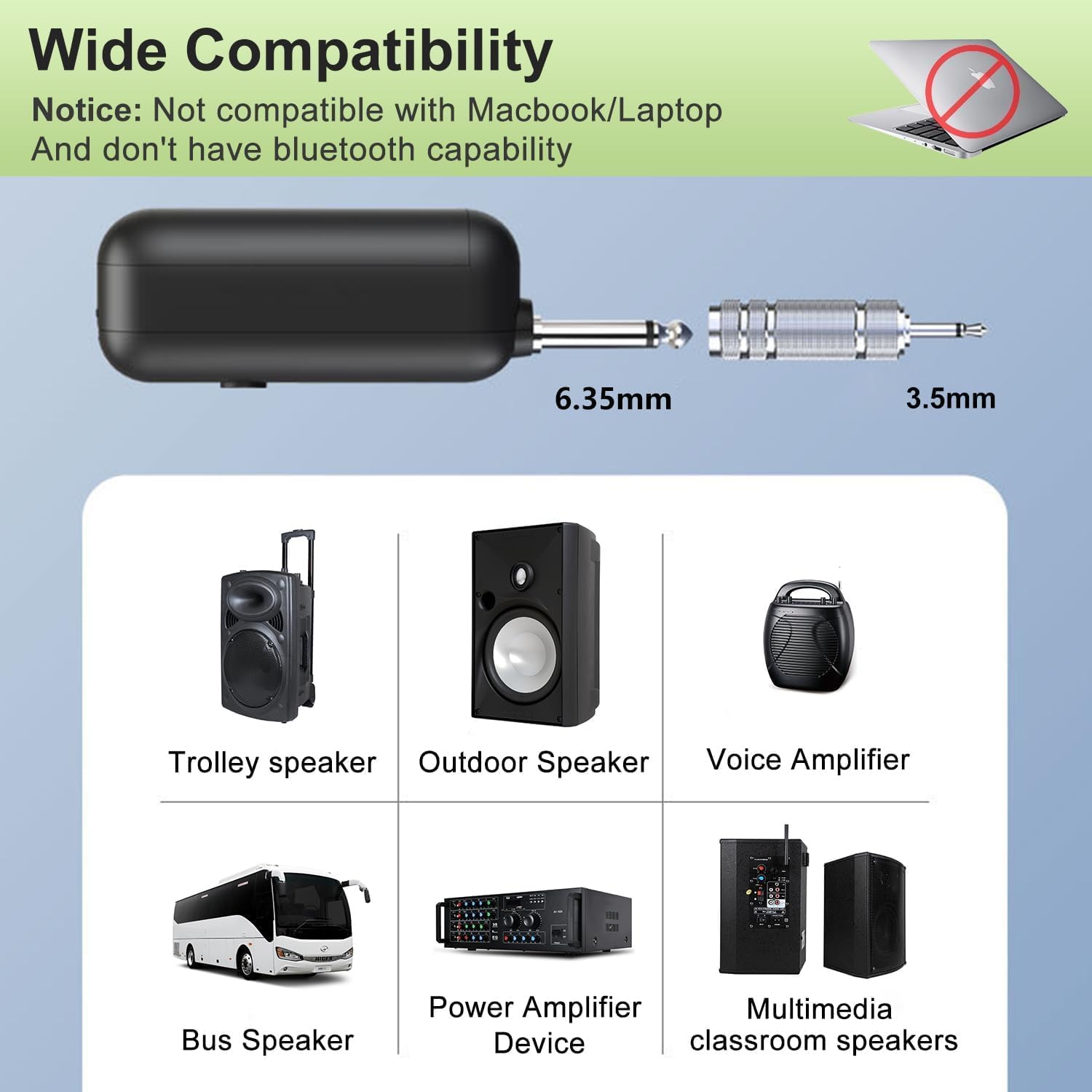
- Connect the Receiver: Insert the receiver into the microphone input jack of your compatible audio device (e.g., voice amplifier, PA system, speaker). If your device has a 3.5mm input, use the included 6.35mm to 3.5mm adapter.
- Power On: Turn on the power switch on both the receiver and the headset microphone (transmitter).
- Automatic Connection: The devices are designed to connect automatically upon power-on. The blue lights on both the transmitter and receiver will flash during pairing and become solid when a successful connection is established.
- Manual Reconnection (if needed): If the devices do not connect automatically, follow these steps:
- Turn off both the receiver and the transmitter.
- Turn on the transmitter. The blue light will illuminate. Long press the "+" button until the blue light begins to flash.
- Immediately turn on the receiver (do not wait for the transmitter's blue light to stop flashing).
- Wait for the connection. The blue lights on both the transmitter and receiver will stop flashing, indicating a successful connection.
- Adjust Volume: Use the volume controls on the headset microphone to adjust the output level as needed.
Operating Instructions
- Wearing the Headset: Adjust the headset frame to comfortably fit your head. Position the microphone boom so that the microphone is approximately 1-2 inches from your mouth for optimal sound pickup.
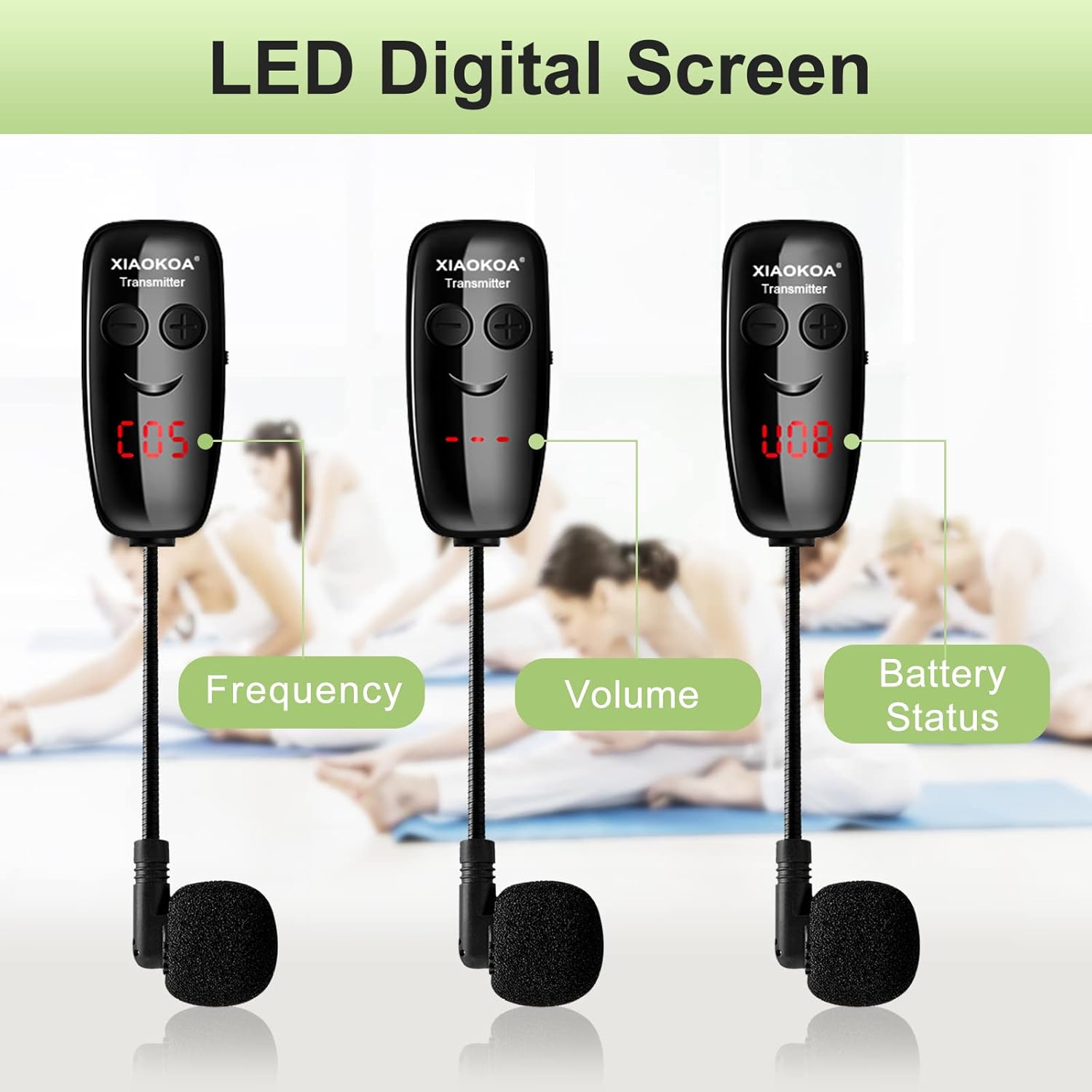
- Monitoring Display: The LED display on the headset microphone shows the current frequency, volume level, and battery status. Monitor the battery indicator to ensure sufficient power for your usage.
- Volume Control: Use the "+" and "-" buttons on the headset microphone to increase or decrease the volume.
- Frequency Adjustment: The system supports 40 sets to be used simultaneously. If interference occurs, you may need to change the frequency. Refer to the manual reconnection steps (Setup, Step 5) to re-pair the devices, which may result in a new frequency assignment.
- Power Saving: To conserve battery, turn off both the transmitter and receiver when not in use.
Maintenance
- Cleaning: Use a soft, dry cloth to clean the microphone and receiver. Do not use abrasive cleaners or solvents.
- Storage: Store the system in a cool, dry place away from direct sunlight and extreme temperatures.
- Battery Care: To prolong battery life, avoid fully discharging the battery frequently. Charge the device regularly, even if not in constant use.
- Microphone Foam Cover: The microphone comes with a foam cover. Replace it if it becomes worn or damaged to maintain sound quality and hygiene.
Troubleshooting
- No Sound or Low Volume:
- Ensure both the transmitter and receiver are powered on.
- Check the volume level on the headset microphone and the connected audio device.
- Verify that the receiver is securely plugged into the correct microphone input jack of your audio device.
- Confirm that the devices are successfully paired (solid blue light). If not, perform a manual reconnection as described in the Setup section.
- Check the battery level of both devices. Recharge if necessary.
- Interference or Static Noise:
- Move closer to the receiver. The maximum transmission range is 165 feet in an open area, but obstacles can reduce this.
- Ensure there are no strong electromagnetic interference sources nearby (e.g., Wi-Fi routers, other wireless devices).
- Perform a manual reconnection to potentially switch to a clearer frequency channel.
- Ensure no other wireless microphone systems are operating on the same frequency in close proximity.
- Microphone Not Connecting:
- Follow the manual reconnection procedure detailed in the Setup section.
- Ensure both devices are sufficiently charged.
- Not Compatible with My Device:
- This system is designed for devices with a microphone input jack (6.35mm or 3.5mm with adapter). It is not compatible with mobile phones, Macbooks, or laptops.
- The system does not have Bluetooth capability.
Specifications
| Feature | Detail |
|---|---|
| Brand | XIAOKOA |
| Model Number | U12FS |
| Microphone Form Factor | Headset |
| Connectivity Technology | UHF Wireless |
| Connector Type | 6.35 mm Jack (includes 3.5mm adapter) |
| Polar Pattern | Omnidirectional |
| Transmission Range | Up to 165 feet (50 meters) in open area |
| Number of Channels | 15 (supports 40 sets simultaneously) |
| Power Source | Battery Powered (Built-in 400mA Lithium Ion battery) |
| Charging Time | Approx. 2 hours |
| Working Time | Approx. 5 hours |
| Signal-to-Noise Ratio | 65 dB |
| Item Weight | 4.9 ounces |
| Color | Black-A |
Warranty and Support
XIAOKOA products are manufactured with high standards of quality and durability. For specific warranty details and terms, please refer to the warranty card included with your product or contact XIAOKOA customer support directly.
For technical assistance, troubleshooting beyond this manual, or warranty claims, please contact XIAOKOA customer service through the retailer where the product was purchased or visit the official XIAOKOA website for support contact information.
Related documentsU12FS


Ask a question about this manual
Ask about setup, troubleshooting, compatibility, parts, safety, or missing instructions. Manuals+ will review the question and use this page’s manual context to help answer it.