
ROYALAXE L98
ROYALAXE L98 Wireless Mechanical Keyboard User Manual
Model: L98
1. Introduction
This manual provides comprehensive instructions for the setup, operation, and maintenance of your ROYALAXE L98 Wireless Mechanical Keyboard. Please read this manual thoroughly before using the product to ensure optimal performance and longevity.

2. What's in the Box
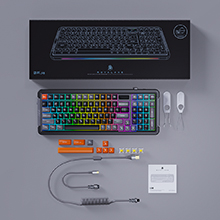
Verify that all items are present in the package:
- Wireless Mechanical Keyboard
- 4 Spare Switches & 8 Spare Keycaps
- Coiled USB Cable & Dust Cover
- Keycap Puller
- User Manual & Quick Guide
3. Key Features
- 1.14" TFT LCD: Displays time, connection mode, battery level, and system (WIN/MAC). Customizable with images or GIF animations via downloadable driver.
- Upgraded Gateron G Pro 3.0 Yellow Switches: Pre-lubed switches with improved condenser light effect structure for brighter, more consistent backlight, and harder pins for stable typing.
- Gasket Mount Design: Incorporates two silicone dampeners for reduced noise and a comfortable typing experience with satisfying sound.
- Triple Connection Modes: Supports 3 Bluetooth channels, 2.4GHz wireless USB, and Type-C wired connection for multi-device tasking (up to 5 devices). Compatible with WIN and MAC systems.
- 18+4 RGB Lighting Effects: 22 RGB light modes with adjustable brightness and monochromatic light switch.
- Hot-swappable 5-Pin Sockets: Allows for easy replacement of switches without soldering.
- Large Capacity Battery: 6000 mAh battery provides up to 75 hours standby with RGB off (15 hours with RGB on).
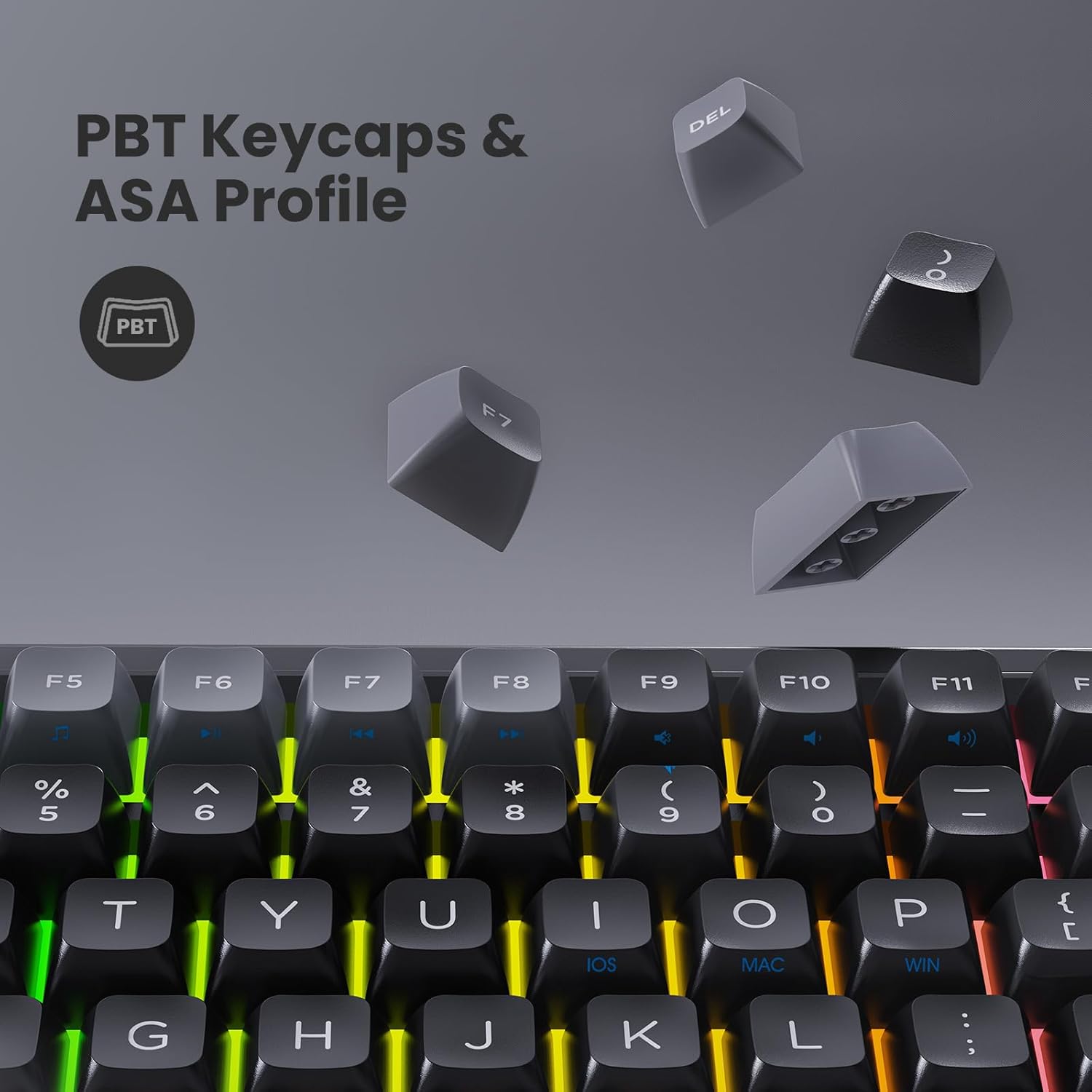
- Double Shot PBT Keycaps & ASA Profile: Durable keycaps designed to prevent long-term grime buildup.
- Double Kick-up Feet: Provides 3 tilt angles for ergonomic comfort.
- Full Keys Anti-Ghosting (N-Key Rollover): Ensures all key presses are registered accurately, even during rapid typing or gaming.
- Specially Tuned Stabilizers: For consistent and smooth key presses on larger keys.



4. Setup Guide
4.1. Charging the Keyboard
Before first use, it is recommended to fully charge the keyboard. Connect the coiled USB Type-C cable to the keyboard's port and the other end to a USB power source (e.g., computer USB port, wall adapter). The TFT LCD will indicate charging status.

4.2. Connection Modes
The L98 keyboard supports three connection modes: Wired, 2.4GHz Wireless, and Bluetooth.
- Wired Connection:
Connect the provided USB Type-C cable directly from the keyboard to your computer's USB port. The keyboard will automatically switch to wired mode.
- 2.4GHz Wireless Connection:
Locate the 2.4GHz USB receiver (dongle) usually stored in a slot on the keyboard. Plug the receiver into an available USB port on your computer. Slide the mode switch on the keyboard to the "2.4G" position. The keyboard should connect automatically.
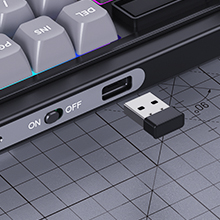
Figure 11: USB 2.4G receiver and mode switch. - Bluetooth Connection:
Slide the mode switch on the keyboard to the "BT" position. The keyboard supports up to 3 Bluetooth channels (BT1, BT2, BT3). To pair, press and hold Fn + Q (for BT1), Fn + W (for BT2), or Fn + E (for BT3) until the indicator light flashes rapidly. On your device (PC, tablet, smartphone), go to Bluetooth settings and select "ROYALAXE L98" to pair. Once connected, the indicator light will stop flashing.
4.3. System Compatibility
The keyboard supports both Windows and macOS systems. Use the dedicated switch or key combination (refer to quick guide) to toggle between WIN and MAC layouts if necessary.
5. Operating Instructions
5.1. Basic Keyboard Functions
The L98 keyboard functions as a standard 98-key layout keyboard. All keys are anti-ghosting with N-Key Rollover for accurate input.
5.2. RGB Lighting Control
The keyboard features 22 preset RGB lighting modes. Use the following key combinations to control the lighting:
- Fn + \ |: Cycle through RGB lighting effects.
- Fn + ↑: Increase brightness.
- Fn + ↓: Decrease brightness.
- Fn + ←: Decrease lighting speed.
- Fn + →: Increase lighting speed.
- Fn + Del: Switch between monochromatic colors (if applicable to the current mode).
5.3. TFT LCD Customization
The 1.14" TFT LCD can display custom images or GIF animations. To utilize this feature, download the official driver software from the ROYALAXE website. The software allows you to upload and manage content for the LCD screen.
Note: "Music Follow" mode for RGB lighting is unavailable in MAC system.
5.4. Hot-Swapping Switches
The L98 keyboard is hot-swappable, allowing you to change mechanical switches without soldering. Use the included switch puller to carefully remove existing switches and insert new 5-pin compatible switches. Ensure the pins are aligned correctly before pressing down firmly.
5.5. Changing Keycaps
Use the included keycap puller to gently remove keycaps. Align new keycaps with the switch stem and press down firmly until seated. The keyboard comes with 8 spare keycaps for customization.
6. Maintenance
- Cleaning: Regularly clean the keyboard with a soft, dry cloth. For deeper cleaning, remove keycaps and use compressed air to clear dust and debris from between switches.
- Battery Care: To prolong battery life, avoid fully discharging the keyboard frequently. Store in a cool, dry place when not in use for extended periods.
- Switch and Keycap Handling: When hot-swapping switches or changing keycaps, apply gentle, even pressure to avoid damaging the switch pins or keycap stems.
- Dust Cover: Use the provided dust cover when the keyboard is not in use to prevent dust accumulation.
7. Troubleshooting
| Problem | Possible Cause | Solution |
|---|---|---|
| Keyboard not responding (Wireless) | Low battery; Incorrect mode selected; USB receiver not connected; Bluetooth not paired. | Charge the keyboard; Ensure mode switch is set to 2.4G or BT; Plug in USB receiver securely; Re-pair Bluetooth device. |
| Keys not registering or double-typing | Dust/debris under keycap/switch; Faulty switch. | Clean under keycaps; Replace the affected switch using the hot-swap feature. |
| RGB lighting not working | Lighting turned off; Low battery; Software issue. | Check lighting controls (Fn + keys); Charge keyboard; Reinstall driver software. |
| TFT LCD not displaying correctly | Software issue; Incorrect settings. | Ensure driver software is installed and updated; Check display settings within the software. |
| Bluetooth connection unstable | Interference; Distance from device; Multiple devices connected. | Move closer to the device; Ensure no other strong wireless signals are interfering; Disconnect other Bluetooth devices. |
8. Specifications
| Feature | Detail |
|---|---|
| Model Number | L98 |
| Connectivity Technology | Bluetooth, 2.4G, USB-C |
| Switches | Gateron G Pro Yellow |
| Number of Keys | 98 |
| Battery Capacity | 6000 mAh |
| Lighting | RGB (22 modes) |
| Keycap Material | PBT |
| Keycap Profile | ASA |
| Product Dimensions | 15.8 x 5.9 x 1.4 inches |
| Item Weight | 2.5 pounds |
| Compatible Systems | Windows, Mac, Android, iOS |
9. Warranty and Support
ROYALAXE products are designed and manufactured to the highest quality standards. For information regarding warranty coverage, technical support, or to download the latest drivers and software, please visit the official ROYALAXE website or contact customer service.
Official ROYALAXE Store: ROYALAXE Store on Amazon
Related documentsL98


Ask a question about this manual
Ask about setup, troubleshooting, compatibility, parts, safety, or missing instructions. Manuals+ will review the question and use this page’s manual context to help answer it.