
Bmax I9 Plus
BMAX I9 Plus 10-inch Wi-Fi Tablet User Manual
Model: I9 Plus | Brand: Bmax
Introduction
This manual provides essential information for the safe and efficient operation of your BMAX I9 Plus 10-inch Wi-Fi Tablet. Please read it thoroughly before using the device and keep it for future reference.
Safety Information
Observe the following safety precautions to prevent damage to the device or injury to yourself:
- Do not expose the tablet to extreme temperatures, direct sunlight, or high humidity.
- Avoid dropping or subjecting the tablet to strong impacts.
- Use only the provided charger and accessories.
- Do not attempt to disassemble or repair the tablet yourself.
- Keep the tablet away from water and other liquids.
- Ensure proper ventilation when using the tablet for extended periods.
Package Contents
Verify that all items are present in your package:
- BMAX I9 Plus 10-inch Wi-Fi Tablet
- AC Adapter (PSE Certified)
- USB Cable
- User Manual (this document)
Video: Unboxing the BMAX I9 Plus tablet and its accessories. This video demonstrates the contents of the product package.
Product Overview
Familiarize yourself with the physical components of your tablet:

Image: The image above illustrates the various ports and buttons on the BMAX I9 Plus tablet, including the rear camera, front camera, 3.5mm audio jack, volume controls, power button, microphone, USB-C port, and Micro SD/SIM slot.
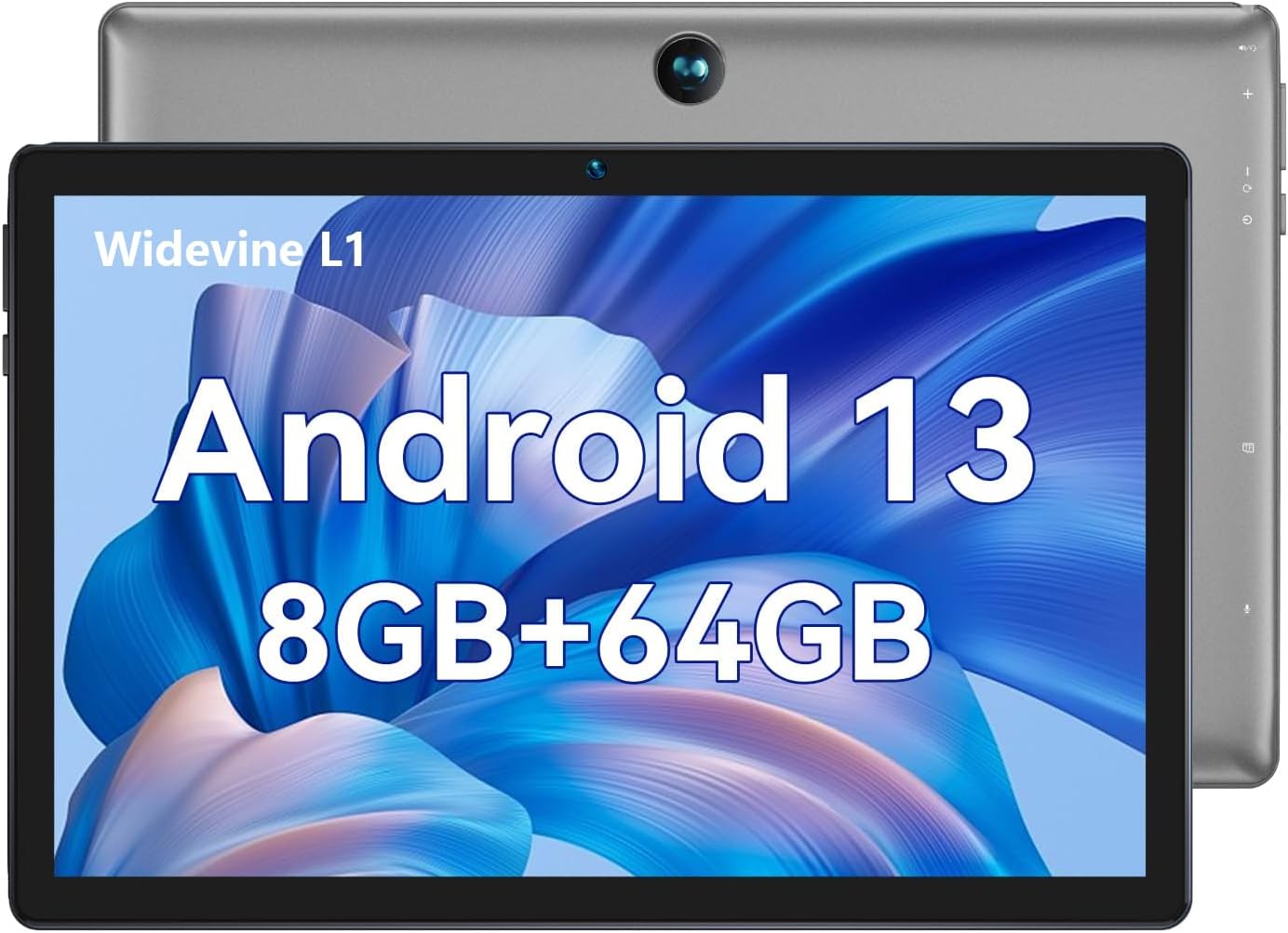
Image: The BMAX I9 Plus tablet features a 10-inch display and runs on Android 13, offering 8GB RAM and 64GB internal storage.
Setup
1. Initial Charging
Before first use, fully charge the tablet using the provided AC adapter and USB cable. The charging indicator will show progress.
2. Power On/Off
To power on, press and hold the Power button until the BMAX logo appears. To power off, press and hold the Power button, then select 'Power off' from the options.
3. Language Selection
During the initial setup, you will be prompted to select your preferred language. You can change the language later in the system settings.
Video: This video demonstrates the procedure for changing the language settings on the tablet.
4. Wi-Fi Connection
Navigate to Settings > Network & Internet > Internet to connect to a Wi-Fi network. Select your desired network and enter the password if required.
Operating Instructions
Android 13 Features
Your BMAX I9 Plus tablet runs on the latest Android 13 operating system, offering an intuitive user interface and enhanced privacy features. Access all your favorite apps from the pre-installed Google Play Store.

Image: The Android 13 operating system provides a secure and smart interaction method for your device, including access to the Google Play Store.
Split Screen Functionality
The tablet supports split-screen mode, allowing you to use two applications simultaneously for improved multitasking.
Video: This video illustrates the steps to activate and use the split-screen feature on the tablet.
Storage Management
The tablet comes with 64GB of internal storage. You can expand this by up to 1TB using a MicroSD card (sold separately).

Image: The tablet offers ample storage with 8GB (4GB+4GB expandable) RAM, 64GB ROM, and supports up to 1TB MicroSD card expansion, running on Android 13.
Display and Visuals
The 10-inch IPS display with 1280*800 resolution provides wide viewing angles and vibrant colors. It supports Widevine L1 for high-definition video streaming.
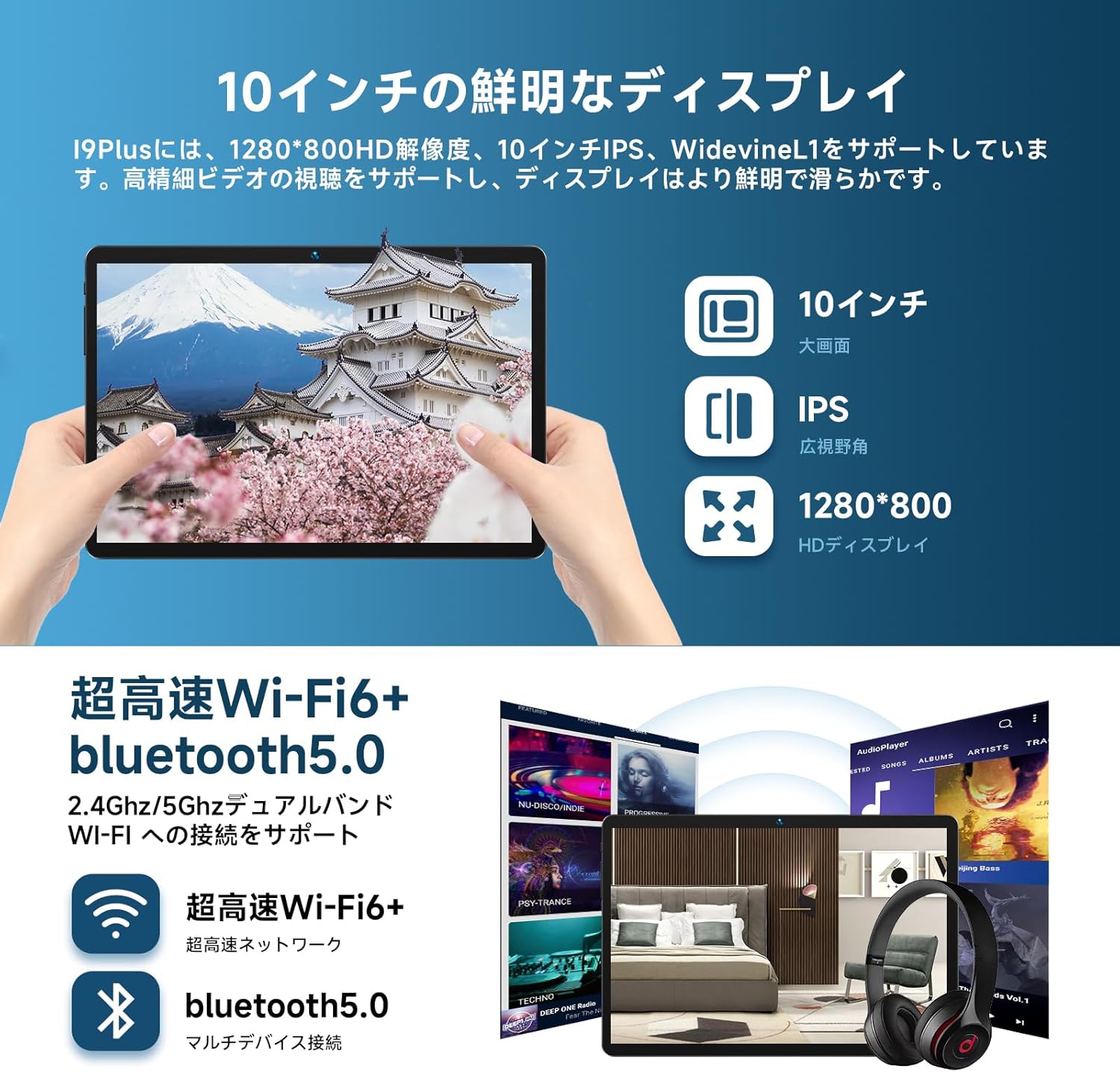
Image: Experience clear and vibrant visuals on the 10-inch IPS HD display with 1280x800 resolution, supporting Widevine L1 for high-quality streaming.
Camera Functionality
The tablet is equipped with a 5MP rear camera and a 2MP front camera for capturing photos and video calls.

Image: The I9 Plus tablet features a 5MP rear camera and a 2MP front camera, suitable for various photography and video conferencing needs.
Connectivity
The tablet supports 2.4GHz/5GHz Wi-Fi and Bluetooth 5.0 for fast and stable wireless connections.

Image: Enjoy ultra-fast Wi-Fi 6 and stable Bluetooth 5.0 connectivity for seamless internet browsing and peripheral device pairing.
Maintenance
Battery Care
To prolong battery life, avoid fully discharging the tablet frequently. Charge it regularly, and if storing for a long period, ensure it has at least 50% charge.
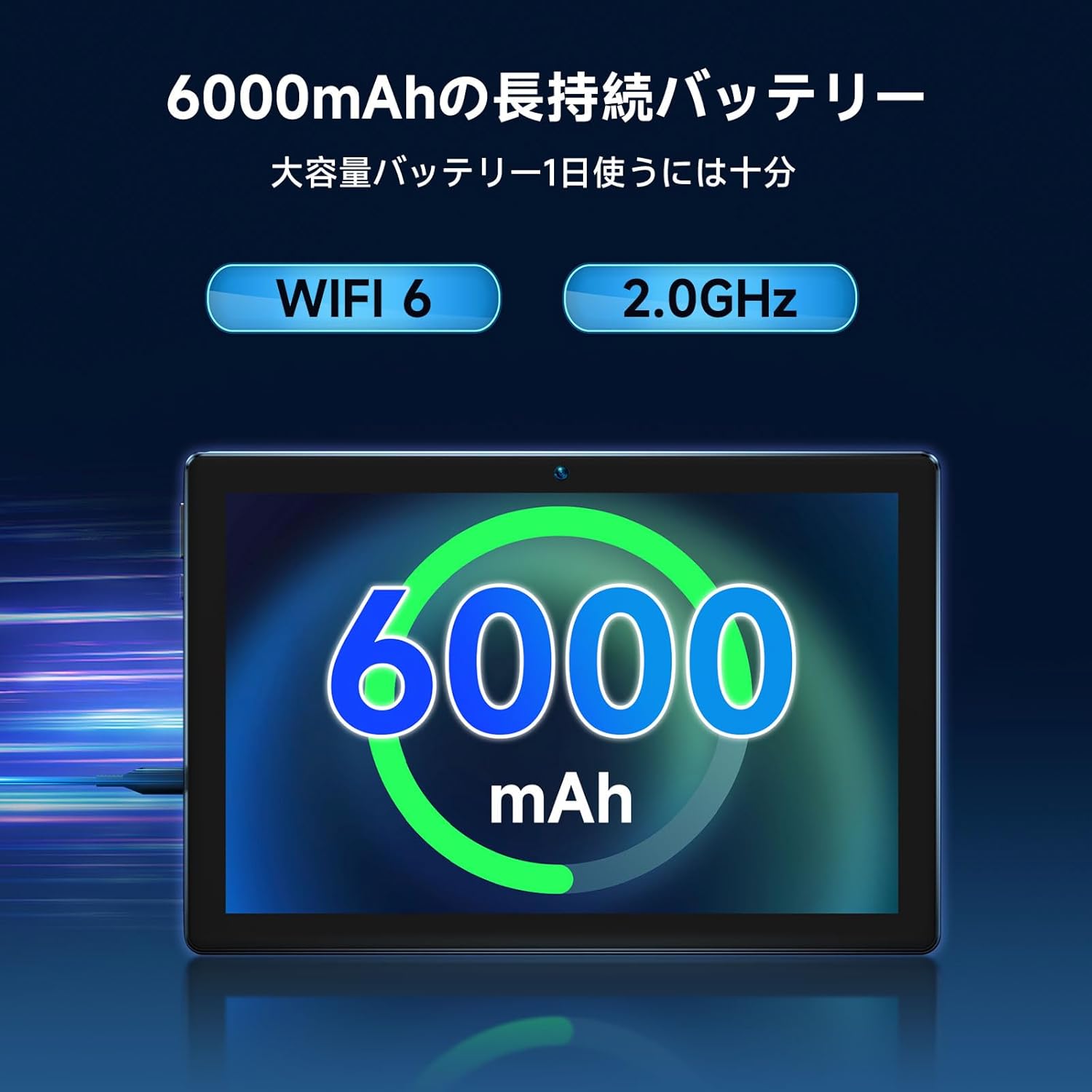
Image: The tablet is equipped with a large 6000mAh battery, providing extended usage time for videos, music, and games.
Cleaning
Use a soft, lint-free cloth to clean the screen and body of the tablet. Do not use abrasive cleaners or solvents.
Troubleshooting
Common Issues and Solutions
Tablet not turning on:
- Ensure the tablet is charged. Connect the charger and wait a few minutes before attempting to power on again.
Wi-Fi connection issues:
- Check if Wi-Fi is enabled in settings.
- Restart your Wi-Fi router.
- Forget the network and reconnect.
Slow performance:
- Close unused applications.
- Clear cache and data for frequently used apps.
- Consider performing a factory reset if issues persist (backup data first).
Specifications
| Feature | Specification |
|---|---|
| Brand | Bmax |
| Model Name | I9 Plus |
| Operating System | Android 13 |
| CPU Brand | Rockchip |
| CPU Speed | 2 GHz |
| RAM Capacity | 8 GB |
| Memory Storage Capacity | 64 GB |
| Screen Size | 10.1 inches |
| Display Resolution | 1280x800 pixels |
| Front Camera Resolution | 2 MP |
| Connectivity | Bluetooth, Wi-Fi |
| Item Weight | 830 g |
| Package Dimensions | 33.7 x 20.3 x 3.4 cm |
Warranty and Support
Your BMAX I9 Plus tablet comes with a 30-day refund policy and a 12-month warranty from the date of purchase. The included AC adapter is PSE certified for safety.
For any issues or inquiries, please contact BMAX customer support. You can typically find contact information by clicking on the seller name in your order details and selecting the "Ask a question" button.
Customer support is generally available from 10:00 AM to 7:00 PM (excluding weekends and manufacturer holidays). Responses are usually provided within 24 hours, or within 48 hours on holidays.
Note: On Android 13 products, tapping the power button by default jumps to Google Chrome. If this service is not needed, you can change it in System > Gestures > Press and hold power button > Power menu normal use.
Related documentsI9 Plus

Ask a question about this manual
Ask about setup, troubleshooting, compatibility, parts, safety, or missing instructions. Manuals+ will review the question and use this page’s manual context to help answer it.