
Fujitsu U9313X
Fujitsu LIFEBOOK U9313X User Manual
Model: U9313X (VFY:U9X13MF5DMDE)
Introduction
This manual provides essential information for setting up, operating, maintaining, and troubleshooting your Fujitsu LIFEBOOK U9313X convertible tablet. Please read this manual thoroughly before using the device to ensure proper functionality and longevity.
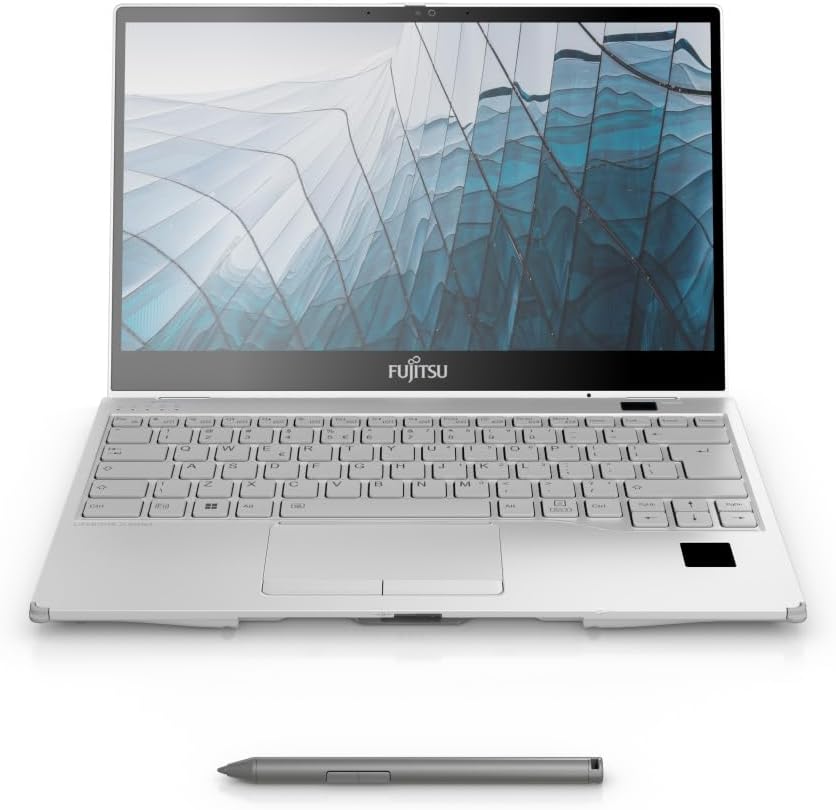
Figure 1: Fujitsu LIFEBOOK U9313X in laptop configuration with its accompanying stylus.
Setup
1. Unpacking and Initial Inspection
Carefully remove all components from the packaging. Verify that all items listed below are present and undamaged:
- Fujitsu LIFEBOOK U9313X convertible tablet
- AC Adapter and Power Cord
- Stylus (if included with your model)
- Quick Start Guide (separate document)
If any items are missing or damaged, contact your vendor immediately.
2. Connecting to Power
Connect the AC adapter to the power input port on the device and then plug the power cord into a wall outlet. The device can be used while charging.
3. First Boot and Windows Setup
Press the power button to turn on the device. Follow the on-screen instructions to complete the Windows 11 Pro setup process. This includes selecting your region, language, connecting to a Wi-Fi network, and creating a user account.

Figure 2: Rear view of the LIFEBOOK U9313X, highlighting various ports for connectivity.
Operating the Device
1. Power On/Off and Sleep Mode
- Power On: Press the power button located on the side of the device.
- Power Off: Click the Start button in Windows, then select Power > Shut down.
- Sleep Mode: Close the lid or click the Start button, then select Power > Sleep.
2. Convertible Modes
The LIFEBOOK U9313X features a 360° hinge, allowing it to be used in multiple modes:
- Laptop Mode: Traditional laptop configuration for typing and general use.
- Tent Mode: Fold the display back to form a "tent" shape, ideal for presentations or media consumption.
- Stand Mode: Fold the display back with the keyboard facing down, suitable for touch interaction.
- Tablet Mode: Fold the display completely back against the base, transforming it into a tablet.

Figure 3: The LIFEBOOK U9313X configured in tent mode, suitable for viewing content.
3. Using the Stylus
The included stylus can be used for precise input on the touchscreen. It supports inductive charging when stored in its dedicated compartment. Ensure the stylus is properly seated in the compartment to charge.
4. Security Features (PalmSecure & IR Hello)
Your device is equipped with advanced biometric security:
- PalmSecure: For highly secure palm vein authentication. Follow the on-screen instructions in Windows Settings to enroll your palm.
- IR Hello: Infrared camera for Windows Hello facial recognition. Set up your face in Windows Settings for quick and secure login.
Maintenance
1. Cleaning the Device
- Screen: Use a soft, lint-free cloth slightly dampened with water or a screen cleaner. Do not spray liquid directly onto the screen.
- Chassis: Wipe with a soft, dry cloth. Avoid abrasive cleaners.
- Ports: Keep ports free of dust and debris. Use compressed air if necessary, but do so gently.
2. Battery Care
To maximize battery life:
- Avoid extreme temperatures.
- Do not fully discharge the battery frequently.
- If storing the device for an extended period, charge the battery to about 50% before storage.
3. Software Updates
Regularly check for and install Windows updates and Fujitsu driver updates to ensure optimal performance and security. Access Windows updates via Settings > Windows Update.
Troubleshooting
| Problem | Possible Cause | Solution |
|---|---|---|
| Device does not power on. | Low battery or power adapter issue. | Ensure AC adapter is securely connected and wall outlet is functional. Allow device to charge for at least 15 minutes before attempting to power on again. |
| Wi-Fi connection issues. | Incorrect Wi-Fi password, router issue, or driver problem. | Verify Wi-Fi password. Restart your router. Check Device Manager for Wi-Fi adapter driver status. |
| Touchscreen unresponsive. | Software glitch or driver issue. | Restart the device. Check for touchscreen driver updates in Device Manager. |
| Stylus not working. | Low stylus battery or connection issue. | Ensure stylus is fully charged by placing it in its compartment. Restart the device. |
For further assistance, refer to the Fujitsu support website or contact customer service.
Specifications
| Feature | Detail |
|---|---|
| Model Name | Fujitsu LIFEBOOK U9313X |
| Model Number | VFY:U9X13MF5DMDE |
| Operating System | Windows 11 Pro |
| Processor | Intel Core i5 (13th Gen), 2.8 GHz (up to 4.6 GHz) |
| RAM | 16 GB (Max 32 GB) |
| Storage | 512 GB SSD (Thunderbolt interface) |
| Display | 13.3-inch FHD (1920 x 1080 pixels) LCD Touchscreen |
| Graphics | Intel Iris Xe Graphics |
| Wireless Connectivity | Wi-Fi 802.11ax, Bluetooth 5 |
| Ports | HDMI (1), Ethernet (1), Thunderbolt 4, USB 3.2 Gen 1 |
| Battery Life | Up to 14 hours |
| Dimensions (L x W x H) | 30.9 x 20.9 x 1.7 cm (12.17 x 8.23 x 0.67 inches) |
| Weight | 990 grams (2.18 lbs) |
| Special Features | Infrared Camera, PalmSecure Sensor, SmartCard Reader |
Warranty and Support
Fujitsu provides support for its products. For detailed warranty information, please refer to the warranty card included with your purchase or visit the official Fujitsu support website. Information regarding spare parts availability and guaranteed software updates is not explicitly provided in this manual.
For technical assistance, driver downloads, or service requests, please visit the official Fujitsu support portal:
Related documentsU9313X


Ask a question about this manual
Ask about setup, troubleshooting, compatibility, parts, safety, or missing instructions. Manuals+ will review the question and use this page’s manual context to help answer it.