
1. Product Overview
The MiLESEEY TNV256i is a compact thermal imaging camera designed to connect directly to your Android smartphone via USB-C. It transforms your smartphone into a powerful thermal imager, allowing you to visualize heat signatures and temperature differences in various environments. Ideal for outdoor observation, home inspections, and general thermal analysis.
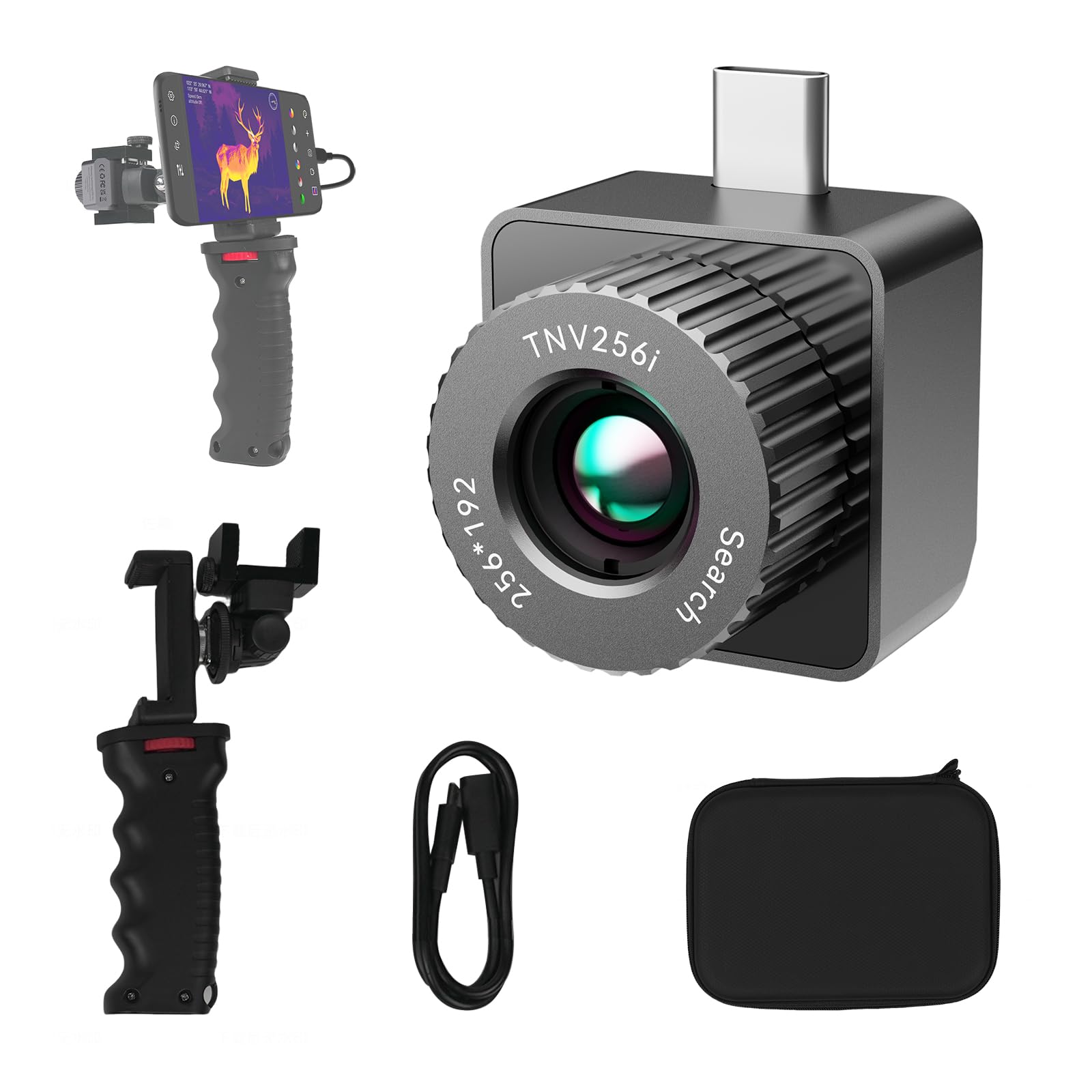
Image: MiLESEEY TNV256i Thermal Imaging Camera connected to an Android smartphone via a handheld bracket, ready for use.
2. What's in the Box
- Thermal imaging camera body (MiLESEEY TNV256i)
- Hard handheld bracket
- User Manual
3. Setup Guide
3.1. App Installation
- Locate the QR code in the included User Manual or search for "Mileseey thermal eyes" on the Google Play Store.
- Download and install the "Mileseey thermal eyes" application on your Android smartphone.
- Grant necessary permissions (e.g., camera access, storage) when prompted by the app.
3.2. Device Connection
- Ensure your Android smartphone has a USB-C port.
- Carefully plug the MiLESEEY TNV256i thermal imaging camera into your smartphone's USB-C port.
- Open the "Mileseey thermal eyes" app. The app should automatically detect and connect to the thermal camera.
- For optimal stability and handling, attach the thermal camera and smartphone to the provided hard handheld bracket.

Image: The MiLESEEY TNV256i thermal camera connected to an Android phone, secured in a handheld bracket for stable operation.
3.3. Initial Warm-up
Due to volume limits, the TNV256i needs to stabilize its temperature for the first 3-5 minutes. The screen may flicker during this period. This is normal operation.
3.4. Instructional Videos
Video: An introduction to the T-Recon Scout (MiLESEEY TNV256i), demonstrating its features and connectivity with a smartphone.
Video: A brief overview of the MiLESEEY T-Recon Scout TNV256i, highlighting its design and basic functionality.
4. Operating Instructions
4.1. Navigating the App Interface
The "Mileseey thermal eyes" app provides a user-friendly interface to control the TNV256i. Key functions are accessible via on-screen icons.

Image: The app interface showing controls for settings, information, advanced setup, temperature display, color palette, hotspot tracking, photo capture, video recording, and photo album.
4.2. Thermal Detection and Range
The TNV256i allows detection of heat sources at significant distances. For instance, it can spot objects like deer up to 400+ yards at night, with a detection range of up to 680 yards for 6-foot objects.

Image: A chart illustrating the detection and identification ranges for various objects, such as humans, deer, rabbits, and birds, using the thermal imager.
4.3. Color Palettes
Switch between various color modes to optimize contrast and detail for different scenarios. Common palettes include Iron, Rainbow, White Hot, Black Hot, Red Hot, and Cold Green.

Image: A visual representation of different color palettes available in the app, demonstrating how they alter the thermal display for enhanced visibility.
4.4. Capturing Images and Videos
Use the dedicated buttons within the app to capture still thermal images or record thermal videos. These can be saved directly to your smartphone's gallery.
4.5. Hotspot Tracking
The device features hotspot tracking, which helps identify and highlight the hottest points within the thermal view, useful for quickly locating areas of interest.
5. Maintenance
To ensure the longevity and optimal performance of your MiLESEEY TNV256i, follow these maintenance guidelines:
- Cleaning: Gently wipe the lens and device body with a soft, dry, lint-free cloth. Avoid abrasive materials or harsh chemicals.
- Storage: Store the device in its provided carrying case when not in use to protect it from dust, moisture, and physical damage.
- Temperature: Avoid exposing the device to extreme temperatures or direct sunlight for prolonged periods.
6. Troubleshooting
- Device not connecting: Ensure the "Mileseey thermal eyes" app is installed and all necessary permissions are granted. Try unplugging and re-plugging the device. Restart your smartphone if the issue persists.
- Screen flickering during startup: This is normal during the initial 3-5 minute warm-up period as the device stabilizes its temperature.
- Inaccurate temperature readings: Ensure the device lens is clean. Check the emissivity settings within the app, as different surfaces have different emissivities.
- App not found on Google Play Store: Verify the spelling "Mileseey thermal eyes". If still not found, contact customer support for alternative download methods.
7. Specifications
| Feature | Detail |
|---|---|
| Brand | MiLESEEY |
| Model Name | TNV256i |
| Resolution | 256x192 |
| Objective Lens Diameter | 10 Millimeters |
| Focal Length | 10 millimeters |
| Compatible Devices | Android Type-C Phones |
| Field Of View | 700 Yards (detection range) |
| Focus Type | Fixed Focus |
8. Warranty and Support
8.1. Warranty Information
The MiLESEEY TNV256i Thermal Imaging Camera comes with a 2-year warranty. Please refer to the product packaging or contact customer support for full warranty terms and conditions.
8.2. Customer Support
For any questions, technical assistance, or warranty claims, please contact MiLESEEY customer support through the following channels:
- Amazon Product Page: Visit the MiLESEEY TNV256i product page for FAQs and seller contact information.
- MiLESEEY Store: Explore the official MiLESEEY Amazon store for additional resources.


