
1. Product Overview
The Lemorele 12-in-2 USB-C Docking Station is designed to expand the connectivity of your MacBook Pro or Air, transforming it into a powerful workstation. This docking station provides multiple ports for video output, data transfer, network connectivity, and power delivery.
Package Contents:
- 1x Lemorele 12-in-2 USB-C Docking Station
- 1x 150W Power Adapter
- 1x Power Cable

Image: The Lemorele 12-in-2 USB-C Docking Station, 150W power adapter, and power cable, as found in the product packaging.
2. Key Features
- 12-in-2 Connectivity: 2x HDMI 2.0, 1x 18W PD USB-C 3.0, 1x USB-C 3.0, 4x USB-A 3.0, 1x SD card slot, 1x microSD (TF) card slot, 1x 3.5mm audio jack, 1x Gigabit Ethernet.
- Dual Extended Displays: Supports up to 4K@60Hz resolution on compatible MacBook models.
- Fast Charging: Delivers up to 96W power to charge your MacBook Pro/Air and 18W PD 3.0 for other devices.
- High-Speed Data Transfer: USB-C and USB-A ports support up to 5Gbps. SD/TF slots support up to 104 MB/s.
- Gigabit Ethernet: Provides a stable and fast wired internet connection up to 1000Mbps.
- Plug and Play: No external drivers required for most functions.
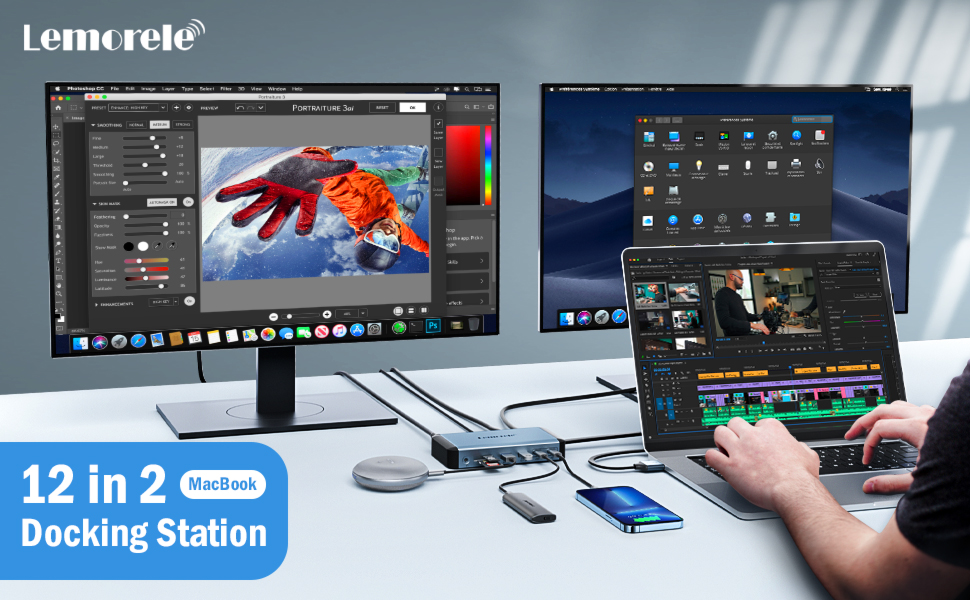
Image: An illustration highlighting the various ports available on the 12-in-2 MacBook docking station, including Power In, USB-A 3.0 (x4), Gigabit Ethernet, HDMI (x2), 18W PD 3.0, USB-C 3.0, SD/TF 3.0 Slot, and 3.5mm Audio.
3. Setup Instructions
- Connect Power Adapter: Plug the 150W power adapter into the DC IN 20V port on the docking station, then connect the power adapter to a wall outlet.
- Connect to MacBook: Connect the integrated dual USB-C cable from the docking station to the two USB-C/Thunderbolt ports on your MacBook Pro/Air.
- Connect Peripherals:
- Displays: Connect your external monitors to the HDMI 1 and HDMI 2 ports using HDMI to HDMI cables.
- USB Devices: Plug USB-A devices (e.g., keyboard, mouse, external hard drives) into the USB-A 3.0 ports.
- USB-C Devices: Connect USB-C devices to the USB-C 3.0 ports. Note that USB-C ports on the docking station are for data transfer and charging, not video display.
- SD/TF Cards: Insert SD or microSD (TF) cards into the respective slots for data transfer.
- Ethernet: Connect an Ethernet cable from your router/modem to the RJ45 Gigabit Ethernet port. Ensure your RJ45 Ethernet driver is updated for proper network function.
- Audio: Connect headphones or speakers to the 3.5mm audio jack.

Image: A setup showing the Lemorele docking station connected to a MacBook, an external monitor, a keyboard, and a mouse, illustrating a typical workstation configuration.
4. Operating Instructions
4.1 Display Configuration
The docking station supports dual extended displays. The performance varies based on your MacBook model:
- For 15-inch MacBook Pro (2019/2018/2017), 16-inch MacBook Pro (2021/2019), or MacBook 2020 Intel Series: Supports dual 4K@60Hz extended displays.
- For 14-inch MacBook Pro (2021), 15-inch MacBook Pro (2016), 13-inch MacBook Pro (2019/2018/2017/2016), 13-inch MacBook Air (2019/2018): The first 4K display will have a refresh rate of 60Hz, while the second will refresh at 30Hz.
- For 2020 M1/2022 M2 MacBook Series: Due to functional limitations of the M1/M2 chip, these models support only one external display.
To configure your displays, go to System Settings > Displays on your MacBook. You can arrange displays, set resolutions, and choose between extended or mirrored modes.

Image: An illustration demonstrating a MacBook connected to two external monitors via the docking station, achieving dual 4K extended display mode.
4.2 Data Transfer
The docking station offers multiple ports for high-speed data transfer:
- USB-A 3.0 and USB-C 3.0 Ports: Transfer data at speeds up to 5Gbps.
- SD/TF Card Slots: Read data simultaneously and transfer files at speeds up to 104 MB/s.

Image: A visual representation of super fast data transmission through the USB-A 3.0 and USB-C 3.0 ports on the docking station, indicating speeds up to 5Gbps.

Image: A close-up of the SD and TF card slots on the docking station, demonstrating their use for transferring files at speeds up to 104 MB/s.
4.3 Power Delivery
The docking station shares 150W input power. It can deliver up to 96W to charge your MacBook Pro/Air and provides 18W PD 3.0 via one USB-C port for fast charging of other compatible devices like smartphones.

Image: The docking station connected to a MacBook and an iPhone, illustrating its 150W input power capability to charge the MacBook at 96W and the iPhone at 18W.
4.4 Gigabit Ethernet
The RJ45 Gigabit Ethernet port provides a stable and faster wired internet connection, supporting speeds up to 1000Mbps. This is ideal for activities requiring a reliable network connection such as online meetings, streaming, and large file transfers.

Image: A close-up of an Ethernet cable plugged into the Gigabit Ethernet port of the docking station, emphasizing fast and stable network connectivity.
4.5 Audio Port
The 3.5mm audio jack allows you to connect headphones, speakers, or other audio devices for a private or enhanced audio experience.
5. Compatibility
5.1 Compatible Devices (MacBook Models)
- Single Display:
- 13-inch MacBook Pro M2 2022
- 13-inch MacBook Air M1 2020
- Note: Only supports one external monitor due to functional limitations of M1/M2 chips.
- Dual Display:
- 16-inch MacBook Pro (2019 & 2021)
- 14-inch MacBook Pro (2021)
- 15/13-inch MacBook Pro (2016 and later)
- 16-inch MacBook Air (2019 & 2021)
- 13-inch MacBook Air (2018 and later)
- Mac Mini (2018 and Later)
5.2 Incompatible Devices
- MacBook Pro/Air (2015 and before)
- Mac mini (2017 and before)
- iMac
- Mac Pro
- Linux systems are not supported.
5.3 Compatible Operating Systems
- Mac OS Sierra 10.12 and later.

Image: A detailed chart outlining compatible and incompatible MacBook models and operating systems for the docking station, distinguishing between single and dual display support.
6. Specifications
| Feature | Detail |
|---|---|
| Model Number | TC73L |
| Product Dimensions | 5.67 x 3.04 x 0.98 inches |
| Item Weight | 1.84 pounds |
| Color | Sliver |
| Hardware Interface | 3.5mm Audio, Ethernet, HDMI, USB 3.0, USB-C |
| Special Features | Fast Charging, Plug and Play |
| Power Input | 150W (shared) |
| MacBook Charging | Up to 96W |
| PD 3.0 USB-C Port | 18W |
| USB Data Transfer Speed | Up to 5Gbps |
| SD/TF Data Transfer Speed | Up to 104 MB/s |
| Ethernet Speed | Up to 1000Mbps (Gigabit) |
7. Troubleshooting
- No Display/Flickering Display:
- Ensure you are using HDMI to HDMI cables. HDMI converters may cause issues.
- Verify your MacBook model's display capabilities (e.g., M1/M2 chips support only one external display).
- Check all cable connections, ensuring they are secure.
- Restart your MacBook and reconnect the docking station.
- If using a 4K display, note that some older MacBook models may only support 30Hz on the second 4K display.
- Ethernet Not Working:
- Ensure you have updated the latest RJ45 Ethernet driver for your operating system.
- Verify the Ethernet cable is securely connected to both the docking station and your network source.
- Slow Data Transfer/USB Devices Not Recognized:
- Ensure the docking station is properly powered.
- Try connecting the device to a different USB port on the docking station.
- Some high-power USB devices may require direct connection to your MacBook or an externally powered USB hub.
- Charging Issues:
- Confirm the 150W power adapter is correctly connected and receiving power.
- Ensure your MacBook is compatible with USB-C Power Delivery.
- Note that the 18W PD 3.0 USB-C port is for charging other devices, not for powering the MacBook itself beyond the main PD input.
- Docking Station Not Recognized by MacBook:
- Ensure the dual USB-C cable is fully inserted into both MacBook ports.
- Restart your MacBook.
- Verify your MacBook's operating system is Mac OS Sierra 10.12 or later.
8. Warranty and Support
The Lemorele 12-in-2 dual 4K HDMI monitors display Mac docking station comes with a 12-month warranty.
For any questions or issues, please contact customer service. They aim to respond within 24 hours during weekdays. If you encounter any problems with the dock, a replacement will be provided.
Contact information for support can typically be found on the product packaging or the official Lemorele website.