1. Introduction
This manual provides essential information for setting up, operating, and maintaining your Acer Aspire 3 15.6" FHD Laptop. Designed for practical multitasking and productivity, this laptop is equipped with an AMD Ryzen 3 7320U processor and AMD Radeon Graphics, running on Windows 11 Home in S Mode. Please read this guide thoroughly to ensure optimal performance and longevity of your device.
2. Setup
2.1. Initial Power-On
To begin, connect the laptop to a power source using the provided AC adapter. Open the laptop lid and press the power button, typically located on the top-right of the keyboard or on the side. The laptop will initiate the boot process.
2.2. Windows 11 Home in S Mode Configuration
Follow the on-screen prompts to complete the initial setup of Windows 11 Home in S Mode. This includes selecting your region, connecting to a Wi-Fi network, and creating a user account. Windows 11 in S Mode is designed for security and performance, exclusively running apps from the Microsoft Store.
3. Key Features
3.1. Display
The Acer Aspire 3 features a 15.6-inch Full HD (1920 x 1080) display with a 60 Hz refresh rate and narrow bezels, providing clear and crisp visuals for various tasks.

Image: The laptop's 15.6-inch Full HD IPS display, highlighting its 1920x1080 resolution.
3.2. Processor & Graphics
Powered by a Quad-core AMD Ryzen 3 7320U processor with integrated AMD Radeon Graphics, the laptop is capable of handling everyday computing needs and multitasking efficiently.
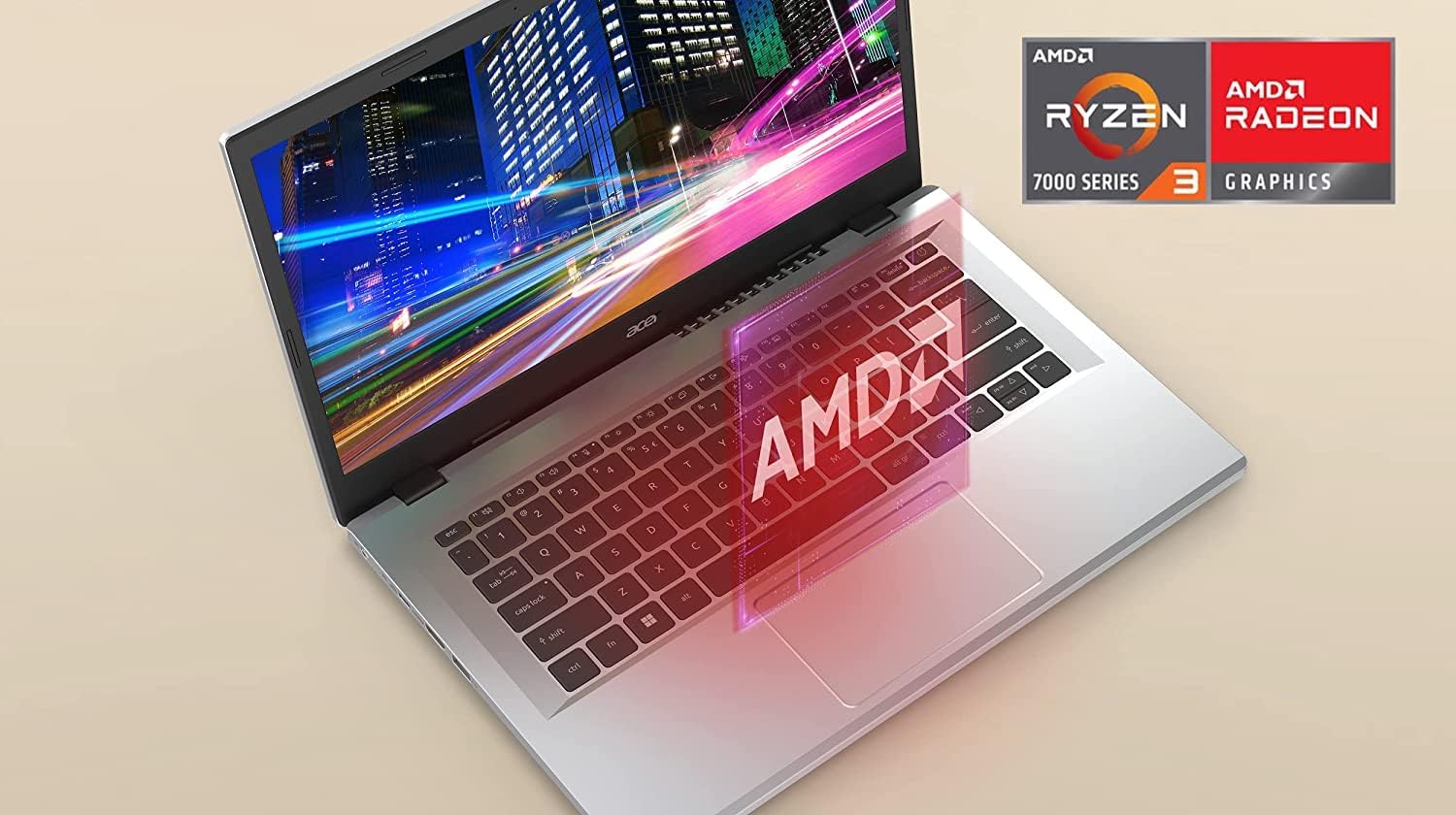
Image: Close-up of the laptop's palm rest, showing the AMD Ryzen 3 7000 Series and AMD Radeon Graphics branding.
3.3. Memory & Storage
The laptop comes with 8GB of LPDDR5 RAM and a 256GB PCIe SSD, offering fast boot times and responsive performance. Note: The original seal may be opened for SSD upgrades, which come with a 1-year standard warranty.
3.4. Connectivity
Maintain a strong and consistent wireless signal with Wi-Fi 6 (802.11ax) and 2x2 MU-MIMO technology. The laptop also features a comprehensive selection of ports:
- 1 x USB Type-C Port (USB 3.2 Gen 2, up to 10 Gbps, DisplayPort over USB Type-C & USB Charging)
- 2 x USB 3.2 Gen 1 Ports
- 1 x HDMI 2.1 Port with HDCP support
- 1 x Headphone/Speaker/Line-Out Jack
- DC-in for AC adapter

Image: Side profile of the laptop, illustrating the available ports for external connections.

Image: The Wi-Fi 6 Certified logo, emphasizing the laptop's advanced wireless capabilities.
3.5. Battery Life & Thermal Performance
The laptop is designed for extended use with good battery life. It also features improved thermals with an increased fan surface area, contributing to efficient operation and potentially longer battery duration.

Image: An internal view of the laptop's cooling system, illustrating the improved thermal design.
3.6. Physical Design
Weighing approximately 4 pounds and with dimensions of 14.29 x 9.35 x 0.74 inches, the Acer Aspire 3 is a lightweight and portable device.

Image: A full front view of the Acer Aspire 3 laptop, showcasing its overall design.
4. Operating Instructions
4.1. Keyboard and Touchpad
The laptop features a full-size keyboard with a numeric keypad for efficient data entry. The large touchpad provides smooth and responsive navigation. Utilize multi-touch gestures for enhanced control.
4.2. Camera and Microphone
The integrated camera supports 720p resolution for video calls and conferences. The microphone is suitable for general use, though for critical audio clarity in meetings, an external headset may be preferred.
5. Maintenance
To ensure the longevity and optimal performance of your Acer Aspire 3 laptop, follow these general maintenance guidelines:
- Keep the laptop clean by regularly wiping the screen and keyboard with a soft, lint-free cloth.
- Ensure proper airflow by keeping the vents clear of obstructions.
- Regularly update your operating system and drivers to benefit from the latest security patches and performance improvements.
- Avoid exposing the laptop to extreme temperatures or direct sunlight.
6. Troubleshooting
If you encounter issues with your laptop, consider the following basic troubleshooting steps:
- No Power: Ensure the AC adapter is securely connected to both the laptop and a working power outlet.
- Display Issues: If the screen is blank, try adjusting the brightness settings or connecting an external monitor to check if the display is the issue.
- Slow Performance: Close unnecessary applications, check for background updates, or restart the laptop.
- Audio Problems: Verify volume settings, check headphone connections, and ensure drivers are up to date.
- Connectivity Issues: Restart your Wi-Fi router and the laptop. Ensure Wi-Fi is enabled on the device.
For more complex issues, refer to the official Acer support resources.
7. Specifications
| Feature | Specification |
|---|---|
| Brand | Acer |
| Series | Acer Aspire 3 |
| Screen Size | 15.6 Inches |
| Max Screen Resolution | 1920x1080 Pixels (FHD) |
| Processor | AMD Ryzen 3 7320U (Quad-core, 2.4GHz) |
| Graphics Coprocessor | AMD Radeon Graphics |
| RAM | 8GB LPDDR5 |
| Hard Drive | 256 GB PCIe SSD |
| Operating System | Windows 11 Home in S Mode |
| Wireless Type | 802.11ax (Wi-Fi 6) |
| USB Ports | 1x USB Type-C (3.2 Gen 2), 2x USB 3.2 Gen 1 |
| HDMI Port | 1x HDMI 2.1 |
| Item Weight | 4 pounds |
| Product Dimensions | 14.29 x 9.35 x 0.74 inches |
8. Warranty and Support
The upgraded SSD component of this laptop comes with a 1-year standard warranty. For detailed warranty information, technical support, driver downloads, and service inquiries, please visit the official Acer support website or contact their customer service.
For additional assistance, you may refer to the Acer Store on Amazon.


