
ClocTeck ClocTeck-CL01
ClocTeck Transparent Digital Alarm Clock
Model: ClocTeck-CL01
Brand: ClocTeck
Introduction
This manual provides detailed instructions for the setup, operation, and maintenance of your ClocTeck Transparent Digital Alarm Clock. Please read this manual thoroughly before using the product to ensure proper function and longevity.
Safety Information
- Do not expose the device to extreme temperatures, direct sunlight, or high humidity.
- Avoid dropping or subjecting the device to strong impacts.
- Keep the device away from water and other liquids.
- Do not attempt to disassemble or repair the device yourself. Contact qualified personnel for service.
- Use only the specified Type-C charging cable for power.
Package Contents
Please check the package contents upon unboxing:
- ClocTeck Transparent Digital Alarm Clock (Gold)
- Type-C USB Charging Cable
- User Manual (this document)
Product Overview
The ClocTeck Transparent Digital Alarm Clock features a clear LCD display that shows time, date, day of the week, temperature, humidity, and a weather icon. It is designed with a sleek aluminum alloy case.
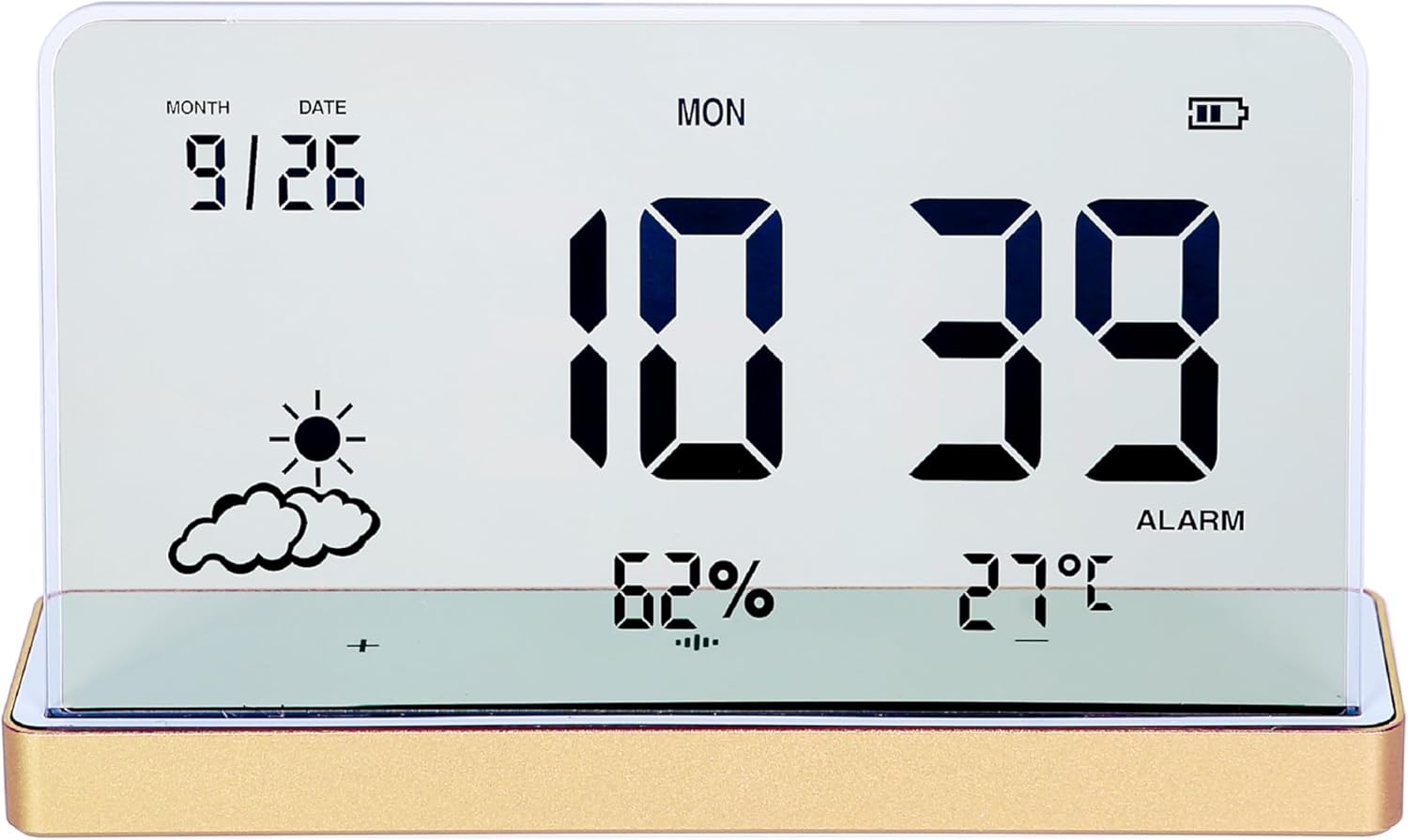
Figure 1: Front view of the ClocTeck Transparent Digital Alarm Clock. The display shows the current time (10:39), date (9/26), day (MON), humidity (62%), temperature (27°C), and a partly cloudy weather icon. A battery indicator is visible in the top right corner.
Key Features:
- Transparent LCD Display
- Time, Date, and Day Display
- Indoor Temperature and Humidity Monitoring
- Up to 3 Programmable Alarms
- Rechargeable Battery with long standby time
- Durable Aluminum Alloy Case
Setup
1. Powering On and Charging
The clock is powered by a built-in rechargeable battery. Before first use, or if the battery indicator is low, connect the provided Type-C USB charging cable to the charging port on the back or side of the clock and plug the other end into a standard USB power adapter (not included).
- A full charge provides approximately 75 days of operation.
- The battery indicator on the display will show charging status.
2. Initial Placement
Place the clock on a stable, flat surface. For accurate temperature and humidity readings, avoid placing it near heat sources, direct sunlight, or in areas with extreme drafts.
Operating Instructions
The clock features several buttons, typically located on the back or bottom, for setting time, alarms, and other functions. Refer to the specific button labels on your device.
1. Setting Time and Date
- Press the SET button to enter time setting mode.
- Use the UP and DOWN buttons to adjust the hour. Press SET to confirm and move to minutes.
- Repeat for minutes, year, month, and date.
- Press SET again to exit setting mode.
2. Setting Alarms
The clock supports up to 3 independent alarms.
- Press the ALARM button to cycle through Alarm 1, Alarm 2, Alarm 3, and alarm off modes.
- When an alarm is selected, press and hold the ALARM button to enter alarm setting mode for that specific alarm.
- Use the UP and DOWN buttons to set the alarm hour and minutes. Press ALARM to confirm each step.
- After setting the time, you may be prompted to set the alarm's activation days (e.g., weekdays, weekends, daily). Use UP/DOWN and ALARM to select.
- To activate or deactivate an alarm, short press the ALARM button until the alarm icon appears or disappears next to the corresponding alarm number on the display.
3. Temperature and Humidity Display
The clock continuously displays indoor temperature and humidity. The temperature range is -20°C to 65°C, and the humidity range is 10% to 99%.
- Temperature is displayed in Celsius (°C).
- Humidity is displayed as a percentage (%).
4. Snooze Function
When an alarm sounds, press any button (other than the alarm off button, if present) to activate the snooze function. The alarm will sound again after a short interval (typically 5-10 minutes).
5. Display Brightness Adjustment
The clock may feature automatic brightness adjustment or manual control. Consult the device's physical buttons for a dedicated brightness control button or a combination of buttons to adjust display intensity.
Maintenance
- To clean the display and casing, use a soft, dry cloth. Do not use abrasive cleaners or solvents.
- Ensure the charging port is free of dust and debris.
- Store the clock in a cool, dry place when not in use for extended periods.
Troubleshooting
| Problem | Possible Cause | Solution |
|---|---|---|
| Display is blank or dim. | Low battery or power saving mode. | Charge the device using the Type-C cable. Check brightness settings. |
| Alarm does not sound. | Alarm not activated or volume too low. | Ensure the alarm is set and activated (alarm icon visible). Check if there's a volume setting. |
| Incorrect temperature/humidity readings. | Device placed in an unsuitable environment. | Relocate the clock away from direct heat, cold, or high drafts. Allow time for readings to stabilize. |
| Buttons are unresponsive. | Temporary software glitch or low battery. | Recharge the device. If issue persists, try a soft reset (refer to manual for reset procedure, if available, or let battery drain and recharge). |
Specifications
- Model: ClocTeck-CL01
- Dimensions: Approximately 12.5 cm (Width) × 3.2 cm (Depth) × 8 cm (Height)
- Body Weight: Approximately 0.13 kg
- Case Material: Aluminum Alloy
- Display Type: Transparent LCD Digital Display
- Temperature Range: -20°C to 65°C
- Humidity Range: 10% to 99%
- Power Source: Rechargeable Battery (Type-C USB charging)
- Battery Life: Approximately 75 days on a full charge
- Alarms: 3 programmable alarms

Figure 2: Dimensions of the ClocTeck Transparent Digital Alarm Clock. The image shows the clock with labels indicating a height of 8cm and a width of 12.5cm.
Warranty and Support
ClocTeck provides a 12-month refund and exchange guarantee from the date of purchase. This warranty covers manufacturing defects and issues arising from normal use.
If you encounter any problems or have questions regarding your ClocTeck Transparent Digital Alarm Clock, please do not hesitate to contact our customer support team. We are committed to providing assistance and ensuring your satisfaction.
For support, please refer to the contact information provided on the product packaging or the seller's page where you purchased the item.
Related documentsClocTeck-CL01


Ask a question about this manual
Ask about setup, troubleshooting, compatibility, parts, safety, or missing instructions. Manuals+ will review the question and use this page’s manual context to help answer it.