
1. Introduction
This manual provides essential information for the safe and efficient operation of your TouchWo 65-inch 4K Interactive Touchscreen Smart Board. This all-in-one device combines a high-resolution touchscreen monitor with dual operating systems (Android 11 and Windows 10 Pro), making it suitable for various applications in office, classroom, and industrial environments. Please read this manual thoroughly before using the product and retain it for future reference.
2. Key Features
- 40-Point Touch Screen: Supports multi-finger gestures for zooming, writing, and annotating with a stylus or glove, offering a fast 5ms response time.
- Dual Operating System: Integrated Android 11 (RK3568, 4G RAM + 32G ROM) and Windows 10 Pro (Core i7, 16G RAM + 512G SSD) for versatile functionality.
- 4K UHD Display: Features a stunning 4K screen (3840x2160 pixels) for clear and vibrant visuals.
- Multiple Interfaces: Equipped with 2x HDMI (in & out), USB, VGA, RJ45, Wi-Fi, BT5.0, and built-in speakers. HDMI IN and USB OTG enable touch functionality for external devices.
- Screen Mirroring & Digital Signage: Supports wireless screen casting from phones, laptops, and tablets. Can be used for dynamic digital signage with horizontal or vertical placement.
- Industrial Grade Durability: Designed for robust performance in various settings.
3. What's in the Box
Verify that all items are present upon unboxing:
- 1 x Electronic Whiteboard
- 1 x Portable Stand
- 1 x Power Line
- 1 x Product Manual (this document)
- 1 x Wi-Fi Antenna
- 1 x Screen Mirroring Device
- 1 x Presenter and Stylus
4. Setup
4.1. Unboxing and Initial Preparation
Carefully remove the Smart Board from its packaging. It is recommended that two people handle the unit due to its size and weight. Place the unit on a soft, flat surface during assembly to prevent damage.
This video demonstrates the unboxing and initial setup process for a TouchWo interactive display. While the video shows a 43-inch model, the steps for unboxing and preparing the 65-inch unit are largely similar.
4.2. Mounting Options
Your TouchWo Smart Board can be installed using either the included portable stand or a wall-mounting bracket.

The TouchWo Smart Board offers two primary mounting options: a mobile stand for portability and a wall-mounting bracket for fixed installations. The image illustrates both options and the included accessories for installation.
4.2.1. Mobile Stand Installation
Assemble the portable stand according to the instructions provided in the stand's separate manual. Ensure all screws are tightened securely before placing the Smart Board on it.
This video provides a step-by-step guide for installing the mobile stand for the Smart Whiteboard. Follow these instructions carefully for secure assembly.
4.2.2. Wall Mount Installation
If using a wall mount, ensure the wall is structurally sound to support the weight of the Smart Board. Follow the instructions provided with your wall mount kit. Attach the VESA mounting brackets to the back of the Smart Board using the appropriate screws, then secure the unit to the wall mount.
4.3. Power Connection
Connect the power line to the Smart Board and then to a grounded electrical outlet. Ensure the power switch is in the OFF position before connecting.
4.4. Network Connection
Attach the Wi-Fi antenna for wireless connectivity or connect an Ethernet cable to the RJ45 port for a wired network connection.
5. Operating Instructions
5.1. Power On/Off
Press the power button located on the side or bottom of the unit to turn the Smart Board ON. To turn OFF, press and hold the power button until a shutdown prompt appears, then confirm.
5.2. Touchscreen Functionality
The 40-point touch screen allows for intuitive interaction. Use your fingers, the included stylus, or even a glove for precise control.

The 40-point touch technology allows for precise and responsive interaction with the screen. The image demonstrates various touch gestures, including single tap, double tap, press and hold, two-finger tap, and two-finger press, enabling intuitive control.
5.3. Dual OS Operation (Android 11 & Windows 10 Pro)
The Smart Board supports both Android 11 and Windows 10 Pro. You can switch between operating systems via the on-screen menu or dedicated buttons, if available. Refer to the on-screen prompts for specific switching procedures.

The Smart Board features a dual operating system, allowing seamless switching between Android 11 and Windows 10 Pro. This flexibility enables users to leverage the strengths of both platforms for various tasks. The image illustrates the concept of having multiple 'smart boards' through the dual OS.
This video demonstrates how to switch between vertical and horizontal display modes on the TouchWo touchscreen monitor, showcasing the adaptability of the dual OS interface.
5.4. Interactive Whiteboard Features
Utilize the built-in whiteboard application for dynamic presentations and collaborative work. You can write, draw, erase, and save your notes directly on the screen.

The interactive whiteboard function allows users to write, draw, and annotate directly on the screen. This feature is ideal for collaborative meetings and engaging classroom sessions, as depicted in the images.
This video demonstrates the various functions of the TouchWo 65-inch Smart Whiteboard, including writing, erasing, zooming, and saving content, highlighting its utility in professional and educational settings.
5.5. Screen Mirroring and Casting
Wirelessly cast content from your smartphone, laptop, or tablet to the Smart Board. Use the included screen mirroring device or compatible software for seamless presentations and content sharing.
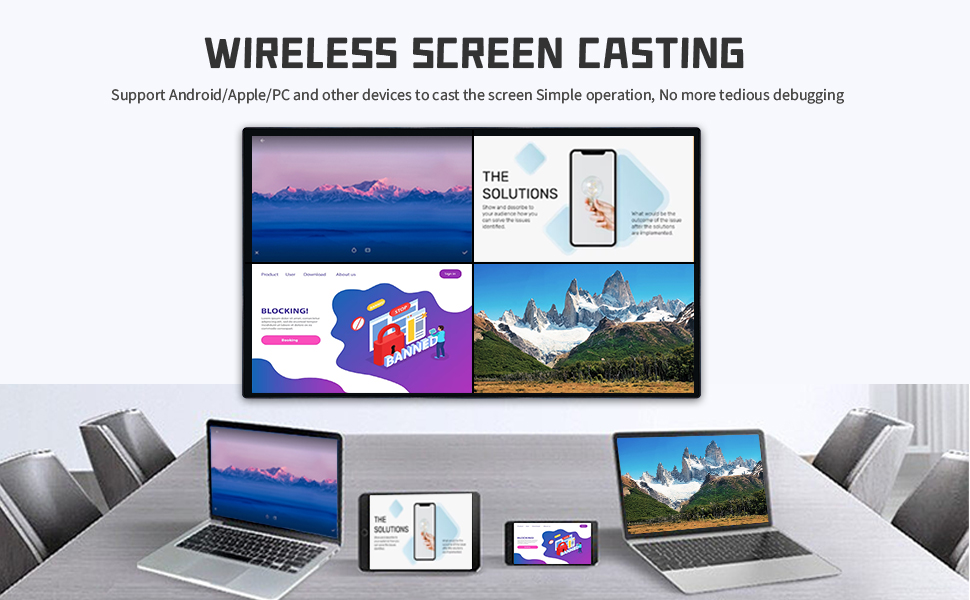
The Smart Board supports wireless screen mirroring from various devices like smartphones, laptops, and tablets. The images illustrate the wireless casting setup and different methods available, including using a wireless transmitter, screen casting software, or HDMI.
This video demonstrates the process of casting a smartphone screen to the TouchWo Windows/Android All-in-One Smart Board, showcasing seamless content sharing.
6. Maintenance
6.1. Cleaning the Screen
To clean the screen, power off the device and gently wipe it with a soft, lint-free cloth. For stubborn marks, use a screen-specific cleaning solution applied to the cloth, not directly to the screen. Avoid abrasive materials or harsh chemicals.
6.2. Software Updates
Regularly check for and install software updates for both Android and Windows operating systems to ensure optimal performance, security, and access to new features. Follow the on-screen instructions for updating.
7. Troubleshooting
- No Power: Ensure the power cable is securely connected and the power outlet is functional. Check the power switch on the unit.
- No Display: Verify all video cables (HDMI, VGA) are correctly connected. Ensure the correct input source is selected on the Smart Board.
- Touchscreen Unresponsive: Restart the device. Ensure there are no obstructions on the screen surface. If using an external device, check its connection.
- Network Connectivity Issues: Check Wi-Fi settings or Ethernet cable connection. Restart your router if necessary.
- Screen Mirroring Failure: Ensure both devices are on the same network. Check the screen mirroring application settings on both the Smart Board and your casting device.
For further assistance, please refer to the support section of the TouchWo website or contact customer service.
8. Specifications
| Feature | Detail |
|---|---|
| Brand | TouchWo |
| Screen Size | 65 Inches |
| Resolution | 4K UHD 2160p (3840 x 2160 Pixels) |
| Aspect Ratio | 16:9 |
| Screen Surface Description | Flat |
| Contrast Ratio | 1200:1 |
| Refresh Rate | 60 Hz |
| Display Type | LED |
| Viewing Angle | 178 Degrees |
| Brightness | 300 lm |
| Response Time | 5 Milliseconds |
| Processor Count | 1 |
| Total HDMI Ports | 2 |
| Total USB Ports | 6 |
| Additional Features | Blue Light Filter, Built-In Speakers, Glossy Screen, Touchscreen, Wall Mountable |
| Operating System (Android) | Android 11 (RK3568, 4G RAM + 32G ROM) |
| Operating System (Windows) | Windows 10 Pro (Core i7, 16G RAM + 512G SSD) |
| Item Dimensions D x W x H | 3.2"D x 58.5"W x 33.8"H |
| Item Weight | 40 Kilograms |
| Voltage | 110 Volts (AC) |
| Connectivity Technology | Wi-Fi, 3.5mm Audio, Bluetooth, HDMI, USB, VGA |
9. Warranty and Support
The TouchWo 65-inch 4K Interactive Touchscreen Smart Board comes with a 1-year manufacturer warranty. We offer free returns within 30 days of purchase and 7x24 online customer service for any inquiries or support needs.
For detailed warranty terms and to access customer support, please visit the official TouchWo website or refer to the contact information provided in your product packaging.