
1. Product Overview
The Lemorele USB C Hub 10-in-1 (Model TC93) is a versatile multiport adapter designed to expand the connectivity of your USB-C enabled devices. It integrates multiple essential ports into a single, compact device, providing a comprehensive solution for data transfer, video output, network connectivity, and power delivery.

Image: The Lemorele USB C Hub 10-in-1, showcasing its compact design and various ports connected to different peripherals, including USB drives, an Ethernet cable, and SD/TF memory cards, illustrating its multi-functionality.
2. Key Features
This USB C Hub offers a rich array of interfaces to enhance your productivity and entertainment experience:
- 4K HDMI Port: Supports high-definition video output up to 4K@30Hz for external displays.
- Gigabit Ethernet Port (RJ45): Provides stable and fast wired network connectivity up to 1000 Mbps.
- USB Power Delivery (PD) Port: Supports up to 100W power input to charge your laptop while using the hub.
- USB-C Data Port: High-speed data transfer up to 5Gbps, supporting forward and reverse plugging.
- USB 3.0 Ports (x2): High-speed data transfer up to 5Gbps (625 MB/s).
- USB 2.0 Ports (x2): Standard data transfer up to 480Mbps, suitable for peripherals like keyboards and mice.
- SD/TF Card Slots: Supports high-speed read/write operations for SD and MicroSD cards up to 104MB/s.
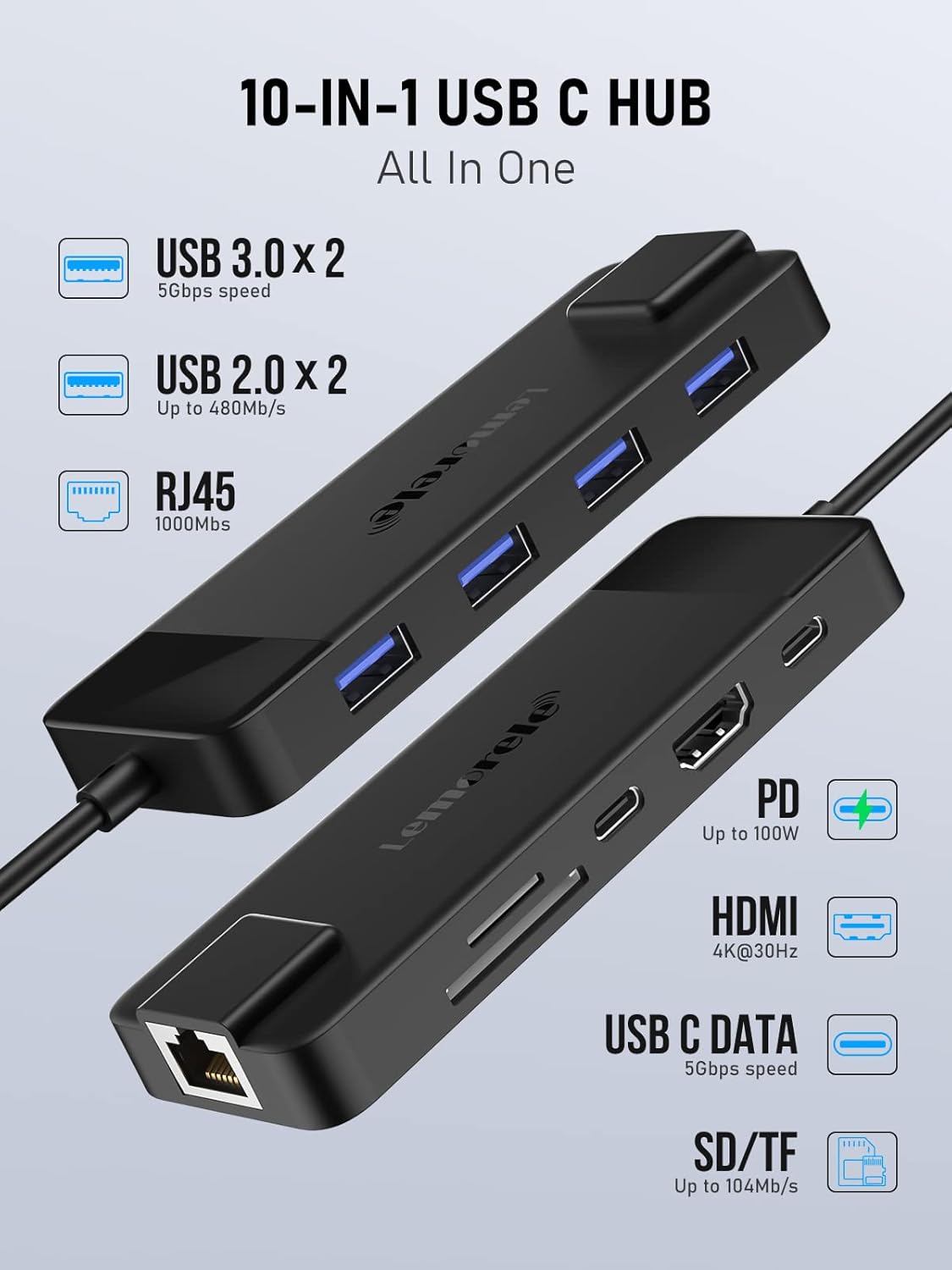
Image: A detailed diagram highlighting each of the 10 ports on the Lemorele USB C Hub, specifying their functions and maximum data transfer or power delivery speeds, such as USB 3.0 (5Gbps), RJ45 (1000Mbps), and PD (100W).

Image: An illustration of the internal components of the USB C Hub, emphasizing its built-in protection mechanisms against overcurrent, overvoltage, short circuits, and overheating, ensuring safe and reliable operation.
3. Setup Instructions
Setting up your Lemorele USB C Hub is a simple plug-and-play process. No complex drivers are typically required for most operating systems, though a specific driver might be needed for Windows in some cases (see Troubleshooting section).
3.1 Connecting the Hub to Your Device
- Locate an available USB-C port on your laptop, tablet, or smartphone. Ensure it is a full-featured Type-C port or Thunderbolt port for full functionality.
- Connect the integrated USB-C cable of the Lemorele Hub into your device's USB-C port.
- The hub is now ready for use. A blue LED indicator on the hub will illuminate if powered.
3.2 Powering the Hub (Optional)
For optimal performance, especially when connecting multiple power-consuming devices or charging your host device, connect a USB-C power adapter (not included) to the hub's USB-C PD port.
- Connect your laptop's original USB-C power adapter to the USB-C PD port on the hub.
- The hub will pass through up to 100W of power to your host device, ensuring it remains charged.

Image: A user interacting with a laptop connected to an external monitor via the Lemorele USB C Hub, illustrating how the hub facilitates multi-port extension for enhanced workspace setup.
4. Operating Instructions
4.1 HDMI Display Connection
Connect an external monitor, TV, or projector to the hub's HDMI port for video output.
- Use a standard HDMI cable to connect your display device to the hub's HDMI port.
- Your host device should automatically detect the external display. You can configure display settings (Mirror Mode or Extend Mode) through your operating system's display settings.
- Supports resolutions up to 4K (3840x2160) at 30Hz.

Image: A visual representation of a laptop connected to a 4K external display using the USB C Hub, illustrating the capabilities of both Mirror Mode (duplicating the laptop screen) and Extend Mode (extending the desktop across screens).
4.2 Gigabit Ethernet Connection
For a stable and fast internet connection, use the RJ45 Gigabit Ethernet port.
- Connect an Ethernet cable from your router or modem to the RJ45 port on the hub.
- Your device will automatically establish a wired network connection.
- Supports speeds of 10/100/1000 Mbps.

Image: A close-up of the RJ45 Gigabit Ethernet port on the USB C Hub, visually emphasizing its ability to provide a stable and fast wired internet connection at 1000 Mbps, contrasting with typical Wi-Fi speeds.
4.3 USB Data Ports (USB 3.0 & USB 2.0)
Connect various USB peripherals such as external hard drives, USB flash drives, keyboards, mice, and printers.
- Insert your USB devices into the available USB-A ports (2x USB 3.0, 2x USB 2.0).
- USB 3.0 ports offer high-speed data transfer for large files, while USB 2.0 ports are ideal for input devices.
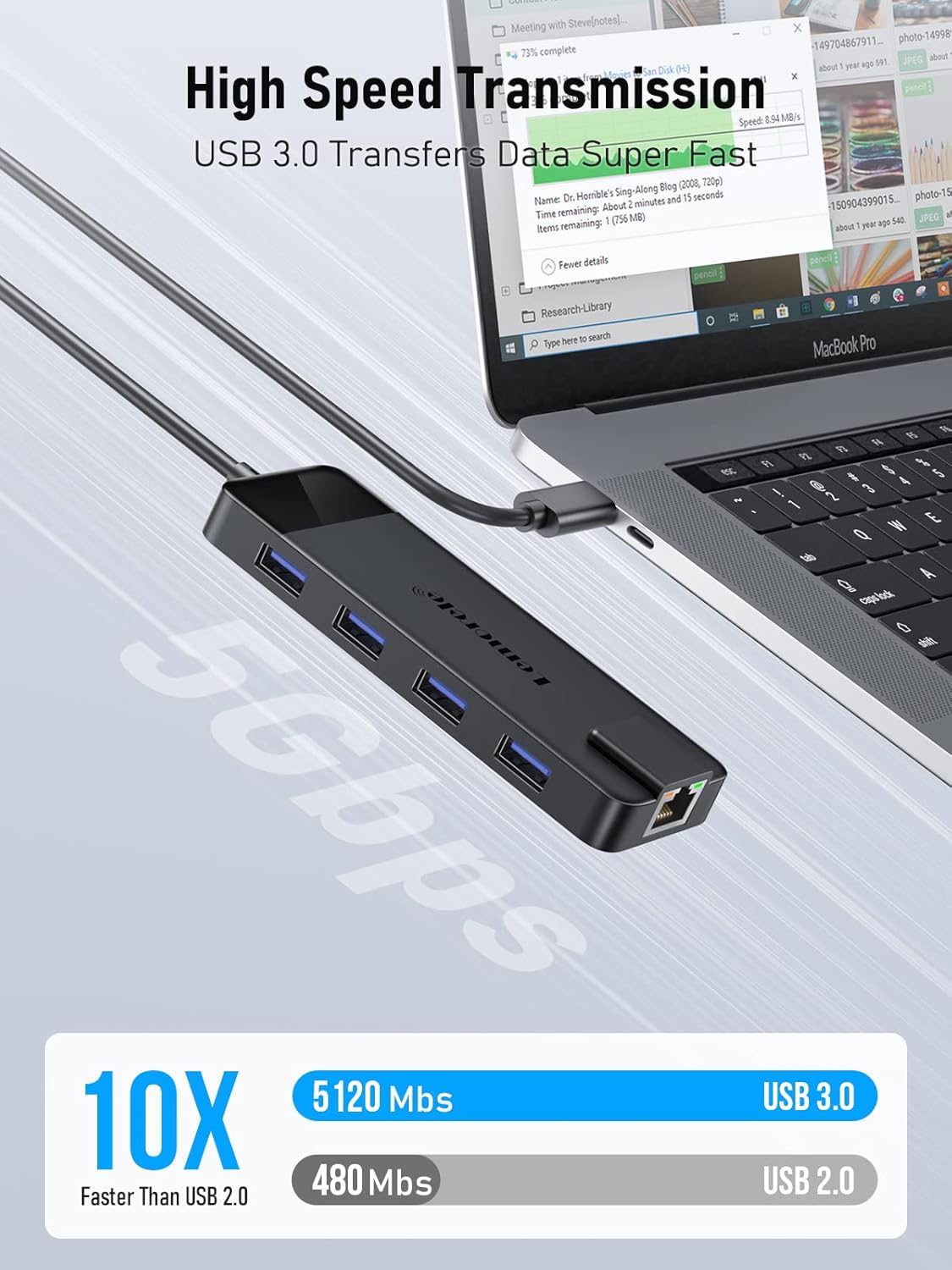
Image: A visual representation of high-speed data transmission using the USB 3.0 ports on the hub, with a laptop screen displaying a file transfer progress bar, indicating significantly faster speeds compared to USB 2.0.
4.4 SD/TF Card Reader
Transfer photos, videos, and other files from your SD and MicroSD cards.
- Insert your SD card into the SD slot and/or your MicroSD (TF) card into the TF slot.
- The card will appear as a removable drive on your computer, allowing you to access its contents.
- Supports simultaneous reading and writing for both card types.
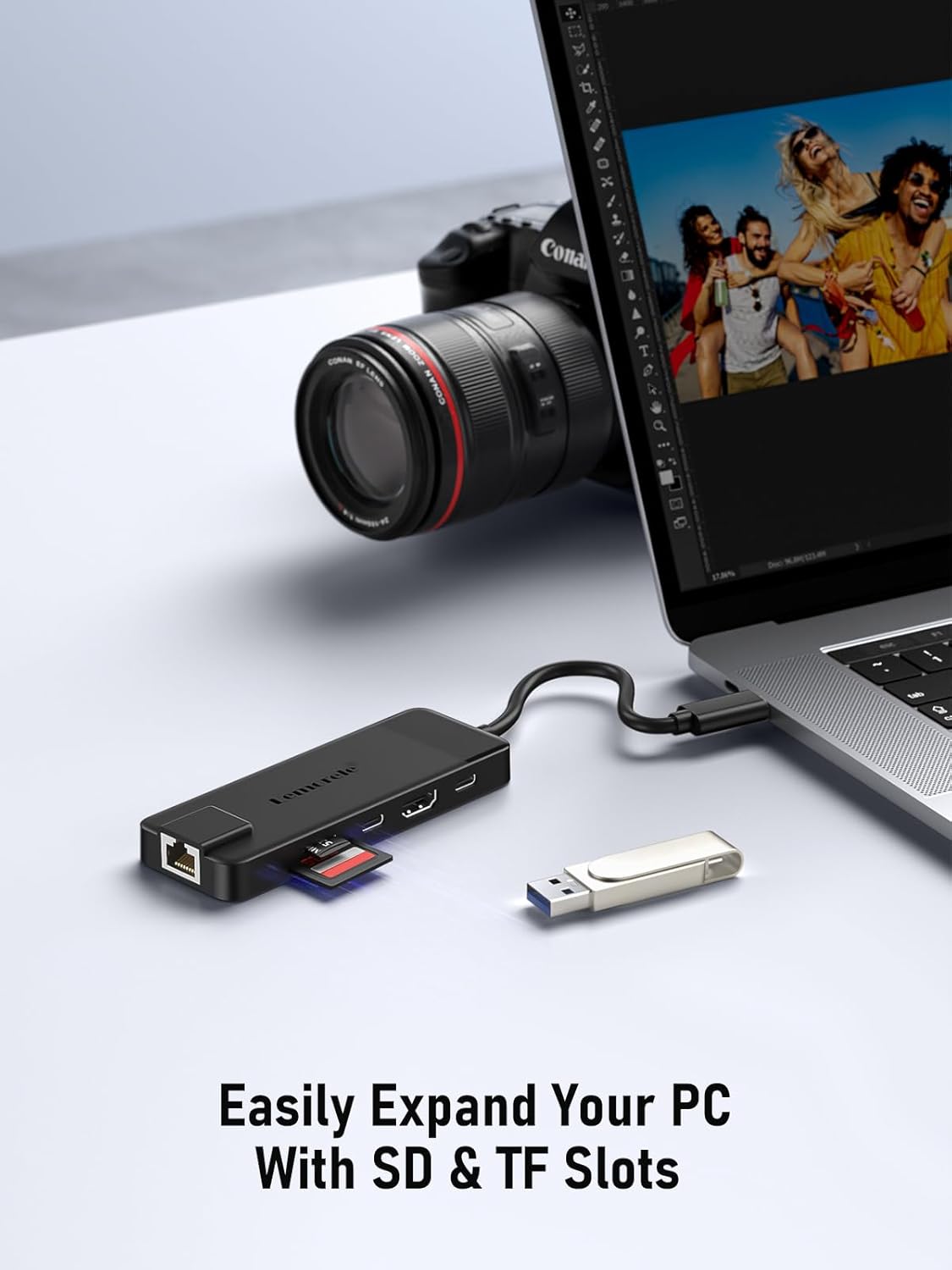
Image: A close-up view of the USB C Hub with an SD card partially inserted into its dedicated slot, illustrating the ease with which users can expand their PC's capabilities for memory card access.
4.5 USB-C Data Port
This additional USB-C port is designed for high-speed data transfer with compatible USB-C devices.
- Connect USB-C flash drives, external SSDs, or other USB-C data devices to this port.
- Offers data transfer speeds up to 5Gbps.
4.6 Mobile Device Compatibility (Samsung DeX / Xiaomi Desktop Mode)
The hub supports desktop modes for compatible smartphones, transforming your mobile device into a PC-like experience.
- Connect your compatible smartphone (e.g., Samsung with DeX, Xiaomi with Desktop Mode) to the hub via its USB-C cable.
- Connect an external monitor via HDMI, and a keyboard/mouse via USB ports.
- Your phone's interface will adapt to a desktop environment on the external display, allowing for enhanced productivity.
- Note: Mobile phone must have a Type-C interface 3.0 or above to support this feature.
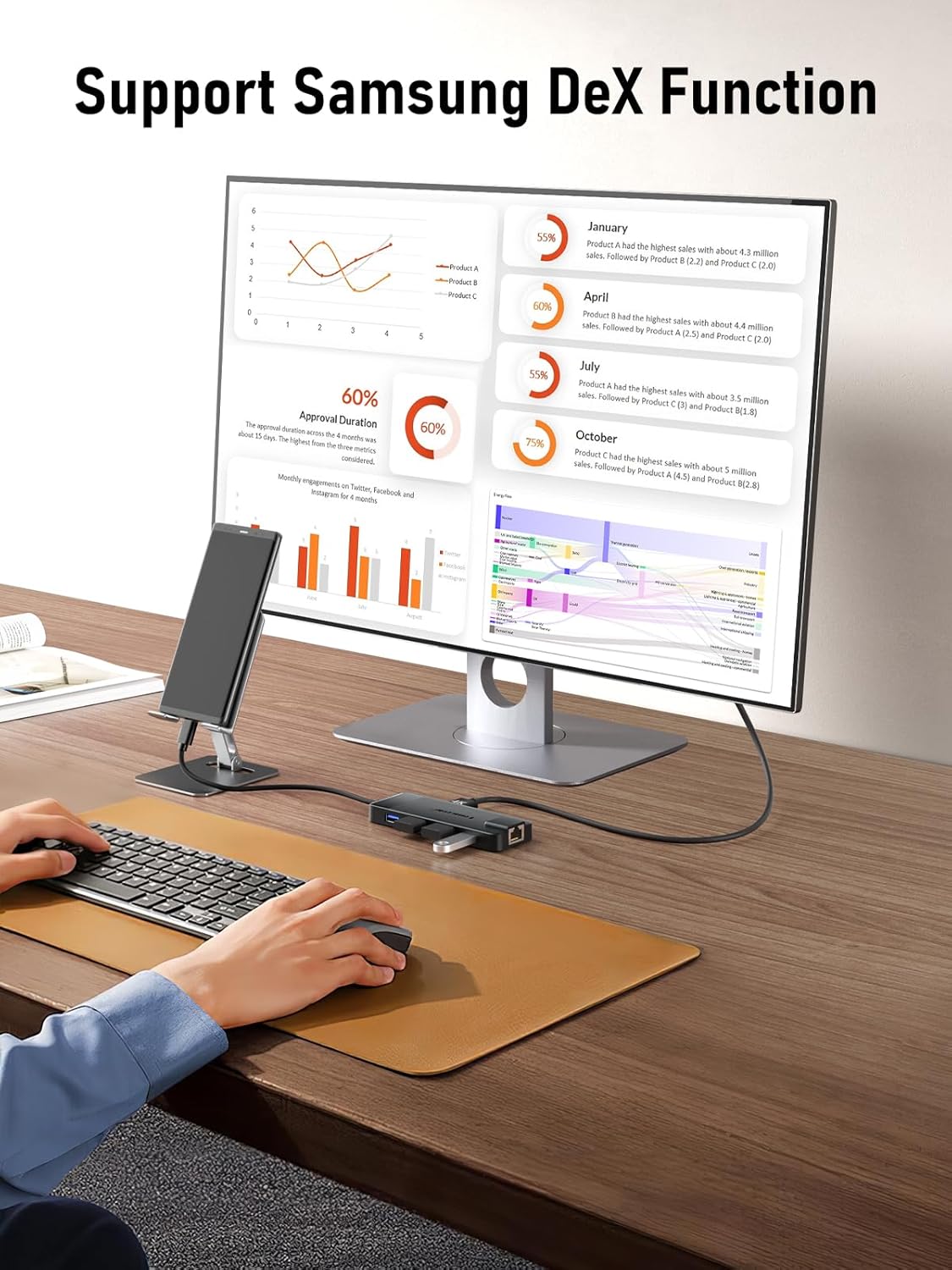
Image: A smartphone connected to an external monitor through the USB C Hub, illustrating the use of Samsung DeX functionality, where the phone's display is extended to a larger screen, enabling a desktop-like experience with a connected keyboard and mouse.
5. Compatibility
The Lemorele USB C Hub is designed for broad compatibility with various devices and operating systems that feature a full-featured USB-C or Thunderbolt port.
5.1 Compatible Host Devices
- MacBook (Pro/Air)
- iPad Pro/iPad Mini (with USB-C)
- iMac
- Dell/XPS/ThinkPad laptops
- Microsoft Surface devices
- Smartphones with USB-C 3.0 and above (e.g., Samsung, Xiaomi)
- Desktops with USB-C ports
- Gaming Consoles (e.g., Steam Deck, PS5)
5.2 Supported Operating Systems
- Mac OS
- Windows
- Linux
- Chrome OS

Image: A comprehensive compatibility chart detailing various host devices, including laptops, tablets, smartphones, and gaming consoles, alongside supported operating systems such as Mac OS, Windows, Linux, and Chrome OS.
6. Troubleshooting
If you encounter issues while using your Lemorele USB C Hub, please refer to the following common solutions:
- No Display Output via HDMI:
- Ensure your host device's USB-C port supports video output (DisplayPort Alternate Mode).
- Try a different HDMI cable or monitor.
- Restart your host device.
- Check display settings on your operating system.
- Ethernet Connection Issues:
- Verify the Ethernet cable is securely connected to both the hub and your router/modem.
- Check your network settings on your host device.
- Restart your router/modem.
- USB Devices Not Recognized:
- Ensure the hub is properly connected to your host device.
- Try connecting the USB device directly to your host device to confirm it functions.
- If connecting multiple power-hungry devices, ensure the hub is connected to a power source via the PD port.
- For Windows users: If you cannot use the hub, you may need to install a driver. Click the automatically pop-up icon to install it automatically, or download the driver from https://www.iobit.com/en/driver-booster.php.
- SD/TF Card Not Detected:
- Ensure the card is fully inserted into the correct slot.
- Try a different SD/TF card to rule out card issues.
- Check your host device's file explorer or disk management for the card.
- Charging Issues (PD Port):
- Ensure your USB-C power adapter is connected to the hub's PD port and is functioning correctly.
- Verify your host device supports USB-C Power Delivery.
7. Specifications
| Feature | Specification |
|---|---|
| Model | TC93 |
| Dimensions (LxWxH) | 11.6 x 4.1 x 1.2 cm |
| Weight | 68 g |
| Material | High Strength Composites |
| Input Connector | USB Type-C |
| HDMI Port | 4K@30Hz |
| Ethernet Port (RJ45) | Gigabit (10/100/1000 Mbps) |
| USB Power Delivery (PD) | Up to 100W |
| USB-C Data Port | 5Gbps Data Transfer |
| USB 3.0 Ports | 2 ports, 5Gbps Data Transfer |
| USB 2.0 Ports | 2 ports, 480Mbps Data Transfer |
| SD/TF Card Slots | Supports up to 104MB/s, simultaneous read/write |
| Operating Systems | Windows, Mac OS, Linux, Chrome OS |
| Country of Origin | China |
8. Maintenance
To ensure the longevity and optimal performance of your Lemorele USB C Hub, follow these maintenance guidelines:
- Cleaning: Use a soft, dry cloth to clean the surface of the hub. Avoid using liquid cleaners, aerosols, or abrasive materials.
- Storage: Store the hub in a cool, dry place away from direct sunlight and extreme temperatures.
- Handling: Avoid dropping the hub or subjecting it to strong impacts. Do not bend or pull the integrated USB-C cable excessively.
- Ventilation: Ensure the hub has adequate ventilation during use, especially when connected to multiple devices or under heavy load, to prevent overheating.
9. Warranty and Support
Lemorele is committed to providing high-quality products and excellent customer service.
- Product Warranty: The Lemorele USB C Hub comes with a one-year product warranty from the date of purchase.
- Returns and Exchanges: During the warranty period, you may request an unconditional return or exchange if the product experiences manufacturing defects or malfunctions under normal use.
- Customer Service: For any inquiries, technical assistance, or warranty claims, please contact our 24-hour online human customer service.
- Contact Information: support@lemorele.com
Image: Icons representing Lemorele's commitment to customer support, including assistance with products, customer service, shipping, and compatibility, reinforcing their dedication to user satisfaction.


