
ZTE AXON 40 Lite
ZTE AXON 40 Lite User Manual
Model: AXON 40 Lite (P616F01)
Introduction
This manual provides comprehensive instructions for the safe and efficient use of your new ZTE AXON 40 Lite smartphone. Please read this manual carefully before using your device to ensure optimal performance and longevity. Keep this manual for future reference.
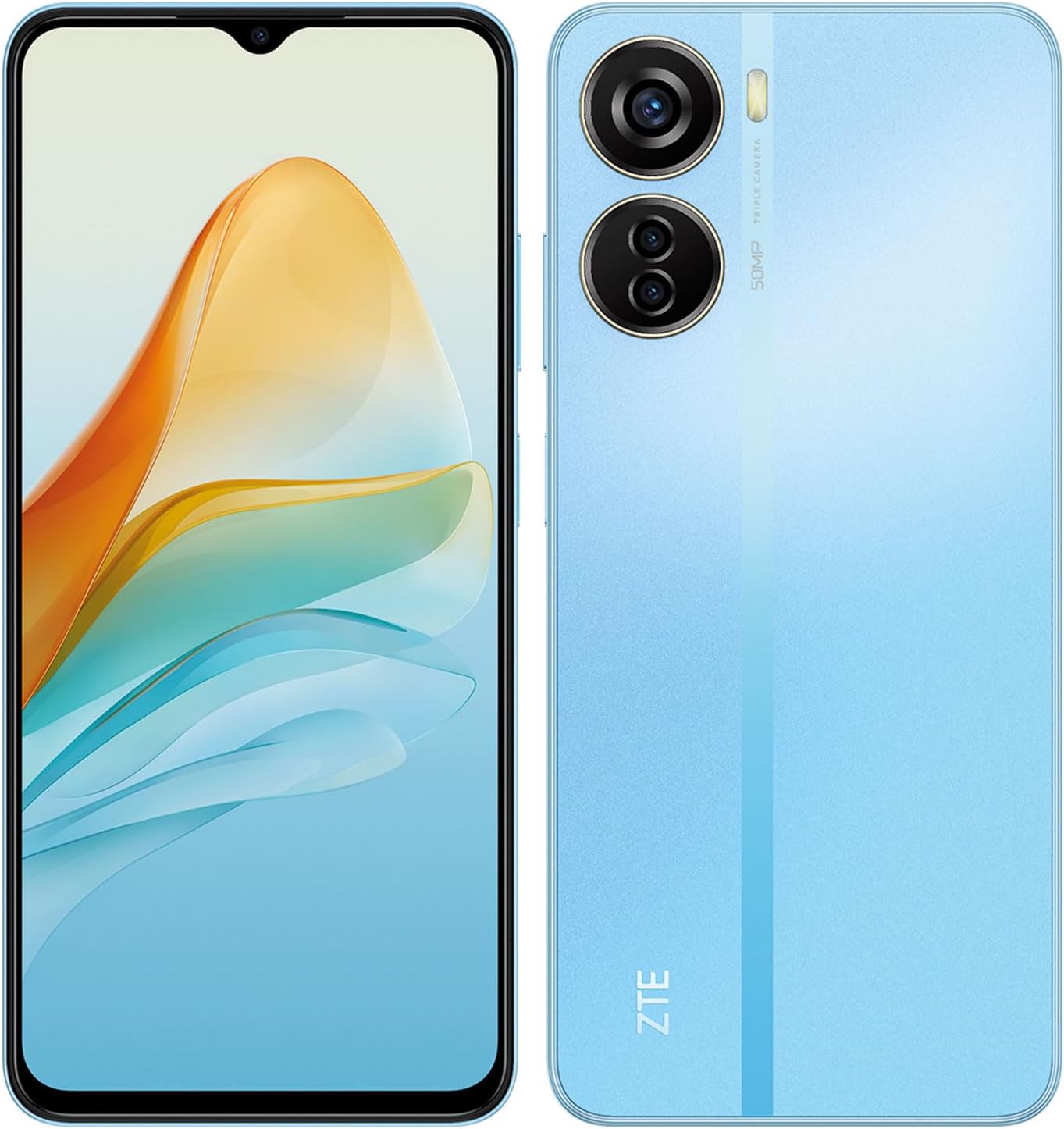
Figure 1: Front and back view of the ZTE AXON 40 Lite smartphone. The device features a large display on the front and a triple camera system on the rear.
Setup
1. Unboxing and Initial Inspection
Upon receiving your ZTE AXON 40 Lite, carefully open the packaging and verify that all components are present. The box should contain:
- ZTE AXON 40 Lite Smartphone
- Power Adapter (22.5W)
- USB Cable
- Phone Case
- User Manual (this document)
- VIP Warranty Card
Inspect the device for any visible damage. If any components are missing or damaged, contact customer support immediately.
2. Inserting SIM Card and microSD Card
Locate the SIM card tray on the side of the device. Use the provided SIM ejector tool to open the tray. Insert your Nano-SIM card(s) and/or a microSD card (up to 1TB) into the designated slots. Ensure the cards are correctly oriented before gently pushing the tray back into the device.

Figure 2: Side view of the ZTE AXON 40 Lite, showing the power button, volume rocker, and the SIM/microSD card tray.
3. Charging the Battery
Before first use, fully charge the device battery. Connect the USB cable to the phone's charging port and the power adapter. Plug the adapter into a power outlet. The device supports 22.5W fast charging. A battery icon will appear on the screen indicating charging status.
4. Powering On and Initial Configuration
Press and hold the power button (located on the side) until the ZTE logo appears. Follow the on-screen prompts to complete the initial setup, including language selection, Wi-Fi connection, Google account setup, and security settings (fingerprint, PIN, pattern).

Figure 3: Front view of the ZTE AXON 40 Lite, highlighting its 6.6-inch FHD+ display.
Operating Instructions
1. Navigating the Android 12 Interface
The ZTE AXON 40 Lite runs on Android 12.
- Home Screen: Swipe left or right to access different home screens.
- App Drawer: Swipe up from the bottom of the screen to open the app drawer.
- Notifications & Quick Settings: Swipe down from the top of the screen to view notifications and quick settings toggles.
- Navigation Gestures/Buttons: Configure your preferred navigation method in Settings > System > Gestures or Navigation bar.
2. Camera Usage
The device features a triple rear camera system (50MP main + 2MP + 2MP) and an 8MP front camera.
- Open the Camera application.
- Select desired mode (Photo, Video, Portrait, Pro, etc.).
- Tap the shutter button to capture an image or start/stop video recording.
- Tap the camera switch icon to toggle between front and rear cameras.
3. Fingerprint Sensor
The fingerprint sensor is integrated into the side power button.
- To register fingerprints: Go to Settings > Security > Fingerprint. Follow the on-screen instructions.
- To unlock: Place your registered finger on the power button.
4. Dynamic RAM Expansion
The device supports dynamic RAM expansion, allowing up to 7GB of RAM (4GB physical + 3GB dynamic). This feature uses a portion of the internal storage as virtual RAM to improve multitasking performance. This setting can typically be configured in Settings > System > RAM Expansion or similar.
Maintenance
1. Cleaning the Device
Use a soft, lint-free cloth to clean the screen and body of the phone. Avoid using harsh chemicals or abrasive materials.
2. Battery Care
- Avoid extreme temperatures.
- Do not let the battery drain completely regularly.
- Use only the original charger or certified compatible chargers.
- The device features a 4,500 mAh battery with intelligent power saving.
3. Software Updates
Regularly check for and install software updates to ensure optimal performance, security, and access to new features. Go to Settings > System > System update.
Troubleshooting
1. Device Not Powering On
- Ensure the battery is charged. Connect the charger and wait a few minutes before attempting to power on.
- Perform a forced restart by holding the power button for approximately 10-15 seconds.
2. Poor Network Signal
- Check if the SIM card is properly inserted.
- Ensure you are in an area with network coverage.
- Restart the device.
- Go to Settings > Network & internet > Mobile network and check network settings.
3. Apps Crashing or Freezing
- Clear the cache of the problematic app (Settings > Apps > [App Name] > Storage & cache > Clear cache).
- Update the app from the Google Play Store.
- If the issue persists, uninstall and reinstall the app.
4. Fingerprint Sensor Issues
- Ensure your finger is clean and dry.
- Re-register your fingerprints if recognition is consistently poor.
- Ensure the sensor area is clean.
Specifications
| Feature | Detail |
|---|---|
| Model Name | AXON 40 Lite |
| Model Number | P616F01 |
| Operating System | Android 12.0 |
| Display | 6.6 inches FHD+ (1080 x 2400 resolution) |
| Processor | UNISOC T616 (UMS9230) Octa-Core (A75(2.0GHz*2) + A55(1.8GHz*6)) |
| RAM | 7 GB (4 GB physical + 3 GB dynamic) |
| Internal Storage | 128 GB (expandable up to 1 TB with microSD) |
| Rear Camera | 50 MP + 2 MP + 2 MP Triple Camera |
| Front Camera | 8 MP |
| Battery | 4,500 mAh with 22.5W Fast Charging |
| Connectivity | 4G LTE, Bluetooth, USB, Wi-Fi, GPS |
| Security | Side-mounted Fingerprint Reader |
| Dimensions | 17.6 x 8.8 x 5.4 cm |
| Weight | 440 g |
| Color | Blue |
Warranty and Support
1. Warranty Information
Your ZTE AXON 40 Lite comes with a VIP Warranty Card. Please refer to the card included in your product packaging for detailed warranty terms and conditions. The warranty covers manufacturing defects under normal use.
2. Customer Support
For technical assistance, troubleshooting, or warranty claims, please contact ZTE customer support.
- Online Support: Visit the official ZTE website for support resources, FAQs, and contact information.
- Service Centers: Information on authorized service centers can be found on the ZTE website or by contacting customer support.
Please have your device model number (P616F01) and serial number ready when contacting support.
Related documentsAXON 40 Lite


Ask a question about this manual
Ask about setup, troubleshooting, compatibility, parts, safety, or missing instructions. Manuals+ will review the question and use this page’s manual context to help answer it.