
1. Introduction and Overview
The Maxcio Mesh Smart Gateway (Model TV06_BT) serves as a central hub for your smart home ecosystem, enabling intelligent control over Bluetooth and Mesh-compatible devices. This gateway facilitates remote management via a smartphone application and supports voice control through integration with platforms like Amazon Alexa and Google Home. Its compact design and stable connectivity make it an efficient solution for expanding your smart home capabilities.
This manual provides detailed instructions for setting up and operating your Maxcio Mesh Smart Gateway, ensuring optimal performance and seamless integration with your smart devices.

Figure 1: Maxcio Mesh Smart Gateway and App Interface.
The image displays the compact white Maxcio Mesh Smart Gateway device positioned next to a smartphone. The smartphone screen shows a smart home application interface, indicating a connected device labeled "TV02-BT Smart TRV PRO 2" under "Online devices: 1". This illustrates the gateway's function in connecting and managing smart devices.
2. Key Features
- Smart Solution: Acts as a central hub for Maxcio Bluetooth and Mesh devices, such as the Maxcio Thermostatic Valve (ASIN: B0CBPWG14R), enabling intelligent control.
- Wide Compatibility: Supports simultaneous connection of up to 128 Bluetooth and Mesh devices.
- App and Voice Control: Compatible with Amazon Alexa and Google Home for voice commands. Remote control is available via the application, with local Bluetooth control also supported.
- Compact Design & Low Power Consumption: Ultra-small form factor saves space. Stable and reliable signal via Wi-Fi, Bluetooth, and Mesh with broad coverage and low energy use.
- Security and Protection: Utilizes industrial-grade encryption for secure data transmission between Wi-Fi and Bluetooth terminals, preventing malicious interference.

Figure 2: Bluetooth and Wi-Fi Connectivity.
This image displays the Maxcio Mesh Smart Gateway with icons for Bluetooth and Wi-Fi, indicating its dual connectivity. The accompanying text explains that Bluetooth sub-devices (up to 128) can be remotely controlled via the gateway, supporting remote and group control functions, simplifying network distribution, and enhancing smart home intelligence.
3. Setup Instructions
Follow these steps to set up your Maxcio Mesh Smart Gateway and connect it to your smart home network:
- Power On the Gateway: Connect the gateway to a power source using the provided cable. The indicator light will illuminate.
- Install the App: Download and install the "Smart Life" or "TuyaSmart" application on your smartphone from your device's app store.
- Add Gateway to App: Open the installed application. Click the "+" icon in the upper right corner to initiate the device addition process. Select "Gateway" or "Hub" from the device list and follow the on-screen prompts to add your Maxcio Mesh Smart Gateway.
- Add Devices: Once the gateway is successfully added to the app, you can proceed to add your Bluetooth and Mesh-compatible smart devices (e.g., smart thermostats, LED strips) as required.

Figure 3: Gateway Setup Steps.
This diagram illustrates the three primary steps for setting up the gateway: 1) Powering on the gateway, shown with a hand plugging in a cable. 2) Opening the "Smart Life" or "TuyaSmart" app and clicking the "+" to add a gateway, depicted by a smartphone screen. 3) After successful gateway addition, adding other devices as needed, shown with a smartphone screen displaying "Add Device by list".
4. Operating Instructions
4.1. App Control
After successfully adding your devices to the Maxcio Mesh Smart Gateway via the "Smart Life" or "TuyaSmart" app, you can control them remotely from anywhere with an internet connection. The app allows you to:
- Turn devices on/off.
- Adjust settings (e.g., temperature for thermostats, color for LED strips).
- Set schedules and timers.
- Create automation routines.
- Group multiple devices for simultaneous control.
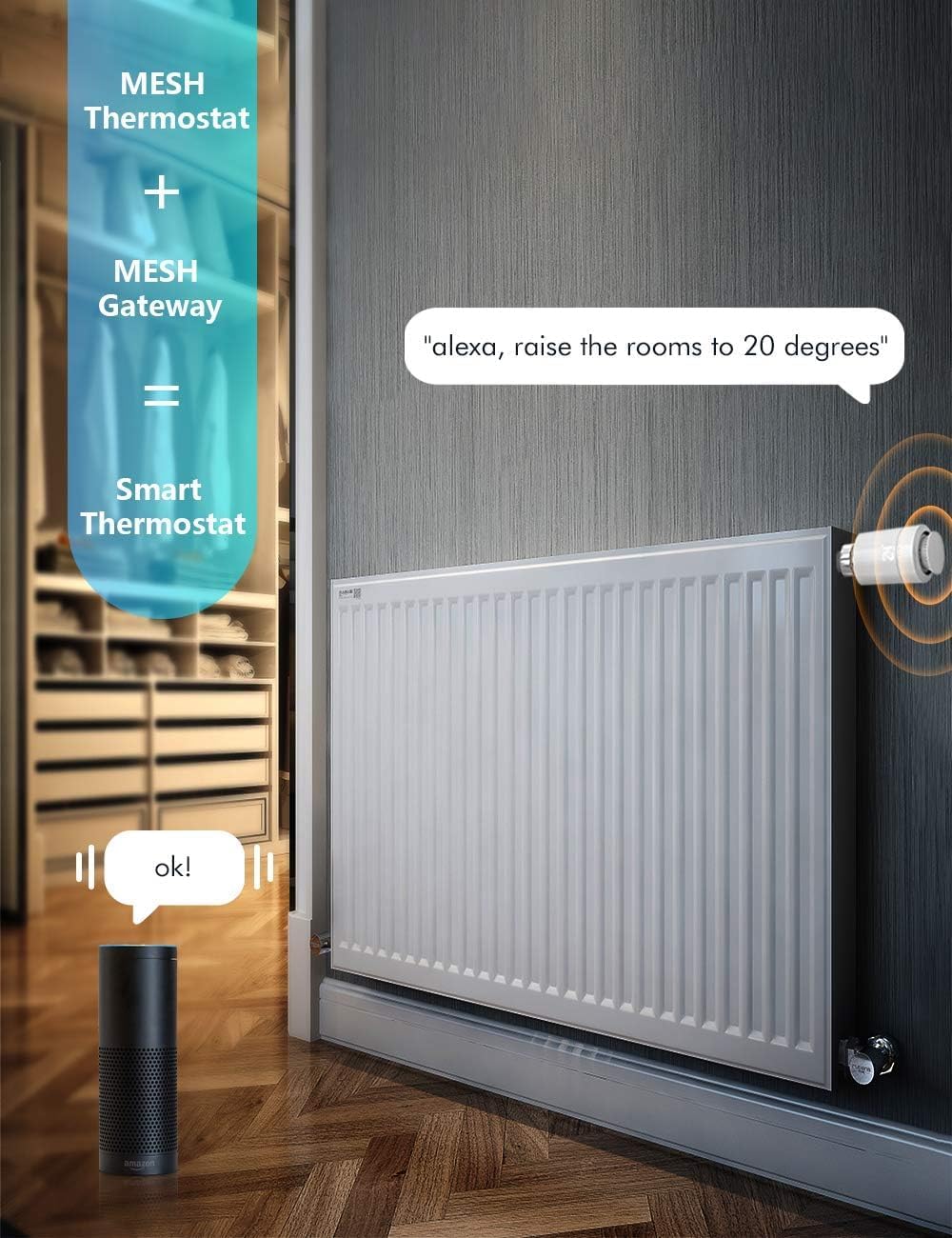
Figure 4: Smart Thermostat Integration.
This image illustrates the integration of a Mesh Thermostat with the Mesh Gateway to create a Smart Thermostat system. An Amazon Echo device is shown responding to the voice command "Alexa, raise the rooms to 20 degrees," demonstrating voice control over a radiator-mounted thermostat.

Figure 5: Smart LED Strip Integration.
The image depicts a living room illuminated by colorful LED strip lighting. It shows how a SIG MESH LED Strip combined with a MESH Gateway results in a WLAN LED Strip, indicating the gateway's ability to enable smart control for various lighting solutions.
4.2. Voice Control
The Maxcio Mesh Smart Gateway supports voice control through Amazon Alexa and Google Home. To enable this feature:
- Ensure your gateway and connected devices are properly set up in the "Smart Life" or "TuyaSmart" app.
- Link your "Smart Life" or "TuyaSmart" account to your Amazon Alexa or Google Home app.
- Discover devices in your Alexa or Google Home app.
- Once discovered, you can use voice commands such as "Alexa, turn on [device name]" or "Hey Google, set [thermostat name] to 22 degrees."

Figure 6: Voice Control Functionality.
This image shows an Amazon Echo device and the Maxcio Mesh Smart Gateway in a modern living space. A speech bubble indicates the command "Alexa, turn on strip," with "ok" as the response, demonstrating how the gateway enables voice control for non-smart products when integrated with smart assistants.
5. Maintenance
To ensure the longevity and optimal performance of your Maxcio Mesh Smart Gateway, consider the following maintenance guidelines:
- Cleaning: Gently wipe the device with a soft, dry cloth. Avoid using liquid cleaners or abrasive materials.
- Placement: Place the gateway in a central location within your home to maximize signal range and stability. Avoid placing it near large metal objects or other devices that may cause interference.
- Firmware Updates: Regularly check the "Smart Life" or "TuyaSmart" app for available firmware updates for the gateway. Updates can improve performance, add new features, and enhance security.
- Power Cycle: If you experience connectivity issues, try power cycling the gateway by unplugging it for 10 seconds and then plugging it back in.
6. Troubleshooting
If you encounter issues with your Maxcio Mesh Smart Gateway, refer to the following common troubleshooting steps:
| Problem | Possible Cause | Solution |
|---|---|---|
| Gateway cannot connect to Wi-Fi. | Incorrect Wi-Fi password, weak signal, or router issues. |
|
| Connected devices are offline or unresponsive. | Device out of range, low battery (for battery-powered devices), or gateway connectivity issue. |
|
| Voice control not working. | Incorrect linking of accounts, device not discovered, or incorrect voice commands. |
|
| Limited signal range. | Obstructions or improper placement. |
|

Figure 7: Signal Range Illustration.
This diagram visually represents the strong signal and wide coverage of the Maxcio Mesh Smart Gateway within a multi-story house. It shows the gateway centrally located, with signal lines extending to various rooms and floors, indicating a transmission distance of up to 200m in open environments for stable and reliable smart home connectivity.
7. Specifications
| Feature | Detail |
|---|---|
| Brand | Maxcio |
| Model Number | TV06_BT |
| Color | White |
| Dimensions | 6.9 x 6.9 x 4.5 cm |
| Item Weight | 70 grams |
| Connectivity Technology | Bluetooth, Wi-Fi, Mesh |
| Control Method | Voice (Amazon Alexa, Google Home), App |
| Power Source | USB Powered |
| Max Connected Devices | Up to 128 devices |

Figure 8: Product Size.
This image showcases the compact dimensions of the Maxcio Mesh Smart Gateway by placing it on top of a smartphone. The smartphone screen displays a "Gateway" interface with "Online devices: 0," emphasizing the small footprint of the device.
8. Warranty and Support
For warranty information and technical support, please refer to the official Maxcio website or contact their customer service directly. Details regarding specific warranty periods and support channels are typically provided with your purchase documentation or on the manufacturer's website.
For further assistance, you may also consult the "Smart Life" or "TuyaSmart" app's help section, which often contains FAQs and troubleshooting guides for connected devices.