
1. Introduction
The NUFEBS Mini 1080P Security Camera Q26 is a compact, plug-in wired security camera designed for indoor use. It offers 1080p high-definition video, 2.4G WiFi connectivity, night vision capabilities, two-way audio communication, and motion detection with tracking. This manual provides detailed instructions for setting up, operating, and maintaining your camera to ensure optimal performance and home security.

Image 1.1: The NUFEBS Mini 1080P Security Camera Q26, a compact device for home monitoring.
2. Package Contents
Please check the package for the following items:
- NUFEBS Mini 1080P Security Camera (Q26)
- Instruction Manual
- Power Charger
- Magnetic Base
3. Product Features
The NUFEBS Q26 camera offers a range of features to enhance your home security:
- 1080P HD Resolution: Provides clear and detailed video footage.
- 2.4G WiFi Connectivity: Easy connection to your home network for remote access.
- Night Vision: Equipped with color night vision for monitoring in low-light conditions.
- Two-Way Audio: Allows for real-time communication through the camera.
- Motion Detection & Tracking: Automatically detects movement, tracks subjects, and sends alerts.
- Local & Cloud Storage: Supports Micro SD cards (16-128GB) and cloud storage services for recording playback.
- IP65 Waterproof Rating: While primarily designed for indoor use, the IP65 rating provides protection against dust and low-pressure water jets, enhancing durability.
- Magnetic Base: Offers flexible mounting options on various surfaces.
- Compact Design: Small footprint (4x4x2 CM) allows for discreet placement.
- Amazon Alexa Compatibility: Integrates with Amazon Alexa for smart home control.

Image 3.1: Key features of the NUFEBS Q26 security camera.

Image 3.2: Example of 1080P HD video quality from the camera.

Image 3.3: The camera's IP65 waterproof design for enhanced durability.
4. Setup Guide
4.1. App Installation
To control your NUFEBS Q26 camera, download the 'Tris Home' application:
- Search for 'Tris Home' in your mobile device's app store (iOS App Store or Google Play Store).
- Download and install the application.
- Register for a new account or log in if you already have one.
4.2. Camera Reset
Before connecting the camera for the first time, or if you are switching to a new mobile device or WiFi network, it is recommended to reset the camera:
- Locate the reset button on the camera (refer to the camera's physical design for exact placement).
- Press and hold the reset button for approximately 5-10 seconds until you hear a prompt or see an indicator light change.
4.3. Connect to 2.4G WiFi
The NUFEBS Q26 camera operates on a 2.4G WiFi network. Follow these steps to connect:
- Ensure your mobile phone is connected to your home's 2.4G WiFi network.
- Open the 'Tris Home' app and select the option to 'Add Device' or 'Add Camera'.
- Follow the on-screen instructions in the app, which typically involve scanning a QR code displayed on your phone with the camera lens.
- Once connected, the camera will indicate successful pairing, and you can begin live viewing.
4.4. Mounting Options
The camera comes with a magnetic base, offering versatile placement:
- Magnetic Surface: Attach the camera directly to any metallic surface using its magnetic base.
- Wall/Ceiling Mount: The magnetic base can also be affixed to a wall or ceiling using screws (not included) for a more permanent installation.
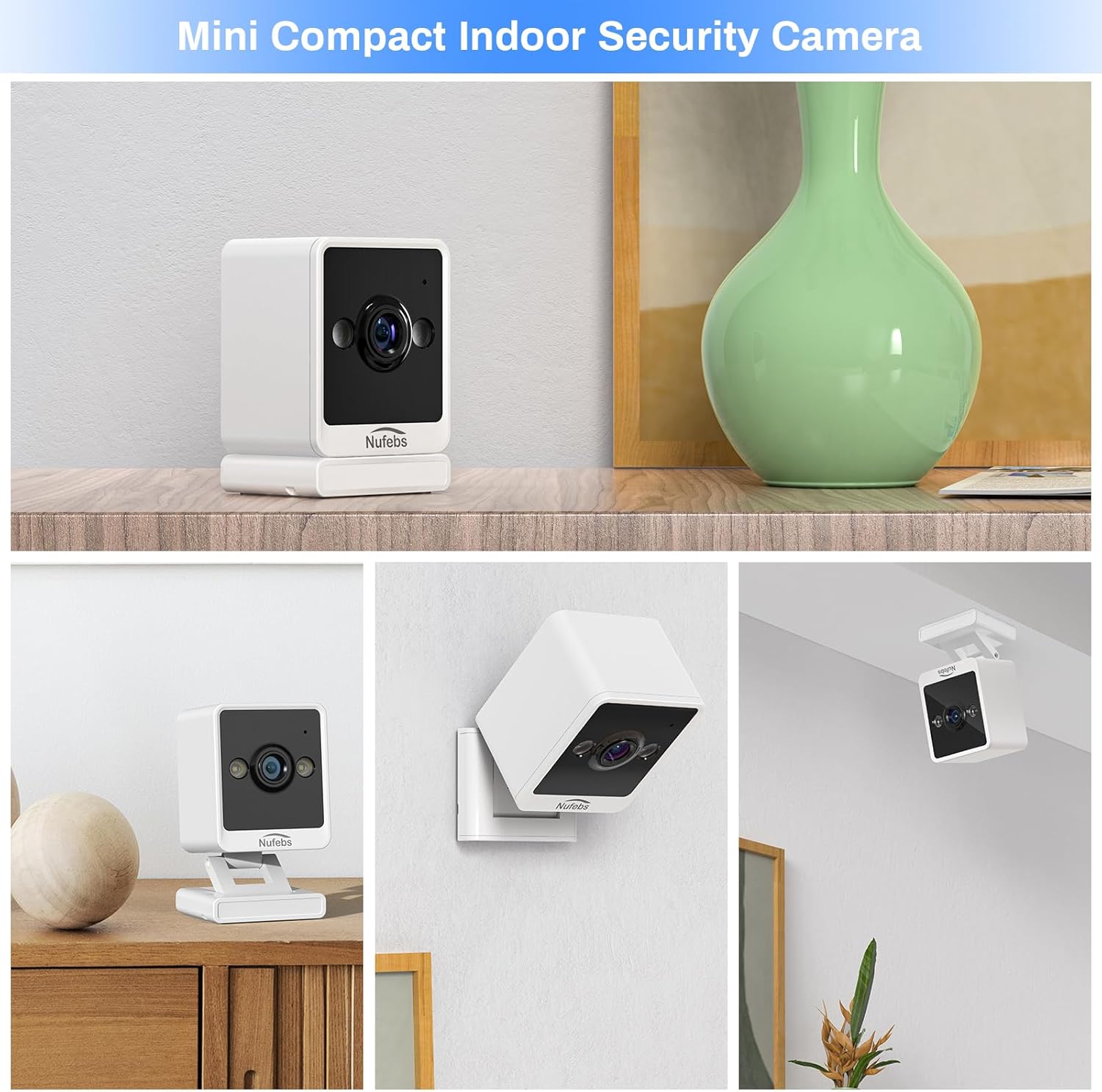
Image 4.1: Examples of flexible mounting options for the NUFEBS Q26 camera.

Image 4.2: The camera's magnetic base allows for easy attachment to metallic surfaces.
5. Operating Instructions
5.1. Live View
Once connected, open the 'Tris Home' app to access the live video feed from your camera. You can monitor your space in real-time from anywhere.

Image 5.1: Remote live preview of the camera feed on a mobile device.
5.2. Two-Way Audio
The camera features a built-in microphone and speaker. In the 'Tris Home' app, tap the microphone icon to speak through the camera and the speaker icon to listen to audio from the camera's location.
5.3. Motion Detection & Alerts
Enable motion detection in the app settings to receive instant notifications on your phone when movement is detected. The camera can also activate a spotlight and an alarm sound to deter intruders.

Image 5.2: The camera's intelligent alarm system with motion detection and spotlight.
5.4. Recording & Storage
The camera supports two primary storage methods for recorded footage:
- Micro SD Card: Insert a Micro SD card (16GB to 128GB, not included) into the camera's designated slot for local storage. Recordings are typically triggered by motion events.
- Cloud Service: Subscribe to the optional cloud storage service through the 'Tris Home' app for secure, off-site storage of your video recordings.

Image 5.3: Continuous recording and storage options via SD card and cloud service.
5.5. Night Vision
The NUFEBS Q26 camera automatically switches to color night vision in low-light conditions, providing clear surveillance around the clock.

Image 5.4: The camera's spotlight feature for enhanced night vision.
5.6. Smart Home Integration (Amazon Alexa)
The camera is compatible with Amazon Alexa. You can integrate it into your smart home system to view live feeds on compatible Alexa-enabled devices using voice commands.

Image 5.5: Integration with Amazon Alexa for smart home control.
6. Maintenance
6.1. Cleaning
To maintain optimal image quality, regularly clean the camera lens and body:
- Gently wipe the lens with a soft, lint-free cloth. Avoid abrasive materials.
- Clean the camera body with a dry or slightly damp cloth. Do not use harsh chemicals or liquid cleaners directly on the camera.
6.2. Firmware Updates
Periodically check the 'Tris Home' app for available firmware updates. Keeping your camera's firmware updated ensures access to the latest features, security enhancements, and performance improvements.
7. Troubleshooting
If you encounter issues with your NUFEBS Q26 camera, refer to the following common solutions:
- Camera Not Connecting to WiFi:
- Ensure your router is broadcasting a 2.4G WiFi signal. The camera does not support 5G WiFi.
- Verify that your mobile phone is connected to the same 2.4G WiFi network during setup.
- Double-check the WiFi password entered in the app.
- Try resetting the camera and repeating the connection process.
- Ensure the camera is within range of your WiFi router.
- Poor Video Quality:
- Check your internet connection speed. A stable and fast connection is required for optimal streaming.
- Clean the camera lens to remove any dust or smudges.
- Ensure there are no obstructions directly in front of the camera lens.
- No Motion Detection Alerts:
- Confirm that motion detection is enabled in the 'Tris Home' app settings.
- Adjust the motion detection sensitivity settings in the app.
- Ensure the camera's field of view covers the area you wish to monitor for motion.
- Camera Overheating:
- Ensure the camera has adequate ventilation and is not placed in an enclosed space or direct sunlight.
- If the camera feels excessively warm, disconnect it from power and allow it to cool down. If the issue persists, contact customer support.
8. Specifications
| Brand | NUFEBS |
| Model | Q26 |
| Video Capture Resolution | 1080p |
| Connectivity Technology | Wireless (Wi-Fi 2.4G) |
| Power Source | Corded Electric |
| Indoor/Outdoor Usage | Indoor (IP65 rated for durability) |
| Special Feature | Easy to Install, Night Vision, 2-Way Talk, Motion Tracking |
| Storage Support | 16-128GB Micro SD card, Cloud Service |
| Smart Home Compatibility | Amazon Alexa |
| Item Dimensions (L x W x H) | 2.7 x 2.4 x 2.1 inches (approx. 4 x 4 x 2 CM) |
| Item Weight | 5.9 ounces |
9. Safety Information
- Use only the provided power adapter to prevent damage or fire.
- Do not expose the camera to extreme temperatures, humidity, or direct water immersion.
- Keep the camera and its accessories out of reach of children and pets.
- Avoid placing the camera near heat sources or in areas with poor ventilation.
- Do not attempt to disassemble or modify the camera, as this will void the warranty and may cause damage.
10. Warranty and Support
For warranty information, technical support, or any questions not covered in this manual, please refer to the contact information provided with your purchase or visit the official NUFEBS website. Please retain your proof of purchase for warranty claims.
Video 10.1: An overview video demonstrating the features and functionality of the NUFEBS Mini 1080P Security Camera Q26.
